
Introduction
This manual provides detailed instructions for the installation, operation, and maintenance of your Bawofu 3MP Indoor Pan-Tilt Smart Home Security Camera. Please read this manual thoroughly before use to ensure proper functionality and to maximize your product experience. Keep this manual for future reference.
The Bawofu Smart Home Security Camera offers 3MP Full HD video, 355° horizontal pan and 90° vertical tilt, two-way audio, motion detection with tracking, and IR night vision. It is compatible with the Tuya App, Alexa, and Google Home.
Package Contents
Verify that all items listed below are included in your package:
- 1 x Bawofu 3MP Indoor Pan-Tilt Smart Home Security Camera
- 1 x Power Cable (USB)
- 1 x Power Adapter
- 1 x User Manual
- 1 x Screw Pack for mounting

Figure 1: Included Components
Product Overview
Familiarize yourself with the camera's components:
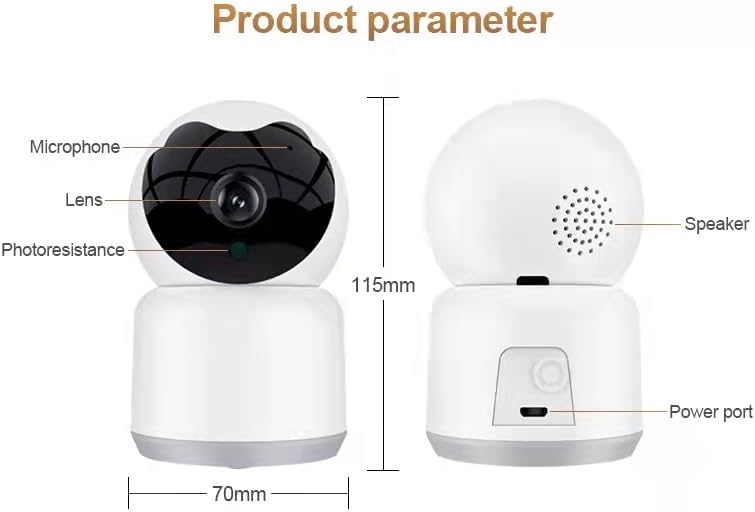
Figure 2: Camera Components and Dimensions
- Lens: Captures video footage.
- Microphone: For two-way audio communication.
- Photoresistance Sensor: Detects ambient light for automatic day/night mode switching.
- Speaker: For two-way audio communication and siren alerts.
- Power Port: Connects to the power adapter.
- MicroSD Card Slot: Located by tilting the camera lens upwards (refer to Troubleshooting for access).
Setup
1. Powering On
- Connect the power cable to the camera's power port.
- Plug the power adapter into a standard electrical outlet.
- The camera will power on and initiate its startup sequence.
2. App Download and Account Creation
- Download the Tuya Smart app from the Apple App Store or Google Play Store.
- Open the app and create a new account or log in if you already have one.
3. Connecting to Wi-Fi
Important: This camera only supports 2.4GHz Wi-Fi networks. 5GHz Wi-Fi is not supported.
- In the Tuya Smart app, tap the "+" icon to add a new device.
- Select "Security & Video Surveillance" and then choose "Smart Camera (Wi-Fi)".
- Follow the on-screen instructions to connect the camera to your 2.4GHz Wi-Fi network. This typically involves scanning a QR code generated by the app with the camera's lens.
- Once connected, you can name your camera and begin monitoring.
4. Mounting Options
The camera can be placed on a flat surface or mounted to a ceiling using the included screw pack.
- Ceiling Mount: If mounting on the ceiling, ensure the camera is securely fastened. After mounting, access the camera settings in the Tuya app and select the "Flip Screen" option to ensure the video feed is displayed with the correct orientation.
Operating Instructions
1. Pan and Tilt Control
The camera offers a 355° horizontal pan and 90° vertical tilt, allowing for comprehensive coverage of your space.
- In the Tuya Smart app, navigate to the live view of your camera.
- Use the directional controls on the screen to remotely adjust the camera's viewing angle.
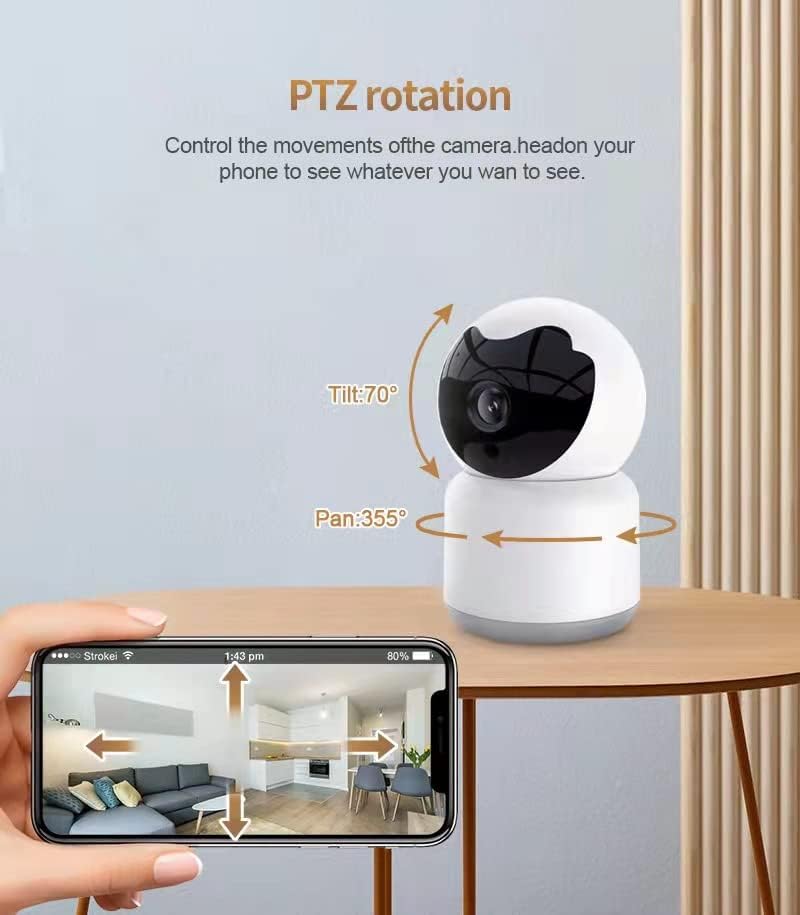
Figure 3: Pan and Tilt Functionality
2. Two-Way Audio
Communicate with individuals near the camera using the built-in microphone and speaker.
- From the live view in the Tuya app, tap the microphone icon to speak through the camera's speaker.
- The camera's microphone will capture audio from its surroundings.

Figure 4: Two-Way Audio Communication

Figure 5: Two-Way Audio Interface
3. Motion Detection and Tracking
The camera can detect motion and automatically track moving objects.
- Enable motion detection and AI human detection in the camera settings within the Tuya app.
- When motion is detected, the camera will send instant alerts to your phone and can automatically track the moving object.
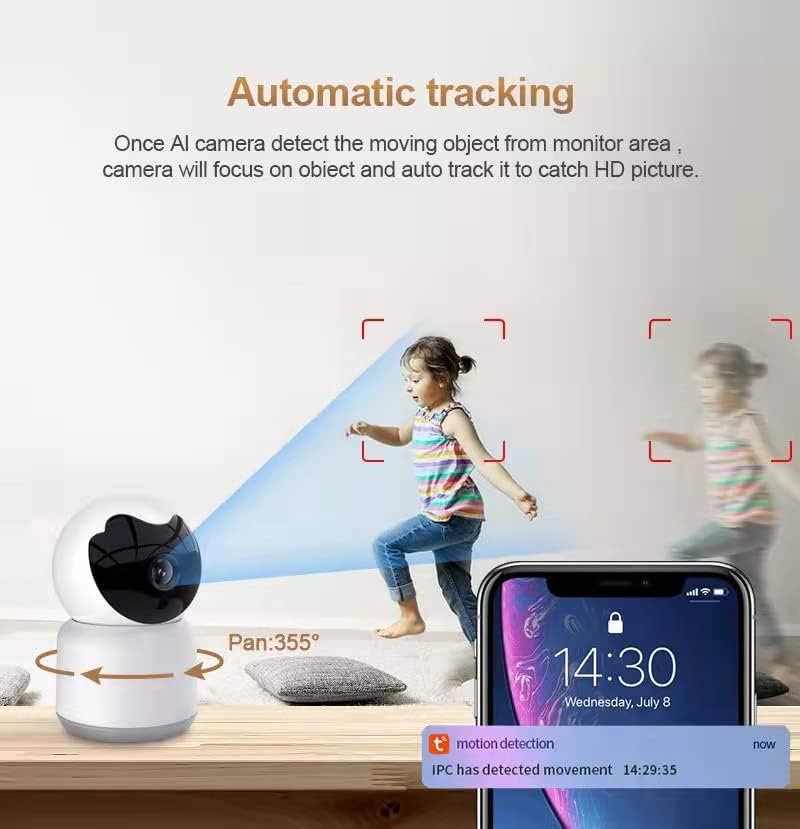
Figure 6: Automatic Motion Tracking

Figure 7: AI Auto Tracking in action
4. Night Vision
The camera is equipped with IR LEDs for clear black and white video in low-light conditions.
- Night vision activates automatically in dark environments.
- The night vision range is up to 5 meters (approximately 16 feet).

Figure 8: Day and Night Vision Comparison
5. Video Storage
Recordings can be stored locally or in the cloud.
- MicroSD Card: Supports up to 128GB MicroSD card (not included). Insert the card into the slot (see Troubleshooting for location).
- Cloud Storage: Optional subscription service for continuous video recording (CVR) and event-based storage.
6. Smart Home Integration
The camera is compatible with Amazon Alexa and Google Home.
- Link your Tuya Smart account to your Alexa or Google Home app.
- Use voice commands to view the live feed on compatible smart displays (e.g., "Alexa, show me the living room camera").
Maintenance
Cleaning the Camera
- Ensure the camera is powered off before cleaning.
- Use a soft, dry cloth to gently wipe the camera body and lens.
- Avoid using harsh chemicals, cleaning solvents, or abrasive materials, as these can damage the camera's finish or lens.
Firmware Updates
- Periodically check the Tuya Smart app for available firmware updates. Updates can improve performance, add new features, and enhance security.
- Follow the in-app instructions to perform any necessary updates.
Troubleshooting
If you encounter issues with your Bawofu Smart Home Security Camera, refer to the following common problems and solutions:
- Camera not connecting to Wi-Fi:
- Ensure your Wi-Fi network is 2.4GHz. The camera does not support 5GHz Wi-Fi.
- Check your Wi-Fi password for accuracy.
- Move the camera closer to your Wi-Fi router to improve signal strength.
- Restart your router and the camera.
- MicroSD card not detected:
- To access the MicroSD card slot, connect the camera to the app and remotely tilt the camera's lens all the way up. The slot is typically located underneath the lens assembly.
- Ensure the MicroSD card is inserted correctly and fully.
- Try formatting the MicroSD card through the camera settings in the Tuya app.
- Test with a different MicroSD card (up to 128GB, Class 10 recommended).
- Camera movement is noisy or erratic:
- Ensure the camera is placed on a stable, flat surface or securely mounted.
- Check for any obstructions around the camera's base or head that might impede movement.
- If the camera exhibits constant minor adjustments, check the motion detection sensitivity settings in the app and try reducing them.
- No alerts received:
- Verify that motion detection and notification settings are enabled in the Tuya app.
- Check your phone's notification settings to ensure the Tuya app has permission to send alerts.
- Ensure the camera has a stable internet connection.
- Two-way audio not working:
- Check the volume settings on your phone and within the Tuya app.
- Ensure the microphone and speaker on the camera are not obstructed.
- Grant microphone permissions to the Tuya app on your smartphone.
Specifications
| Feature | Specification |
|---|---|
| Model | B0CS5MJKRQ |
| Video Capture Resolution | 3 MP |
| Connectivity Technology | Wireless (2.4GHz Wi-Fi) |
| Pan/Tilt Range | 355° Horizontal Pan, 90° Vertical Tilt |
| Night Vision Range | Up to 33 Feet (approx. 10 meters) |
| Two-Way Audio | Yes (Built-in Microphone & Speaker) |
| Motion Detection | Yes (with AI Human Detection & Tracking) |
| Storage Options | MicroSD Card (up to 128GB, not included), Cloud Storage (subscription) |
| Compatible Devices | Android, Apple (via Tuya App) |
| Controller Type | Amazon Alexa, Google Assistant |
| Power Source | Corded Electric |
| Mounting Type | Ceiling Mount |
| Material | PPS High Temperature Resistant Plastic |
| Dimensions (L x W x H) | 3.54 x 3.35 x 5.91 inches |
| Item Weight | 10.2 ounces (0.29 Kilograms) |
| Indoor/Outdoor Usage | Indoor |
Warranty and Support
Warranty Information
Specific warranty details for this product are not provided in the available information. Please refer to the product packaging or contact the seller/manufacturer directly for warranty terms and conditions.
Customer Support
For technical assistance, troubleshooting beyond this manual, or inquiries regarding your Bawofu Smart Home Security Camera, please contact your retailer or the manufacturer's customer support channel. Contact information is typically found on the product packaging or the manufacturer's official website.