Introduction
This manual provides detailed instructions for the setup, operation, maintenance, and troubleshooting of your Devia Lingo Series Foldable Bluetooth Mini Keyboard with Touchpad. Please read this manual thoroughly before using the device to ensure optimal performance and longevity.
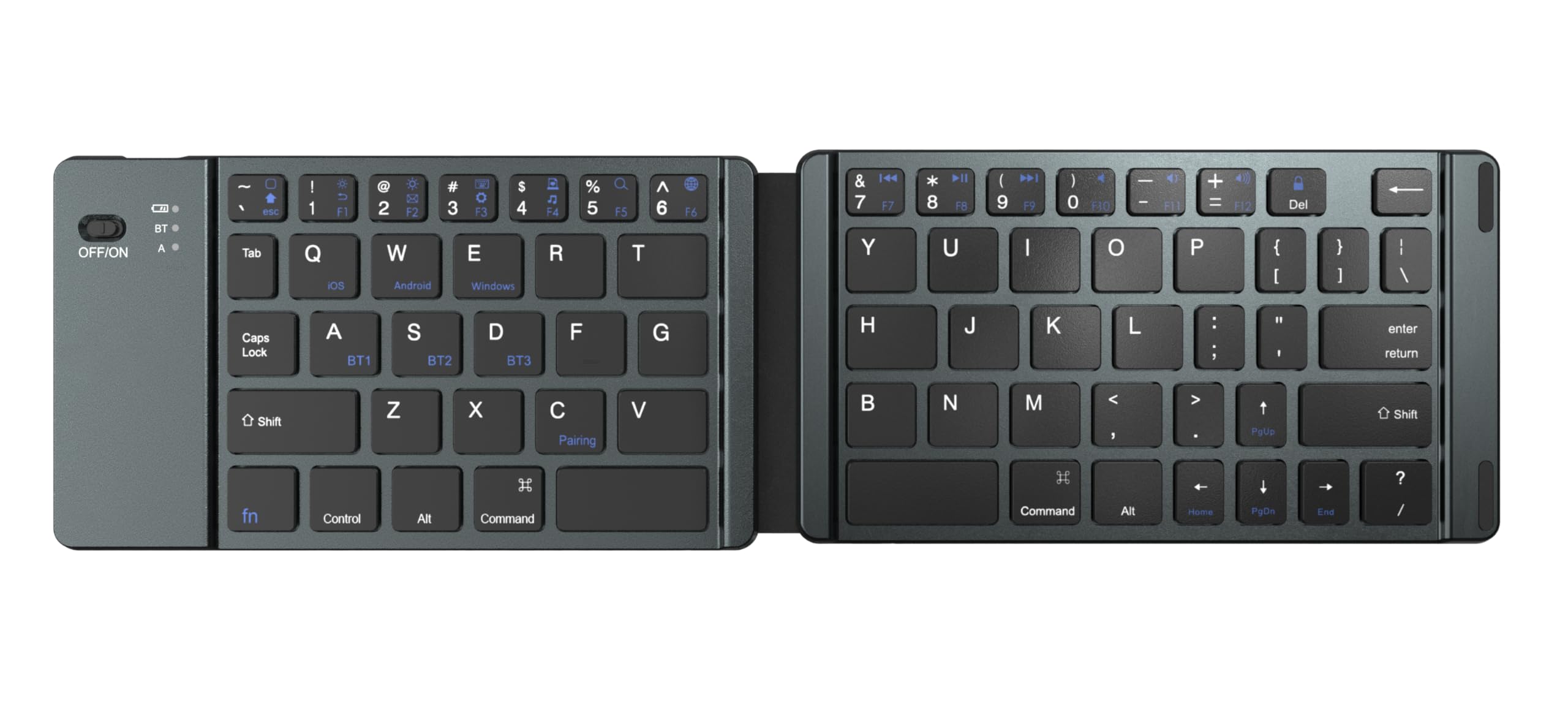
Image: The Devia Lingo Series Foldable Bluetooth Mini Keyboard in its open, ready-to-use state, showcasing its compact design and integrated touchpad.
Setup
1. Unfolding the Keyboard
Gently unfold the keyboard until it lies flat. The magnetic hinges will secure it in the open position. Unfolding the keyboard automatically powers it on.

Image: The Devia Lingo Series keyboard in its compact, folded state, highlighting its portability.

Image: A close-up view illustrating the 180-degree folding mechanism of the keyboard, emphasizing its compact storage and anti-slip pads.
2. Powering On/Off
The keyboard powers on automatically when unfolded. To power off, fold the keyboard. Alternatively, locate the physical ON/OFF switch on the side of the keyboard for manual control.

Image: A detailed view of the keyboard's side, showing the ON/OFF switch and the Bluetooth indicator light.
3. Bluetooth Pairing
The Devia Lingo Series keyboard supports Bluetooth 3.0 and can connect to up to 3 devices simultaneously. Follow these steps to pair your device:
- Unfold the keyboard to power it on. The Bluetooth indicator light will begin to flash, indicating it is in pairing mode.
- On your device (smartphone, tablet, PC, Smart TV), enable Bluetooth and search for available devices.
- Select "Lingo Series Keyboard" or a similar name from the list of found devices.
- If prompted, enter the pairing code displayed on your screen using the keyboard and press Enter.
- Once paired, the Bluetooth indicator light will stop flashing and remain solid for a few seconds before turning off.
To switch between paired devices, press the Fn key along with the corresponding Bluetooth channel key (e.g., Fn + 1, Fn + 2, Fn + 3).

Image: The Devia Lingo Series keyboard connected to multiple devices, including a laptop, desktop, and tablet, demonstrating its multi-channel Bluetooth capability.

Image: The Devia Lingo Series keyboard positioned in front of a laptop, desktop monitor, and tablet, illustrating its broad compatibility with different operating systems.
Operating Instructions
Keyboard Usage
The keyboard features 64 keys, providing a full range of typing functions. Standard keyboard shortcuts and key combinations (e.g., Ctrl+C, Ctrl+V) are supported based on your connected device's operating system.
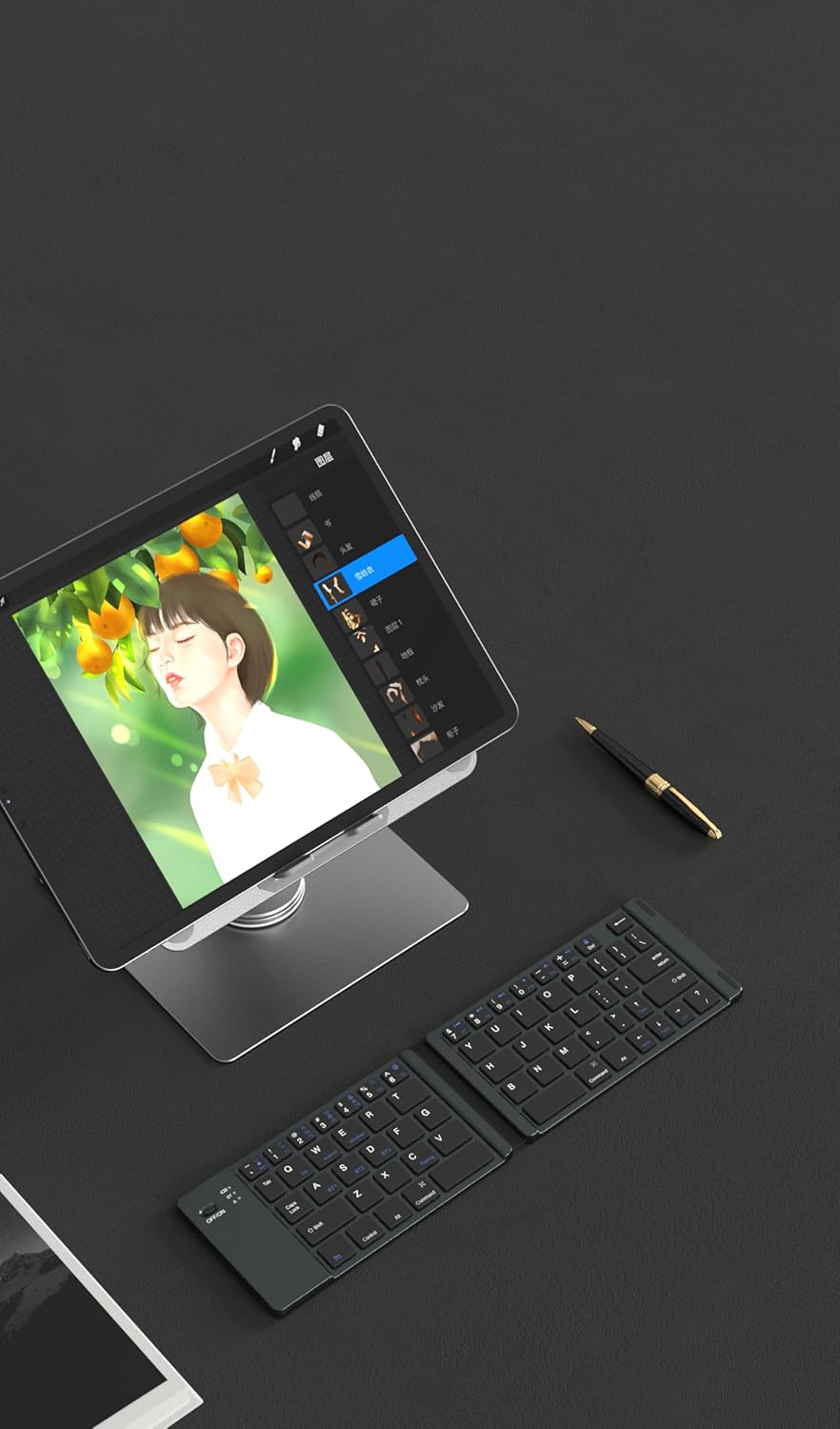
Image: The Devia Lingo Series keyboard open and in use alongside a tablet, demonstrating its functionality for mobile productivity.
Touchpad Usage
The integrated multi-touch touchpad allows for precise cursor control and gesture-based navigation, similar to a laptop touchpad. Common gestures include:
- Single Finger Tap: Left-click.
- Two Finger Tap: Right-click.
- Two Finger Scroll: Scroll up/down or left/right.
- Pinch to Zoom: Zoom in/out (supported on compatible devices).
Important Note:
The touchpad function is not compatible with iOS devices running a version under 13.4. Ensure your iOS device is updated to version 13.4 or higher for touchpad functionality.
Maintenance
Charging the Battery
The keyboard is equipped with a rechargeable lithium battery. When the battery is low, the indicator light will flash. To charge:
- Connect the provided Type-C charging cable to the charging port on the keyboard.
- Connect the other end of the cable to a USB power source (e.g., computer USB port, USB wall adapter).
- The charging indicator light will illuminate during charging and turn off when fully charged.
The Type-C charging port ensures convenient and fast charging without damaging the battery, thanks to its built-in charging protection function.

Image: A close-up of the keyboard's Type-C charging port with a charging cable connected, illustrating the charging process.
Cleaning and Care
The keyboard features a waterproof and dustproof conductive film, offering protection against spills and dust. To clean the keyboard:
- Ensure the keyboard is powered off and disconnected from any charging source.
- Wipe the surface with a soft, damp cloth. Avoid using harsh chemicals or abrasive materials.
- Allow the keyboard to dry completely before use.
This design helps prevent short circuit dangers from accidental liquid splashes.
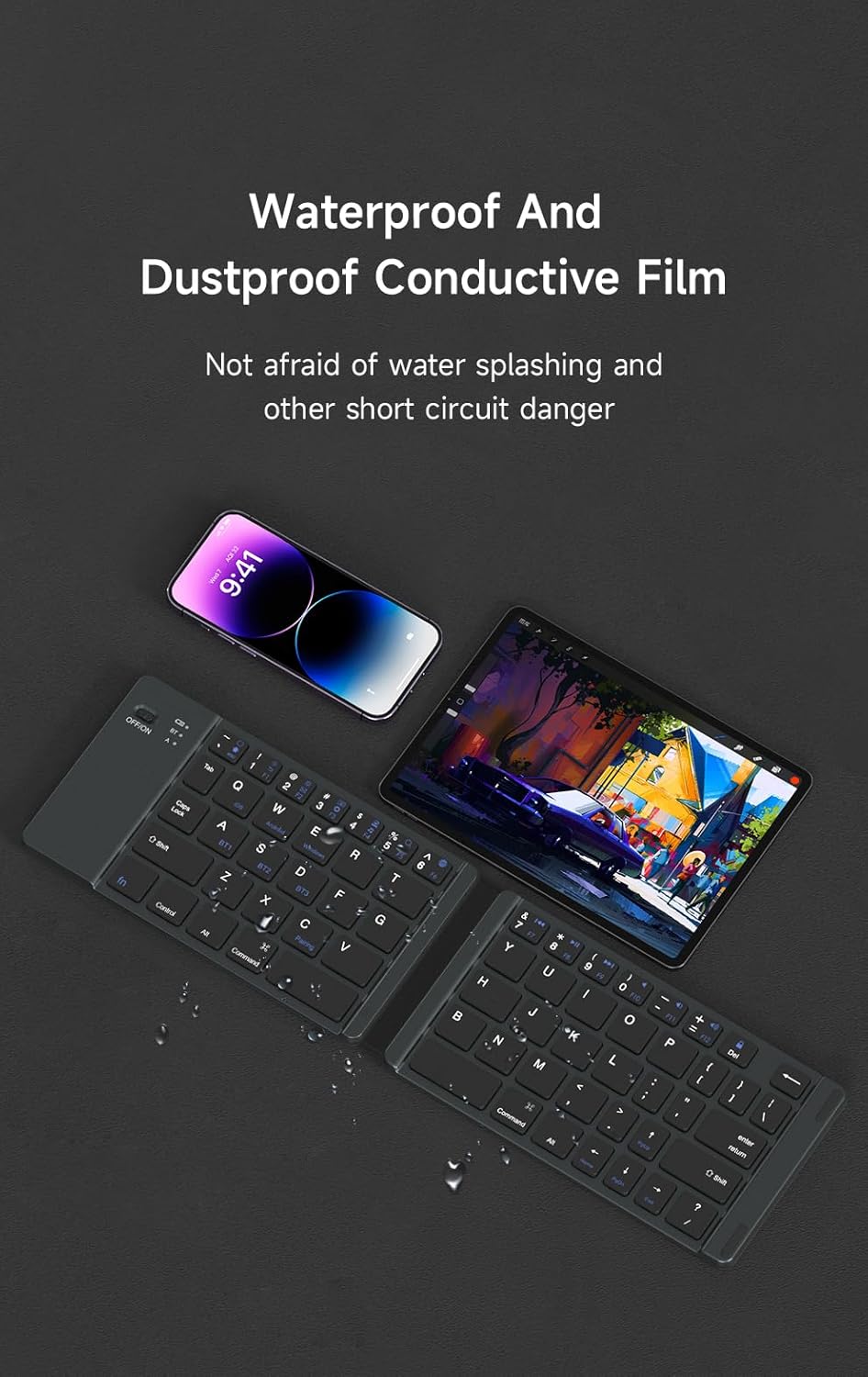
Image: The Devia Lingo Series keyboard shown with a smartphone, highlighting its waterproof and dustproof conductive film feature.
Troubleshooting
Keyboard Not Connecting via Bluetooth
- Check Power: Ensure the keyboard is unfolded and powered on. The ON/OFF switch should be in the 'ON' position if manually controlled.
- Battery Level: Charge the keyboard fully. A low battery can prevent successful pairing.
- Bluetooth on Device: Verify that Bluetooth is enabled on your host device (PC, tablet, phone).
- Re-pair: Delete the keyboard from your device's Bluetooth list and attempt to pair again.
- Distance: Ensure the keyboard is within the 10-meter operating distance of your device.
- Interference: Move away from other wireless devices that might cause interference.
Touchpad Not Responding
- iOS Compatibility: If using an iOS device, confirm that its operating system is version 13.4 or higher. The touchpad function is not supported on earlier iOS versions.
- Reconnection: Disconnect and reconnect the Bluetooth connection.
- Restart: Restart both the keyboard (by folding and unfolding) and your connected device.
Keys Not Responding
- Connection: Ensure the keyboard is properly connected via Bluetooth.
- Battery: Check the battery level and charge if necessary.
- Restart: Power cycle the keyboard and the connected device.
Specifications
| Feature | Detail |
|---|---|
| Model Number | 387364 |
| Connection Method | Bluetooth connection (3 channels) |
| Folded Dimensions (L x W x H) | Approx. 97 mm x 95 mm x 16 mm |
| Unfolded Dimensions (L x W x H) | 304.5 mm x 97.95 mm x 8 mm (Approx. 11.99 x 3.86 x 0.31 inches) |
| Item Weight | 8.8 ounces |
| Touchpad Size | 54.8 mm x 44.8 mm |
| Number of Keys | 64 keys |
| Operating Distance | Up to 10 meters (33 feet) |
| Battery Type | Rechargeable Lithium Polymer battery |
| Wake-up Method | Key wake-up |
| Key Life | 5 million presses |
| Compatible Devices | Laptop, PC, Smart TV, Android, Windows, iOS (Touchpad requires iOS 13.4+) |
Warranty Information
Specific warranty details for the Devia Lingo Series Foldable Bluetooth Mini Keyboard with Touchpad may vary by region and retailer. Please retain your proof of purchase. For comprehensive warranty terms and conditions, please refer to the official Devia website or contact your point of purchase.
Customer Support
If you encounter any issues not covered in this manual or require further assistance, please visit the official Devia website for support resources, FAQs, and contact information. You may also reach out to the retailer from whom you purchased the product.