1. Introduction
Thank you for choosing the Inateck P8 Bluetooth Barcode Scanner. This device is designed for efficient and accurate scanning of 1D and 2D barcodes, featuring a unique touchscreen for easy configuration and multiple connectivity options. This manual provides detailed instructions for setup, operation, and maintenance to ensure optimal performance.
2. Product Overview
The Inateck P8 scanner combines advanced scanning technology with user-friendly features, including a 1.4-inch touchscreen and a smart charging base.

Image: Inateck P8 Bluetooth Barcode Scanner and its smart charging base, showcasing its ergonomic design and integrated touchscreen.
3. Setup
3.1 Initial Charging
Before first use, fully charge the scanner using the provided USB cable and smart base. A full charge can last up to 2 days.

Image: The smart base for the Inateck P8 scanner, which recharges the device and transmits barcode data.
3.2 Connection Modes
The Inateck P8 supports three primary connection modes:
- 2.4G Wireless Mode: Connects via the included 2.4G adapter (integrated into the smart base). Offers a transmission distance of up to 100 meters.
- Bluetooth Mode: Connects wirelessly to Bluetooth-enabled devices. Offers a transmission distance of up to 40 meters.
- Wired Mode: Connects directly to a computer via USB cable for data transmission and charging.

Image: Visual representation of the three connection modes: 2.4G Wireless via base, Bluetooth, and Wired USB connection.
3.3 Touchscreen Configuration
The 1.4-inch touchscreen allows for quick adjustments to settings without needing a host device.
- Language: Switch between German and English interfaces.
- Volume: Adjust scanner sound feedback.
- Connection Methods: Select desired connection mode (e.g., Bluetooth, 2.4G).
- Scan Status: Monitor real-time scanning information.
- Battery Level: Check current battery status.
- Time & Barcode Info: View scanned data and timestamps.

Image: A hand interacting with the scanner's touchscreen, demonstrating how to access settings like sound, scanning modes, and connection types.
4. Operating the Scanner
4.1 Scanning Capabilities
The Pro 8 utilizes CMOS and CCD dual modules, enabling it to recognize a wide range of barcodes, including high-density small barcodes and long 1D barcodes (e.g., Code128 up to 99 bytes 316mm). It supports almost all 1D, 2D, and QR codes on paper or screens, even if blurry, damaged, dirty, or distorted.

Image: Illustration showing the scanner's ability to read various barcode types, including damaged, fuzzy, dirty, underwater, twisted, wrinkled, and long barcodes.
4.2 Upload Modes
The scanner offers two primary data upload modes:
- Instant Upload Mode: Barcode data is transmitted immediately to the connected device upon scanning.
- Inventory Mode: Barcodes are stored internally in the scanner's memory (up to 60,000 barcodes with 13 characters each) and can be uploaded later.

Image: Diagram illustrating the Instant Upload Mode (direct transmission to laptop) and Inventory Mode (storage on scanner for later upload).
4.3 App Integration
The Inateck P8 supports a dedicated app for effortless and efficient configuration, compatible with both iOS and Android devices. This app allows for advanced settings and management of the scanner.
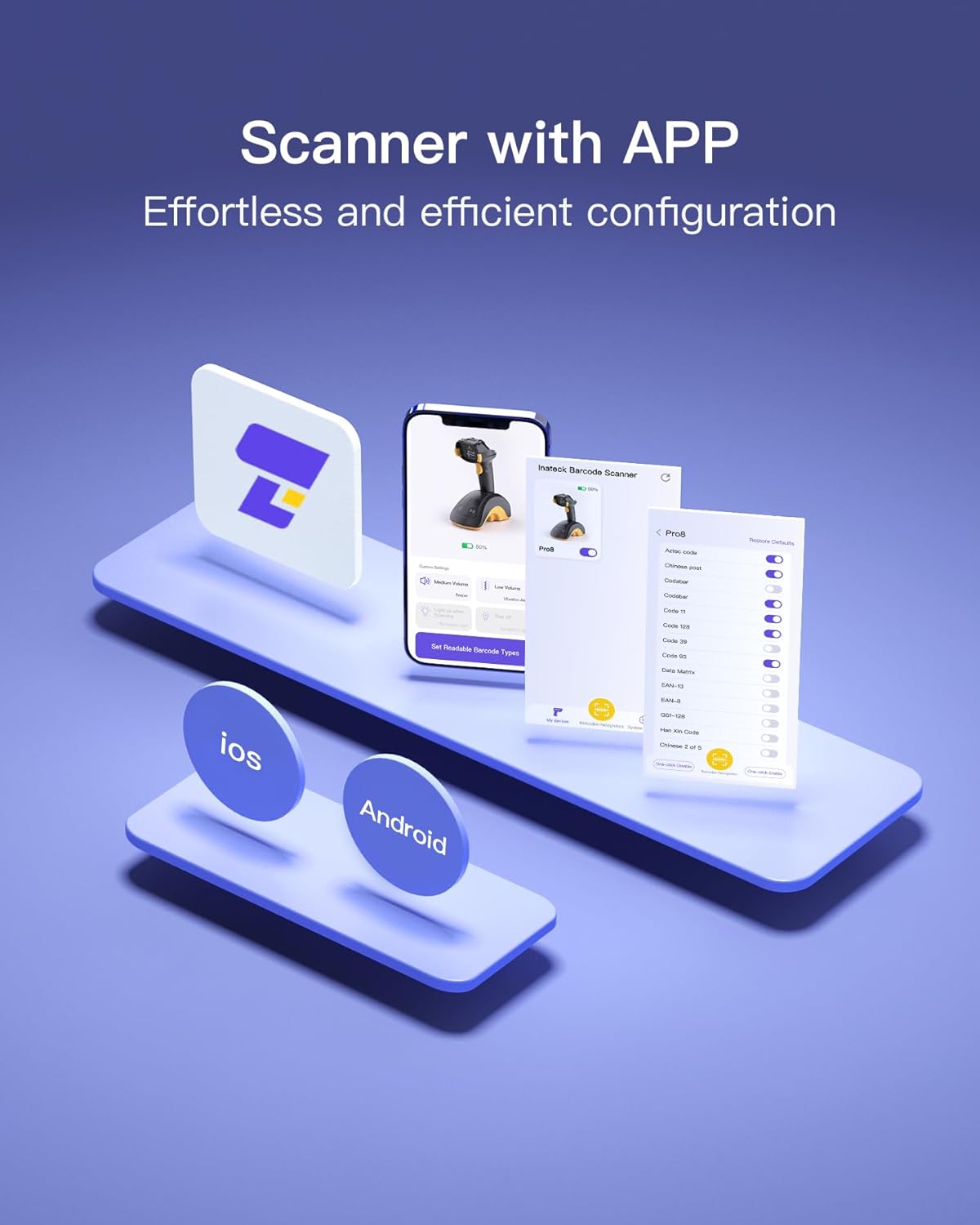
Image: Visual showing the Inateck P8 scanner integrated with a mobile app on both iOS and Android platforms for configuration.
4.4 Transmission Range
The scanner offers extended transmission distances depending on the connection mode:
- 2.4G Mode: Up to 100 meters.
- Bluetooth Mode: Up to 40 meters.

Image: Diagram illustrating the transmission ranges for Bluetooth (40M) and 2.4G Wireless Base Mode (100M).
4.5 Product Video
Video: An overview video demonstrating the features and functionality of the Inateck P8 Bluetooth Barcode Scanner, including its design, scanning capabilities, and connectivity options.
5. Maintenance
To ensure the longevity and optimal performance of your Inateck P8 Barcode Scanner, follow these maintenance guidelines:
- Cleaning: Use a soft, dry cloth to clean the scanner's exterior. For the scanning window and touchscreen, use a microfiber cloth lightly dampened with a non-abrasive cleaner. Avoid harsh chemicals or abrasive materials.
- Storage: Store the scanner in a cool, dry place away from direct sunlight and extreme temperatures. When not in use, place it on its smart charging base.
- Battery Care: To prolong battery life, avoid fully discharging the battery frequently. If storing for an extended period, charge the battery to about 50% and recharge every few months.
- Handling: While durable for office and retail environments, avoid dropping the scanner or exposing it to excessive impact, water, or dust.
6. Troubleshooting
If you encounter issues with your Inateck P8 Barcode Scanner, refer to the following common problems and solutions:
| Problem | Possible Cause | Solution |
|---|---|---|
| Scanner not turning on | Low battery; Power button not pressed correctly | Charge the scanner fully; Press and hold the power button for a few seconds. |
| Unable to scan barcodes | Barcode damaged/unreadable; Incorrect scanning mode; Scanner not paired | Ensure barcode is clear; Check scanning mode on touchscreen; Re-pair the scanner with your device. |
| No data transmission to device | Connection issue (Bluetooth/2.4G); Out of range; Incorrect upload mode | Verify Bluetooth/2.4G connection; Move closer to the receiver; Ensure Instant Upload Mode is selected if immediate transmission is desired. |
| Touchscreen unresponsive | Temporary software glitch; Screen dirty | Restart the scanner; Clean the touchscreen with a soft cloth. |
If the problem persists, please contact Inateck customer support for further assistance.
7. Specifications
| Feature | Detail |
|---|---|
| Model Number | Pro 8-BK |
| Product Dimensions | 3.94 x 2.95 x 7.32 inches |
| Item Weight | 1.12 pounds |
| Batteries | 1 Lithium Ion battery required (included) |
| Connectivity Technology | Bluetooth, 2.4G Wireless, USB Wired |
| Scanning Modules | CMOS + CCD Dual Module |
| Supported Barcodes | 1D (Codabar, Code 11, Code 128, GS1-128, USPS, FedEx, Code 39, Code 32, Code 93, EAN-8, EAN-13, ISBN, ISSN, MSI, UPC-A, UPC-E, IATA 25, Industrial 25 / Standard 25, Interleaved 25, Matrix 25, China Postal Code, Plessey, Telepen); 2D (QR Code, Data Matrix, PDF417, Micro PDF417, Micro QR, Aztec, Maxi Code) |
| Transmission Distance | Up to 100m (2.4G), Up to 40m (Bluetooth) |
| Display | 1.4-inch Touchscreen |
| Compatible Devices | Laptop, Desktop, Tablet, Smartphone |
| Manufacturer | Inateck |
| Date First Available | January 11, 2024 |
8. Warranty and Support
Inateck products are designed for reliability and performance. For warranty information and technical support, please refer to the official Inateck website or contact their customer service directly. Keep your purchase receipt as proof of purchase for warranty claims.


