
Introduction
This manual provides detailed instructions for setting up and operating your Berilona 4G Kids Smartwatch A22. This smartwatch is designed to offer secure communication, real-time location tracking, and various interactive features for children aged 4-12. Please read this manual thoroughly to ensure proper use and to maximize the benefits of your device.
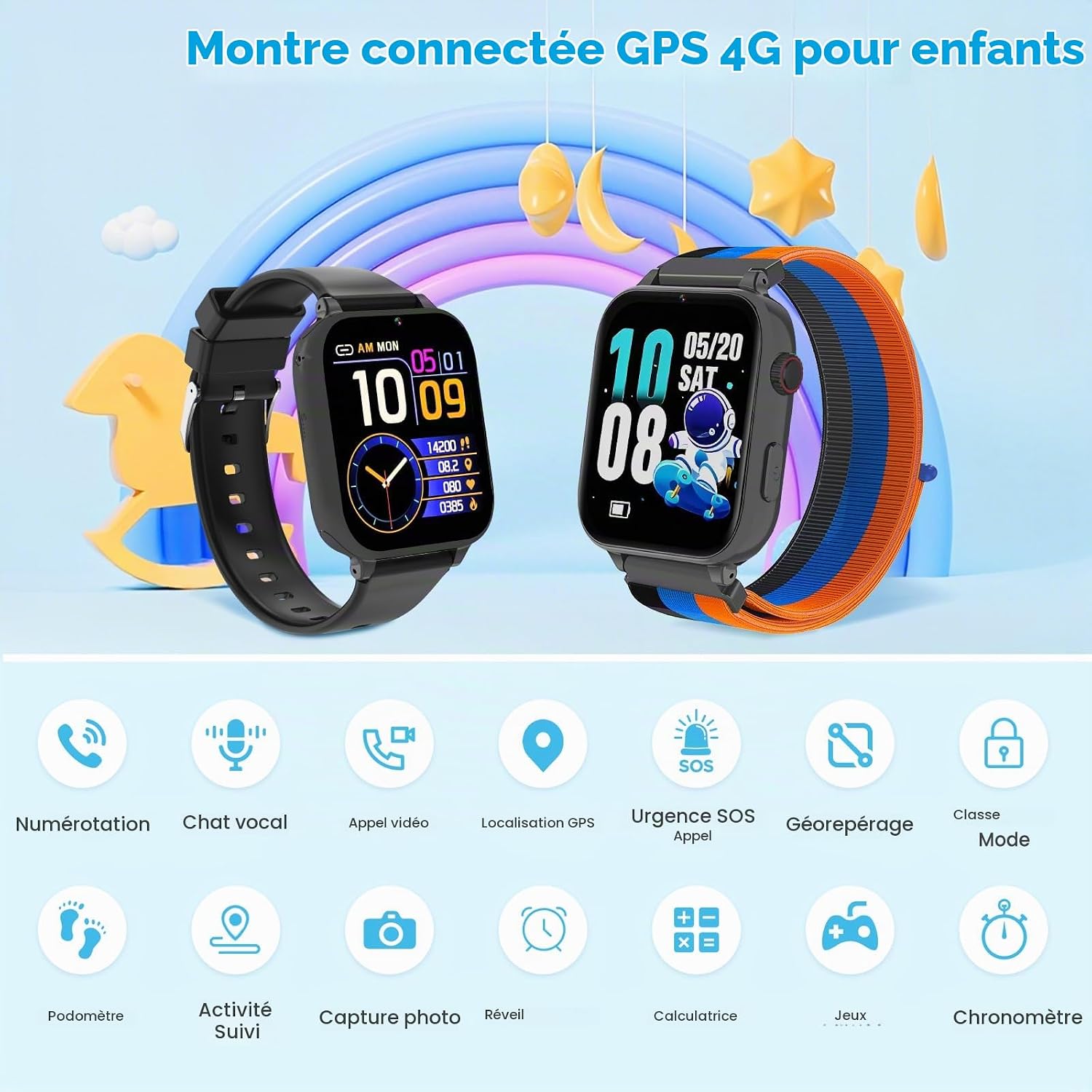
Image: Two Berilona 4G Kids Smartwatches, one black and one with a blue/orange strap, showcasing different watch faces and feature icons.
1. Setup
1.1 SIM Card Installation
The Berilona 4G Kids Smartwatch requires a Nano SIM card for 4G connectivity, enabling calls, video chat, and location services. Ensure the watch is powered off before inserting the SIM card.
- Choose a Nano SIM card of the appropriate size.
- Power off the smartwatch.
- Locate the SIM card slot on the side of the watch.
- Carefully insert the Nano SIM card upwards and inwards into the slot.
- Close the SIM card slot cover securely.
- Restart the watch.

Image: Visual guide for Nano SIM card selection and insertion into the smartwatch.
1.2 App Pairing
To manage the smartwatch features and track your child's location, you need to pair it with the dedicated mobile application.
- Download the "Junicare" application from your smartphone's app store (App Store for iOS or Google Play Store for Android).
- Open the Junicare app and create an account.
- On the smartwatch, locate the QR code (usually found in the settings or during initial setup).
- In the Junicare app, select the option to add a device and scan the QR code displayed on the smartwatch.
- Follow the on-screen prompts to complete the pairing process and set up guardian information.

Image: Smartphone screen displaying the Junicare app for managing the smartwatch, including location tracking.
2. Operating Instructions
2.1 Communication Features
The smartwatch supports various communication methods via its 4G connection.
- 4G Calls: Make and receive stable voice calls with authorized contacts.
- Video Calls: Engage in two-way HD video calls with pre-approved contacts using the integrated front camera.
- Voice Chat: Send and receive instant voice messages with family members who have the Junicare app.
- Call Filtering: The Junicare app allows you to manage authorized contacts and block calls from unknown numbers.

Image: Smartwatch screens illustrating phone calls, video calls, and voice chat functionalities.
2.2 SOS Emergency Call
In case of an emergency, the SOS function allows your child to quickly contact designated guardians.
- Activation: Press and hold the SOS button on the smartwatch for 2 seconds.
- Call Sequence: The watch will automatically dial up to three emergency contacts in a pre-set sequence until one answers.
- Notifications: Guardians will receive real-time location information and an emergency notification via the Junicare app.

Image: A child pressing the SOS button on the smartwatch, with an emergency call screen displayed.
2.3 Location Tracking (GPS + LBS)
The smartwatch utilizes a dual positioning system (GPS + LBS) to provide accurate location tracking.
- Real-time Position: View your child's current location on a map through the Junicare app.
- Historical Trajectory: Review the past 24 hours of movement history directly from the application.
- Electronic Safety Zones (Geofencing): Set up safe zones (e.g., home, school) in the Junicare app. You will receive notifications when your child enters or exits these predefined areas.

Image: A child running, with a map overlay showing precise location tracking and historical routes.
2.4 Class Mode
Class Mode helps children focus on their studies by limiting smartwatch functions during school hours.
- Activation: Parents can remotely activate Class Mode via the Junicare mobile application.
- Time Limits: Define specific time periods during which Class Mode will be active.
- Functionality: Non-essential entertainment functions (games, calculator, pedometer, stopwatch) will be disabled. Only location tracking and emergency calls (SOS) remain accessible.

Image: Smartwatch screen displaying Class Mode settings, with children studying in the background.
2.5 Other Features
The smartwatch includes several other useful and engaging features:
- Pedometer: Tracks daily steps and activity levels.
- Alarm: Set alarms for reminders or waking up.
- Calculator: Basic calculator function.
- Mini-Games: Provides simple games for entertainment.
- Camera: Integrated camera for taking photos.
- Stopwatch: Timer function.

Image: Smartwatch interface showing icons for various applications including games, camera, and pedometer.
3. Maintenance
3.1 Charging
To ensure optimal performance, charge the smartwatch regularly.
- Use the provided charging cable.
- Connect the magnetic charging pins to the corresponding contacts on the back of the watch.
- Connect the USB end of the cable to a standard USB power adapter (not included) or a computer USB port.
- A full charge typically takes approximately 3 hours.
3.2 Cleaning
Keep your smartwatch clean to maintain its appearance and functionality.
- Wipe the screen and body with a soft, dry, lint-free cloth.
- For stubborn dirt, slightly dampen the cloth with water. Avoid using harsh chemicals or abrasive materials.
- Ensure the watch is dry before charging or prolonged use.
4. Troubleshooting
If you encounter issues with your Berilona 4G Kids Smartwatch, refer to the following common solutions:
| Problem | Possible Solution |
|---|---|
| Watch does not power on. | Ensure the watch is fully charged. Press and hold the power button for several seconds. |
| SIM card not recognized. | Verify the SIM card is a Nano SIM and inserted correctly. Ensure the watch is powered off before insertion. Check if the SIM card is active and has a data plan. |
| Cannot make/receive calls or use 4G features. | Confirm the SIM card is correctly installed and active. Check network signal strength. Ensure contacts are added and authorized in the Junicare app. |
| GPS location is inaccurate. | GPS accuracy can vary based on environment (e.g., indoors, dense urban areas). Ensure the watch has a clear view of the sky for better GPS signal. LBS (Location Based Service) provides approximate location when GPS is unavailable. |
| Cannot pair with the Junicare app. | Ensure the smartwatch is powered on and has a network connection. Verify the QR code is visible and undamaged. Restart both the watch and your smartphone, then try pairing again. |
| Class Mode is not working as expected. | Check the Class Mode schedule and settings in the Junicare app to ensure it is configured correctly for the desired times. |
5. Specifications
Key technical specifications for the Berilona 4G Kids Smartwatch A22:
| Feature | Detail |
|---|---|
| Model Number | A22 |
| Connectivity Technology | 4G |
| Screen Size | 1.7 Inches |
| Memory Storage Capacity | 512 MB |
| Battery Capacity | 700 mAh (Lithium-polymer) |
| GPS | Integrated GPS |
| Special Features | GPS, SOS, Video Calls, 4G Calls, Voice Chat, Class Mode, 4G SMS, Alarm, Pedometer, Mini-Games, Stopwatch, Calculator, Volume/Brightness Adjustment |
| Band Material Type | Silicone |
| Target Audience | Unisex Children |
| Compatible Devices | Smartphone |
| Dimensions | 50 x 40 x 9 millimeters |
| Operating System | Proprietary (Does not require a specific OS like Android Wear) |
6. Warranty Information
No specific warranty information is provided for this product in the available documentation. Please refer to the retailer's return policy or contact the seller directly for details regarding product warranty and support.
7. Customer Support
For further assistance, technical support, or inquiries not covered in this manual, please:
- Refer to the official Berilona website for updated FAQs or support resources.
- Contact the seller or retailer from whom you purchased the product.
- Check the Junicare application for in-app support options or contact information.

