Introduction
Welcome to the user manual for your new Infinix Smart 8 smartphone. This guide provides essential information on setting up, operating, maintaining, and troubleshooting your device. The Infinix Smart 8 is designed for efficient performance, featuring a G36 processor, 4GB RAM, 64GB internal storage, a 50MP main camera, and a long-lasting 5000 mAh battery. Please read this manual thoroughly to ensure optimal use of your device.
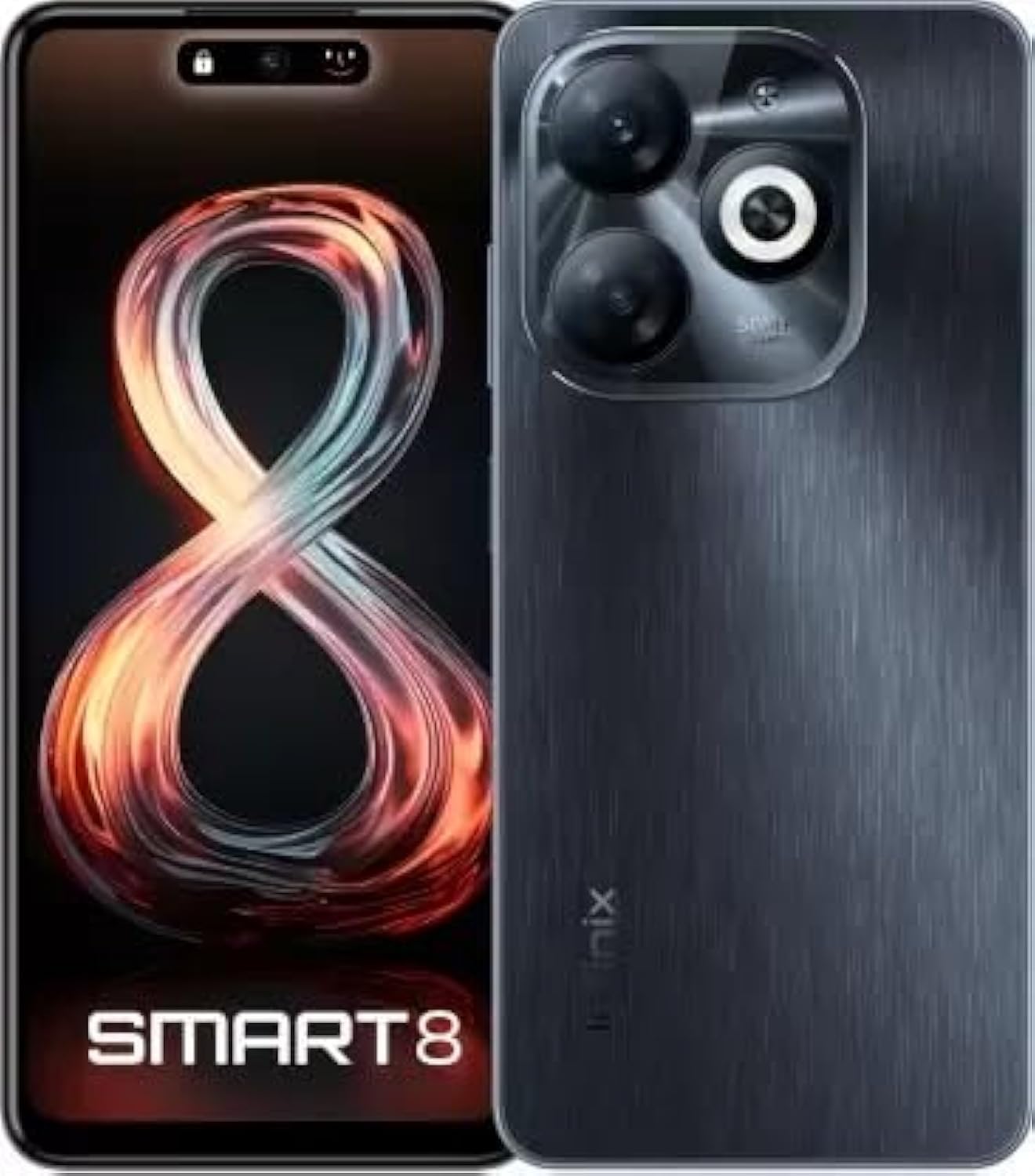
Image: Infinix Smart 8 smartphone in Timber Black, showcasing its sleek design and camera module.
What's in the Box
Upon unboxing your Infinix Smart 8, please verify that all the following items are included:
- Handset
- Adaptor
- USB Type-C Cable
- TPU Case
- SIM Ejector Pin
- Quick Start Guide
- Warranty Card
- Xclub Card
Setup Guide
1. Inserting SIM Card and Memory Card
Locate the SIM card tray on the side of your device. Use the provided SIM ejector pin to open the tray. Insert your Nano-SIM card(s) and/or a microSD card (for expandable storage up to 1 TB) into the designated slots. Ensure the cards are correctly oriented as shown in the diagram in the Quick Start Guide. Gently push the tray back into the device until it clicks into place.
2. Powering On/Off
- To Power On: Press and hold the Power button (usually on the right side) until the Infinix logo appears.
- To Power Off: Press and hold the Power button, then select "Power off" from the options that appear on the screen.
- To Restart: Press and hold the Power button, then select "Restart" from the options.
3. Initial Setup
The first time you power on your device, you will be guided through an initial setup process. This includes selecting your language, connecting to a Wi-Fi network, setting up your Google account, and configuring security features like fingerprint unlock. Follow the on-screen prompts to complete the setup.
Operating Instructions
Basic Navigation
- Touch: Tap an icon to open an app or select an item.
- Swipe: Drag your finger across the screen to scroll or navigate between screens.
- Pinch: Use two fingers to zoom in or out on photos and web pages.
- Long Press: Press and hold an item for more options or to move it.
Making Calls and Sending Messages
To make a call, open the Phone app, enter the number, and tap the call icon. To send a message, open the Messages app, tap the new message icon, enter the recipient's number or select from contacts, type your message, and tap send.
Connecting to Networks
- Wi-Fi: Go to Settings > Network & internet > Wi-Fi. Turn Wi-Fi on, select your desired network, and enter the password if required.
- Bluetooth: Go to Settings > Connected devices > Bluetooth. Turn Bluetooth on, then pair with available devices.
- Mobile Data: Ensure your SIM card is active. Go to Settings > Network & internet > Mobile network to manage data usage and settings.
Key Features
The Infinix Smart 8 offers a range of features designed to enhance your mobile experience:
- Memory & Storage: Equipped with 4 GB RAM and 64 GB internal storage, expandable up to 1 TB via microSD card.
- Display: Features a 16.76 cm (6.6 inch) HD+ Display with a 90 Hz refresh rate and 5000 Nits brightness for clear and vibrant visuals.
- Camera System: A powerful 50MP main camera with AI Lens and a 5MP front camera for high-quality photos and selfies.
- Battery: A large 5000 mAh battery ensures extended usage on a single charge.
- Processor: Powered by a G36 Processor for smooth performance and multitasking.
- Connectivity: Supports 4G cellular networks, Bluetooth, USB, and Wi-Fi.
- Security: Includes a fingerprint sensor for secure and convenient unlocking.
Camera Usage
Your Infinix Smart 8 comes with an advanced camera system to capture your moments.
Rear Camera
The main rear camera is 50 Megapixels, complemented by an AI Lens for enhanced image processing. It features a Quad-LED Flashlight for improved low-light photography.
Front Camera
The front camera is 5 Megapixels, perfect for clear selfies and video calls.

Image: Detailed view of the Infinix Smart 8's rear camera setup, highlighting the 50MP dual camera and Quad-LED flashlight.
To access the camera, tap the Camera app icon. You can switch between photo, video, and other modes. Tap the shutter button to take a picture or start/stop recording a video.
Display Information
The Infinix Smart 8 features a vibrant 6.6-inch HD+ display.
- Size: 16.76 cm (6.6 inch)
- Resolution: 1600 x 720 pixels
- Refresh Rate: 90 Hz for smoother scrolling and gaming.
- Brightness: Up to 5000 Nits, ensuring visibility even in bright sunlight.
- Type: Punch-Hole Display design.

Image: The Infinix Smart 8's 6.6-inch HD+ display, illustrating its punch-hole design and high brightness.
Technical Specifications
Below are the detailed technical specifications for the Infinix Smart 8:
| Feature | Specification |
|---|---|
| Operating System | Android |
| RAM | 4 GB |
| Internal Storage | 64 GB |
| Expandable Storage | Up to 1 TB |
| Processor | G36 Processor |
| Display Size | 16.76 cm (6.6 inch) HD+ |
| Display Resolution | 1600 x 720 pixels |
| Rear Camera | 50MP + AI Lens |
| Front Camera | 5MP |
| Battery Capacity | 5000 mAh |
| Phone Talk Time | 25 Hours |
| Wireless Communication | Cellular (4G Ready) |
| Connectivity Technologies | Bluetooth, USB, Wi-Fi |
| GPS | GLONASS |
| Audio Jack | Yes |
| Item Weight | 350 g |
| Item Model Number | smart 8 |

Image: A visual summary of the Infinix Smart 8's technical specifications, including RAM, storage, battery, and processor details.
Battery Information
The Infinix Smart 8 is equipped with a 5000 mAh battery, providing ample power for daily use.
- Capacity: 5000 Milliamp Hours
- Talk Time: Up to 25 hours on a full charge.
- Charging: Use the provided Adaptor and USB Type-C Cable for optimal charging.
For best battery life, avoid fully discharging the battery frequently and use the original charger.
Troubleshooting
If you encounter issues with your Infinix Smart 8, refer to the following common solutions:
- Device Not Turning On: Ensure the battery is charged. Connect the charger and wait a few minutes before attempting to power on again. If unresponsive, try a forced restart by holding the power button for 10-15 seconds.
- Apps Crashing/Freezing: Close the problematic app and reopen it. If the issue persists, clear the app's cache (Settings > Apps > [App Name] > Storage & cache > Clear cache). Consider updating the app or the phone's software.
- Poor Network Signal: Check if your SIM card is properly inserted. Try restarting the device. Ensure you are in an area with network coverage.
- Battery Draining Quickly: Reduce screen brightness, close unused apps running in the background, disable unnecessary notifications, and turn off Wi-Fi/Bluetooth when not in use.
- Touchscreen Unresponsive: Restart the device. If the issue continues, ensure the screen is clean and free of moisture.
For more complex issues, refer to the official Infinix support website or contact customer service.
Maintenance and Care
To ensure the longevity and optimal performance of your Infinix Smart 8, follow these maintenance guidelines:
- Cleaning: Use a soft, lint-free cloth to clean the screen and body. Avoid harsh chemicals or abrasive materials.
- Temperature: Do not expose the device to extreme temperatures (hot or cold) or direct sunlight for prolonged periods.
- Water Exposure: The device is not waterproof. Avoid contact with water or other liquids.
- Software Updates: Regularly check for and install software updates to benefit from performance improvements and security patches.
- Storage: Avoid overfilling your device's storage. Regularly clear unnecessary files and app caches.
Warranty and Support
Your Infinix Smart 8 is covered by a 7-day service center replacement/repair policy from the date of purchase. Please retain your purchase receipt and the warranty card for service claims.
- Manufacturer: Infinix (G mobile devices private ltd)
- Toll-Free Support: 18004190525
- Online Support: Visit the official Infinix website for FAQs, support resources, and contact information.
For any issues or queries, please contact the manufacturer's support team.
Important Safety Information
Please read the following safety information carefully to prevent injury or damage to your device:
- Do not attempt to disassemble, repair, or modify the device yourself. This can cause damage, fire, or electric shock.
- Use only original or certified compatible chargers and accessories.
- Avoid exposing the device to open flames or extreme heat.
- Do not dispose of the device in fire or water.
- Keep the device and its accessories out of reach of children and pets.
- Observe all local laws and regulations regarding mobile phone use, especially while driving.
Product Overview Video
Watch this official product video for a visual overview of the Infinix Smart 8's features and capabilities.
Video: An official overview of the Infinix Smart 8 smartphone, detailing its technical specifications, key features, camera, and display.