Introduction
Thank you for choosing the MKESPN X15 Wired Macro Gaming Mouse. This manual provides essential information for setting up, operating, maintaining, and troubleshooting your new gaming mouse. The X15 mouse is designed for precise control and an enhanced gaming experience, featuring high sensitivity up to 12800 DPI, 12 programmable keys, and customizable RGB backlighting.

Image: The MKESPN X15 Gaming Mouse, highlighting its 12-key macro programming, RGB backlight, and 12800 DPI capabilities.
Setup
- Unpack the Mouse: Carefully remove the MKESPN X15 gaming mouse from its packaging.
- Connect to Computer: Plug the USB connector of the mouse into an available USB port on your PC, Mac, or laptop.
- Driver Installation: The mouse is typically plug-and-play for basic functionality. For advanced features such as macro programming and detailed RGB customization, it is recommended to download and install the official MKESPN X15 software from the manufacturer's website.
- System Compatibility: The mouse is compatible with Windows, Mac, Linux, and Unix operating systems.
Operating Instructions
Basic Functions
- Left Click: Primary action.
- Right Click: Secondary action/context menu.
- Scroll Wheel: Scroll up/down, middle click.
DPI Adjustment
The MKESPN X15 mouse features 6 adjustable DPI levels, allowing you to switch sensitivity on the fly, up to a maximum of 12800 DPI. Use the dedicated DPI+ and DPI- buttons located on the top of the mouse to cycle through the sensitivity settings.

Image: The MKESPN X15 Gaming Mouse, illustrating its 1200-12800 DPI range, ergonomic design, and 12-key macro capability.
Macro Programming
The mouse is equipped with 12 programmable keys. These keys can be customized using the dedicated software to perform complex actions, key combinations, or specific functions with a single press. Refer to the software's user interface for detailed instructions on macro creation and assignment.
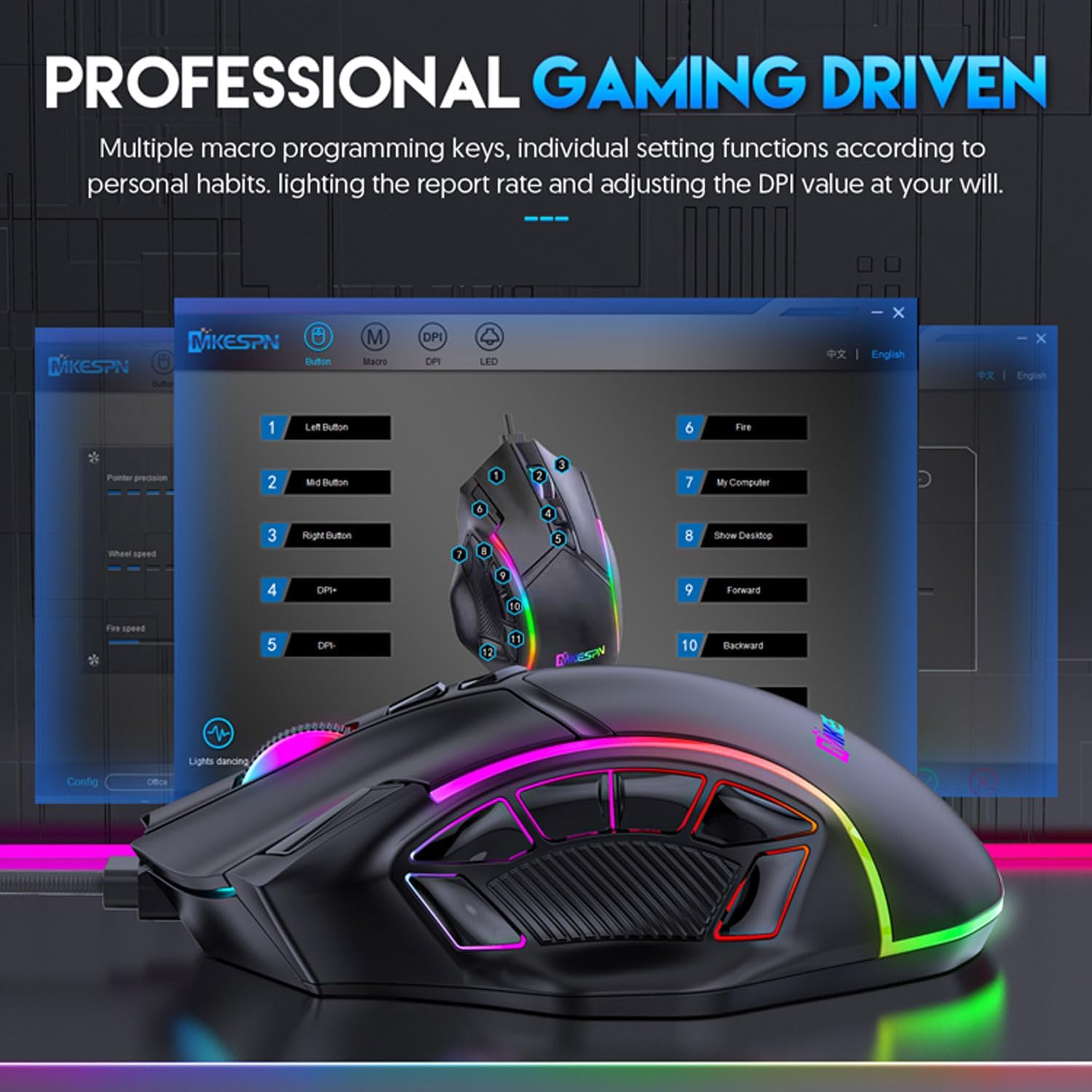
Image: A visual representation of the MKESPN X15 Gaming Mouse's software interface, demonstrating how to program its 12 keys for various functions like Left Button, Mid Button, Right Button, DPI+, DPI-, Fire, My Computer, Show Desktop, Forward, Backward, Mute, and One-click Internet.
RGB Backlighting
The MKESPN X15 features 13 distinct RGB lighting modes. These lighting effects can be customized through the mouse software to match your setup or personal preference. The RGB lighting enhances the aesthetic appeal of the mouse.

Image: Two MKESPN X15 Gaming Mice displaying vibrant RGB backlighting, illustrating the 13 available lighting effects.
Key Functions Overview
The following diagram illustrates the default functions of the 12 keys on the MKESPN X15 gaming mouse:

Image: A detailed diagram of the MKESPN X15 Gaming Mouse, labeling its 12 key functions including Wheel, Left Button, Fire Button, My Computer, Desktop Button, Right Button, DPI+, DPI-, Backward Button, Forward Button, Mute, and One-click Internet.
- Wheel: Scroll and middle click.
- Left Button: Standard left click.
- Fire Button: Programmable, often used for rapid fire.
- My Computer: Programmable, default opens 'My Computer'.
- Desktop Button: Programmable, default shows desktop.
- Right Button: Standard right click.
- DPI+: Increases DPI sensitivity.
- DPI-: Decreases DPI sensitivity.
- Backward Button: Navigates back in browsers/folders.
- Forward Button: Navigates forward in browsers/folders.
- Mute: Programmable, default mutes audio.
- One-click Internet: Programmable, default opens web browser.
Maintenance
- Cleaning: Use a soft, dry cloth to wipe the surface of the mouse. For stubborn dirt, slightly dampen the cloth with water or a mild cleaning solution. Avoid using harsh chemicals or abrasive materials.
- Sensor Cleaning: Occasionally clean the optical sensor on the underside of the mouse with a cotton swab to ensure optimal tracking performance.
- Cable Care: Avoid sharp bends or excessive pulling on the USB cable to prevent damage. The mouse features a pull-resistant braided wire for durability.
- Storage: Store the mouse in a clean, dry environment when not in use.
Troubleshooting
- Mouse Not Responding:
- Ensure the USB cable is securely plugged into a working USB port.
- Try plugging the mouse into a different USB port.
- Restart your computer.
- DPI Not Changing:
- Ensure you are pressing the correct DPI+ or DPI- buttons.
- Check if the mouse software is running and configured correctly.
- RGB Lighting Not Working/Customizing:
- Verify that the mouse software is installed and updated.
- Check lighting settings within the software.
- Macro Keys Not Working:
- Ensure the macro software is installed and macros are properly assigned and saved.
- Check for any conflicts with other software or system settings.
- Tracking Issues:
- Clean the optical sensor on the bottom of the mouse.
- Use the mouse on a clean, uniform surface or a quality mouse pad.
Specifications
| Brand | MKESPN |
| Model Number | X15 |
| Connectivity | Wired USB |
| DPI Sensitivity | Up to 12800 DPI (6 adjustable levels) |
| Polling Rate | 1000 Hz |
| Number of Buttons | 12 (Programmable) |
| Backlighting | 13 Kinds of RGB Lighting Modes |
| Sensor Technology | Laser |
| Design | Ergonomic, Right-Handed, Anti-slip, Anti-sweat |
| Color | Black |
| Weight | 144 Grams |
| Dimensions (L x W x H) | 140mm x 83mm x 42mm |
| Compatible Operating Systems | Windows, Mac, Linux, Unix |
| Compatible Devices | Personal Computer, Game Console |

Image: The MKESPN X15 Gaming Mouse with its dimensions labeled: 140mm length, 83mm width, and 42mm height.
Warranty and Support
Information regarding specific warranty terms and conditions for the MKESPN X15 Gaming Mouse is not provided in the product details. For warranty claims, technical support, or further inquiries, please contact the manufacturer directly through their official website or the retailer from whom the product was purchased.
Please note that information on spare parts availability and guaranteed software updates is also not available in the provided product specifications.