
Satechi ST-HT4SHM-US
Contents
Satechi Thunderbolt 4 Slim Pro Hub - 96W User Manual
Model: ST-HT4SHM-US
Introduction
The Satechi Thunderbolt 4 Slim Pro Hub is a versatile docking station designed to expand the connectivity of your computer. It provides multiple ports for data transfer, video output, and power delivery, enhancing your productivity and simplifying your workspace. This manual provides detailed instructions for setting up, operating, and maintaining your hub.

Image: The Satechi Thunderbolt 4 Slim Pro Hub, a compact and sleek gray device with various ports visible on its side.
What's Included
Please check the package contents to ensure all items are present:
- Satechi Thunderbolt 4 Hub Slim Pro
- 0.8M Thunderbolt 4 cable
- 150W GaN Power Supply
- C5 power cable for the power supply
- User Manual (this document)

Image: A flat lay showing the Satechi Thunderbolt 4 Slim Pro Hub, its 150W GaN power supply, the Thunderbolt 4 cable, and the C5 power cable.
Product Overview
The Satechi Thunderbolt 4 Slim Pro Hub features a comprehensive set of ports for various connectivity needs:
- Upstream Host Port: Delivers up to 96W Power Delivery to the connected host device.
- USB-A 3.2 Gen 2 Port: For high-speed data transfers up to 10Gbps.
- Three Thunderbolt 4 Downstream Ports: Each supporting 15W charging, 40Gbps data transfers, and video output.
- DC 21V Power Input: Connects to the included 150W GaN Power Supply.
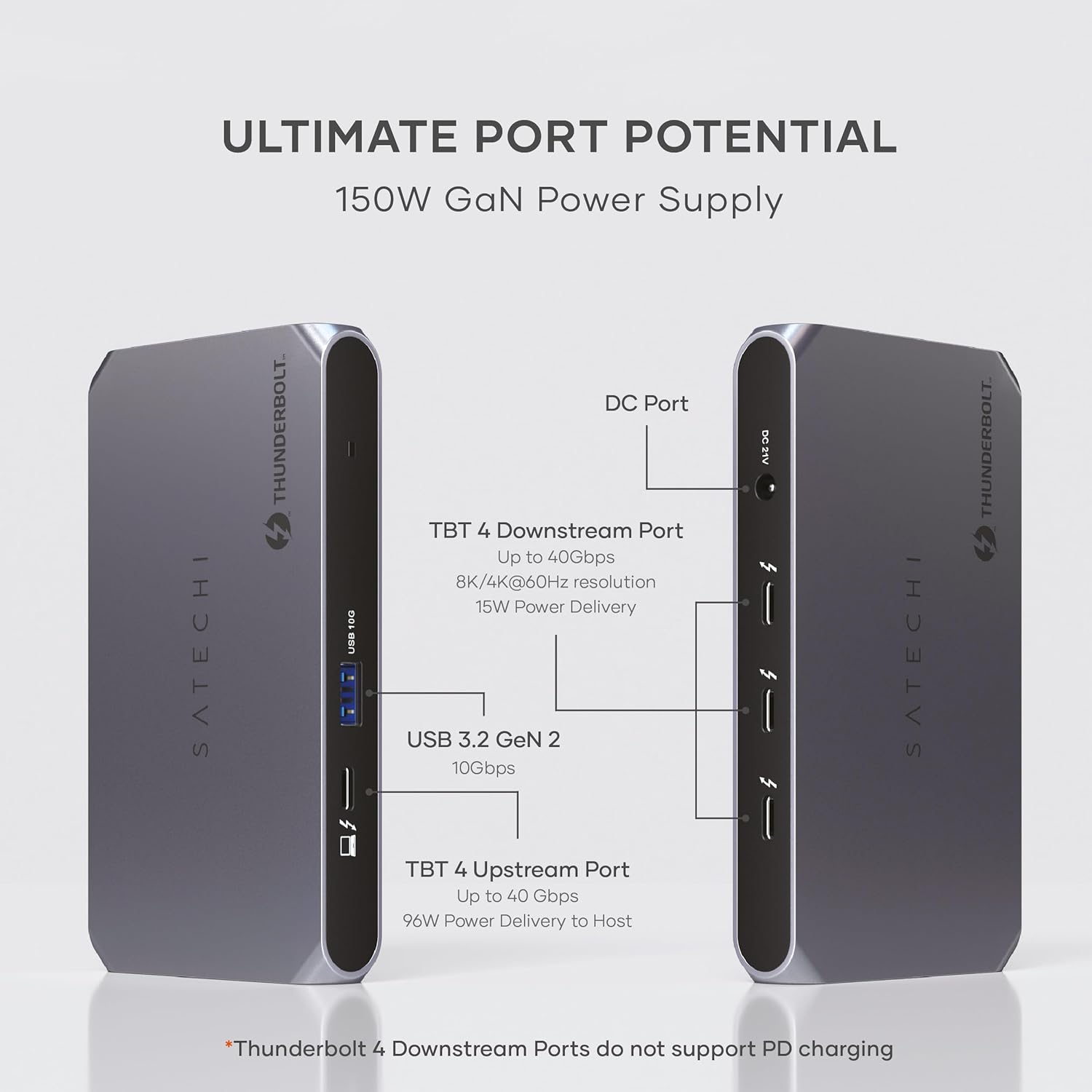
Image: A diagram illustrating the various ports on the Satechi Thunderbolt 4 Slim Pro Hub, including the DC Port, TBT 4 Downstream Ports, USB 3.2 Gen 2 port, and TBT 4 Upstream Port, with their respective capabilities.
Setup Instructions
- Connect Power: Plug the included 150W GaN Power Supply into a wall outlet, then connect its DC output cable to the DC 21V power input port on the Satechi Thunderbolt 4 Slim Pro Hub.
- Connect to Host Device: Use the provided 0.8M Thunderbolt 4 cable to connect the Upstream Host Port on the hub to a Thunderbolt 4, USB4, or USB-C port on your computer (e.g., MacBook, Windows laptop).
- Connect Peripherals:
- For external displays, connect them to the Thunderbolt 4 Downstream Ports using appropriate cables (e.g., Thunderbolt to DisplayPort, Thunderbolt to HDMI).
- Connect USB-A devices (e.g., keyboard, mouse, external drives) to the USB-A 3.2 Gen 2 port.
- Connect other Thunderbolt or USB-C devices to the remaining Thunderbolt 4 Downstream Ports.
- Verify Connection: Your computer should automatically detect the hub and connected peripherals. You may need to adjust display settings in your operating system.

Image: The Satechi Thunderbolt 4 Slim Pro Hub set up on a desk, connected to a laptop and driving two external monitors, demonstrating a typical multi-display setup.
Operating Instructions
Video Output Capabilities
The hub supports various video configurations depending on your host device:
- Mac (macOS):
- Single Screen: Up to 8K @ 30Hz or 6K @ 60Hz.
- Dual Screen: Up to 4K @ 60Hz.
- Note: MacBook M4 models support dual external displays. MacBook M3 base models support dual external displays in clamshell mode. MacBook M2/M1 base models only support a single external display.
- Windows:
- Single Screen: Up to 8K @ 60Hz.
- Dual Screen: Up to 4K @ 60Hz.

Image: A MacBook Pro connected to two external monitors, illustrating the dual display setup capability for Mac OS, with notes on M1/M2/M3 MacBook compatibility.
Power Delivery and Charging
The Upstream Host Port delivers up to 96W of Power Delivery to your connected laptop. The three Thunderbolt 4 Downstream Ports provide 15W charging for connected peripherals.

Image: The Satechi Thunderbolt 4 Slim Pro Hub connected to a laptop (receiving 96W max) and a smartphone (receiving 15W max), demonstrating its power delivery capabilities.
High-Speed Data Transfer
Leverage the Thunderbolt 4 ports for data transfer speeds up to 40Gbps, and the USB-A 3.2 Gen 2 port for speeds up to 10Gbps. These speeds are ideal for large file transfers and connecting high-bandwidth devices.

Image: A bar chart comparing data transfer speeds of Thunderbolt 4 (40 Gbps), Thunderbolt 2 (20 Gbps), USB 3.1 (10 Gbps), and USB 2.0 (480 Mbps), highlighting the superior speed of Thunderbolt 4.
Compatibility
The Satechi Thunderbolt 4 Slim Pro Hub is broadly compatible with a range of devices and operating systems:
- Host Devices: Thunderbolt 4, USB4, and USB-C enabled devices.
- Operating Systems:
- macOS (including MacBook Air/Pro M4/M3/M2/M1, iPad Air/Pro M4/M3/M2/M1, iPad Mini, iPad, iMac M4, Mac Mini M4, Mac Studio, iPhone 16 Series or earlier MacOS devices)
- Windows (including laptops from Lenovo, Microsoft Surface Laptop, Surface Pro 2025, Dell, HP, Razer, Huawei)
- Chrome OS
- Android devices
- Downwards Compatibility: Compatible with Thunderbolt 3 and older USB-C devices, though speeds may be limited to 40Gbps when used with Thunderbolt 5.
Heat Management
It is normal for the Thunderbolt 4 Hub to generate warmth during charging or data transfer. The device is designed with efficient heat dissipation in mind. Expect standard operating temperatures to range between 30-50°C (86-122°F) for optimal performance and safety. This is a normal characteristic of high-performance docking stations and does not indicate a malfunction.
Troubleshooting
- No Display Output:
- Ensure the hub is powered on and correctly connected to your host device's Thunderbolt 4/USB4/USB-C port.
- Verify that the display cables are securely connected to both the hub and the monitors.
- Check your computer's display settings to ensure the external monitors are detected and configured correctly (e.g., extended, mirrored).
- Confirm your host device's compatibility with the desired display configuration (e.g., M1/M2 MacBooks support only one external display).
- Peripherals Not Detected:
- Ensure the peripheral is properly connected to the correct port on the hub.
- Try connecting the peripheral directly to your computer to rule out device issues.
- Restart your computer and reconnect the hub.
- Charging Issues:
- Confirm the 150W GaN Power Supply is securely connected to the hub and a working power outlet.
- Ensure your host device supports Power Delivery via its USB-C/Thunderbolt port.
- Note that the USB-A port does not support charging without a host connection.
- Intermittent Connectivity:
- Ensure all cables are high-quality and fully seated.
- Avoid placing the hub in areas with poor ventilation, as excessive heat can affect performance.
- Update your computer's Thunderbolt/USB-C drivers if available.
Specifications
| Feature | Detail |
|---|---|
| Model Number | ST-HT4SHM-US |
| Dimensions (L x W x H) | 5.31 x 0.67 x 2.91 inches |
| Item Weight | 8.8 ounces |
| Color | Space Gray |
| Upstream Host Port | Thunderbolt 4 (96W Power Delivery) |
| Downstream Ports | 3 x Thunderbolt 4 (15W charging, 40Gbps data) |
| USB Data Port | 1 x USB-A 3.2 Gen 2 (10Gbps) |
| Power Input | DC 21V (150W GaN Power Supply included) |
| Video Output (Mac) | Single: 8K@30Hz or 6K@60Hz; Dual: 4K@60Hz |
| Video Output (Windows) | Single: 8K@60Hz; Dual: 4K@60Hz |
| Compatible OS | macOS, Windows, Chrome OS, Android |
Maintenance
To ensure the longevity and optimal performance of your Satechi Thunderbolt 4 Slim Pro Hub, follow these maintenance guidelines:
- Cleaning: Use a soft, dry, lint-free cloth to clean the surface of the hub. Avoid using abrasive cleaners, solvents, or aerosol sprays.
- Storage: When not in use for extended periods, store the hub in a cool, dry place away from direct sunlight and extreme temperatures.
- Handling: Handle the hub with care. Avoid dropping it or subjecting it to strong impacts.
- Ventilation: Ensure the hub has adequate ventilation during operation. Do not cover the device or place it in enclosed spaces that could restrict airflow.
Warranty and Support
Satechi products are covered by a 2-year limited warranty against defects in materials and workmanship under normal use. For customer support or warranty claims, please contact Satechi directly. You can find more information on their official website or through the retailer where you purchased the product.
Additional protection plans may be available for purchase:
- 2-Year Protection Plan
- 3-Year Protection Plan
- Complete Protect (monthly billing option)
For further assistance, please visit the Satechi Store on Amazon or refer to the official Satechi support channels.
Ask a question about this manual
Ask about setup, troubleshooting, compatibility, parts, safety, or missing instructions. Manuals+ will review the question and use this page’s manual context to help answer it.