
1. Introduction
Thank you for choosing the iBasso Audio DX260 Portable Audio Player. The DX260 is a high-fidelity digital audio player designed to deliver an exceptional listening experience. Featuring an advanced Octa DAC Chip Matrix, a powerful Snapdragon 660 SoC, and a versatile Android 11 operating system, it supports a wide range of audio formats and connectivity options. This manual provides essential information on setting up, operating, maintaining, and troubleshooting your device to ensure optimal performance.

Front view of the iBasso Audio DX260 Portable Audio Player.
2. Product Features
- Octa DAC Chip Matrix: Equipped with 8x Cirrus Logic CS43198 DAC chips for superior audio conversion.
- Powerful SoC: Snapdragon 660 processor ensures smooth operation and efficient audio processing.
- Operating System: Runs on Android 11, offering a familiar and customizable user interface.
- Memory: 4GB RAM and 64GB ROM for ample storage and multitasking capabilities.
- High-Resolution Display: 5.0-inch 1080x1920 On-Cell Capacitive Touch Panel for clear visuals and intuitive control.
- Versatile Outputs: Features 4.4mm Balanced Phone Out/Line Out, 3.5mm Phone Out/Line Out, 3.5mm SPDIF Output, and USB-OTG Digital Output.
- Wireless Connectivity: Supports Wi-Fi (802.11b/g/n/ac 2.4GHz/5GHz) and Bluetooth 5.0 with various codecs (AAC, SBC, aptX, aptX HD, LDAC for transmit; AAC, SBC for receive).
- Durable Build: Constructed with an aluminum alloy body.

The DX260 features an Octa DAC Chip Matrix with 8x Cirrus Logic CS43198 DACs.

Powered by a Snapdragon 660 SoC with 4GB RAM and 64GB ROM.
3. Package Contents
Upon opening the package, please ensure all the following items are present:
- iBasso Audio DX260 Portable Audio Player
- Quick Start Guide
- Screen Protector (pre-applied or included)
- USB-C to A Charging Cable
- Coaxial Digital Cable
- 4.4mm Burn-in Cable
- Product Warranty Card
- Dedicated TPU Case
4. Controls and Ports
Familiarize yourself with the physical controls and ports of your DX260:
- Volume Knob: Located on the side, used to adjust the audio output level.
- Power Button: Typically integrated with the volume knob or nearby, used for power on/off and screen lock.
- Playback Control Buttons: Play/Pause, Next Track, Previous Track buttons for media control.
- USB-C Port: For charging, data transfer, and USB-DAC functionality.
- MicroSD Card Slot: For expanding storage with a microSD card.
- 3.5mm Audio Jack: Standard single-ended headphone output and line out.
- 4.4mm Balanced Audio Jack: Balanced headphone output and line out for enhanced audio performance.
- 3.5mm SPDIF Output: Digital audio output.

Side view showing the volume knob and playback control buttons.

Bottom view displaying the USB-C port, MicroSD card slot, and audio outputs.
5. Setup
5.1. Initial Charging
Before first use, fully charge your DX260. Connect the provided USB-C to A charging cable to the device's USB-C port and the other end to a compatible USB power adapter (not included) or a computer's USB port. The device supports QC3.0/PD3.0 fast charging. A full charge takes approximately 2.5 hours.
5.2. Powering On/Off
- To Power On: Press and hold the Power button until the screen lights up.
- To Power Off: Press and hold the Power button until a power-off menu appears on the screen. Select "Power Off" to shut down the device.
- Screen Lock/Unlock: Briefly press the Power button to lock or unlock the screen.
5.3. Inserting a MicroSD Card
The DX260 supports microSD cards for expanded storage. Locate the microSD card slot on the device. Gently insert the microSD card into the slot until it clicks into place. To remove, push the card in slightly until it springs out.
5.4. Initial Configuration
Upon first power-on, follow the on-screen prompts to complete the initial setup, including language selection, Wi-Fi connection, and Google account setup (optional, for Android features).
6. Operating Instructions
6.1. User Interface (Android 11 & Mango OS)
The DX260 operates on Android 11, providing access to various apps and settings. It also features a dedicated Mango OS mode for optimized audio playback, which can be accessed through the system settings or a quick toggle.
The DX260 features the Mango OS for dedicated audio playback.
6.2. Music Playback
- Loading Music: Transfer music files to the device's internal storage or a microSD card via USB connection to a computer.
- Using the Music Player: Open the pre-installed music player app (e.g., Mango Player) to browse and play your audio files.
- Volume Control: Use the physical volume knob on the side to adjust the playback volume.
- Headphone Connection: Connect your headphones to either the 3.5mm or 4.4mm balanced output jack.
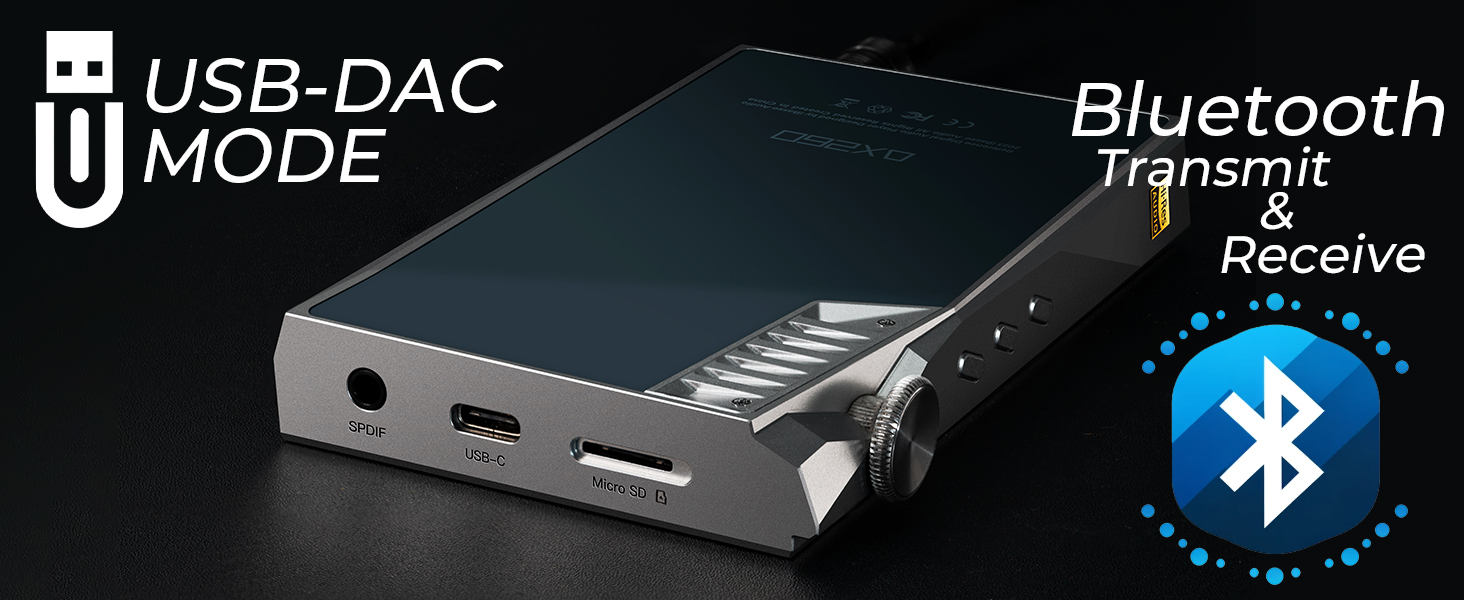
6.3. USB-DAC Mode
The DX260 can function as a high-quality USB-DAC for your computer or other compatible devices.
- Connect the DX260 to your computer using the USB-C cable.
- On the DX260, select "USB-DAC Mode" from the notification panel or settings.
- Your computer should recognize the DX260 as an audio output device. Select it as the default playback device in your computer's sound settings.
6.4. Bluetooth Connectivity
The DX260 supports both Bluetooth transmission (sending audio to Bluetooth headphones/speakers) and reception (receiving audio from a source device).
- To Transmit: Go to Bluetooth settings, enable Bluetooth, and pair with your desired Bluetooth audio device.
- To Receive: Enable Bluetooth reception mode on the DX260 (if available in settings) and pair it with your source device (e.g., smartphone).

The DX260 supports both USB-DAC mode and Bluetooth transmit/receive.
7. Maintenance
- Cleaning: Use a soft, dry, lint-free cloth to clean the device. Do not use liquid cleaners or aerosols.
- Screen Care: The screen protector helps prevent scratches. If it becomes damaged, replace it with a new one.
- Battery Care: To prolong battery life, avoid fully discharging the device frequently. Store the device in a cool, dry place when not in use for extended periods.
- Storage: Keep the device away from extreme temperatures, direct sunlight, and high humidity.
8. Troubleshooting
8.1. Device Does Not Power On
- Ensure the battery is charged. Connect the device to a power source and allow it to charge for at least 30 minutes before attempting to power on again.
- Try holding the Power button for a longer duration (e.g., 10-15 seconds) for a forced restart.
8.2. No Sound Output
- Check the volume level.
- Ensure headphones are properly connected to the correct audio jack (3.5mm or 4.4mm).
- Test with different headphones to rule out headphone issues.
- Verify that the correct output mode is selected in the device settings (e.g., Phone Out vs. Line Out).
8.3. Device Freezes or Becomes Unresponsive
- Press and hold the Power button for about 10-15 seconds to force a restart.
- If the issue persists, consider performing a factory reset (note: this will erase all data on the device). Back up important files before proceeding.
8.4. Wi-Fi or Bluetooth Connectivity Issues
- Ensure Wi-Fi/Bluetooth is enabled in settings.
- Restart the DX260 and the router/Bluetooth device.
- Forget the network/device and try reconnecting.
- Ensure the device is within range of the Wi-Fi network or Bluetooth accessory.
9. Specifications
| Feature | Specification |
|---|---|
| Body Material | Aluminum Alloy |
| Dimensions (L x W x H) | 123mm x 74.5mm x 17.5mm |
| Weight | 229g |
| Display | 5.0-inch 1080x1920 On-Cell Capacitive Touch Panel |
| Operating System | Android 11 |
| SoC | Snapdragon 660 |
| RAM | 4GB |
| ROM | 64GB |
| DAC Chip | Cirrus Logic CS43198 x 8 |
| Max Sampling Rate (USB-DAC) | PCM 384kHz/32bit | DSD256 |
| Supported Audio Formats | APE, FLAC, WAV, WMA, AAC, ALAC, AIFF, OGG, MP3, DFF, DSF, DXD, DST |
| Outputs | 4.4mm Balanced Phone Out/Line Out, 3.5mm Phone Out/Line Out, 3.5mm SPDIF Output, USB-OTG Digital Output |
| Wi-Fi | 802.11b/g/n/ac (2.4GHz/5GHz) |
| Bluetooth Version | 5.0 |
| Bluetooth Transmit Codecs | AAC, SBC, aptX, aptX HD, LDAC |
| Bluetooth Receive Codecs | AAC, SBC |
| Battery | 4400mAh 3.8V |
| Max Continuous Playback Time | Approx. 14 hours (varies by usage) |
| Charging Standard | QC3.0/PD3.0 |
| Charging Time | Approx. 2.5 hours |

Detailed specifications of the iBasso DX260.
10. Warranty and Support
The iBasso Audio DX260 comes with a product warranty. Please refer to the included Product Warranty Card for details regarding warranty terms, conditions, and duration. For technical support, service, or further inquiries, please contact your local iBasso Audio distributor or visit the official iBasso Audio website. Keep your proof of purchase for warranty claims.


