
1. Introduction
Welcome to the user manual for your Acer Aspire 3 Touch Slim Laptop. This guide provides essential information to help you set up, operate, maintain, and troubleshoot your device. The Acer Aspire 3 is designed for productivity and entertainment, featuring an AMD Ryzen 5 processor, a 15.6-inch Full HD IPS display, and the Windows 11 operating system.
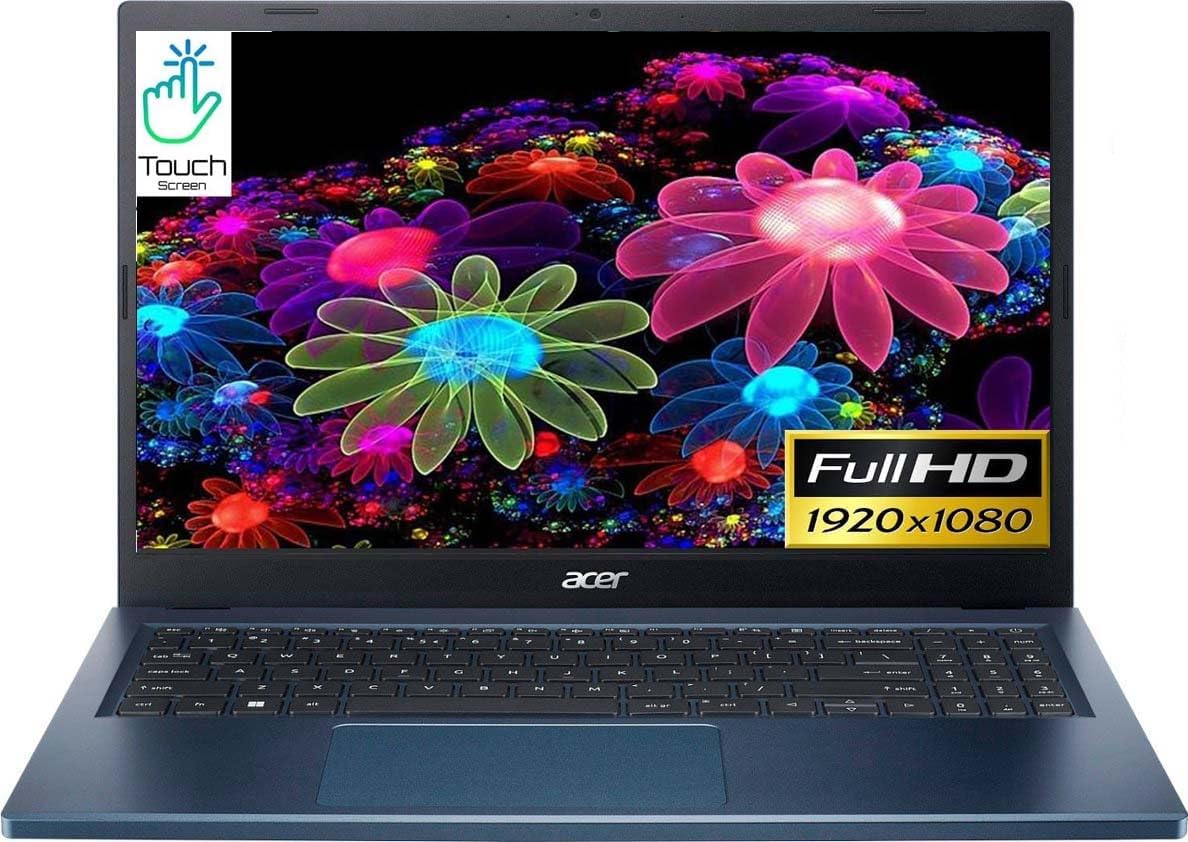
Figure 1.1: Acer Aspire 3 Touch Slim Laptop, front view with display.
This laptop is equipped with 8GB of DDR5 RAM and a 512GB SSD, ensuring fast performance and ample storage. Its slim and portable design makes it suitable for use on the go.
2. Setup
2.1 Unboxing and Initial Inspection
Carefully remove your laptop and all accessories from the packaging. Inspect the laptop for any visible damage. Ensure all components are present:
- Acer Aspire 3 Touch Slim Laptop
- AC Power Adapter
- Documentation (this manual, warranty information)
2.2 Connecting the Power Adapter
Before first use, connect the AC power adapter to the laptop's power input port and then to a power outlet. Allow the battery to charge for at least 30 minutes before powering on for the first time.

Figure 2.1: Left side ports, including the power input.
2.3 Initial Power On and Windows Setup
Press the power button located on the keyboard deck. The laptop will boot up, and you will be guided through the Windows 11 initial setup process. Follow the on-screen instructions to configure your language, region, network connection, and user account.
2.4 Connecting Peripherals
Your laptop features various ports for connecting external devices:
- USB 3.2 Type-C Gen 1 Port: For high-speed data transfer (up to 10 Gbps) and connecting compatible USB-C devices.
- USB 3.2 Gen 1 Type-A Ports: For connecting standard USB devices like mice, keyboards, or external drives.
- HDMI 2.0 Port: For connecting to external displays or projectors.
- Audio Jack: For headphones or external speakers.

Figure 2.2: Right side ports, including a USB-A port.
3. Operating Your Laptop
3.1 Keyboard and Touchpad
The laptop features a full-size keyboard and a precision touchpad for navigation. The touchpad supports multi-touch gestures for enhanced control in Windows 11.

Figure 3.1: Keyboard and precision touchpad layout.
3.2 Touchscreen Functionality
Your Acer Aspire 3 is equipped with a touch-enabled display. You can interact directly with the screen using your fingers for navigation, scrolling, zooming, and selecting items, similar to a tablet.
3.3 Windows 11 Overview
The laptop runs on Windows 11 Home Edition. Familiarize yourself with the Start Menu, Taskbar, and Action Center for quick access to applications and settings. Explore features like Snap Layouts for efficient multitasking.

Figure 3.2: Laptop displaying the Windows 11 interface.
3.4 Display Settings
The 15.6-inch Full HD (1920x1080) IPS display offers clear visuals. Acer Color Intelligence and Acer BluelightShield technologies are integrated to enhance visual appearance and reduce eye strain. You can adjust display settings through Windows Settings > System > Display.
3.5 Audio and Webcam
The laptop features Acer True Harmony high-performance sound system with two built-in stereo speakers. Acer Purified Voice, with two built-in microphones, ensures clear communication by filtering out background noise. The HD webcam provides crisp images for video calls.
4. Maintenance
4.1 Cleaning Your Laptop
To maintain optimal performance and appearance:
- Use a soft, lint-free cloth to clean the screen. For stubborn marks, dampen the cloth slightly with water or a screen-cleaning solution.
- Wipe the keyboard and chassis with a soft, dry cloth. Avoid using harsh chemicals or abrasive materials.
- Periodically use compressed air to clear dust from the keyboard and ventilation openings.
4.2 Battery Care
To prolong battery life:
- Avoid exposing the laptop to extreme temperatures.
- Do not leave the laptop plugged in constantly at 100% charge for extended periods.
- For long-term storage, charge the battery to about 50% and store the laptop in a cool, dry place.
4.3 Software Updates
Regularly check for and install Windows updates and driver updates from the Acer support website to ensure system stability, security, and optimal performance.
5. Troubleshooting
This section addresses common issues you might encounter with your laptop.
| Problem | Possible Solution |
|---|---|
| Laptop does not power on | Ensure the AC adapter is securely connected and the power outlet is functional. Try a different power outlet. If the battery is completely drained, it may take a few minutes to respond after plugging in. |
| Wi-Fi connection issues | Check if Wi-Fi is enabled in Windows settings. Restart your router and modem. Ensure you are within range of your Wi-Fi network. Update Wi-Fi drivers if necessary. |
| Touchpad not responding | Ensure the touchpad is not disabled (check function keys, e.g., Fn + F7). Restart the laptop. Check for updated touchpad drivers. |
| Slow performance | Close unnecessary applications. Check Task Manager for resource-intensive processes. Ensure sufficient free space on the SSD. Run a disk cleanup. Update Windows and drivers. |
| Screen flickering or display issues | Update graphics drivers. Adjust display refresh rate in Windows settings. If connected to an external monitor, check the cable connection. |
6. Specifications
Key technical specifications for the Acer Aspire 3 Touch Slim Laptop (Model A315B):
| Feature | Detail |
|---|---|
| Model Name | Aspire 3 (A315B) |
| Processor | AMD Ryzen 5 7520U (2.8 GHz, up to 4.3 GHz Max Boost, 4 Cores, 8 Threads, 4 MB Cache) |
| Graphics | AMD Radeon Graphics (Integrated) |
| RAM | 8 GB LPDDR5 |
| Storage | 512 GB SSD (Solid State Drive) |
| Display | 15.6-inch Full HD (1920x1080) IPS ComfyView Touchscreen |
| Operating System | Windows 11 Home Edition |
| Wireless Connectivity | Wi-Fi 6 (802.11ax), Bluetooth |
| Ports | 1x USB 3.2 Type-C Gen 1, 2x USB 3.2 Gen 1 Type-A, 1x HDMI 2.0, 1x Audio Jack |
| Webcam | HD Webcam |
| Audio | Acer True Harmony, Dual Stereo Speakers, Acer Purified Voice with Dual Microphones |
| Dimensions (LxWxH) | 14 x 13 x 1 inches |
| Weight | 4.31 pounds |
| Color | Blue |
7. Warranty and Support
7.1 Warranty Information
This Acer Aspire 3 laptop is a renewed product and comes with a warranty. Please refer to the specific warranty documentation provided with your purchase for details on coverage duration and terms. Warranty terms for renewed products may differ from new products.
7.2 Technical Support
For technical assistance, driver downloads, or further support, please visit the official Acer support website. You can typically find support resources by searching for your specific model (A315B) on their website. Keep your product's serial number handy when contacting support.
You can visit the Acer Store for additional information or accessories: Acer Official Store