
Sony ILCE-6400/B
Contents
Sony Alpha a6400 APS-C Mirrorless Camera (ILCE-6400/B) Instruction Manual
Model: ILCE-6400/B
Introduction
This manual provides essential instructions for setting up, operating, and maintaining your Sony Alpha a6400 APS-C Mirrorless Camera. The a6400 is designed for high-quality photography and videography, featuring advanced autofocus capabilities, 4K video recording, and a versatile flip-up touchscreen.
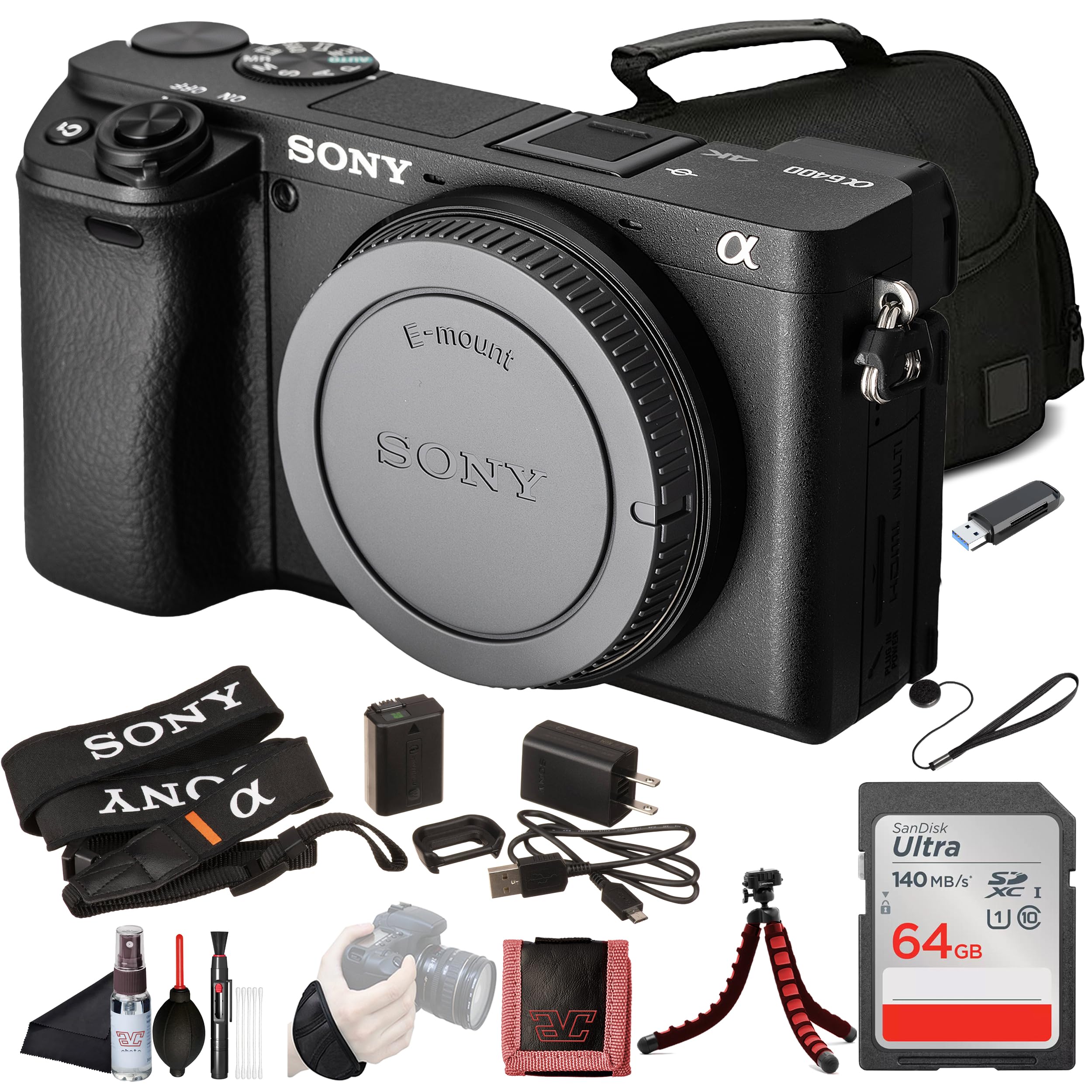
Image: Front view of the Sony a6400 camera, showcasing its flip-up screen and Real-Time Eye AF feature.
Setup Guide
1. Unpacking and Initial Inspection
Carefully remove all components from the packaging. Verify that all items listed in the "What's in the Box" section are present and undamaged.
2. Charging and Installing the Battery
The camera uses a Sony NP-FW50 Lithium-Ion Rechargeable Battery. Before first use, fully charge the battery using the supplied AC adapter and Micro-USB cable. Insert the charged battery into the battery compartment located at the bottom of the camera, ensuring it clicks into place.

Image: Side view of the camera, illustrating the location of the battery/memory card slot and connectivity ports.
3. Inserting a Memory Card
The camera supports SDXC memory cards. Open the memory card slot cover (often combined with the battery compartment). Insert the memory card with the contacts facing the correct direction until it locks into place. Close the cover securely.
4. Attaching a Lens
The a6400 uses Sony E-mount lenses. Remove the body cap from the camera and the rear lens cap from the lens. Align the white index mark on the lens with the white index mark on the camera body. Mount the lens by turning it clockwise until it clicks into place.

Image: Front view of the camera body, highlighting the E-mount for lens attachment.
5. Initial Power On and Basic Settings
Turn the camera on using the ON/OFF switch. Follow the on-screen prompts to set the date, time, and language. Ensure the eyepiece cup and shoulder strap are attached for comfortable use.
Operating Instructions
1. Camera Controls Overview
Familiarize yourself with the camera's buttons and dials. The mode dial on top allows selection of various shooting modes, while the rear controls provide access to menu, playback, and quick settings.

Image: Top view of the camera, showing the mode dial and other top-plate controls.

Image: Rear view of the camera, displaying the LCD screen, electronic viewfinder, and various control buttons.
2. Selecting a Shooting Mode
Rotate the mode dial to select your desired shooting mode:
- AUTO: Camera automatically adjusts settings for optimal results.
- P (Program Auto): Camera sets aperture and shutter speed, but you can adjust other settings.
- A (Aperture Priority): You set the aperture, camera sets shutter speed.
- S (Shutter Priority): You set the shutter speed, camera sets aperture.
- M (Manual): You control both aperture and shutter speed.
- Movie: Dedicated mode for video recording.
- Other modes include Scene Selection (SCN), Panorama, and Custom Memory Recall (MR).
3. Focusing and Autofocus Features
The a6400 features a fast autofocus system with 425 phase-detection AF points. Key autofocus features include:
- Real-Time Eye AF: Automatically detects and tracks human and animal eyes for sharp portraits.
- Real-Time Tracking: Maintains focus on moving subjects using AI-based object recognition.
- Touch Focus: Tap on the LCD screen to select a focus point.
- Continuous-Servo AF (AF-C): Continuously adjusts focus while the shutter button is half-pressed, ideal for moving subjects.
4. Recording Videos
To record video, set the mode dial to the Movie position. The camera supports 4K video recording (2160p) at 30 fps. Advanced color profiles like S-Log3 and HLG are available for professional grading flexibility.
5. Using the Flip-Up Touchscreen
The 3-inch LCD screen can be tilted up to 180 degrees, making it suitable for vlogging, selfies, and shooting from various angles. The touchscreen supports touch focus and touch tracking.

Image: Rear view of the camera with the LCD screen fully flipped up, demonstrating its vlogging capability.
6. Continuous Shooting
The camera can shoot continuously at up to 11 frames per second (fps), allowing you to capture fast-moving action sequences.
7. Connectivity (Wi-Fi and Bluetooth)
The a6400 features built-in Wi-Fi and Bluetooth for instant sharing of images and remote control via a compatible smartphone application.
Maintenance and Care
1. Cleaning the Camera
Use a soft, lint-free cloth to clean the camera body. For the lens and sensor, use specialized cleaning tools such as a blower brush and lens cleaning solution. Avoid touching the sensor directly. A cleaning kit is included with your purchase.
2. Battery Care
Store batteries in a cool, dry place. Avoid fully discharging the battery frequently to prolong its lifespan. Remove the battery if the camera will not be used for an extended period.
3. Storage
When not in use, store the camera in a dry, dust-free environment, preferably in a camera bag or case. Avoid extreme temperatures and high humidity.
Troubleshooting
| Problem | Possible Cause / Solution |
|---|---|
| Camera does not power on. | Ensure the battery is fully charged and correctly inserted. Check if the battery is damaged. |
| Images are blurry. | Check focus settings. Ensure the lens is clean. Use a faster shutter speed or a tripod in low light. The camera does not have in-body image stabilization, so lens-based stabilization or stable shooting techniques are crucial. |
| Memory card error. | Reinsert the memory card. Try a different compatible memory card. Format the card (this will erase all data). |
| Wi-Fi connection issues. | Ensure Wi-Fi is enabled on both the camera and the connected device. Check network settings and password. |
Technical Specifications
| Feature | Detail |
|---|---|
| Model Name | ILCE-6400/B |
| Sensor Type | APS-C CMOS |
| Effective Still Resolution | 24.2 MP |
| Compatible Mountings | Sony E-mount |
| Video Resolution | 4K (2160p) |
| Frame Rate | 30 fps (4K) |
| Continuous Shooting | 11 FPS |
| Autofocus Points | 425 |
| Screen Size | 3 Inches |
| Display Type | Tilting LCD Touchscreen |
| Image Stabilization | No (in-body) |
| Connectivity | Wi-Fi, Bluetooth, USB, HDMI |
| Supported File Format | JPEG, RAW |
| Battery Type | Lithium Ion (NP-FW50) |
| Memory Card Type | SDXC |
| Item Weight | 3.6 Pounds (approx. 1.63 kg) |
What's in the Box
The following items are included with your Sony Alpha a6400 camera:
- Sony a6400 Mirrorless Camera
- Sony NP-FW50 Lithium-Ion Rechargeable Battery
- Sony AC Adapter
- Sony ALC-B1EM Body Cap for E-Mount Cameras
- Micro-USB Cable
- Shoulder Strap
- Eyepiece Cup
- Accessory Shoe Cap
- SanDisk 64GB Ultra SDXC Memory Card
- Memory Card Reader
- Soft Case
- 12 inch Flexible Tripod
- Hand Strap
- Memory Card Wallet
- Lens Cap Keeper
- Cleaning Kit
Support and Warranty
Official Support
For further assistance, detailed manuals, software updates, and customer support, please visit the official Sony support website. You can find product-specific information by searching for "ILCE-6400/B".
Warranty Information
Refer to the warranty card included with your product for specific terms and conditions regarding your camera's warranty. Keep your proof of purchase for warranty claims.
Ask a question about this manual
Ask about setup, troubleshooting, compatibility, parts, safety, or missing instructions. Manuals+ will review the question and use this page’s manual context to help answer it.