
1. Introduction
Welcome to the ATTACK SHARK AKS068 Wired Mechanical Gaming Keyboard user manual. This guide provides detailed instructions for setting up, operating, and maintaining your new keyboard. The AKS068 features an ergonomic Alice layout, hot-swappable switches, Gasket Mount design, full RGB backlighting, and VIA programmability for a customized typing and gaming experience.

Image: ATTACK SHARK AKS068 Wired Mechanical Gaming Keyboard with Alice layout and rotary knob.
2. Package Contents
Please verify that all items are present in your package:
- ATTACK SHARK AKS068 Keyboard Kit
- Pre-lubed AS Blue Switches (quantity sufficient for keyboard)
- Tri-color ABS OEM Keycaps (full set)
- USB Type-C Cable
- Switch Puller Tool
- Keycap Puller Tool
3. Product Overview
The ATTACK SHARK AKS068 is a 65% Alice layout mechanical keyboard designed for ergonomic comfort and high performance. Key features include:
- Ergonomic Alice Layout: A split, symmetrical curve design to reduce wrist and shoulder strain.
- 65% Form Factor (68 Keys): Compact design while retaining essential keys.
- Hot-Swappable PCB: Compatible with most 3-pin and 5-pin mechanical switches, allowing for easy customization without soldering.
- Gasket Mount Structure: Provides a cushioned typing feel and reduces sound resonance.
- Rotary Knob: Multi-functional knob for volume control and mute.
- Full RGB Backlighting: South-facing LEDs with multiple customizable lighting modes for both top and side illumination.
- VIA Programmable: Open-source software support for remapping keys, customizing macros, and adjusting lighting.
- NKRO (N-Key Rollover): Ensures every keystroke is registered accurately, even during rapid typing or gaming.
- Double Layer Adjustable Stand: Allows for alternative typing angles.

Image: Overview of ATTACK SHARK AKS068 features including 65% Alice layout, hot-swappable PCB, south-facing RGB, and knob design.
4. Setup
4.1. Assembly Instructions
The ATTACK SHARK AKS068 is provided as a kit, requiring assembly of switches and keycaps.
- Step 1: Prepare the Keyboard Kit
Place the keyboard kit on a stable, flat surface. Ensure the PCB (Printed Circuit Board) is clean and free of debris. - Step 2: Install Switches
Carefully align the two metal pins on the bottom of each switch with the corresponding holes on the keyboard's PCB. Gently press the switch into place until it clicks. Ensure the pins are straight before insertion to prevent bending. Extra switches are provided in case of bent pins. Repeat for all switches.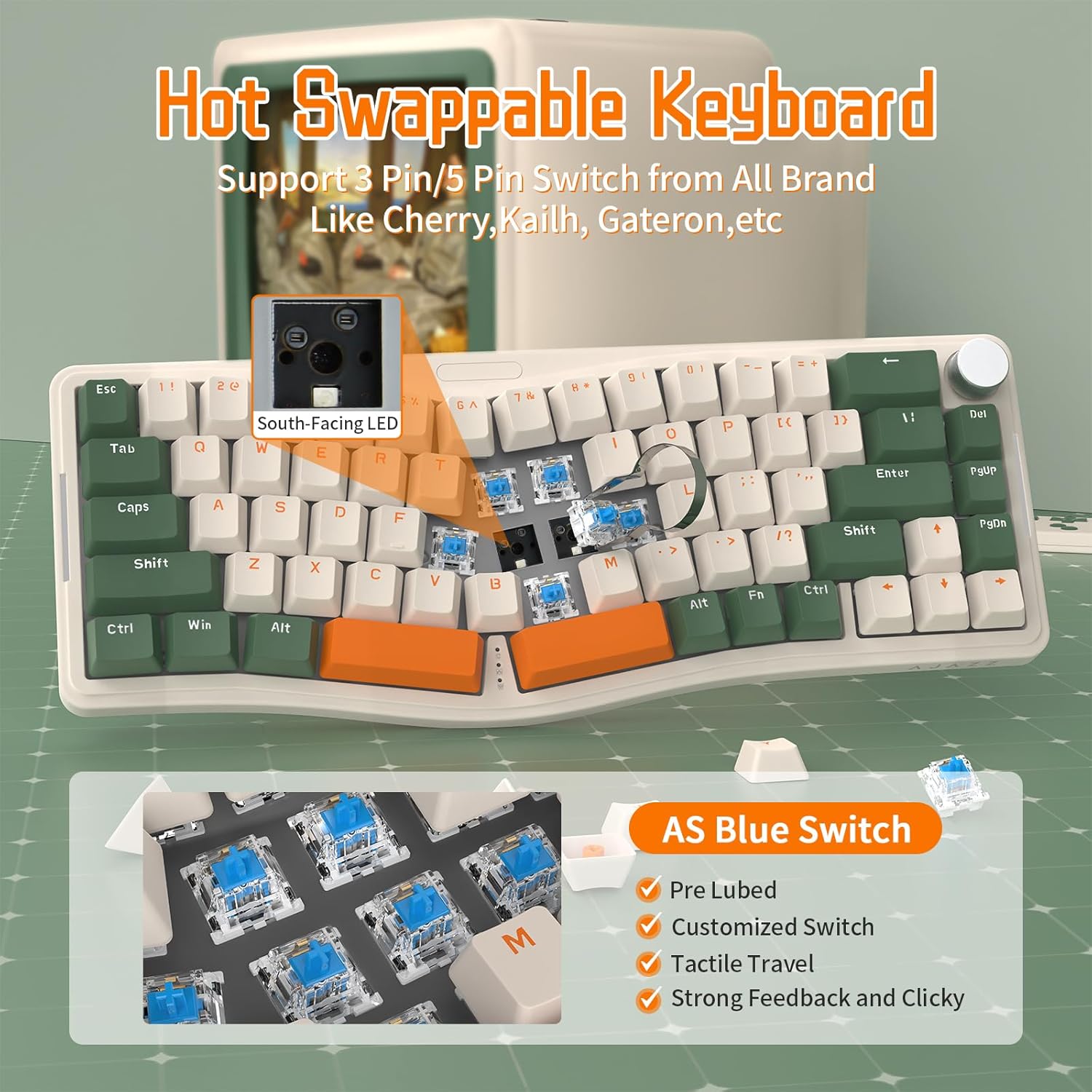
Image: Close-up view of the hot-swappable PCB and AS Blue switches being installed.
- Step 3: Install Keycaps
Once all switches are installed, place the keycaps onto their respective switches. Use the provided keycap puller if needed for precise placement or removal. Refer to the product images for the correct keycap layout, especially for non-standard keys.
Image: Visual guide for installing switches and keycaps onto the AKS068 keyboard kit.
4.2. Wired Connection
Connect the provided USB Type-C cable to the port on the keyboard and the other end to an available USB port on your computer (Windows or Mac). The keyboard will be automatically recognized by your operating system.
5. Operating Instructions
5.1. Rotary Knob Functions
The multi-functional rotary knob located on the top right of the keyboard controls audio settings:
- Turn Left/Right: Adjusts system volume.
- Press: Mutes or unmutes audio.

Image: Diagram illustrating the volume control and mute functions of the keyboard's rotary knob.
5.2. RGB Backlighting Control
The keyboard features full RGB backlighting with south-facing LEDs. Use the following FN key combinations to control the lighting:
- FN + \|: Cycle through 18 top backlight modes.
- FN + ← / →: Adjust backlight color.
- FN + DEL: Cycle through 5 side backlight modes.
- FN + Z / X: Turn on/off top backlight or side light.
- FN + ↑ / ↓: Adjust backlight brightness.
- FN + ← / → (when adjusting color): Change backlight color.

Image: Guide to controlling RGB backlight modes and colors using FN key combinations.
5.3. FN Key Combinations
The keyboard supports various FN key combinations for enhanced functionality:
- FN + 1-0, -, =: Access F1-F12 functions (specific mapping may vary or be customized via VIA).
- FN + WIN: Lock/Unlock Windows key.
- FN + A: Switch to Windows system layout.
- FN + S: Switch to Mac system layout.
- Note: Specific FN key functions may differ between Windows and Mac systems.
5.4. VIA Software Programming
The AKS068 keyboard is VIA programmable, allowing you to customize key assignments, macros, and lighting effects. VIA is an open-source software that provides a graphical interface for keyboard configuration.
- Download VIA Software and JSON File: Access the necessary software and keyboard configuration file from the official link: bit.ly/4amBzF8.
- Usage: Connect your keyboard via USB, open the VIA software, and load the provided JSON file. You can then remap keys, assign macros, and customize the rotary knob's functions.

Image: Screenshot of the VIA software interface for customizing keyboard key assignments and functions.
6. Maintenance
6.1. Cleaning
To clean your keyboard:
- Disconnect the keyboard from your computer.
- Use a keycap puller to remove keycaps for thorough cleaning.
- Use a soft brush or compressed air to remove dust and debris from between the keys and switches.
- Wipe keycaps and the keyboard case with a damp cloth and mild cleaning solution. Avoid excessive moisture.
- Ensure all parts are completely dry before reassembling and reconnecting.
6.2. Switch and Keycap Replacement
Thanks to the hot-swappable design, switches and keycaps can be easily replaced:
- Use the provided keycap puller to gently remove keycaps.
- Use the provided switch puller to carefully extract switches from the PCB.
- Insert new 3-pin or 5-pin compatible switches, ensuring pins are aligned and straight.
- Place new keycaps onto the switches.
7. Troubleshooting
If you encounter issues with your keyboard, please refer to the following common solutions:
- Keyboard Not Responding:
Ensure the USB Type-C cable is securely connected to both the keyboard and your computer. Try a different USB port or cable. - Keys Not Registering:
Check if the switches are fully seated in the PCB. Remove the keycap and switch, inspect the switch pins for bends, straighten if necessary, and reinsert. - RGB Backlighting Not Working:
Verify that the backlight is not turned off using FN key combinations. Check brightness settings. If using VIA, ensure lighting profiles are correctly configured. - VIA Software Not Detecting Keyboard:
Ensure the keyboard is connected via USB. Download the latest VIA software and the correct JSON file for the AKS068. Some VIA versions may require enabling 'Use V2 definitions' in settings. - Incorrect Key Output (Windows/Mac):
Use FN + A for Windows layout or FN + S for Mac layout to ensure correct system mode.
8. Specifications
| Feature | Detail |
|---|---|
| Model | ATTACK SHARK AKS068 |
| Layout | 65% Alice Layout (68 Keys) |
| Switches | Hot-swappable (3-pin/5-pin compatible), Pre-lubed AS Blue Switch |
| Connectivity | Wired (USB Type-C) |
| Backlighting | Full RGB (South-facing LEDs, 18 top modes, 5 side modes) |
| Mounting Style | Gasket Mount |
| Keycaps | Tri-color ABS OEM |
| Special Features | Rotary Knob (Volume/Mute), VIA Programmable, NKRO, Double Layer Adjustable Stand, Anti-slip Mat |
| Compatibility | Windows, Mac |
| Dimensions | 16.02 x 7.24 x 2.28 inches |
| Weight | 1.94 pounds |
| Material | Acrylonitrile Butadiene Styrene (ABS) |
9. Warranty and Support
ATTACK SHARK products are designed for reliability and performance. For warranty information and technical support, please refer to the official ATTACK SHARK website or contact your retailer. Keep your purchase receipt for warranty claims.