
LEXiBOOK TLN10EN
Contents
Lexibook Lexipad® 10'' Edutainment Tablet User Manual
Model: TLN10EN | Brand: LEXiBOOK
Introduction
The Lexibook Lexipad® 10'' is an edutainment tablet designed for family use, powered by Android™. It features a 10-inch HD touch screen, an A523 Octa-core processor, and 4 GB of RAM, offering a blend of educational content, games, and entertainment. This manual provides essential information for setting up, operating, maintaining, and troubleshooting your Lexipad® 10'' tablet.

Image: The Lexibook Lexipad 10'' tablet shown with its retail packaging, highlighting its design and the included protective case.
What's in the Box
Please verify that all items are present in your package:
- 1 Lexibook Lexipad® 10'' tablet
- 1 Protective case
- 1 Instruction manual (this document)
Setup
- Charging the Tablet: Before first use, fully charge the tablet using the provided USB-C charging cable and power adapter. Connect the USB-C end to the tablet's charging port and the other end to a power outlet. The charging indicator will show progress.
- Powering On: Press and hold the power button (usually located on the side or top edge) until the Lexibook logo appears on the screen.
- Initial Setup Wizard: Follow the on-screen prompts to complete the initial setup. This typically includes selecting your language, connecting to a Wi-Fi network, accepting terms and conditions, and setting up a Google account (optional, but recommended for app access).
- Installing the Protective Case: Carefully fit the protective case around the tablet. Ensure all ports and buttons are accessible and the case provides a snug fit to protect against accidental drops.
- Parental Control Setup: For child users, it is highly recommended to set up parental controls. The Lexipad® 10'' includes full parental control features and the Qwant Junior secure web browser. Access these settings through the tablet's system settings or dedicated parental control application to manage screen time, restrict content, and monitor usage.
Operating Instructions
Basic Navigation
- Touch Screen: Navigate the tablet using touch gestures such as tap, swipe, pinch-to-zoom, and long-press.
- Home Screen: The main screen where you can access installed applications and widgets.
- Notification Bar: Swipe down from the top of the screen to access notifications and quick settings.
- Navigation Buttons: Typically located at the bottom of the screen (Back, Home, Recent Apps).
Applications and Content
The Lexipad® 10'' offers a wide range of pre-installed and downloadable content:
- Educational Content: Access quizzes on various themes (maths, arts, etc.), an extensive library of classics, and the "Power Academy®" app for school curriculum support.
- Games and Apps: Download thousands of Android™ games and apps via the Google Play Store™.
- Entertainment: Utilize Google Suite, YouTube®, and other entertainment applications.
- Camera Functionality: Use the 5MP rear camera for photos and the 2MP front camera for video conferences.
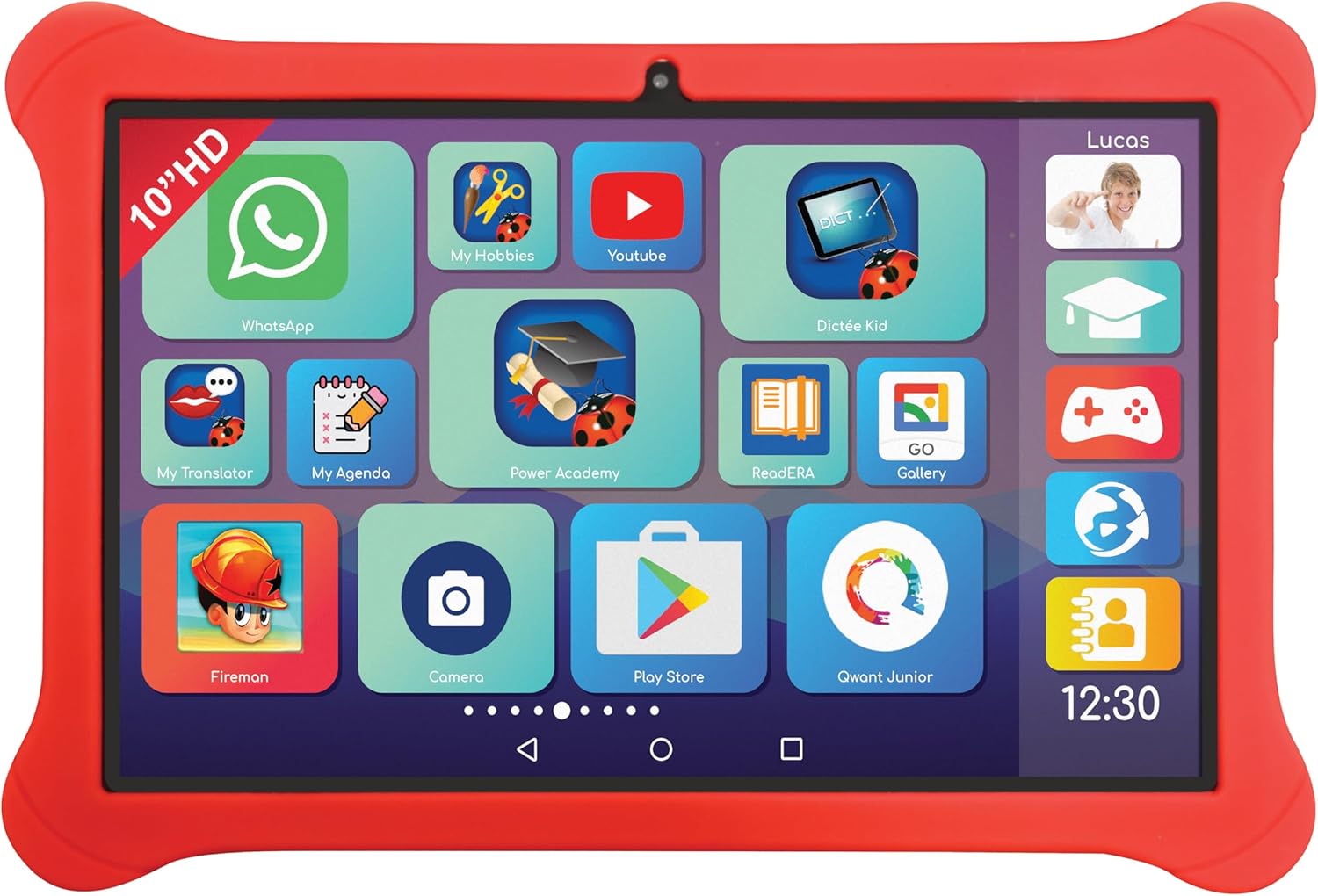
Image: A close-up view of the Lexibook Lexipad 10'' screen, displaying a grid of colorful application icons, including educational apps, games, and utility tools.
Connectivity
- Wi-Fi: Connect to wireless networks for internet access. Go to Settings > Network & internet > Wi-Fi.
- Bluetooth® 5.0: Pair with Bluetooth-enabled devices like headphones or speakers. Go to Settings > Connected devices > Pair new device.
- SD/TF Card Slot: Insert a compatible memory card to expand storage.
- Audio-out 3.5mm Port: Connect wired headphones or external speakers.
- USB-C Charging Port: Used for charging and data transfer.

Image: A child comfortably seated on a couch, engrossed in using the Lexibook Lexipad 10'' tablet, demonstrating its ease of use for young users.
Maintenance
- Cleaning: Use a soft, lint-free cloth to clean the screen and body of the tablet. Avoid abrasive cleaners or solvents.
- Storage: Store the tablet in a cool, dry place away from direct sunlight and extreme temperatures.
- Battery Care: To prolong battery life, avoid fully discharging the battery frequently. Charge it regularly and avoid leaving it plugged in for extended periods after it's fully charged.
- Software Updates: Periodically check for system updates to ensure optimal performance and security. Go to Settings > System > System update.
- Protective Case: Keep the protective case on the tablet to guard against bumps and scratches.
Troubleshooting
| Problem | Possible Cause | Solution |
|---|---|---|
| Tablet does not turn on. | Low battery; system crash. | Charge the tablet for at least 30 minutes. Perform a forced restart by holding the power button for 10-15 seconds. |
| Screen is unresponsive. | Temporary software glitch. | Restart the tablet. If unresponsive, perform a forced restart. |
| Wi-Fi connection issues. | Incorrect password; router issue; tablet Wi-Fi disabled. | Ensure Wi-Fi is enabled. Re-enter Wi-Fi password. Restart your Wi-Fi router. |
| Apps are crashing or freezing. | Insufficient RAM; app bug; outdated app. | Close background apps. Clear app cache (Settings > Apps > [App Name] > Storage > Clear cache). Update the app from Google Play Store. |
| Slow performance. | Too many apps running; low storage; outdated software. | Close unused apps. Free up storage space. Check for system updates. |
Specifications
| Feature | Detail |
|---|---|
| Model Name | TLN10EN |
| Brand | LEXiBOOK |
| Screen Size | 10 Inches |
| Display Resolution Maximum | 1920x1080 (HD) |
| Operating System | Android™ |
| Processor | A523 Octa-core |
| RAM | 4 GB |
| Connectivity | Bluetooth® 5.0, Wi-Fi |
| Ports | 1 SD/TF card slot, 1 Audio-out 3.5mm port, 1 USB-C charging port |
| Cameras | 5MP Rear, 2MP Front |
| Product Dimensions | 10.24 x 0.39 x 7.09 inches |
| Item Weight | 1.46 pounds |
| Recommended Age | 6 years and up |
Warranty and Support
Your Lexibook Lexipad® 10'' is covered by a manufacturer's warranty. Please refer to the warranty card included in your product packaging for specific terms and conditions, including the warranty period and coverage details.
For technical support, troubleshooting assistance, or warranty claims, please contact Lexibook customer service. Contact information can typically be found on the Lexibook official website or on the product packaging.
For additional resources and frequently asked questions, visit the official LEXiBOOK Store: LEXiBOOK Store on Amazon.
Documents and downloads
Ask a question about this manual
Ask about setup, troubleshooting, compatibility, parts, safety, or missing instructions. Manuals+ will review the question and use this page’s manual context to help answer it.