
VECHTEL [8 CORE 6G+128G] Car Radio for Honda Fit 2008-2013
Contents
User Manual for VECHTEL Car Radio
Model: [8 CORE 6G+128G] Car Radio for Honda Fit 2008-2013
Brand: VECHTEL
1. Introduction
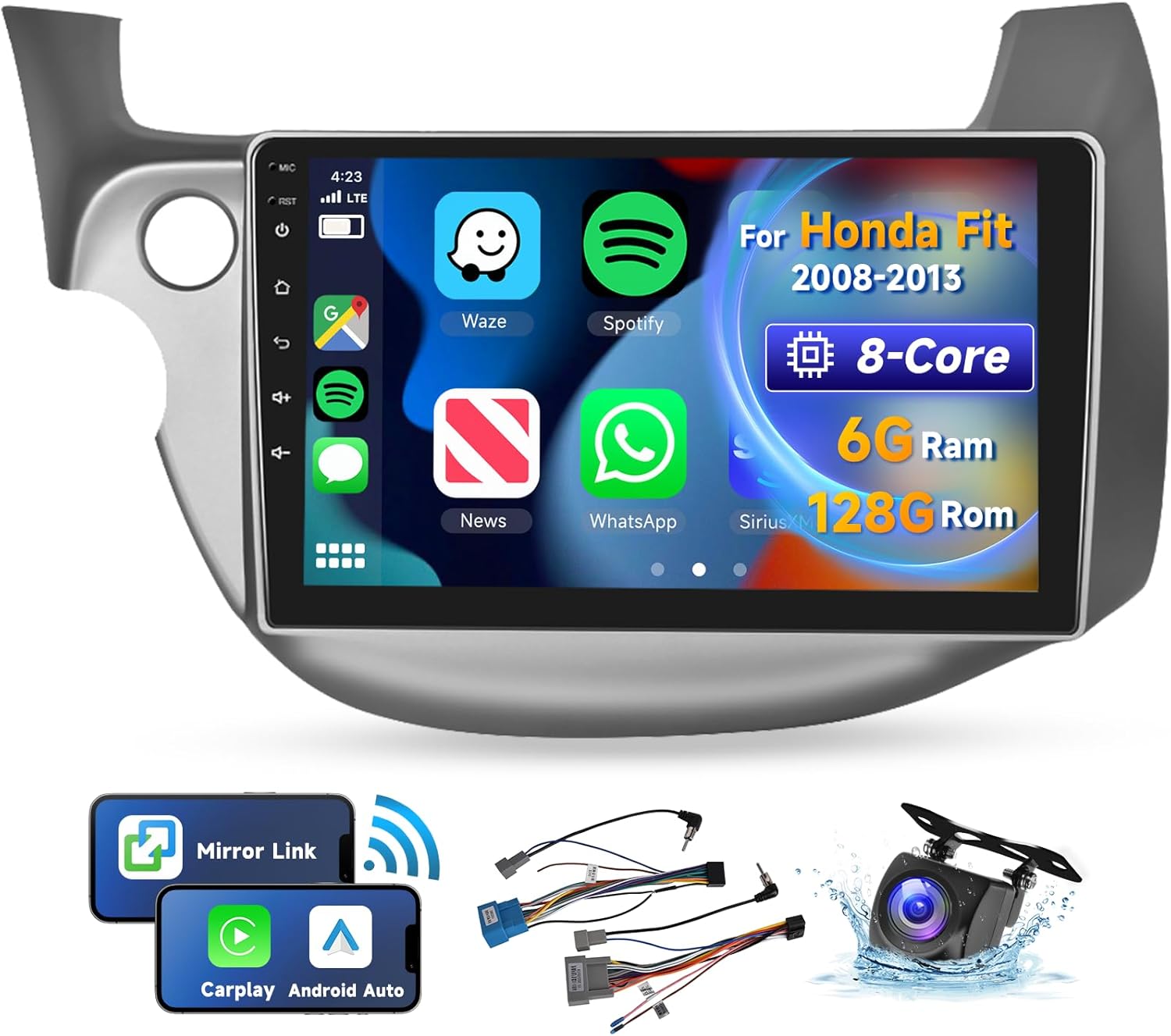
This manual provides detailed instructions for the installation, operation, and maintenance of your VECHTEL Car Radio, designed specifically for Honda Fit models from 2008 to 2013. This advanced car stereo system features an 8-core Android 13.0 operating system, 6GB RAM, 128GB ROM, a 10.1-inch IPS HD touchscreen, and supports wireless CarPlay/Android Auto, Bluetooth 5.0, GPS navigation, Wi-Fi, steering wheel control, and a DSP with 32-band EQ.
2. Safety Information
Please read all safety instructions carefully before installation and operation. Failure to follow these guidelines may result in injury, damage to the device, or damage to your vehicle.
- Ensure the vehicle's ignition is off and the battery is disconnected before beginning installation to prevent electrical short circuits.
- Consult a professional if you are unsure about any part of the installation process.
- Do not operate the device in a manner that distracts you from driving. Always prioritize road safety.
- Avoid exposing the unit to extreme temperatures, direct sunlight for prolonged periods, or excessive moisture.
- Use only specified power cables and accessories provided with the unit or approved by the manufacturer.
3. Package Contents
Verify that all items listed below are included in your package:
- 1 x Car Radio
- 1 x Power Cable
- 1 x GPS Antenna
- 1 x Rear Camera
- 1 x Rear Camera Input Cable
- 1 x RCA Cable
- 2 x USB Cable
- 1 x External Mic
- 1 x Installation Tool
- 1 x Instruction Manual

4. Installation Guide
This car radio is designed for a plug-and-play installation in Honda Fit models from 2008 to 2013. No modification of car power cables is typically required.
4.1 Pre-Installation Steps
- Disconnect the vehicle's battery to prevent electrical hazards.
- Carefully remove the existing car stereo unit and dashboard trim. Refer to your vehicle's service manual for specific instructions on trim removal.
4.2 Connecting the Main Unit
- Connect the provided Power Cable to the car radio and the vehicle's wiring harness.
- Attach the GPS Antenna to the designated port on the car radio. Position the antenna in a location with a clear view of the sky for optimal signal reception.
- Connect the USB Cables for external devices.
- Connect the External Mic for hands-free calling.
- If using external amplifiers or other audio components, connect them via the RCA Cable.

4.3 Rear Camera Installation
- Mount the Rear Camera at the back of your vehicle, ensuring a clear view of the area behind the car.
- Route the Rear Camera Input Cable from the camera to the car radio, connecting it to the designated "Rear Camera Input" port.
- Connect the camera's power wire to the vehicle's reverse light circuit to enable automatic camera activation when shifting into reverse.

4.4 Steering Wheel Control (SWC) Connection
The unit supports steering wheel controls. Connect the SWC wires from the vehicle's harness to the corresponding wires on the car radio. Configuration may be required in the unit's settings menu after installation.
4.5 Final Steps
- Carefully re-install the dashboard trim and secure the car radio unit.
- Reconnect the vehicle's battery.
- Turn on the ignition and test all functions of the car radio.
5. Operating Instructions
5.1 Power On/Off and Basic Touchscreen Operation
Press the power button to turn the unit on or off. The 10.1-inch IPS HD touchscreen supports multi-touch gestures. Navigate through menus and applications by tapping, swiping, and pinching.

5.2 Android 13.0 System
The unit runs on Android 13.0, providing a familiar smartphone-like interface. You can customize the home screen, download apps from the app store (requires Wi-Fi connection), and manage settings.

5.3 Wireless CarPlay / Android Auto
Connect your iPhone or Android smartphone wirelessly or via USB to access CarPlay or Android Auto. This allows for seamless integration of navigation, music, calls, and messaging directly on the car radio screen.
- Wireless Connection: Enable Bluetooth and Wi-Fi on your phone. Pair your phone with the car radio via Bluetooth. Follow the on-screen prompts to initiate CarPlay or Android Auto.
- Wired Connection: Connect your phone to one of the USB ports using a compatible USB cable. The system should automatically detect and launch CarPlay or Android Auto.
- Voice Control: Utilize Siri or Google Assistant for hands-free operation by pressing the voice command button on the screen or steering wheel.

5.4 Bluetooth 5.0
The integrated Bluetooth 5.0 module allows for stable and high-quality wireless audio streaming and hands-free calling.
- Pairing: Go to the Bluetooth settings on the car radio and enable Bluetooth. On your phone, search for available devices and select the car radio's Bluetooth name (e.g., "VECHTEL Car Radio"). Confirm the pairing code if prompted.
- Hands-Free Calling: Once paired, you can make and receive calls directly through the car radio. Use the external microphone for clear voice transmission.
- Audio Streaming: Play music from your phone through the car's speakers via Bluetooth audio streaming.
5.5 GPS Navigation
The unit supports both online and offline navigation. Pre-installed maps are available, and you can download additional map data or use online navigation apps via Wi-Fi.
- Online Maps: Connect to Wi-Fi and use navigation apps like Google Maps, Waze, etc.
- Offline Maps: Download map data for your region to use navigation without an internet connection.

5.6 Wi-Fi Connectivity
Connect the car radio to a Wi-Fi hotspot (e.g., from your phone or a portable hotspot) to access online features, download apps, browse the internet, and stream content.
- Go to Settings > Network & Internet > Wi-Fi.
- Select your desired Wi-Fi network and enter the password if required.
5.7 FM/RDS Radio
Access the FM/RDS Radio application to listen to local radio stations. RDS (Radio Data System) provides additional information like station name and song title where available.
- Tuning: Use the on-screen controls to manually tune or auto-scan for stations.
- Presets: Save your favorite stations to preset buttons for quick access.
5.8 Mirror Link
Mirror Link allows you to display your smartphone's screen directly on the car radio. This feature supports both Android and iOS devices.
- Open the "Mirror Link" app on the car radio.
- Follow the instructions on the screen to connect your phone via USB or Wi-Fi.
5.9 DSP (Digital Sound Processor) with 32-band EQ
The built-in DSP allows for advanced audio customization. Adjust the 32-band equalizer to fine-tune the sound output to your preference. It also includes subwoofer output control.
- Access the DSP or Equalizer settings from the main menu.
- Adjust frequency bands, balance, fader, and subwoofer levels.
5.10 Split-Screen Display and UI Themes
The 10.1-inch screen supports split-screen functionality, allowing you to run two applications simultaneously (e.g., navigation and music player). You can also customize the user interface with various themes.
- Split-Screen: Long-press an app icon and drag it to one side of the screen to activate split-screen mode. Select another app for the other side.
- UI Themes: Navigate to the display settings to choose from a variety of pre-installed UI themes to personalize your experience.
6. Maintenance
Proper maintenance ensures the longevity and optimal performance of your car radio.
- Cleaning the Screen: Use a soft, lint-free cloth to gently wipe the touchscreen. For stubborn smudges, slightly dampen the cloth with water or a screen-cleaning solution. Avoid abrasive cleaners or solvents.
- Software Updates: Periodically check for software updates via the system settings (requires Wi-Fi connection) to ensure you have the latest features and bug fixes.
- General Care: Avoid placing heavy objects on the unit. Protect it from direct sunlight and extreme temperatures when the vehicle is parked for extended periods.
7. Troubleshooting
If you encounter issues with your VECHTEL Car Radio, refer to the following common problems and solutions:
| Problem | Possible Cause | Solution |
|---|---|---|
| Unit does not power on. | Loose power connection, blown fuse, vehicle battery issues. | Check power cable connections. Inspect vehicle fuses. Ensure car battery is charged. |
| No sound output. | Volume too low, mute enabled, incorrect speaker wiring, DSP settings. | Increase volume. Check if mute is active. Verify speaker connections. Adjust DSP/EQ settings. |
| GPS signal is weak or lost. | GPS antenna improperly placed or disconnected. | Ensure GPS antenna is connected and placed in a location with a clear view of the sky (e.g., dashboard, under windshield). |
| CarPlay/Android Auto not connecting. | Incorrect phone settings, faulty USB cable, Bluetooth/Wi-Fi issues. | Ensure phone's Bluetooth and Wi-Fi are on. Try a different USB cable. Restart both phone and car radio. Check phone's CarPlay/Android Auto settings. |
| Backup camera not displaying image. | Camera cable disconnected, incorrect wiring to reverse light, faulty camera. | Verify camera input cable connection. Check power connection to reverse light. Test camera functionality. |
| Touchscreen unresponsive or inaccurate. | Software glitch, calibration needed. | Restart the unit. If issue persists, check for touchscreen calibration options in settings. |
| Compatibility issues (e.g., mismatched wiring or shape). | Incorrect product for vehicle model year. | Contact VECHTEL customer support directly through Amazon. Provide your car model year and a picture of the center console for assistance. |
8. Product Specifications
| Feature | Detail |
|---|---|
| Model Compatibility | Honda Fit 2008-2013 |
| Operating System | Android 13.0 |
| CPU | 8 Core |
| RAM | 6GB |
| ROM | 128GB |
| Screen Size | 10.1 Inches |
| Display Type | IPS HD Touchscreen |
| Resolution | 1280 x 720 |
| CarPlay/Android Auto | Wireless & Wired Support |
| Bluetooth Version | 5.0 |
| GPS Navigation | Online & Offline Maps |
| Wi-Fi | Supported |
| Radio Tuner | FM/RDS |
| DSP | 32-band EQ, Subwoofer Output |
| Steering Wheel Control (SWC) | Supported |
| Rear Camera | Included (Waterproof Night Vision) |
| Item Weight | 4.27 pounds |
| Product Dimensions | 9.84 x 7.09 x 6.3 inches |
| Country of Origin | China |
9. Warranty and Support
VECHTEL provides comprehensive customer support for its products. If you encounter any issues, including compatibility problems or technical difficulties, please contact us directly.
9.1 How to Contact Support
For technical assistance or inquiries, please reach out to VECHTEL customer service through the platform where you purchased the product (e.g., Amazon). You can typically find the "Contact Seller" or "Ask a question" option on the product page or your order history.

When contacting support, please provide your car model year and, if possible, a picture of your vehicle's center console to help us assist you more efficiently.
Documents and downloads
Ask a question about this manual
Ask about setup, troubleshooting, compatibility, parts, safety, or missing instructions. Manuals+ will review the question and use this page’s manual context to help answer it.