
1. Introduction
This manual provides detailed instructions for the installation, operation, and maintenance of your SEHMUA 4G LTE Cellular Security Camera (Model ZC-YT05). This camera is designed for outdoor surveillance in locations without Wi-Fi access, utilizing 4G LTE cellular networks. It features solar power, pan and tilt capabilities, 2K resolution, color night vision with spotlight, two-way audio, and PIR motion detection.
2. Product Components
Carefully unpack the box and ensure all components are present and in good condition. If any items are missing or damaged, please contact customer support.
- SEHMUA 4G LTE Cellular Security Camera (ZC-YT05)
- Solar Panel with mounting bracket
- Mounting Screws and Wall Anchors
- USB Charging Cable
- Nano SIM Card (pre-installed or included separately)
- User Manual

Figure 2.1: SEHMUA 4G LTE Cellular Security Camera and Solar Panel mounted on a barn.
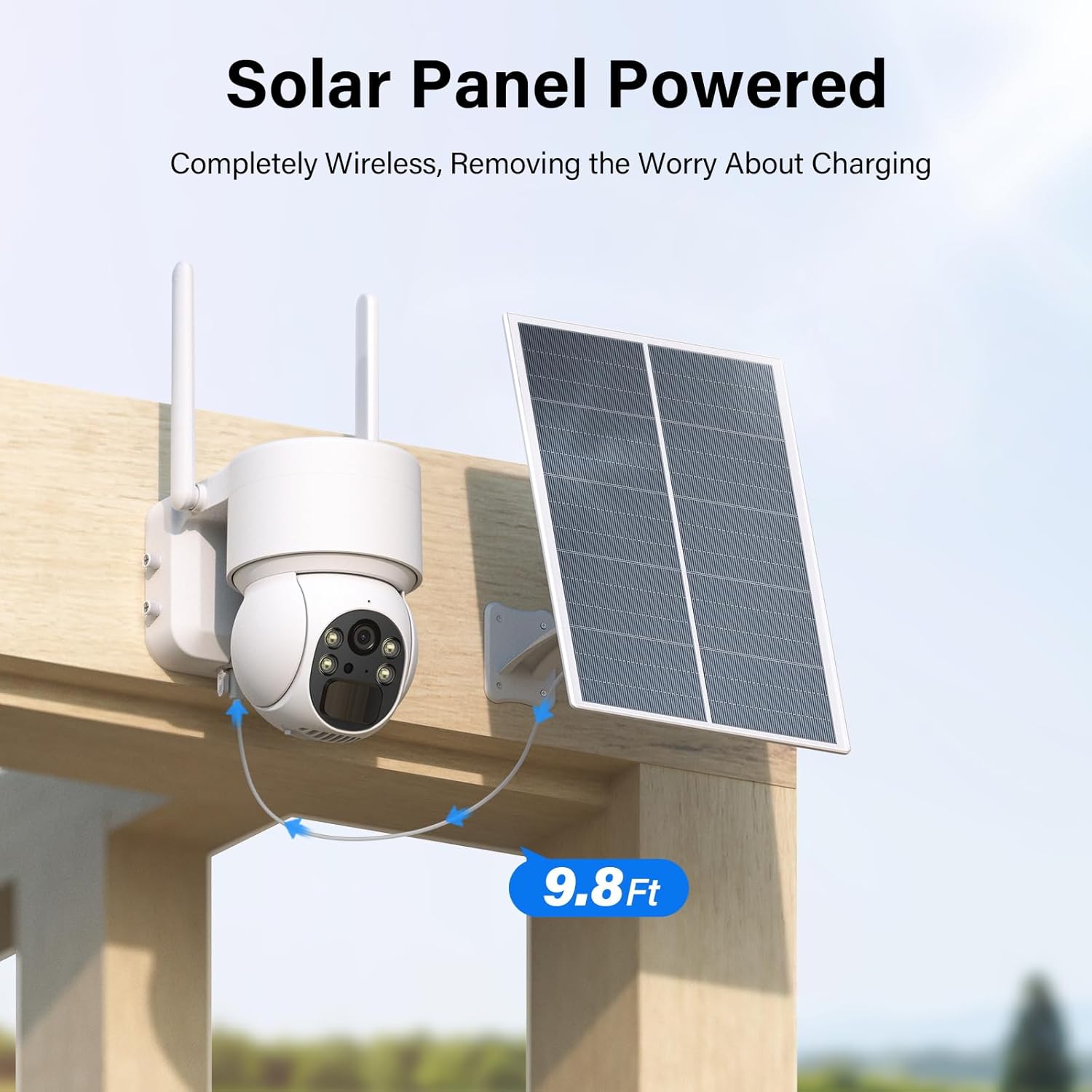
Figure 2.2: SEHMUA security camera connected to its solar panel with a 9.8ft cable, mounted on a wooden structure.
3. Setup
3.1 SIM Card Installation
- Locate the SIM card slot on the camera body. This is typically protected by a rubber plug or cover.
- Carefully open the cover.
- Insert the provided Nano SIM card into the slot with the gold contacts facing down and the notched corner aligned correctly. Push until it clicks into place.
- Close the cover securely to ensure waterproof sealing.

Figure 3.1: SIM Card Installation.
3.2 Charging the Camera
Before initial use, fully charge the camera's internal battery using the provided USB cable. Connect the USB cable to the camera's charging port and a standard 5V USB power adapter (not included). The indicator light will show charging status.
3.3 App Download and Pairing
- Download the 'UBox' app from your smartphone's app store (iOS App Store or Google Play Store).
- Register for an account and log in.
- Follow the in-app instructions to add your camera. This typically involves scanning a QR code on the camera or its packaging.
- Ensure your phone has a stable internet connection during the pairing process.
3.4 Mounting the Camera and Solar Panel
Choose a mounting location that provides a clear view of the area you wish to monitor and receives ample direct sunlight for the solar panel. The camera is IP65 weatherproof, suitable for outdoor conditions.
- Use the provided mounting bracket and screws to securely attach the camera to a wall or pole.
- Mount the solar panel in a location that maximizes sun exposure throughout the day. Ensure the panel is angled correctly for optimal charging.
- Connect the solar panel cable to the camera's charging port. The cable length is approximately 9.8 feet (3 meters).

Figure 3.2: Weatherproof design for outdoor installation.
4. Operation
4.1 Live View and Pan/Tilt Control
Open the UBox app on your smartphone to access the live video feed from your camera. Use the on-screen controls to remotely pan the camera 355 degrees horizontally and tilt it 120 degrees vertically to adjust your viewing angle.
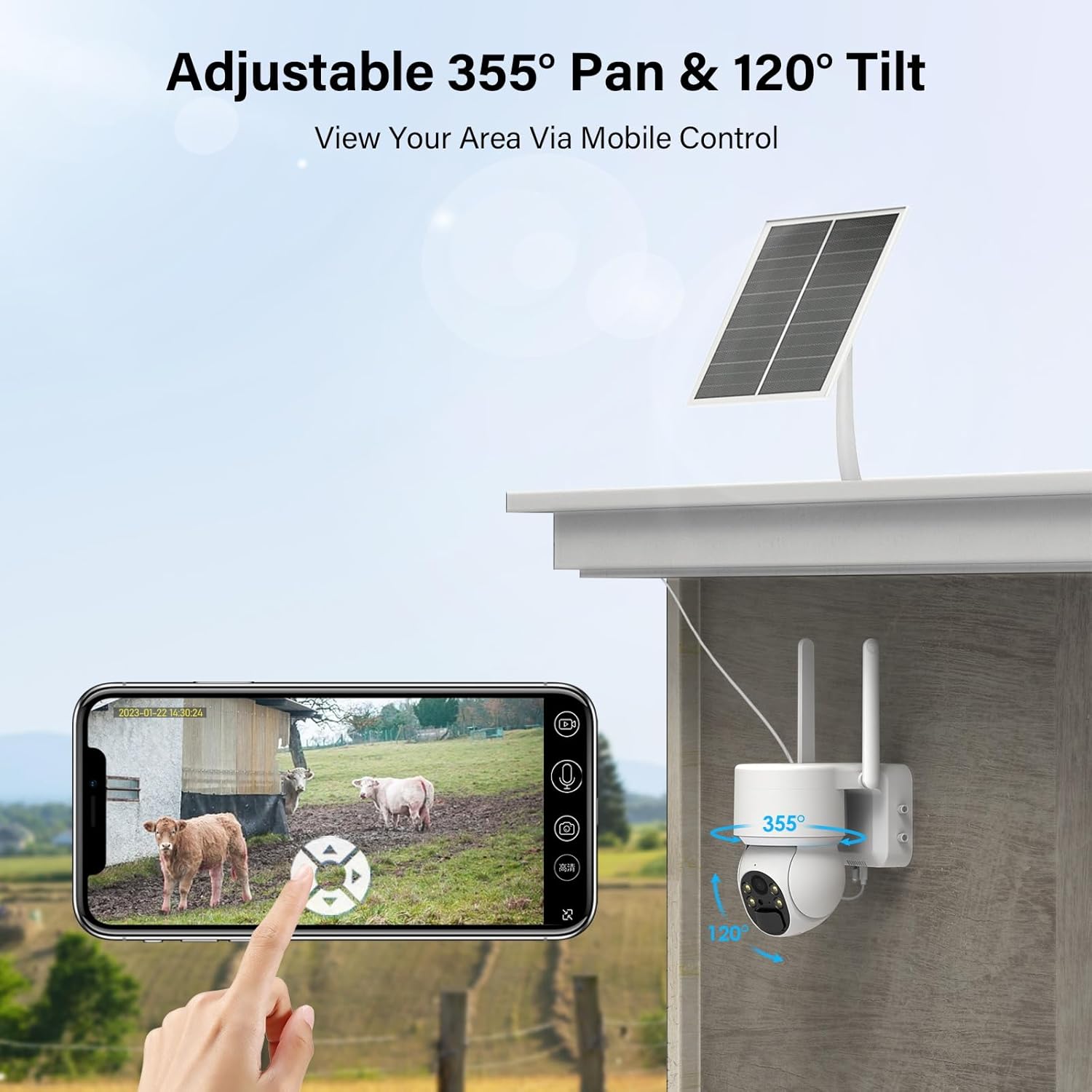
Figure 4.1: Live view and pan/tilt control via smartphone app.
4.2 Motion Detection and Alerts
The camera features PIR (Passive Infrared) motion detection. When motion is detected, the camera will automatically record video and send an alert notification to your smartphone via the UBox app. You can adjust the sensitivity of motion detection in the app settings.

Figure 4.2: Motion detection alert on smartphone.
4.3 Two-Way Audio
Utilize the two-way audio feature to communicate with individuals near the camera. Press the microphone icon in the UBox app to speak, and release to listen. The camera has a built-in speaker and microphone.

Figure 4.3: Two-way audio communication.
4.4 Night Vision and Spotlight
The camera is equipped with infrared LEDs for black and white night vision and a built-in spotlight for color night vision. The spotlight can be configured to activate automatically upon motion detection, providing enhanced visibility and acting as a deterrent.

Figure 4.4: Spotlight color night vision in action.
4.5 Video Recording and Storage
Recorded videos can be stored locally on a Micro SD card (up to 128GB, not included) or via cloud storage. A free trial for cloud storage may be available. Manage storage options and review recordings through the UBox app.

Figure 4.5: Cloud and SD card storage options.
5. Maintenance
5.1 Solar Panel Cleaning
To ensure optimal charging efficiency, regularly clean the surface of the solar panel. Dust, dirt, and debris can reduce its ability to convert sunlight into energy. Use a soft, damp cloth to gently wipe the panel. Avoid abrasive cleaners or harsh scrubbing.
5.2 Battery Management
The camera is powered by a rechargeable Lithium Ion battery, continuously charged by the solar panel. In periods of low sunlight or high usage, the battery level may decrease. Monitor the battery status via the UBox app. If the battery level becomes critically low, consider temporarily charging the camera via USB or repositioning the solar panel for better sun exposure.
5.3 Firmware Updates
Periodically check the UBox app for available firmware updates. Keeping your camera's firmware up-to-date ensures optimal performance, security, and access to new features. Follow the in-app instructions for any updates.
6. Troubleshooting
- Camera Not Connecting to 4G LTE:
Ensure the Nano SIM card is correctly inserted and has an active data plan. Check cellular signal strength in the camera's location via the app. Restart the camera and try again. Contact your cellular provider to confirm network coverage. - No Motion Detection Alerts:
Verify that motion detection is enabled in the UBox app settings. Adjust PIR sensitivity if necessary. Ensure the camera's view is not obstructed. - Poor Video Quality:
Check the cellular signal strength. A weak signal can affect streaming quality. Ensure the camera lens is clean and free from dirt or condensation. - Battery Not Charging:
Ensure the solar panel is clean and receiving direct sunlight for several hours daily. Check the connection between the solar panel and the camera. If the issue persists, try charging the camera directly via USB. - Two-Way Audio Issues:
Ensure your phone's microphone and speaker are enabled for the UBox app. Check the camera's microphone and speaker for any obstructions.
7. Specifications
| Feature | Detail |
|---|---|
| Model | ZC-YT05 |
| Form Factor | Dome |
| Video Capture Resolution | 2K |
| Wireless Communication Technology | 4G LTE (Cellular) |
| Power Source | Solar Powered (with Lithium Ion Battery) |
| Wattage | 6 watts |
| Pan/Tilt Range | 355° Pan, 120° Tilt |
| International Protection Rating | IP65 (Weatherproof) |
| Alert Type | Motion Only (PIR Motion Detection) |
| Storage Options | Micro SD Card (up to 128GB), Cloud Storage |
| Item Dimensions L x W x H | 5.94 x 7.05 x 10.39 inches |
| Item Weight | 3.19 pounds |
8. Warranty & Support
Your SEHMUA 4G LTE Cellular Security Camera is covered by a standard manufacturer's warranty. Please refer to the product packaging or contact your retailer for specific warranty terms and conditions.
For technical support, troubleshooting assistance, or warranty claims, please contact SEHMUA customer service through the contact information provided on the product packaging or the official SEHMUA website. When contacting support, please have your product model number (ZC-YT05) and purchase details ready.
