
AOCHUAN Smart X Pro Kit
Contents
AOCHUAN Smart X Pro Kit User Manual
Model: Smart X Pro Kit
1. Product Overview
The AOCHUAN Smart X Pro Kit is a 3-axis gimbal stabilizer designed for smartphones, engineered to provide exceptional video stability and enhanced shooting capabilities. This kit includes a dedicated storage bag for convenient transport and protection of your device and its accessories.

Image: The AOCHUAN Smart X Pro Kit, featuring the 3-axis gimbal stabilizer for smartphones alongside its included B10 storage bag. The gimbal is shown with a smartphone mounted, indicating its primary function for mobile videography.
2. Key Features
- Advanced 7.0 Anti-Shake Technology: Utilizes an advanced 7.0 anti-shake algorithm to ensure rock-steady footage, even during dynamic movements. Includes a focus wheel and zoom slider for enhanced control.
- High-Definition OLED Display: Provides real-time information on battery life, Bluetooth connectivity, and current shooting modes (PF, L, F, POV).
- Integrated Fill Light: Features a fill light with up to 6000lux brightness, 3 adjustable brightness levels, and a color temperature of up to 5500K CCT.
- 6.0 Intelligent AI Tracking: Supports face tracking, body tracking, object tracking, and third-party live tracking via the "AOCHUAN" app. Includes gesture control for hands-free operation.
- Wireless Charging Clip: Enables uninterrupted shooting by providing wireless charging for compatible smartphones.

Image: Close-up view of the gimbal's smartphone clamp, highlighting the magnetic fill lights. The image indicates 3-hour battery life, magnetic design, 3 levels of brightness, and 7 RGB colors for the lights.

Image: A person using the gimbal stabilizer to record a skateboarder, illustrating the "Smart 7.0 anti-shake system" for stable footage during action shots.

Image: A smartphone mounted on the gimbal, showing an overlay indicating wireless charging functionality. This feature helps ensure uninterrupted shooting sessions.
3. Setup Guide
3.1 Unboxing and Initial Inspection
Carefully remove all components from the packaging. Verify that all items listed in the product contents are present and undamaged. These typically include the gimbal stabilizer, storage bag, charging cable, and user manual.
3.2 Charging the Gimbal
Before first use, fully charge the gimbal's internal battery using the provided USB cable and a compatible power adapter (not included). The OLED display will indicate charging status.
3.3 Mounting Your Smartphone
- Extend the smartphone clamp on the gimbal.
- Carefully place your smartphone into the clamp, ensuring it is securely held.
- Position the phone as centrally as possible within the clamp to aid in balancing.
3.4 Balancing the Gimbal
Proper balancing is crucial for optimal performance and battery life. With the smartphone mounted, adjust the gimbal arms until the phone remains level when the gimbal is powered off. Refer to the specific balancing instructions in the detailed manual for precise adjustments.
3.5 App Installation and Connection
Download the official "AOCHUAN" app from your smartphone's app store. Enable Bluetooth on your smartphone and open the app to connect to the gimbal. Follow the on-screen prompts within the app for pairing.
4. Operating Instructions
4.1 Power On/Off
Press and hold the power button for a few seconds to turn the gimbal on or off. The OLED display will illuminate upon power-on.
4.2 Gimbal Modes
The gimbal supports various shooting modes, indicated on the OLED display:
- PF (Pan Follow): The camera pans left/right following your movement, while tilt and roll axes are locked.
- L (Lock Mode): All three axes (pan, tilt, roll) are locked, keeping the camera pointing in a fixed direction.
- F (Full Follow): All three axes follow your movement, providing dynamic and fluid shots.
- POV (Point of View): Provides 360-degree synchronous movement on all three axes, mimicking your perspective.
4.3 Controls and Functions
- Joystick: Controls pan and tilt movements manually.
- Focus Wheel: Adjusts focus within the app (if supported by phone/app).
- Zoom Slider: Controls zoom in/out within the app.
- Shutter Button: Triggers photo capture or video recording via the app.
- Mode Button: Cycles through different gimbal modes.
4.4 Intelligent AI Tracking and Gesture Control
Activate AI tracking features through the AOCHUAN app. The gimbal can track faces, bodies, or specific objects. Gesture controls allow for hands-free operation:
- Fist gesture: Toggles between video and photo modes.
- Palm gestures: Initiates a countdown for 3 seconds to start/stop recording.
- OK gesture: Starts/stops face tracking.
- Thumbs up with both hands: Switches between portrait and landscape orientation.
- L-shaped gesture: Starts/stops gesture recognition.

Image: A visual guide demonstrating various hand gestures for controlling the gimbal, including fist, palm, OK, double thumbs up, and L-shaped gestures, along with their corresponding functions like toggling modes, starting/stopping recording, and activating tracking.
5. Maintenance
- Cleaning: Use a soft, dry cloth to clean the gimbal. Avoid using liquid cleaners or solvents.
- Storage: Store the gimbal in its provided storage bag in a cool, dry place away from direct sunlight and extreme temperatures.
- Battery Care: For long-term storage, ensure the battery is charged to approximately 50-60% to preserve its lifespan. Recharge every 3 months if not in use.
6. Troubleshooting
6.1 Gimbal Not Powering On
- Ensure the battery is fully charged.
- Press and hold the power button for the required duration (typically 2-3 seconds).
6.2 Unstable Footage / Vibrations
- Verify that the smartphone is properly balanced on the gimbal.
- Check for any obstructions preventing free movement of the gimbal axes.
- Ensure the gimbal firmware is up to date via the AOCHUAN app.
6.3 Bluetooth Connection Issues
- Ensure Bluetooth is enabled on your smartphone.
- Restart both the gimbal and your smartphone.
- Forget the device in your phone's Bluetooth settings and attempt to re-pair.
- Ensure the AOCHUAN app has necessary permissions.
6.4 App Functionality Problems
- Update the AOCHUAN app to the latest version.
- Clear the app's cache or reinstall the app.
- Ensure your smartphone's operating system is compatible with the app.
7. Specifications
| Feature | Detail |
|---|---|
| Model | Smart X Pro Kit |
| Brand | AOCHUAN |
| Compatible Devices | Cellphone |
| Maximum Weight Recommendation | 500 Grams |
| Color | Black |
| Anti-Shake Technology | Advanced 7.0 Anti-Shake Algorithm |
| Display | High-Definition OLED |
| Fill Light Brightness | Up to 6000lux (3 adjustable levels) |
| Fill Light Color Temperature | Up to 5500K CCT |
| AI Tracking | Face, Body, Object, Third-party Live Tracking |
| Connectivity | Bluetooth |
| Charging | Wireless charging clip compatible |
8. Included Accessories: B10 Storage Bag
The Smart X Pro Kit includes a B10 storage bag, designed for convenient and secure transport of your gimbal and its accessories.
- Ample Storage: Offers generous space for the stabilizer, cables, and other accessories.
- Customizable Layout: Features adjustable dividers and pockets to organize and secure gear, preventing jostling.
- Adaptable Design: Suitable for various environments, ensuring protection and convenience for travel or daily use.
- Adjustable Shoulder Strap: Allows for easy alteration of length to suit preferred carrying styles.
- Compact and Lightweight: Designed for portability.

Image: The B10 storage bag with its contents, including the gimbal, a smartphone, chargers, a wireless microphone, and an extension pole, demonstrating its durable and large capacity for organizing essentials.
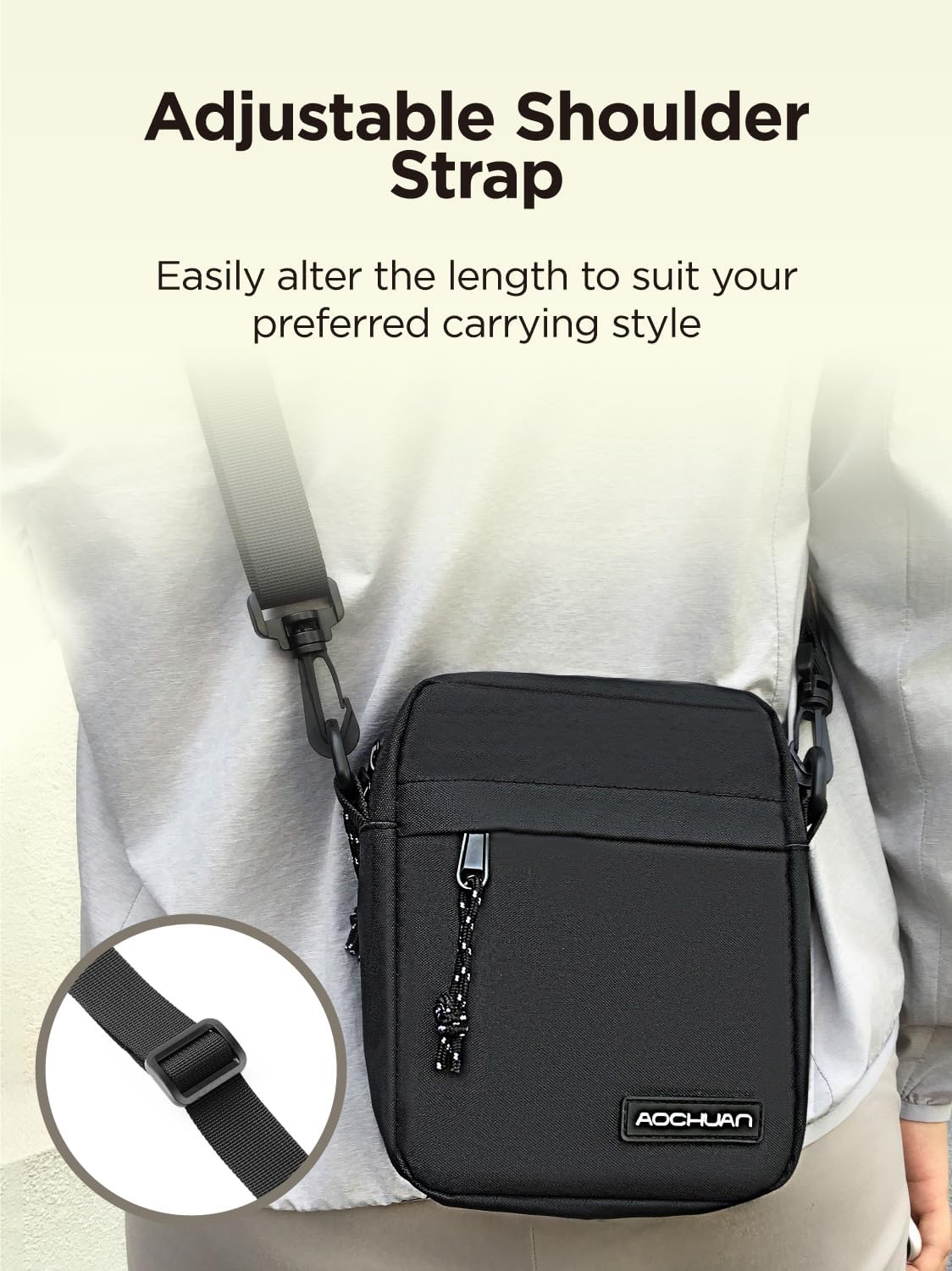
Image: A person wearing the B10 storage bag over their shoulder, highlighting the adjustable shoulder strap feature for customized carrying comfort.

Image: The B10 storage bag with dimensions indicated (18cm height, 16cm width, 4cm depth), emphasizing its compact and lightweight design.
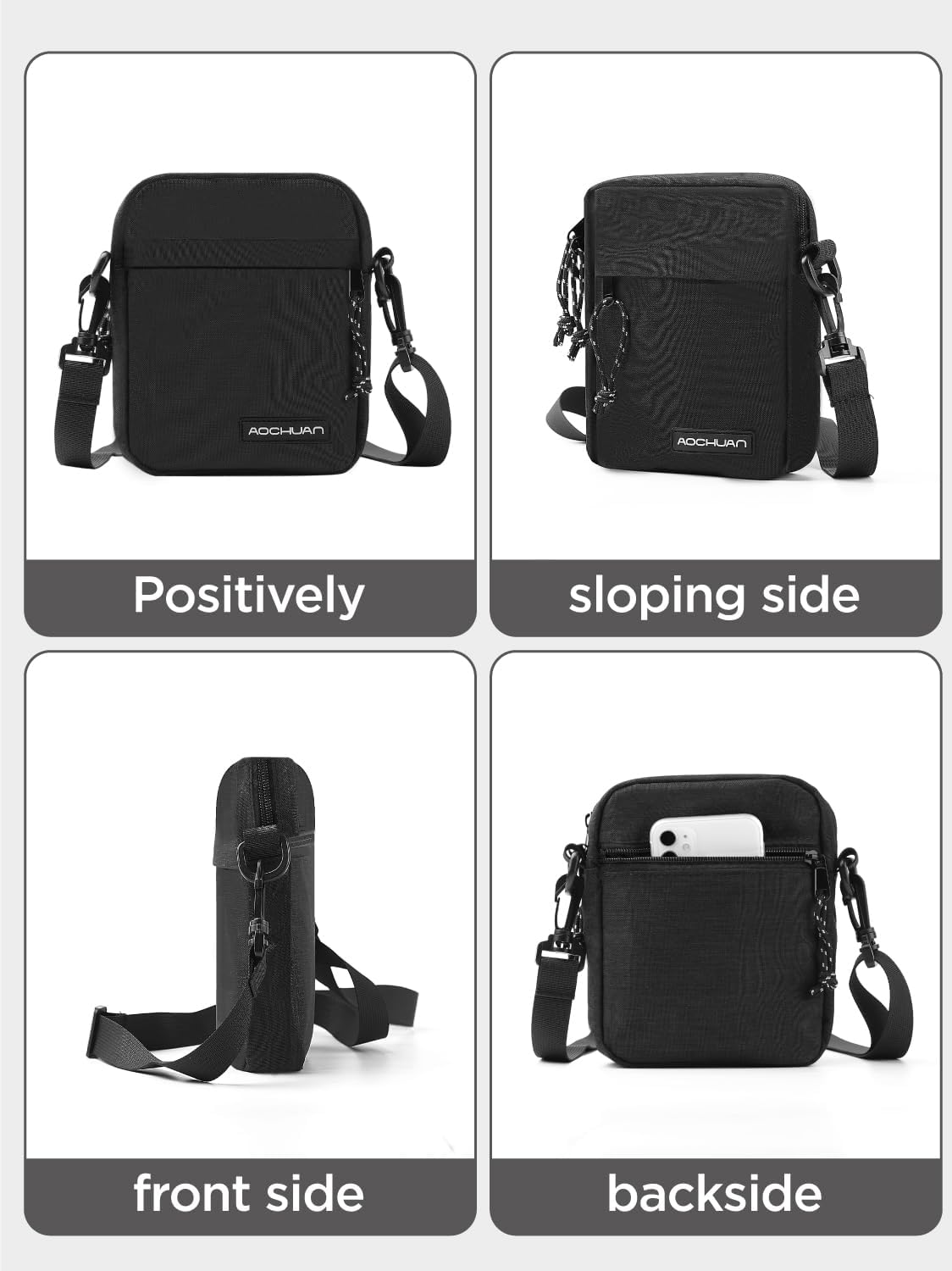
Image: A composite image showing four different views of the B10 storage bag: positively (front), sloping side, front side (profile), and backside, illustrating its design from various angles.
9. Warranty and Support
For warranty information and technical support, please refer to the official AOCHUAN website or contact their customer service directly. Keep your purchase receipt as proof of purchase for warranty claims.
AOCHUAN Store: Visit the AOCHUAN Store on Amazon
Ask a question about this manual
Ask about setup, troubleshooting, compatibility, parts, safety, or missing instructions. Manuals+ will review the question and use this page’s manual context to help answer it.