
AOCHUAN Smart XE Kit & T20
Contents
AOCHUAN 3-Axis Gimbal Stabilizer Smart XE Kit & T20 Complete Tripod User Manual
Model: Smart XE Kit & T20
1. Product Overview
The AOCHUAN Smart XE Kit & T20 Complete Tripod is a comprehensive solution for stable and professional smartphone videography and photography. This kit combines an advanced 3-axis gimbal stabilizer with a versatile, extendable tripod, designed to provide exceptional anti-shake performance and flexible shooting angles.

Figure 1: AOCHUAN Smart XE Gimbal and T20 Tripod Kit. This image displays the complete product, including the 3-axis gimbal stabilizer with a smartphone mounted, and the accompanying extendable tripod.
2. Setup and Assembly
2.1 Unboxing and Components
Before beginning, ensure all components are present:
- AOCHUAN Smart XE 3-Axis Gimbal Stabilizer
- T20 Complete Tripod (extendable)
- Charging Cable
- User Manual (this document)
2.2 Attaching the Smartphone
Carefully open the phone clamp on the gimbal and insert your smartphone. Ensure the phone is securely seated and balanced. For optimal performance, it is recommended to remove bulky phone cases before mounting.
2.3 Assembling the Tripod
The T20 tripod features adjustable legs and an extendable central column. To set up:
- Unfold the tripod legs until they are fully extended and stable.
- Utilize the quick-flip locks on each section of the central column to extend the tripod to your desired height. The tripod can extend from 17 to 67 inches (approximately 44cm to 170cm).
- Ensure all quick-flip locks are securely fastened before mounting any equipment.

Figure 2: Adjustable Lengths of AOCHUAN T20 Tripod. This image illustrates the various height adjustments possible with the tripod, ranging from its compact folded size to its maximum extension of 170cm, highlighting the quick-flip locks.
2.4 Initial Balance and Calibration
After mounting your smartphone, manually adjust the gimbal arms to achieve a rough balance. This reduces strain on the gimbal motors and improves stabilization. Refer to the gimbal's specific instructions for detailed calibration procedures, often performed via the companion app.
2.5 Charging the Gimbal
The gimbal features a built-in 2600mAh battery. Connect the provided charging cable to the gimbal's charging port and a suitable power source. A full charge takes approximately 3.5 hours and provides over 10 hours of continuous usage.
3. Operating Instructions
3.1 Powering On/Off and Basic Controls
Press and hold the power button to turn the gimbal on or off. Utilize the joystick for pan and tilt control. The gimbal also features a professional focus wheel and zoom slider for real-time adjustments during recording.
3.2 Intelligent 7.0 Anti-Shake Technology
The gimbal employs cutting-edge 7.0 anti-shake innovation to ensure professional stabilization, eliminating blurriness from movement and ensuring rock-steady footage.
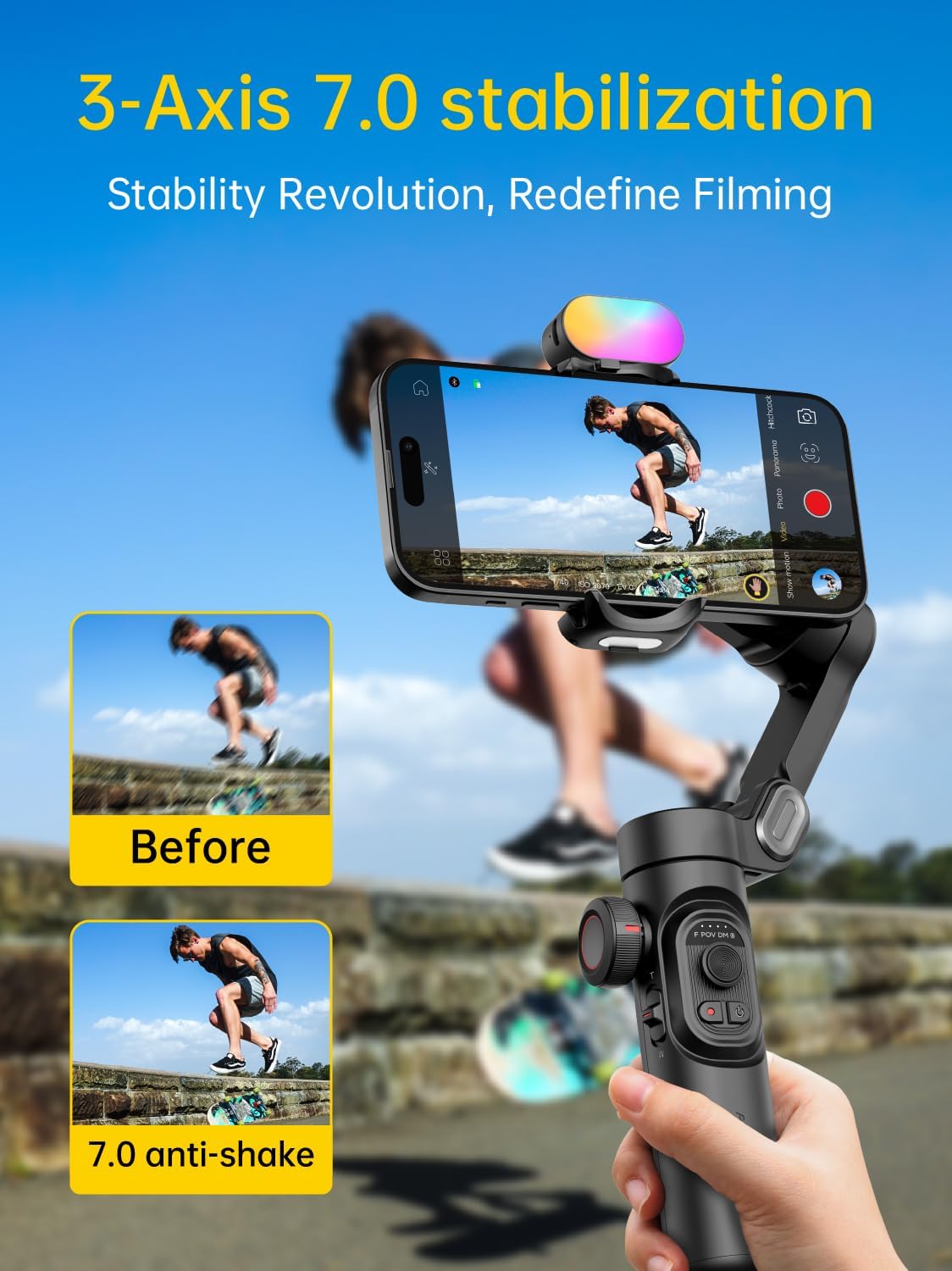
Figure 3: AOCHUAN Gimbal 3-Axis 7.0 Stabilization. This image demonstrates the effectiveness of the 7.0 anti-shake technology by showing a 'before' image with blur and an 'after' image that is clear and stable.
3.3 Smart Tracking Features
The Smart XE gimbal offers advanced tracking capabilities:
- Face Tracking: Automatically follows a detected face.
- Body Tracking: Tracks a person's body movement.
- Object Tracking: Allows selection and tracking of any specific object.
- Third-Party Live Tracking: Supports tracking within third-party live streaming applications.

Figure 4: AOCHUAN Gimbal Face Tracking 6.0. This image illustrates the gimbal's ability to track a subject's face, body, or other objects, ensuring the subject remains in frame during recording.
3.4 Gesture Control
Control the gimbal effortlessly using hand gestures:
- OK Gesture: Start or stop face tracking.
- L-shaped Gesture: Start or stop gesture recognition.
- Palm Gesture: Initiates a 3-second countdown to start recording or stops taking video/photo.
- Thumbs Up Gesture (both hands): Switches between portrait and landscape modes.
- Fist Gesture: Toggles between video and photo modes.

Figure 5: AOCHUAN Gimbal Gesture Control. This image visually explains the various hand gestures that can be used to control the gimbal's functions, such as starting tracking or switching modes.
3.5 RGB Magnetic Fill Light
The Smart XE Kit includes an RGB magnetic fill light to enhance your shooting environment. It offers 7 RGB colors, 3 levels of brightness, and a 3-hour battery life. Attach it magnetically to the gimbal for improved lighting.

Figure 6: AOCHUAN Gimbal with RGB Magnetic Fill Light. This image shows the gimbal in use with the RGB light attached, demonstrating how it can illuminate subjects and enhance the atmosphere of your recordings.
3.6 Multi-Scene Adaptability
The combined gimbal and tripod system is highly adaptable for various shooting scenarios, including macro photography, video recording, selfie stick use, and outdoor essential shots.
Figure 7: AOCHUAN Gimbal Multi-Scene Adaptability. This image displays four different scenarios where the gimbal and tripod can be effectively used, such as macro photography, video recording, as a selfie stick, and for outdoor adventures.
4. Maintenance
4.1 Cleaning
Wipe the gimbal and tripod with a soft, dry cloth. Avoid using harsh chemicals or abrasive materials that could damage the finish or electronic components. Ensure no dust or debris accumulates in the moving parts or ports.
4.2 Storage
When not in use, fold the tripod to its compact size (44cm) and store the gimbal in a cool, dry place away from direct sunlight and extreme temperatures. This helps preserve battery life and component integrity.

Figure 8: AOCHUAN Tripod Convenient Storage. This image contrasts the compact 44cm storage size of the tripod with its fully extended 170cm length, demonstrating its portability and ease of storage.
4.3 Battery Care
To maximize battery lifespan, avoid fully discharging the battery frequently. If storing for extended periods, charge the battery to approximately 50-60% every three months.
5. Troubleshooting
5.1 Gimbal Not Powering On
- Ensure the battery is sufficiently charged.
- Verify the power button is pressed and held for the required duration.
5.2 Unstable Footage
- Check if the smartphone is properly balanced on the gimbal.
- Ensure the gimbal is calibrated correctly (refer to app instructions).
- Confirm no obstructions are interfering with the gimbal's movement.
5.3 App Connection Issues
- Ensure Bluetooth is enabled on your smartphone.
- Restart both the gimbal and the smartphone.
- Update the gimbal's firmware via the app if available.
6. Specifications
| Feature | Detail |
|---|---|
| Product Name | AOCHUAN 3-Axis Gimbal Stabilizer Smart XE Kit & T20 Complete Tripod |
| Model | Smart XE Kit & T20 |
| ASIN | B0CRTJ35WZ |
| Stabilization Technology | Intelligent 7.0 Anti-Shake |
| Gimbal Battery Capacity | 2600mAh |
| Gimbal Battery Life | Over 10 hours |
| Gimbal Charging Time | Approx. 3.5 hours |
| Tripod Material | Aluminium Alloy |
| Tripod Adjustable Height | 17 to 67 inches (approx. 44cm to 170cm) |
| Tracking Features | Face Tracking, Body Tracking, Object Tracking, Third-Party Live Tracking |
| Control Methods | Physical buttons, Joystick, Focus Wheel, Zoom Slider, Gesture Control |
| Compatible Devices | Smartphones (iPhone/Android) |
| Color | Black |

Figure 9: AOCHUAN Gimbal and Tripod Features. This image highlights key structural and functional aspects, including the anti-slip mat on the tripod, the quick flip lock mechanism for height adjustment, and the universal 1/4 inch screw interface for compatibility.
7. Warranty and Support
This product is covered by a standard manufacturer's warranty. For specific warranty terms and conditions, please refer to the documentation included with your purchase or contact AOCHUAN customer support directly.
For technical assistance, troubleshooting, or service inquiries, please visit the official AOCHUAN website or contact their customer service department. Keep your purchase receipt or order number handy for faster service.
Ask a question about this manual
Ask about setup, troubleshooting, compatibility, parts, safety, or missing instructions. Manuals+ will review the question and use this page’s manual context to help answer it.