
AOCHUAN Smart XE & T20
Contents
AOCHUAN Smart XE & T20 3-Axis Gimbal Stabilizer for Smartphone User Manual
Model: Smart XE & T20 | Brand: AOCHUAN
Introduction
The AOCHUAN Smart XE Gimbal with Tripod is designed for easy handling and portability, featuring a lightweight and foldable design. It enables users to capture precious moments with stability and professional quality, whether traveling, exploring, or in everyday life. This manual provides comprehensive instructions for setting up, operating, maintaining, and troubleshooting your gimbal stabilizer.

Figure 1: AOCHUAN Smart XE Gimbal and T20 Tripod
Key Features
Smart Tracking 6.0
The gimbal incorporates a built-in tracking system capable of accurately recognizing and tracking subjects. It offers four distinct modes to suit various shooting needs: Face Tracking, Body Tracking, Object Tracking, and Third-Party Live Tracking. Simply tap on the desired target object on your smartphone screen, and the gimbal will automatically track and record, facilitating more creative shots. Additionally, the gimbal supports intuitive gesture controls for effortless capture of your most creative moments.

Figure 2: Smart Tracking 6.0 capabilities

Figure 3: Revolutionize your experience with gesture control
Flexible Shooting Angles & Extendable Tripod
The included tripod offers adjustable height and multiple angle options, allowing you to capture shots from diverse perspectives and explore endless shooting possibilities. Its flexible design enables easy adjustment and setup for any shot. The aluminum alloy tripod features adjustable legs, extending from 17 to 67 inches, providing the desired height for perfect angles and compositions in various shooting environments.
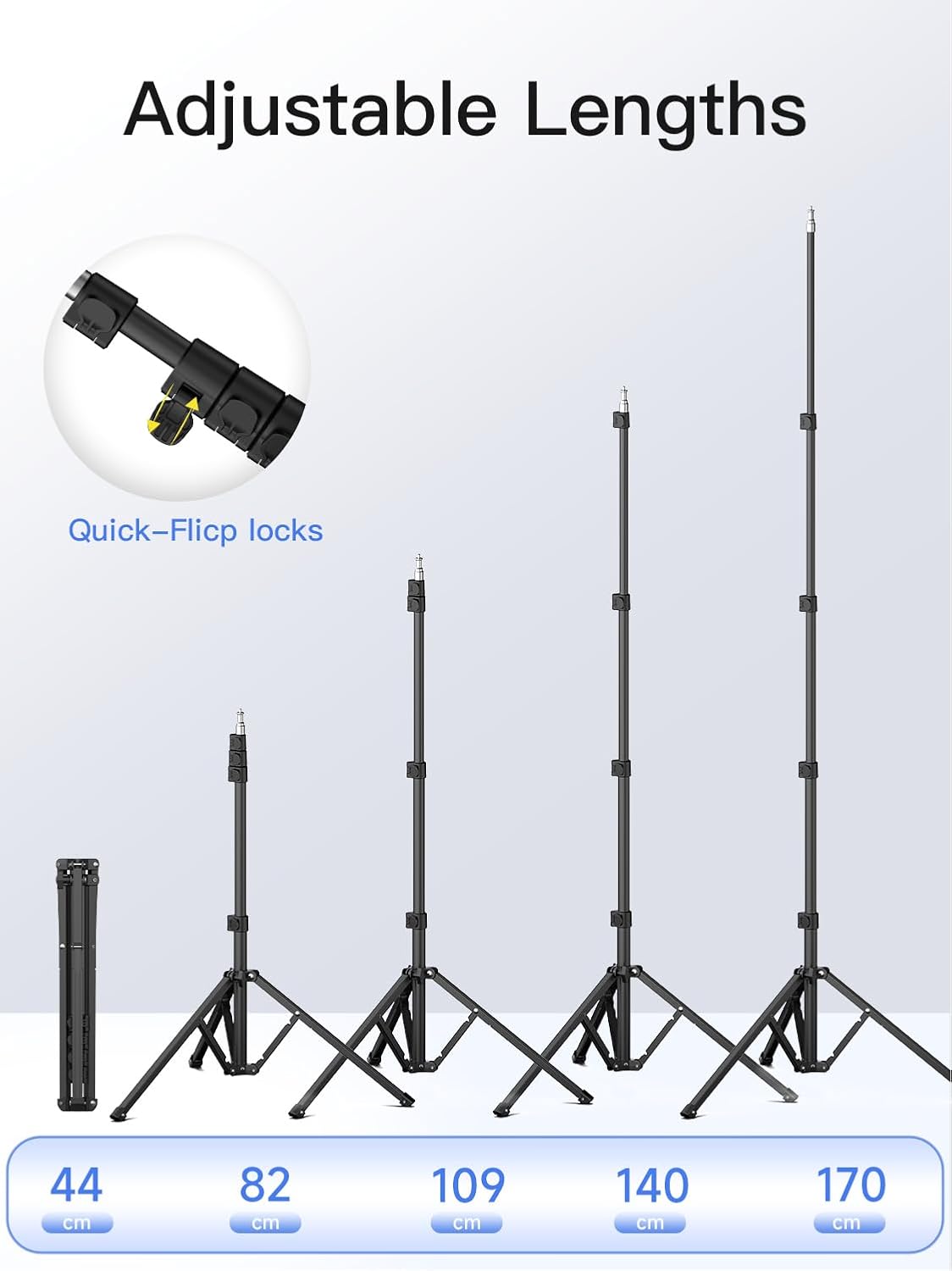
Figure 4: Tripod adjustable lengths
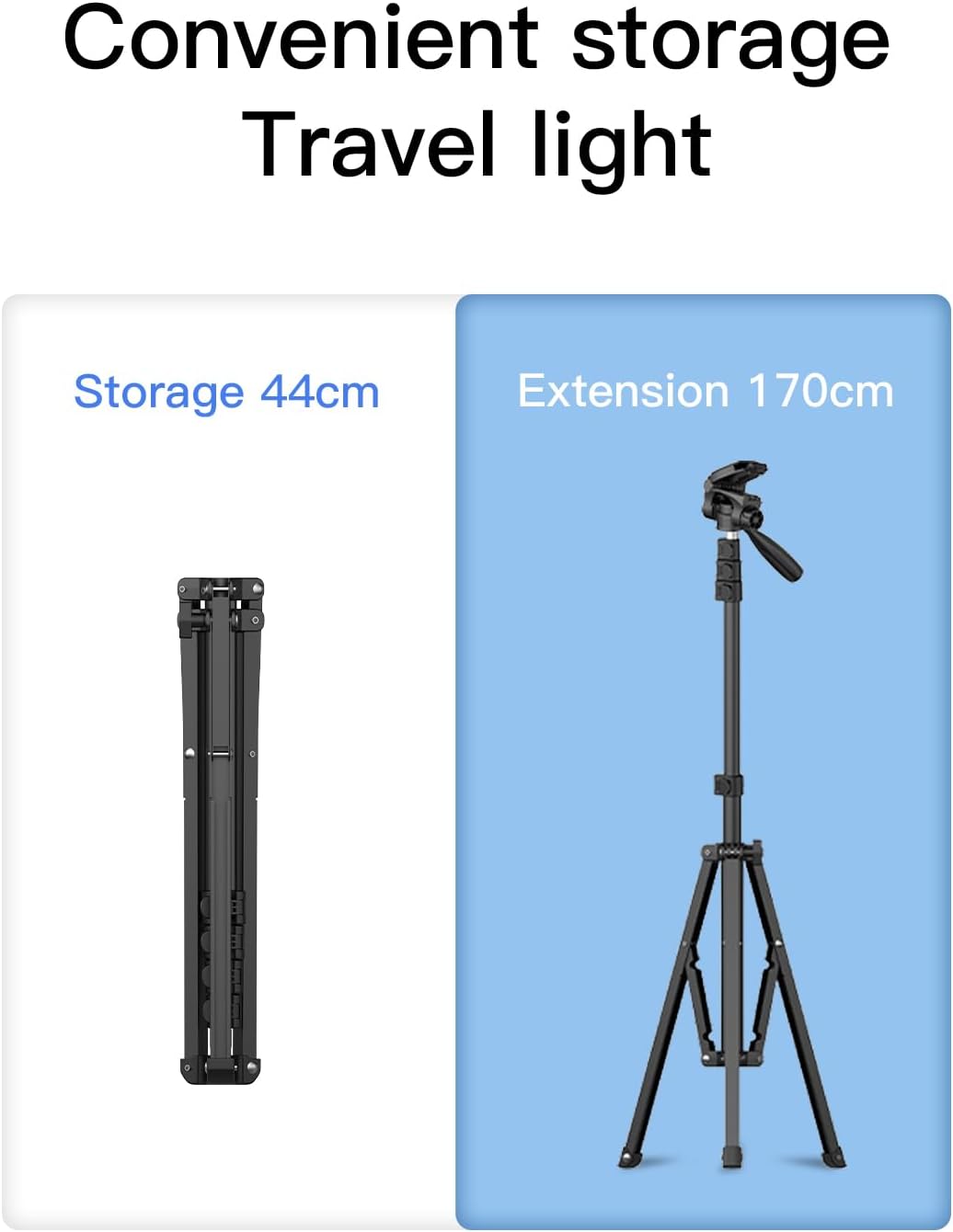
Figure 5: Convenient storage and travel light design
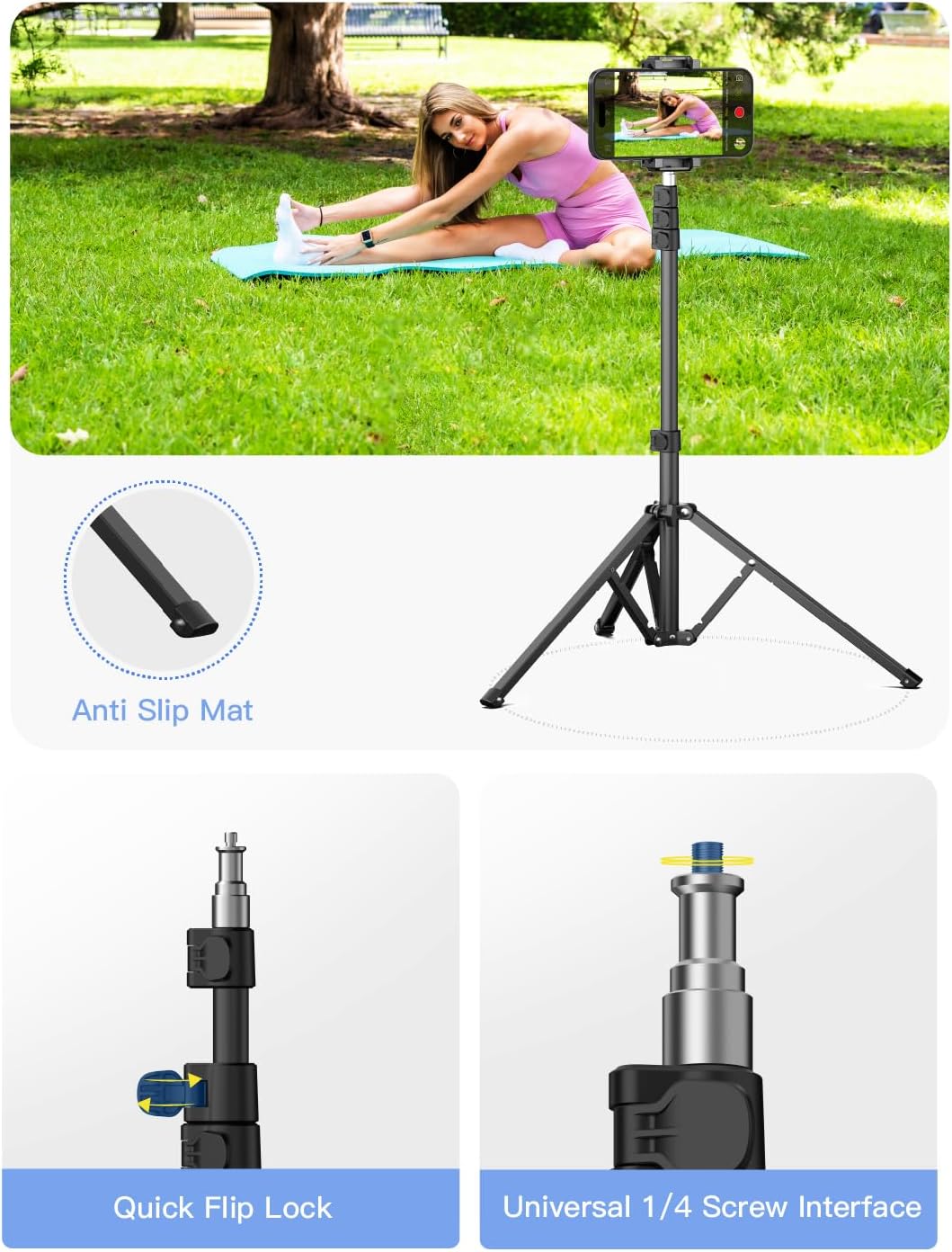
Figure 6: Tripod base features
Smart 7.0 Anti-Shake Technology
Utilizing advanced anti-shake technology, the gimbal provides professional stabilization performance, effectively eliminating shakiness during movement. This ensures that your photos and videos remain stable and smooth, making the gimbal suitable for any scene and capturing every wonderful moment. The smartphone gimbal stabilizer is equipped with a professional focus wheel and zoom slider, enabling real-time and accurate focus and zoom adjustments for professional portrait and landscape shooting.

Figure 7: 3-Axis 7.0 stabilization in action
Fast Charging and Long Battery Life
The gimbal is powered by a 2600mAh Li-Ion battery, offering over 10 hours of shooting time after a 3.5-hour charge. Its fast charging capability ensures minimal downtime, allowing you to quickly return to shooting without concerns about power depletion during extended outdoor sessions.
AOCHUAN App Integration & Multi-Scene Adaptability
Elevate your photography with the dedicated AOCHUAN App, which unlocks advanced features like Panorama, Dolly Zoom, and Inception modes. The gimbal's versatile design makes it adaptable for various shooting scenarios, including macro photography, video recording, use as a selfie stick, and essential outdoor shooting.

Figure 8: AOCHUAN App creative modes
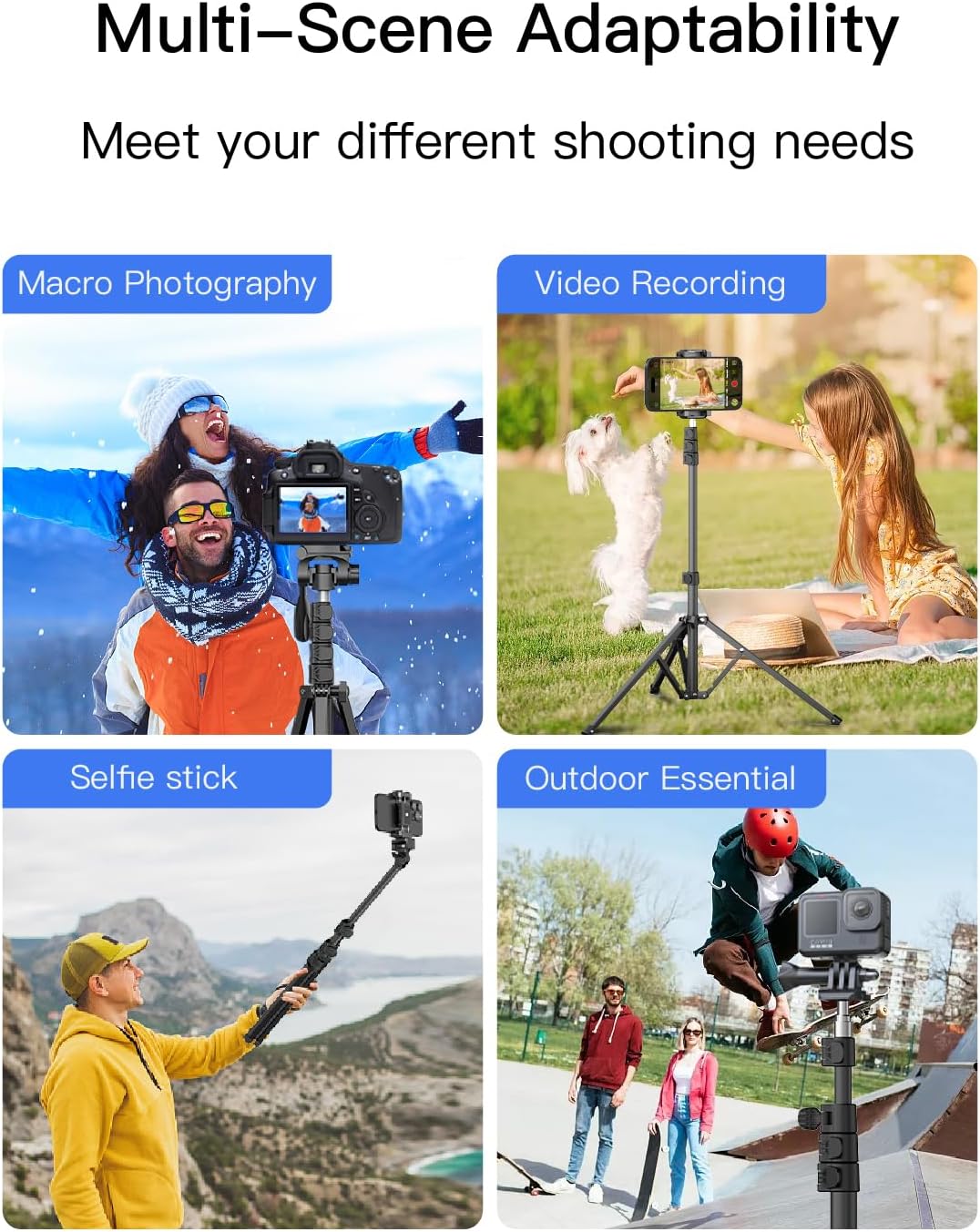
Figure 9: Versatile usage scenarios
Setup Guide
1. Unboxing and Assembly
- Carefully remove all components from the packaging.
- Unfold the gimbal arm and lock it into position.
- Attach the tripod base to the bottom of the gimbal handle by screwing it clockwise until secure.
2. Mounting Your Smartphone
- Extend the phone clamp on the gimbal.
- Carefully place your smartphone into the clamp, ensuring it is centered and securely held.
- For optimal balance, ensure the phone is as close to the gimbal's center of gravity as possible.
3. Initial Balance Adjustment
Before powering on, manually adjust your smartphone's position in the clamp until it remains level when released. This reduces motor strain and improves battery life.
Operating Instructions
1. Powering On/Off
- Power On: Press and hold the power button for 3 seconds until the indicator lights illuminate.
- Power Off: Press and hold the power button for 3 seconds until the indicator lights turn off.
2. Connecting to the AOCHUAN App
- Download the "AOCHUAN" app from your smartphone's app store.
- Enable Bluetooth on your smartphone.
- Open the AOCHUAN app and follow the on-screen prompts to connect to your gimbal.
3. Gimbal Modes and Controls
The gimbal features various modes and controls for versatile shooting:
- Joystick: Controls pan and tilt movements.
- Mode Button: Cycles through different gimbal modes (e.g., Pan Follow, Lock Mode, POV Mode). Refer to the app for detailed mode descriptions.
- Shutter Button: Press once to take a photo, press and hold to start/stop video recording (when connected to the app).
- Focus Wheel/Zoom Slider: Allows for precise manual focus or zoom control within the AOCHUAN app.
- Gesture Control: Utilize specific hand gestures to trigger functions like starting/stopping recording or activating tracking (refer to app for gesture details).
Maintenance
- Keep the gimbal clean by wiping it with a soft, dry cloth. Avoid using harsh chemicals.
- Store the gimbal in its original packaging or a protective case when not in use to prevent dust and damage.
- Ensure the battery is charged periodically, even if not in use, to maintain battery health.
- Avoid exposing the gimbal to extreme temperatures or moisture.
Troubleshooting
| Problem | Possible Solution |
|---|---|
| Gimbal not powering on. | Ensure the battery is fully charged. Press and hold the power button for 3 seconds. |
| Unstable footage / Gimbal shaking. | Check if the smartphone is properly balanced before powering on. Recalibrate the gimbal via the AOCHUAN app. |
| Cannot connect to AOCHUAN App. | Ensure Bluetooth is enabled on your phone. Restart both the gimbal and the app. Try pairing again. |
| Tracking feature not working. | Ensure good lighting conditions. Make sure the subject is clearly visible. Update the app to the latest version. |
Specifications
| Feature | Detail |
|---|---|
| Brand | AOCHUAN |
| Model | Smart XE & T20 |
| Compatible Devices | Cellphone |
| Color | Black |
| Maximum Weight Recommendation | 0.5 Pounds |
| Tripod Extension Length | 17 to 67 inches (approx. 43cm to 170cm) |
| Battery Capacity | 2600mAh Li-Ion |
| Charging Time | Approx. 3.5 hours |
| Operating Time | Over 10 hours |
Warranty and Support
For warranty information, technical support, or service inquiries, please refer to the warranty card included with your product or visit the official AOCHUAN website. Keep your purchase receipt as proof of purchase for any warranty claims.
Online Resources:
- AOCHUAN Official Website: www.aocuan.com (Note: This is a placeholder URL as no official website was provided in the data. A real URL would be preferred if available.)
- Customer Service Email: support@aocuan.com (Placeholder)
Ask a question about this manual
Ask about setup, troubleshooting, compatibility, parts, safety, or missing instructions. Manuals+ will review the question and use this page’s manual context to help answer it.