
1. Introduction
Thank you for choosing the Surmen Wireless 65% Mechanical Keyboard. This compact and versatile keyboard (Model GT68) is designed for both gaming and productivity, offering hot-swappable switches, multi-mode connectivity (Bluetooth, 2.4GHz wireless, and wired USB-C), and vibrant RGB backlighting. This manual provides detailed instructions to help you set up, operate, and maintain your new keyboard.

The Surmen Wireless 65% Mechanical Keyboard, featuring a compact 68-key layout with distinct keycap colors and RGB backlighting.
2. Package Contents
Please ensure all items are present in your package:
- Surmen Wireless 65% Mechanical Keyboard (GT68)
- USB-C to USB-A Cable
- Wireless 2.4GHz USB Receiver (typically stored in the keyboard's battery compartment or a dedicated slot)
- Keycap Puller
- Switch Puller
- 3 x Extra Keycaps (ESC, Space Bar, Enter)
- User Manual (this document)

The keyboard comes with additional keycaps for customization.
3. Key Features
- Hot-Swappable PCB: Easily replace 3-pin switches with compatible MX-style switches (Cherry, Gateron, Kailh, etc.) without soldering.

The hot-swappable design allows for easy switch replacement and customization.
- Multi-Mode Connectivity: Connect up to 3 devices via Bluetooth, 2.4GHz wireless, or wired USB-C. Seamlessly switch between PC, laptop, tablet, and smartphone.
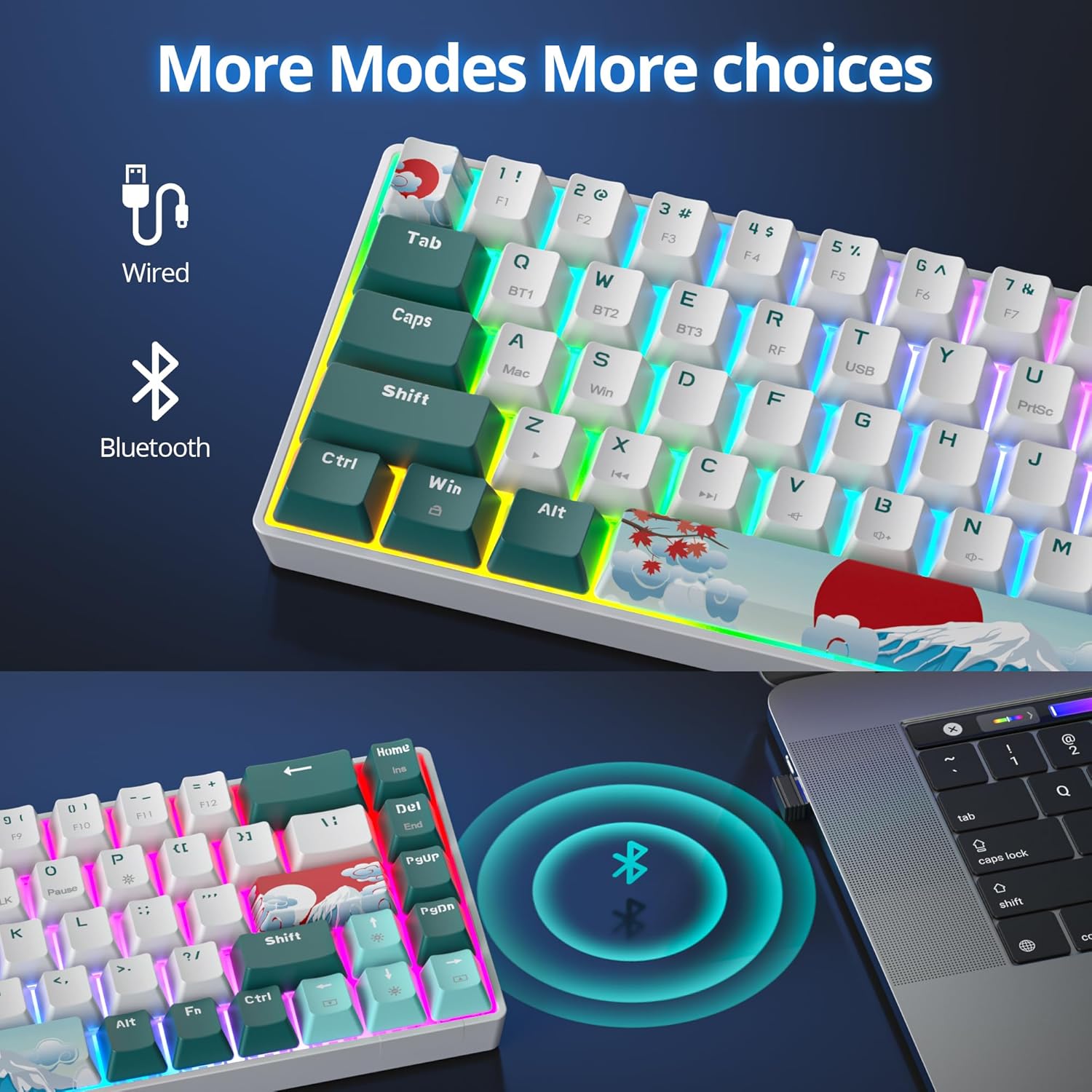
Illustration of wired and Bluetooth connectivity options for the keyboard.
- Gateron Yellow Switches: Experience smooth, quiet, and linear keystrokes, ideal for both fast typing and gaming.

Close-up view highlighting the Gateron Yellow switches, known for their smooth and linear feel.
- Durable PBT Keycaps: The keycaps are not shine-through and are resistant to oil and wear, maintaining their matte finish even after prolonged use.
- Vibrant RGB Backlighting: Customize your typing experience with various RGB lighting modes.
- Long-Lasting Battery: Equipped with an 1800mAh battery, providing up to 24 hours of use with static RGB lighting or up to 5 days of normal use (8 hours/day).

Visual representation of the keyboard's 1800mAh battery capacity and 10m wireless distance.
4. Setup and Connectivity
The Surmen GT68 keyboard offers three connection modes:
4.1 Wired Connection (USB-C)
- Locate the USB-C port on the keyboard (usually on the top edge).
- Connect the provided USB-C cable to the keyboard and the USB-A end to your computer's USB port.
- The keyboard will automatically be recognized and ready for use.

The keyboard connected via its USB-C cable for wired operation.
4.2 Bluetooth Connection
- Ensure the keyboard's power switch (located on the back or side) is in the "ON" position.
- Press Fn + Q, Fn + W, or Fn + E to select one of the three Bluetooth channels (BT1, BT2, BT3). The corresponding key (Q, W, or E) will flash, indicating pairing mode.
- On your device (PC, laptop, tablet, smartphone), enable Bluetooth and search for new devices.
- Select "Surmen GT68" (or similar name) from the list of available devices to pair.
- Once connected, the flashing light will become solid.

Diagram illustrating the three connection modes: Type-C (wired), Bluetooth (wireless), and 2.4GHz (wireless).
Official video demonstrating the Surmen Wireless 65% Mechanical Keyboard, showcasing its design and features.
4.3 2.4GHz Wireless Connection
- Ensure the keyboard's power switch is in the "ON" position.
- Locate the 2.4GHz USB receiver (often found in a slot on the keyboard itself).
- Plug the USB receiver into an available USB port on your computer.
- Press Fn + R to switch to 2.4GHz wireless mode. The 'R' key will flash briefly and then become solid when connected.
5. Operating Instructions
5.1 Basic Functions
- Fn + Q/W/E: Switch between Bluetooth devices (BT1, BT2, BT3).
- Fn + R: Switch to 2.4GHz wireless mode.
- Fn + T: Switch to wired mode.
- Fn + Win: Lock/Unlock Windows key.
- Fn + A: Switch to Mac mode.
- Fn + S: Switch to Win mode.
- Fn + Backspace: Power ON/OFF (for some models, check physical switch).

Illustration of key combinations for switching between Bluetooth channels and operating modes.
5.2 RGB Backlight Control
The keyboard features various RGB lighting effects. Use the following key combinations to control them:
- Fn + \|: Cycle through different lighting effects.
- Fn + [\{: Decrease backlight brightness.
- Fn + ]\}: Increase backlight brightness.
- Fn + ;:: Decrease lighting speed.
- Fn + '": Increase lighting speed.
- Fn + <,: Change backlight color (for static modes).
5.3 Hot-Swapping Switches
To replace switches:
- Power off the keyboard and disconnect it from your device.
- Use the keycap puller to gently remove the desired keycap.
- Use the switch puller to carefully grip the top and bottom clips of the switch and pull it straight up.
- Align the pins of the new switch with the holes on the PCB. Ensure the pins are straight.
- Gently press the new switch into place until it clicks securely. Do not force it.
- Replace the keycap.
6. Maintenance
6.1 Cleaning Your Keyboard
- Disconnect the keyboard from all power sources.
- Use a can of compressed air to blow away dust and debris from between the keycaps.
- For stubborn dirt, gently remove keycaps using the keycap puller and clean the exposed switches and plate with a soft brush or microfiber cloth.
- Wipe the keycaps and keyboard surface with a slightly damp, lint-free cloth. Avoid excessive moisture.
6.2 Battery Care
- To prolong battery life, avoid fully discharging the keyboard frequently.
- Charge the keyboard using the provided USB-C cable connected to a standard USB port (5V).
- If storing the keyboard for an extended period, charge it to about 50% and store in a cool, dry place.
7. Troubleshooting
| Issue | Possible Cause | Solution |
|---|---|---|
| Keyboard not responding (Wireless) | Low battery; Out of range; Incorrect mode; Pairing issue. | Charge the keyboard; Move closer to device; Ensure correct mode (Fn+Q/W/E/R); Re-pair Bluetooth/2.4GHz. |
| Keyboard not responding (Wired) | Loose cable; Faulty USB port/cable; Incorrect mode. | Check cable connection; Try a different USB port/cable; Ensure wired mode (Fn+T). |
| RGB backlight not working/stuck | Low battery; Software glitch; Lighting mode issue. | Charge keyboard; Try cycling lighting modes (Fn+\|) or adjusting brightness (Fn+[{ / Fn+]}); Restart keyboard. |
| Keys not registering or double-typing | Dust/debris under keycap/switch; Faulty switch. | Clean under keycap; Try hot-swapping the switch with a spare one to test. |
| Bluetooth connection drops frequently | Interference; Distance; Device driver issues. | Reduce interference (other wireless devices); Move keyboard closer; Update Bluetooth drivers on your device. |
8. Specifications
| Feature | Detail |
|---|---|
| Brand | surmen |
| Model Number | GT68 |
| Connectivity Technology | USB-A (Wired), Bluetooth, 2.4GHz Wireless |
| Keyboard Description | Mechanical |
| Switch Type | Gateron Yellow (Linear) |
| Number of Keys | 68 |
| Keycap Material | PBT |
| Backlighting | RGB |
| Battery Capacity | 1800mAh Lithium Ion |
| Item Weight | 2.07 pounds |
| Package Dimensions | 14.02 x 6.22 x 1.73 inches |
| Compatible Devices | Gaming Console, Laptop, PC |
9. Warranty and Support
The Surmen Wireless 65% Mechanical Keyboard comes with a standard manufacturer's warranty. For detailed warranty information, technical support, or customer service inquiries, please refer to the contact information provided on the product packaging or visit the official Surmen website.
You can also visit the Surmen Store on Amazon for more product information and support resources.