
1. Introduction
This manual provides essential information for the safe and efficient use of your Samsung 25W 10,000mAh Wireless Battery Pack. This portable power solution is designed to charge your compatible devices, including Galaxy phones and Buds, with both wired Super Fast Charging and convenient wireless charging capabilities. Please read this manual thoroughly before using the product.
2. Product Overview
Key Features
- Wireless Charging: Conveniently place your compatible device on the battery pack for a power boost. Super Fast Wireless charging maximum speed is up to 15W when connected to a compatible device.
- Super Fast Wired Charging: Supports 25W Super Fast Charging for a single wired device.
- Dual Port Charging: Charge two devices simultaneously via the USB-C ports, in addition to wireless charging. When charging a wireless device and two wired devices simultaneously, maximum charging speed is up to 7.5W each.
- Eco-Conscious Design: Contains UL-certified recycled material, with a minimum of 6.8% recycled content (UL ECVP 2809-2), consisting of 30% post-consumer recycled plastic.
- Universal Compatibility: Charges various devices such as Galaxy phones, Buds, and other compatible smartphones.
What's in the Box
- Samsung 25W 10,000mAh Wireless Battery Pack
- One (1) 3A USB-C Cable

The Samsung 25W 10,000mAh Wireless Battery Pack, showcasing its compact design and wireless charging pad.
3. Setup
Initial Charging of the Power Bank
- Connect the included USB-C cable to one of the USB-C ports on the battery pack.
- Connect the other end of the USB-C cable to a compatible wall charger (sold separately).
- The LED indicators on the battery pack will illuminate to show the charging status. Allow the battery pack to fully charge before first use.
Checking Battery Level
Press the power button located on the side of the battery pack. The LED indicators will light up to show the remaining battery charge.

A close-up view of the battery pack's top edge, featuring two USB-C ports for wired charging and recharging, along with LED indicators for battery status.
4. Operating Instructions
Wired Charging
- Connect one end of a USB-C cable to one of the battery pack's output ports.
- Connect the other end of the cable to your device's charging port.
- Charging will begin automatically. For Super Fast Charging, ensure your device and cable are compatible.

A smartphone connected via a USB-C cable to the battery pack, demonstrating wired fast charging.
Wireless Charging
- Place your compatible wireless charging device (e.g., smartphone, earbuds) on the wireless charging pad of the battery pack.
- Ensure the device is centered on the pad for optimal charging.
- The device should indicate that it is charging wirelessly.

A smartphone placed on the wireless charging pad of the battery pack, indicating active wireless charging.
Simultaneous Charging
The battery pack allows you to charge up to three devices concurrently: one wirelessly and two via the USB-C ports. Note that charging speeds may vary depending on the number of devices connected and their power requirements.

The battery pack charging multiple devices concurrently: a smartphone via wireless pad, a smartwatch via one USB-C port, and a tablet via the second USB-C port.
5. Safety Information
To prevent injury or damage to your device and the battery pack, observe the following safety precautions:
- Use only Samsung-approved chargers and cables.
- Do not use incompatible, worn, or damaged batteries, chargers, or cables.
- Avoid exposing the battery pack to extreme temperatures (hot or cold), direct sunlight, or high humidity.
- Do not disassemble, puncture, or modify the battery pack.
- Keep the battery pack away from water and other liquids.
- Do not drop or subject the battery pack to strong impacts.
- Keep out of reach of children.
6. Troubleshooting
| Issue | Possible Solution |
|---|---|
| Device not charging wirelessly. | Ensure your device is compatible with wireless charging and is properly centered on the charging pad. Remove any thick cases that may interfere. |
| Device not charging via cable. | Check if the cable is securely connected to both the battery pack and your device. Try a different cable or port. Ensure the battery pack has sufficient charge. |
| Battery pack not charging. | Verify the charging cable and wall adapter are working correctly. Ensure the cable is firmly connected to the battery pack's input port and the power source. |
| Slow charging speed. | Charging speed can be affected by the number of devices connected, the device's battery level, and environmental factors. Ensure you are using a Super Fast Charging compatible cable and adapter for optimal wired speeds. |
7. Specifications
| Feature | Detail |
|---|---|
| Model Number | EB-U2510XUEGUS |
| Battery Capacity | 10,000 mAh |
| Output Power (Wired) | Up to 25W Super Fast Charging |
| Output Power (Wireless) | Up to 15W Super Fast Wireless Charging |
| Connector Type | USB Type C (2 ports) |
| Voltage | 5 Volts |
| Amperage | 16 Amps |
| Battery Cell Type | Lithium Ion |
| Item Weight | 7.41 Ounces |
| Item Dimensions (L x W x Thickness) | 5.83" x 2.83" x 0.65" |
| Color | Beige |
| Recycled Material Content | Minimum 6.8% (UL ECVP 2809-2), 30% post-consumer recycled plastic |
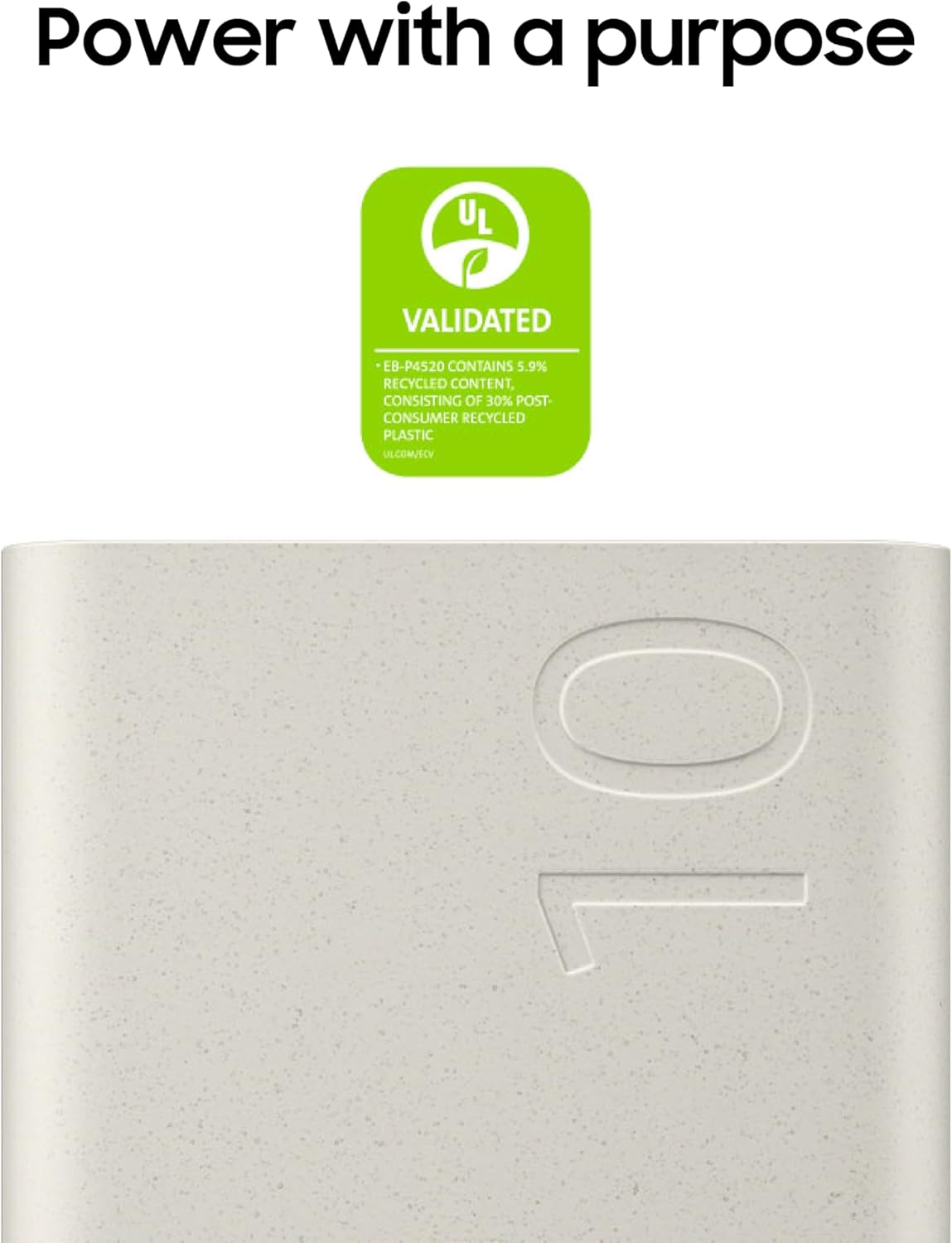
An image highlighting the UL Validated certification, indicating the battery pack contains recycled materials, emphasizing its environmentally conscious design.
8. Maintenance
Cleaning
- Wipe the battery pack with a soft, dry cloth.
- Do not use harsh chemicals, cleaning solvents, or strong detergents.
Storage
- Store the battery pack in a cool, dry place away from direct sunlight and extreme temperatures.
- For long-term storage, it is recommended to charge the battery pack to about 50% every few months to maintain battery health.
9. Warranty and Support
Warranty Information
This Samsung 25W 10,000mAh Wireless Battery Pack is covered by a 1-Year Manufacturer Warranty. Please retain your proof of purchase for warranty claims.
Customer Support
For technical assistance, warranty service, or product inquiries, please visit the official Samsung support website or contact Samsung customer service directly. Refer to your product packaging or Samsung's official website for the most current contact information.