
CZEview ZY-D1
Contents
CZEview Video Baby Monitor User Manual
Model: ZY-D1
Introduction
Thank you for choosing the CZEview Video Baby Monitor. This device is designed to provide comprehensive monitoring of your baby or pet, offering peace of mind with advanced features such as 2K resolution, night vision, pan/tilt functionality, lullabies, cry/motion detection, two-way talk, and temperature & humidity sensing. This manual will guide you through the setup, operation, and maintenance of your monitor.

Front view of the CZEview Video Baby Monitor, featuring a white body with decorative cat ears and a central camera lens.
Package Contents
Please check the package contents upon unboxing:
- CZEview Video Baby Monitor (Model: ZY-D1)
- Power Adapter
- USB Cable
- Mounting Kit (Screws and Wall Plugs)
- User Manual (this document)
Setup
1. Powering On
- Connect the USB cable to the monitor's power port.
- Plug the power adapter into a standard electrical outlet.
- The monitor will power on automatically, and the indicator light will illuminate.
2. App Installation and Account Creation
Download the "Elemage Cam" app from your smartphone's app store (iOS App Store or Google Play Store). Follow the on-screen instructions to create an account and log in.
3. Connecting to Wi-Fi
The CZEview monitor supports both 2.4GHz and 5GHz Wi-Fi bands for a stronger and more stable connection.
- Open the Elemage Cam app and tap "Add Device" or the "+" icon.
- Select your CZEview monitor model from the list.
- Follow the in-app instructions to connect the monitor to your home Wi-Fi network. This typically involves scanning a QR code generated by the app with the monitor's camera.
- Ensure your Wi-Fi password is correct and your phone is connected to the same Wi-Fi network you intend to connect the monitor to.

The CZEview monitor supports both 2.4GHz and 5GHz Wi-Fi for enhanced connectivity.
4. Placement and Mounting
Place the monitor on a flat, stable surface or use the included mounting kit to secure it to a wall. Ensure the camera has a clear, unobstructed view of the area you wish to monitor.
Important: For optimal performance, place the monitor within range of your Wi-Fi router. Avoid placing it near sources of interference like microwaves or large metal objects.
Operating Instructions
1. Live View and Pan/Tilt Control
Once connected, open the Elemage Cam app to access the live video feed. Use the on-screen controls to pan (horizontal movement) and tilt (vertical movement) the camera to adjust the viewing angle. The monitor offers 355° pan and 100° tilt capabilities.

The monitor's pan and tilt functionality allows for wide area coverage and auto-tracking.
2. Two-Way Talk
Tap the microphone icon in the app to activate two-way talk. You can speak through your phone, and your voice will be projected through the monitor's speaker, allowing you to comfort your baby or communicate with your pet.

Engage in two-way communication with your child or pet directly through the app.
3. Night Vision
The monitor automatically switches to night vision mode in low-light conditions, providing clear black-and-white video.
4. Cry/Motion Detection & Alerts
Enable cry and motion detection in the app settings. You will receive instant notifications on your smartphone when sound or movement is detected in the monitored area. Sensitivity levels can be adjusted.
5. Lullabies
The monitor can play lullabies to soothe your baby. Access this feature through the Elemage Cam app. Note: Some lullaby features may require an inserted SD card.
6. Temperature & Humidity Sensor
View real-time temperature and humidity readings of the room directly within the app to ensure a comfortable environment.
7. Colorful Night Light
The monitor features an adjustable night light with various colors. Control the light settings (on/off, color, brightness, breathing light mode) via the app.
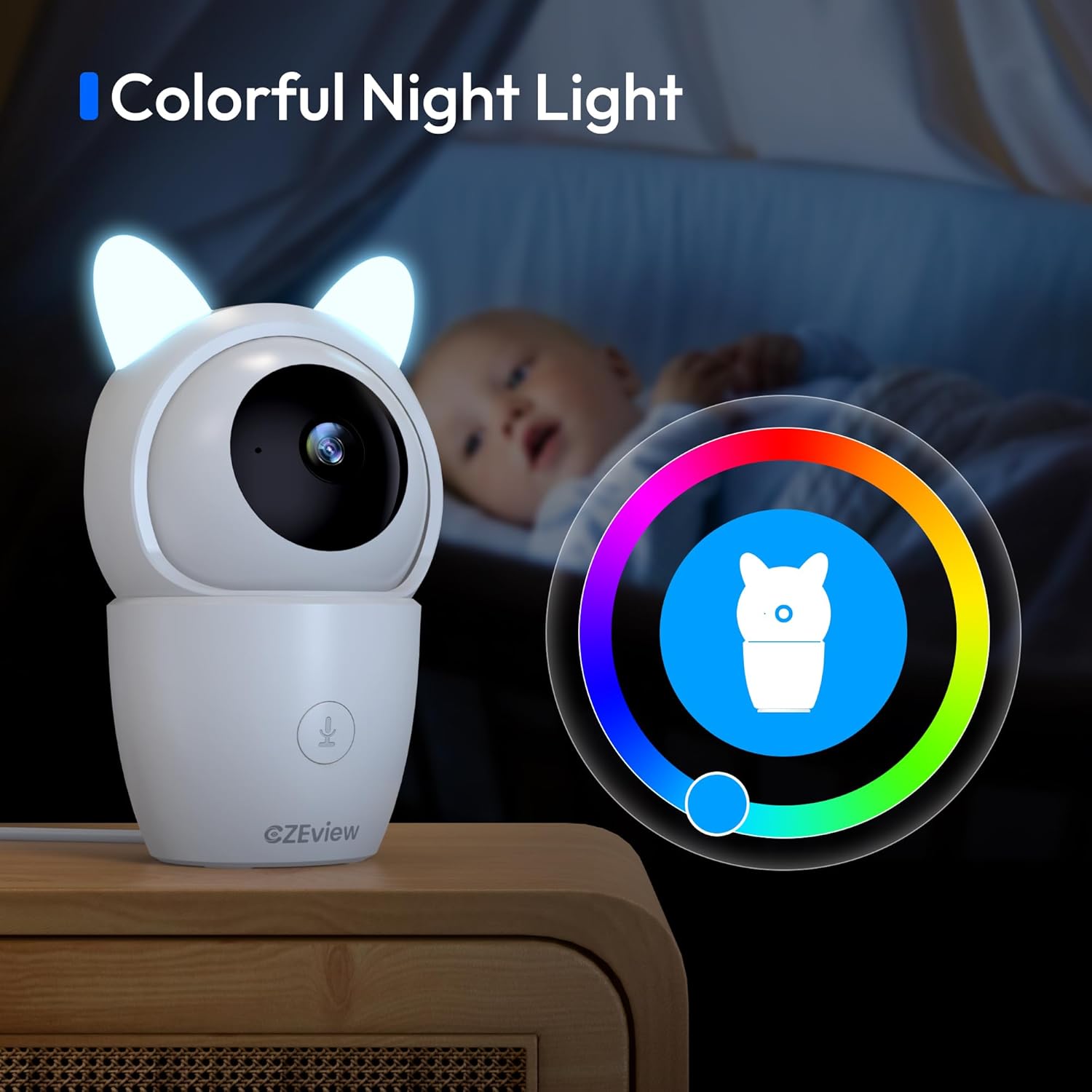
The integrated colorful night light provides gentle illumination for the room.
8. Video Recording and Storage
The monitor supports local storage via a MicroSD card (not included) for continuous recording or event-triggered recordings. Cloud storage options may also be available through the app (subscription may be required).

Review recorded events and daily activities through the app's timeline feature.
9. Privacy Mode
For privacy, you can turn off the camera lens via the app when monitoring is not required.
10. Smart Home Integration
The CZEview monitor is compatible with certain smart home platforms, such as Amazon Alexa. You can use voice commands to view the camera feed on compatible smart displays.

Integrate with smart home devices like Amazon Alexa for convenient voice control.
Maintenance
- Cleaning: Use a soft, dry cloth to clean the monitor's exterior. Do not use liquid cleaners or aerosols.
- Lens Care: Gently wipe the camera lens with a microfiber cloth to remove dust or smudges.
- Software Updates: Regularly check the Elemage Cam app for firmware updates to ensure optimal performance and security.
- Storage: If storing the monitor for an extended period, disconnect it from power and store it in a cool, dry place.
Troubleshooting
| Problem | Possible Solution |
|---|---|
| Monitor not powering on. | Ensure the power adapter is securely connected to both the monitor and a working electrical outlet. Try a different outlet. |
| Unable to connect to Wi-Fi. |
|
| Poor video quality or lag. |
|
| No sound from two-way talk. |
|
| Motion/Cry detection not working. |
|
Specifications
| Feature | Detail |
|---|---|
| Brand | CZEview |
| Model Number | ZY-D1 |
| Product Dimensions (L x W x H) | 5 x 3 x 3 inches |
| Form Factor | Dome |
| Video Capture Resolution | 2K |
| Video Capture Format | MPEG-4 |
| Wireless Communication Technology | Wi-Fi (2.4GHz & 5GHz) |
| Pan/Tilt Range | 355° Pan, 100° Tilt |
| Alert Type | Audio and Motion |
| Mounting Type | Wall Mount |
| International Protection Rating | IP65 |
Warranty and Support
CZEview products come with a standard manufacturer's warranty. For detailed warranty information, please refer to the warranty card included in your product packaging or visit the official CZEview website.
For technical support, troubleshooting assistance, or any inquiries regarding your CZEview Video Baby Monitor, please contact our customer support team:
- Email: support@czeview.com
- Website: www.czeview.com (Please check the website for the most up-to-date contact information and FAQs.)
Please have your model number (ZY-D1) and purchase date ready when contacting support.
Documents and downloads
Ask a question about this manual
Ask about setup, troubleshooting, compatibility, parts, safety, or missing instructions. Manuals+ will review the question and use this page’s manual context to help answer it.