
Bigben Hi Buddies! Max Programmable Luminous Wireless Speaker User Manual
Model: BTKIDS
1. Introduction
The Bigben Hi Buddies! Max is a programmable Bluetooth and USB speaker featuring an integrated soft light. Designed for ease of use, it incorporates tactile controls for various functions. This manual provides essential information for the safe and effective operation of your device.
2. Safety Information
WARNING:
- This product is not intended as a toy. Keep away from children under 3 years of age.
- To prevent the risk of electric shock, do not disassemble or modify the product.
- Do not use near water or in excessively humid environments.
- Only charge the device with the provided USB-C cable.
- Use in airplane mode when on an aircraft to disable Bluetooth signals.
- Avoid prolonged direct exposure to the night light to prevent potential eye strain.
- Always supervise children when they are using this product.
3. Package Contents
Ensure all items are present in the package:
- Bigben Hi Buddies! Max Wireless Speaker
- USB-C Charging Cable
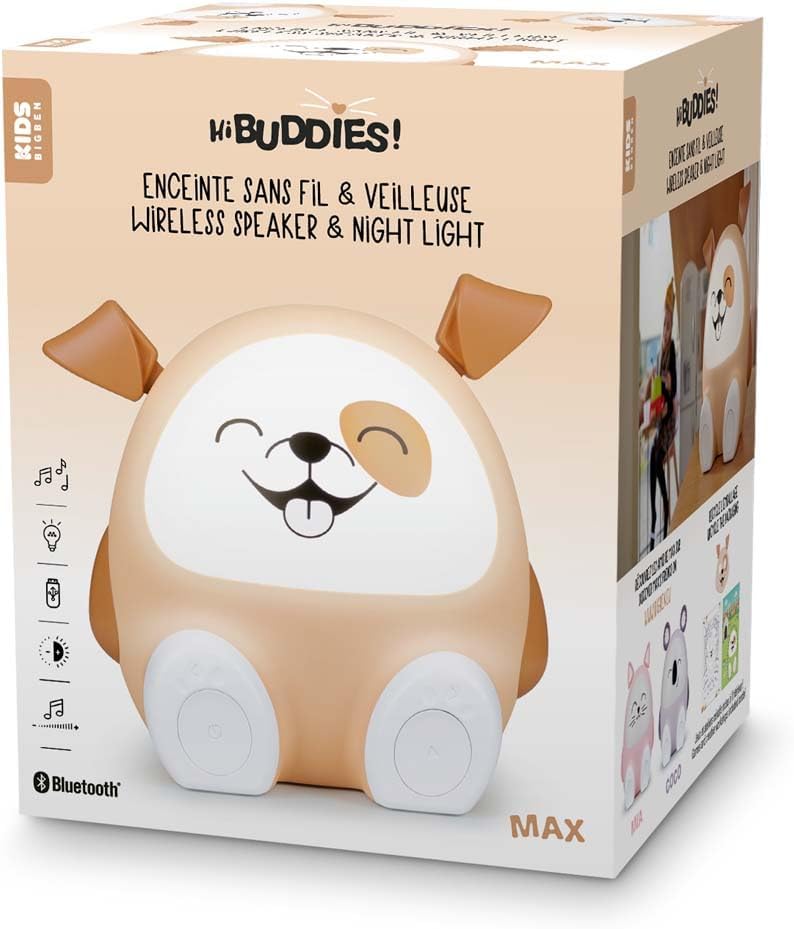
Image: The Bigben Hi Buddies! Max speaker shown in its retail packaging, indicating the product and brand.
4. Product Overview
The Hi Buddies! Max speaker features an intuitive design with interactive elements for control.

Image: Front view of the Bigben Hi Buddies! Max speaker, showcasing its friendly design with illuminated face and tactile paw buttons.
Key Features:
- Tactile Paws: Control power (ON/OFF) and track navigation (Next/Previous).
- Adjustable Ears: Used to modify volume and light intensity.
- Integrated Night Light: Dimmable light feature.
- Bluetooth 5.0: For wireless audio streaming.
- USB Port: For MP3 music playback from a USB stick.
- Rechargeable Battery: Provides up to 8 hours of operation.
- Timer Function: Auto-off options for 15, 30, or 60 minutes.

Image: Rear view of the Bigben Hi Buddies! Max speaker, highlighting the speaker grille, USB-C charging port, and USB-A port for MP3 playback.
5. Setup
5.1 Initial Charging
- Connect the provided USB-C cable to the charging port on the back of the speaker.
- Connect the other end of the USB-C cable to a compatible USB power adapter (not included) or a computer USB port.
- Allow the speaker to fully charge before first use. The charging indicator light will show charging status.
5.2 Powering On/Off
- To power on the device, press the ON/OFF button located on one of the speaker's paws.
- To power off, press the ON/OFF button again.
6. Operating Instructions
6.1 Bluetooth Connection
- Ensure the speaker is powered on. It will automatically enter Bluetooth pairing mode.
- On your mobile device (smartphone, tablet, etc.), enable Bluetooth.
- Search for available devices and select 'Hi Buddies' from the list.
- Once connected, the speaker will indicate a successful pairing (e.g., with an audible tone).
6.2 USB Playback
- Insert a USB stick containing MP3 music files into the USB-A port on the back of the speaker.
- The speaker will automatically detect the USB stick and begin playing music.
6.3 Adjusting Volume and Light Intensity
- Volume: Use one of the speaker's ears to adjust the audio volume. Rotate or press the ear as indicated by the product design to increase or decrease volume.
- Light Intensity: Use the other ear to adjust the brightness of the integrated night light. Rotate or press the ear to cycle through light intensity levels.
6.4 Changing Tracks
Use the tactile buttons on the speaker's paws to navigate through tracks:
- Press the 'Next' button (indicated by an arrow or similar icon) on a paw to skip to the next track.
- Press the 'Previous' button on a paw to go back to the beginning of the current track or to the previous track.
6.5 Timer Function
The speaker includes a timer function to automatically turn off music playback:
- Locate the timer button (if present, otherwise refer to product-specific controls).
- Press the button to select a timer duration: 15, 30, or 60 minutes. The speaker will automatically stop playback after the selected time.
6.6 Airplane Mode
To disable the Bluetooth signal, activate airplane mode:
- Refer to the product's specific controls for activating airplane mode. This will deactivate Bluetooth connectivity, allowing the speaker to be used in environments where wireless signals are restricted.
7. Charging
When the battery is low, the speaker will indicate this (e.g., via an indicator light or audible prompt). To charge:
- Connect the provided USB-C cable to the speaker's charging port and a USB power source.
- A full charge provides up to 8 hours of playback time.
8. Maintenance
- Clean the speaker with a soft, dry cloth. Do not use abrasive cleaners or solvents.
- Keep the speaker away from extreme temperatures and direct sunlight.
- Store in a cool, dry place when not in use for extended periods.
9. Troubleshooting
| Issue | Possible Solution |
|---|---|
| Speaker does not power on. | Ensure the battery is charged. Connect the USB-C cable and try again. |
| No sound from the speaker. | Check the volume level on both the speaker and your connected device. Ensure the speaker is not in airplane mode. |
| Bluetooth device cannot connect. | Ensure Bluetooth is enabled on your device and the speaker is in pairing mode. Move the devices closer together. Forget 'Hi Buddies' from your device's Bluetooth list and try pairing again. |
| USB playback not working. | Ensure the USB stick contains compatible MP3 files. Try reinserting the USB stick. |
10. Specifications
| Feature | Detail |
|---|---|
| Model Number | BTKIDS |
| Bluetooth Version | 5.0 |
| Total Musical Power | 15 Watts |
| Battery Type | Lithium (1200 mAh) |
| Battery Life | Up to 8 hours |
| Charging Port | USB-C |
| USB Playback | MP3 files |
| Dimensions (L x W x H) | 30 x 30 x 30 cm |
| Item Weight | 1 Kilogram |
| Control Method | Touch |
| Material | Plastic |
11. Warranty and Support
This product comes with a limited warranty. For detailed warranty information or technical support, please refer to the documentation provided with your purchase or contact Bigben customer service directly. Keep your proof of purchase for warranty claims.
