
1. Introduction
Thank you for choosing the KZZI K68 Pro Wireless Mechanical Keyboard and K20 Independent Number Pad. This manual provides essential information for setting up, operating, and maintaining your new devices. The K68 Pro features a 65% compact layout with 67 keys, while the K20 is a 19-key number pad. Both devices support tri-mode connectivity (2.4GHz wireless, Bluetooth 5.0, and USB-C wired) and offer a customizable typing experience with hot-swappable switches and vibrant RGB backlighting.

Image 1: KZZI K68 Pro Keyboard and K20 Number Pad in Purple-White color scheme.
2. Package Contents
The KZZI K68 Pro and K20 kit includes the following items:
- KZZI K68 Pro Wireless Mechanical Keyboard
- KZZI K20 Independent Number Pad
- USB-C to USB-A Cable (for charging and wired connection)
- 2.4GHz USB Receiver (for wireless connection)
- Keycap Puller
- Switch Puller
- Extra Switches (for replacement)
- Dust Cover (for K68 Pro Keyboard)
- User Manual (this document)
Video 1: Unboxing and overview of the KZZI K68 Pro and K20 package contents, including the keyboard, number pad, cables, and tools.
3. Product Features
3.1 Tri-Mode Connectivity
Both the K68 Pro keyboard and K20 number pad offer versatile connectivity options:
- 2.4GHz Wireless: For a stable and fast wireless connection using the included USB receiver.
- Bluetooth 5.0: Connect up to three different devices (e.g., PC, laptop, tablet) and switch between them seamlessly.
- USB-C Wired: For a direct, lag-free connection and simultaneous charging.
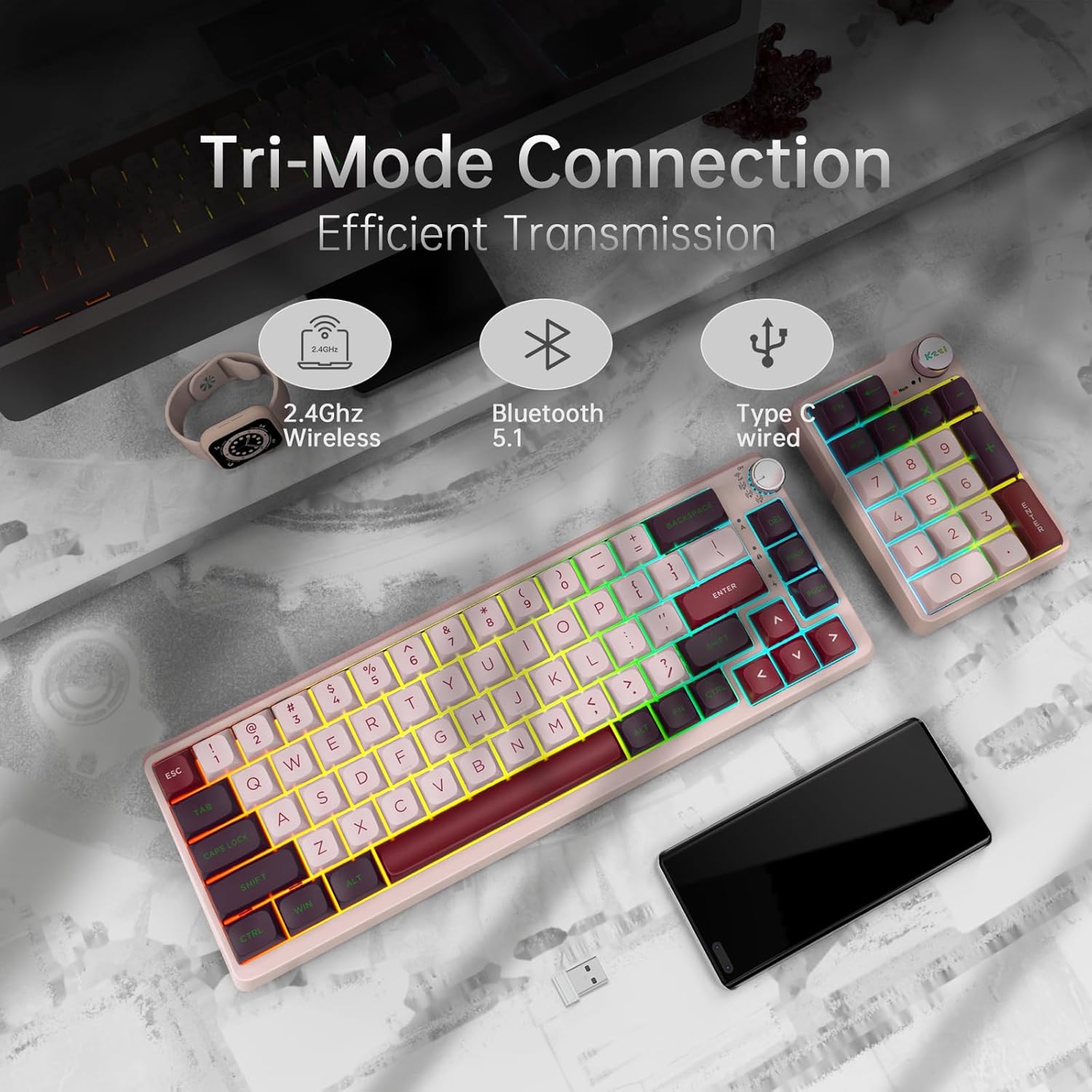
Image 2: Illustration of the three connectivity modes: 2.4GHz Wireless, Bluetooth 5.0, and USB-C Wired.
3.2 Compact Layout & Independent Number Pad
The K68 Pro features a 65% layout with 67 keys, providing a compact footprint ideal for saving desk space and portability. The K20 is an independent 19-key number pad that can be used alongside the keyboard or separately, offering flexibility for tasks requiring numerical input.
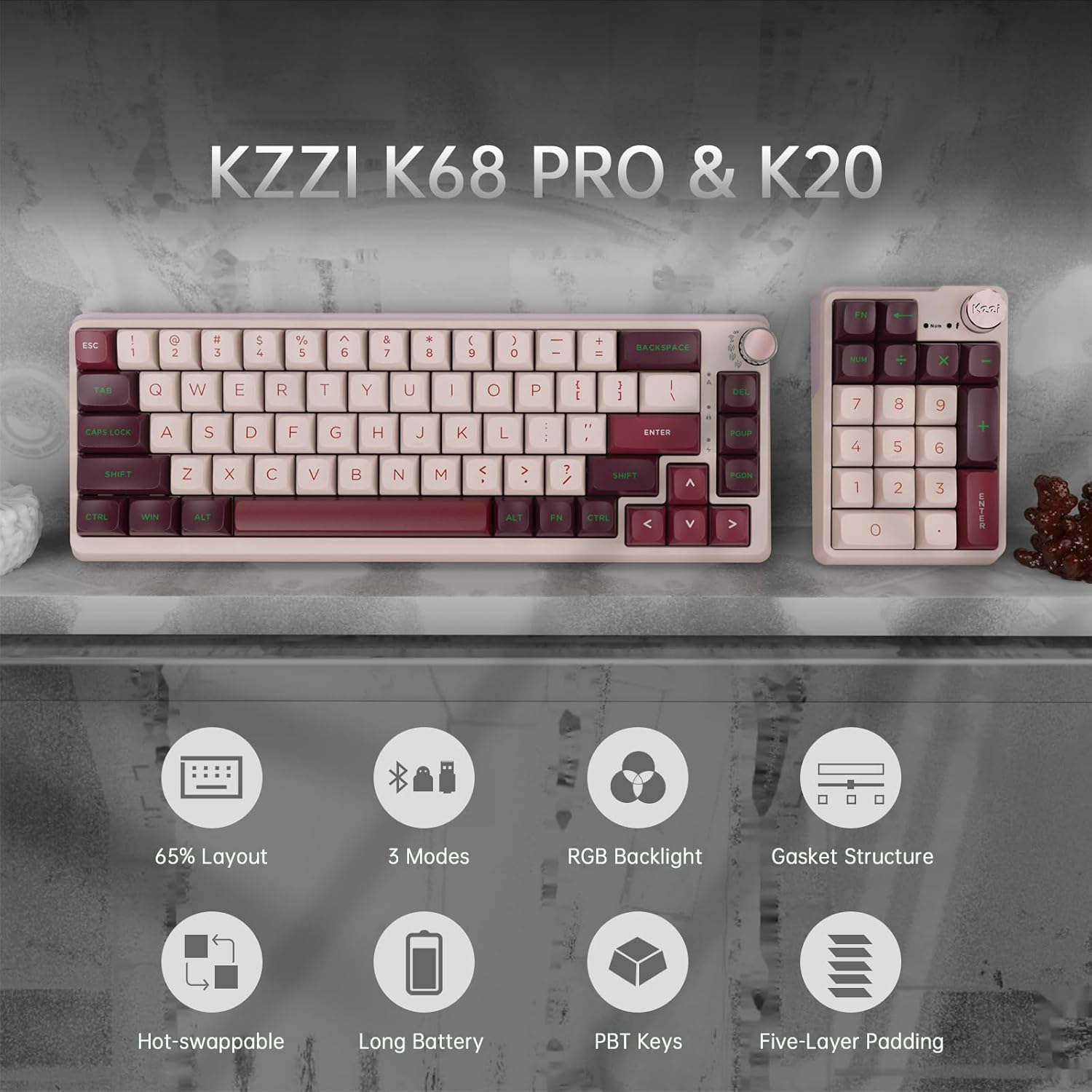
Image 3: KZZI K68 Pro keyboard and K20 number pad showcasing their compact 65% layout and independent design.
3.3 Ergonomic Design & Adjustable Typing Angle
Both devices are designed with ergonomics in mind to reduce wrist and finger pressure during extended use. The K68 Pro keyboard includes two adjustable kickstands, allowing users to select between different typing angles for personalized comfort.

Image 4: The K68 Pro keyboard featuring two adjustable kickstands for comfortable typing angles.
3.4 RGB Backlighting
Experience dynamic and customizable RGB backlighting with multiple effects and colors. The backlighting enhances visibility in low-light conditions and adds a personalized aesthetic to your setup.

Image 5: The K68 Pro keyboard displaying its vibrant RGB backlight effects.
3.5 Hot-Swappable Switches
The K68 Pro keyboard features full-key hot-swappable sockets, allowing you to easily change out 3-pin or 5-pin mechanical switches without soldering. This enables customization of your typing experience to personal preference.

Image 6: Close-up view of the K68 Pro's hot-swappable switch sockets, compatible with 3-pin and 5-pin switches.
3.6 Gasket Mount Structure & Sound Dampening
The K68 Pro utilizes a gasket mount design with multiple layers of sound-absorbing materials (IXPE cotton, silicone pad, sound-absorbing foam) to provide a softer, more consistent typing feel and reduce unwanted noise.
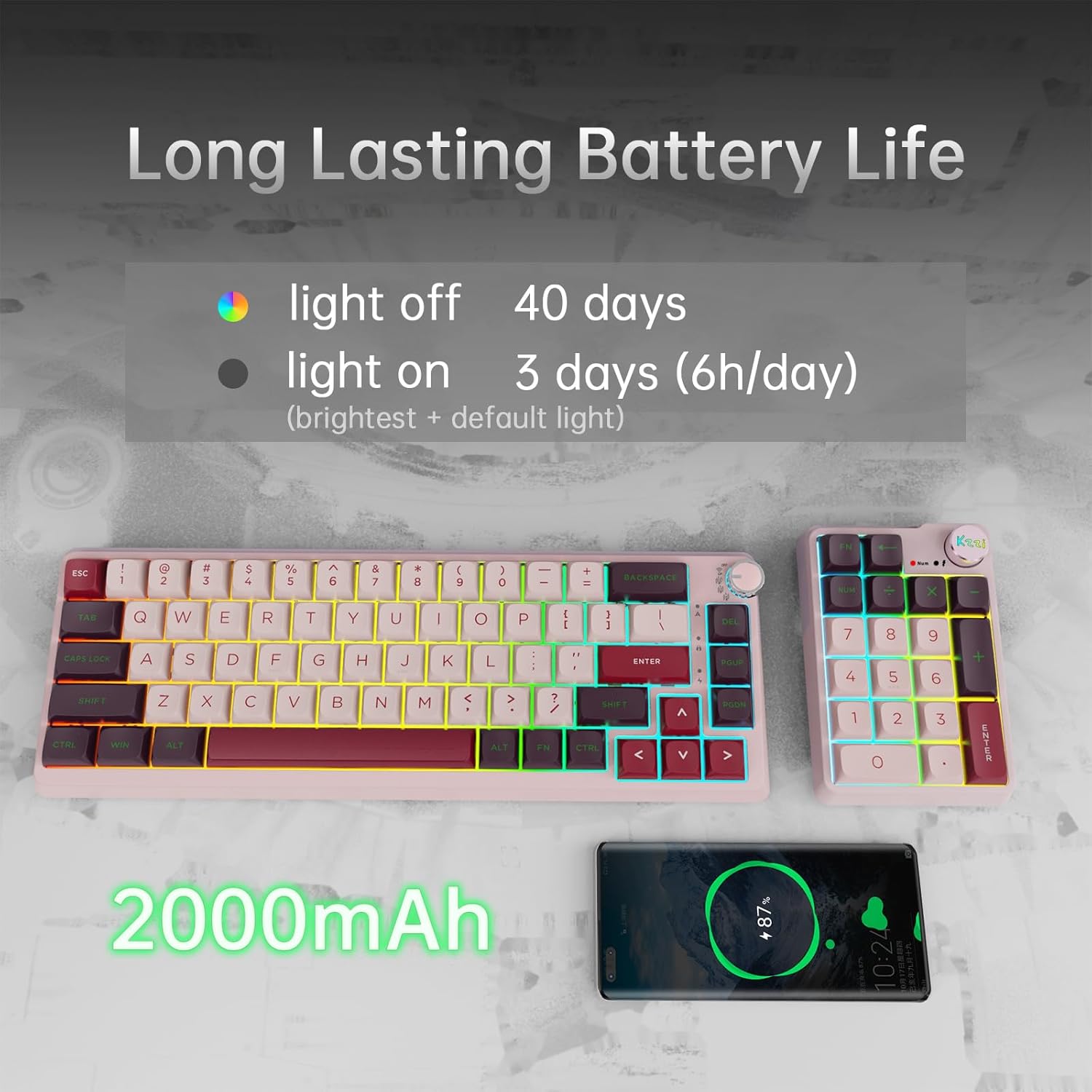
Image 7: Exploded view illustrating the internal gasket mount structure and sound-dampening layers of the K68 Pro keyboard.
3.7 Long-Lasting Battery Life
Both devices are equipped with built-in lithium-ion batteries for extended wireless use. The K68 Pro has a 2000mAh battery, offering up to 40 days of use with backlights off or 3 days (6h/day) with backlights on. The K20 also features a 2000mAh battery, providing up to 250 hours with backlights off or 30 hours with backlights on.

Image 8: Visual representation of the long-lasting battery life for both the K68 Pro keyboard and K20 number pad.
4. Setup & Connectivity
4.1 K68 Pro Keyboard Setup
The K68 Pro keyboard supports three connection modes:
- Wired Mode: Connect the keyboard to your device using the provided USB-C cable. The keyboard will automatically switch to wired mode and begin charging.
- 2.4GHz Wireless Mode:
- Locate the 2.4GHz USB receiver (stored in the keyboard's bottom compartment).
- Plug the receiver into an available USB port on your computer.
- Rotate the mode selection knob on the keyboard to the '2.4G' position. The keyboard will automatically connect.
- Bluetooth 5.0 Mode:
- Rotate the mode selection knob on the keyboard to one of the 'BT' positions (B1, B2, or B3).
- Press and hold FN + Q (for B1), FN + W (for B2), or FN + E (for B3) for 3-5 seconds until the indicator light flashes rapidly, indicating pairing mode.
- On your device (PC, laptop, tablet), search for Bluetooth devices and select 'KZZI K68 Pro' to connect.
- Once connected, the indicator light will stop flashing. You can switch between paired Bluetooth devices by rotating the knob to the corresponding B1/B2/B3 position.
4.2 K20 Number Pad Setup
The K20 number pad also supports three connection modes:
- Wired Mode: Connect the number pad to your device using a USB-C cable. The number pad will automatically switch to wired mode and begin charging.
- 2.4GHz Wireless Mode:
- Locate the 2.4GHz USB receiver (stored in the number pad's bottom compartment).
- Plug the receiver into an available USB port on your computer.
- Slide the mode selection switch on the number pad to the 'G' (2.4G) position. The number pad will automatically connect.
- Bluetooth 5.0 Mode:
- Slide the mode selection switch on the number pad to the 'B' (Bluetooth) position.
- Press and hold FN + Q (for B1), FN + W (for B2), or FN + E (for B3) for 3-5 seconds until the indicator light flashes rapidly, indicating pairing mode.
- On your device, search for Bluetooth devices and select 'KZZI K20' to connect.
- Once connected, the indicator light will stop flashing.
5. Key Functions & Controls
5.1 K68 Pro Keyboard Controls
- Toggle Backlight Mode: Press FN + \|
- Toggle Backlight Color: Press FN + <
- Adjust Brightness: Press FN + ↓ (decrease) / FN + ↑ (increase)
- Adjust Backlight Speed: Press FN + ← (decrease) / FN + → (increase)
- Volume Control: Use the rotary knob on the top right corner. Rotate clockwise to increase volume, counter-clockwise to decrease. Press the knob to mute/unmute.
- Macro Functionality: The keyboard features fully programmable macro functionality. Refer to the user manual for detailed instructions on setting up macros.
Video 2: Demonstrates various RGB backlight modes and effects on the KZZI K68 Pro keyboard.
5.2 K20 Number Pad Controls
- Toggle Backlight Mode: Press FN + /
- Toggle Backlight Color: Press FN + *
- Adjust Brightness: Press FN + [-] (decrease) / FN + [+] (increase)
- Volume Control: Use the rotary knob on the top right corner. Rotate clockwise to increase volume, counter-clockwise to decrease. Press the knob to mute/unmute.
6. Customization
6.1 Hot-Swappable Switches
The K68 Pro's hot-swappable design allows for easy switch replacement. Use the included switch puller to carefully remove existing switches and insert new 3-pin or 5-pin compatible switches. Ensure switches are aligned correctly before pressing them into place.
Video 3: Short demonstration of the hot-swappable switch feature on a KZZI gaming keyboard.
6.2 Keycap Replacement
The keycaps can be removed and replaced using the included keycap puller. Gently pull up on the keycap until it detaches from the switch stem. Align new keycaps carefully and press down firmly until they click into place.
7. Maintenance & Care
- Cleaning: Use a soft, dry cloth to wipe down the keyboard and number pad. For deeper cleaning, remove keycaps and use compressed air to clear debris.
- Storage: When not in use, place the dust cover over the K68 Pro keyboard to protect it from dust and spills.
- Battery: Avoid exposing the devices to extreme temperatures. Charge the battery regularly to maintain optimal performance.
8. Troubleshooting
- Device not connecting: Ensure the mode selection knob/switch is in the correct position (2.4G, B1/B2/B3, or Wired). For wireless modes, ensure the device is in pairing mode (flashing indicator light) and within range. Try re-pairing the device.
- Backlight not working: Check if the backlight is toggled off (FN + \| or FN + /). Adjust brightness settings (FN + ↓/↑ or FN + [-]/[+]).
- Keys not responding: Ensure the device is properly connected. If using wireless, check battery level. For hot-swappable switches, ensure switches are fully seated.
- Battery draining quickly: Reduce backlight brightness or turn off backlighting when not needed. Ensure the device is turned off when not in use.
9. Specifications
| Feature | K68 Pro Keyboard | K20 Number Pad |
|---|---|---|
| Layout | 65% (67 keys) | 19 keys + Knob |
| Connectivity | BT 5.0 / 2.4G Wireless / USB-C Wired | |
| Switches | Eternity Tactile Switch (Hot-swappable) | |
| Backlighting | RGB | |
| Battery | 2000mAh Lithium Ion | 2000mAh Lithium Ion |
| Material | Acrylonitrile Butadiene Styrene (ABS) | |
| Weight | 3.12 pounds (combined) | N/A (included in combined weight) |
| Compatible Devices | PC (Windows, Mac) | |
10. Warranty & Support
- 1-Year Warranty: KZZI provides a hassle-free warranty to cover manufacturing defects.
- 30-Day Free Replacement: Enjoy 30-day free replacement and return service for defective or incorrect items.
- For further support or inquiries, please refer to the contact information provided with your product packaging or visit the official KZZI website.

