
NIIMBOT M2
Contents
NIIMBOT M2 Thermal Transfer Bluetooth Label Maker
User Manual
Model: M2 | Brand: NIIMBOT
1. Product Overview
The NIIMBOT M2 is a thermal transfer label maker designed for smart printing. It offers high-resolution 300 DPI printing, ensuring clear and durable labels. This device supports both mobile (iOS, Android) and PC connections, making it versatile for various labeling needs in office, home, school, and small business environments.

Figure 1.1: NIIMBOT M2 Label Maker and accessories.
The NIIMBOT M2 label maker is a compact and efficient device, shown here with a sample printed label and a roll of label tape. Its design emphasizes ease of use and portability.
Key Features:
- Thermal Transfer Technology: Provides durable, waterproof, oil-proof, alcohol-proof, wear-resistant, and scratch-resistant labels with long storage times (8-10 years).
- High Resolution Printing: 300 DPI for clear and crisp labels.
- Dual Connectivity: Supports Bluetooth connection to iOS and Android mobile devices, and USB connection to PC.
- Color Printing Capability: Achieved by using different colored ribbons (sold separately).
- Wide Application: Suitable for office, medical, jewelry, plant, and general organization labeling.
- NIIMBOT APP: Offers multiple creative templates, fonts, icons, barcodes, QR codes, and image insertion for customized labels.
2. Setup Guide
2.1. Unboxing and Package Contents
Carefully unpack your NIIMBOT M2 Label Maker and verify all components are present:
- 1 × NIIMBOT M2 Label Maker
- 1 × Type-C Cable
- 1 × Roll Label Tape (50×30mm, pre-installed inside the machine)
- 1 × Black Ribbon (pre-installed inside the machine)
- 1 × User Manual

Figure 2.1: Package contents of the NIIMBOT M2 Label Maker.
This image displays all items included in the NIIMBOT M2 package, ensuring users can confirm they have received everything necessary to begin using their device.
2.2. Charging the Device
Before first use, fully charge the label maker. Connect the provided Type-C USB cable to the charging port on the device and the other end to a USB power adapter (not included) or a computer USB port. The charging indicator light will show the charging status.
Important Note: Use a USB-A to Type-C cable for charging. The device may not charge with a Type-C to Type-C charger.
2.3. Installing Label Paper and Ribbon
The label maker comes with a roll of label tape and a black ribbon pre-installed. If you need to replace them or install new ones, follow these steps:
- Open the top cover of the label maker.
- Insert the label paper roll into the designated slot, ensuring the printing side faces upwards and the paper feeds smoothly.
- Install the ribbon cartridge into its slot, making sure it clicks into place securely.
- Close the top cover firmly.

Figure 2.2: Installation and connection steps for the NIIMBOT M2.
This visual guide illustrates the process of loading label paper, installing the ribbon, connecting the device via Bluetooth to the NIIMBOT app, and initiating the label editing and printing process.
2.4. App Installation and Connection
The NIIMBOT M2 requires the "NIIMBOT APP" for operation. Download it from your device's app store (App Store for iOS, Google Play Store for Android).
- For Mobile Devices:
- Download and install the "NIIMBOT APP".
- Enable Bluetooth on your mobile device.
- Open the NIIMBOT APP and follow the on-screen prompts to connect to your M2 label maker via Bluetooth. The app can support up to 10 mobile phones simultaneously (3 iOS, 7 Android).
- For PC Connection:
- Download the PC driver from the official NIIMBOT website.
- Install the driver on your computer.
- Connect the label maker to your PC using the provided Type-C USB cable.
- Open the NIIMBOT software on your PC to begin editing and printing.
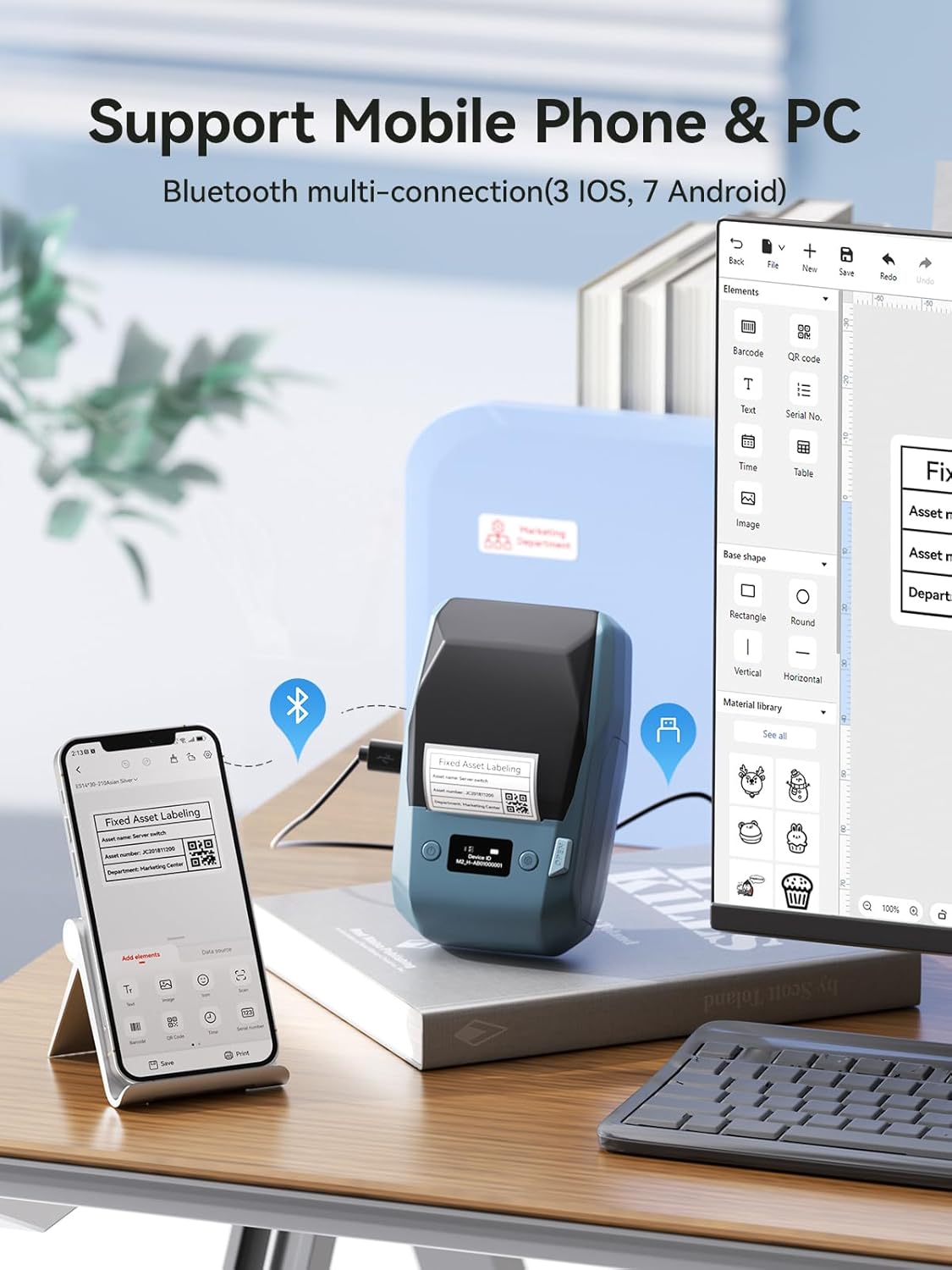
Figure 2.3: Multi-device connectivity of the NIIMBOT M2.
The NIIMBOT M2 label maker can be connected to both mobile phones and personal computers, offering flexible control and design options for label creation.
3. Operating Instructions
3.1. Creating and Printing Labels
Once connected to the NIIMBOT APP or PC software, you can begin designing your labels:
- Open the NIIMBOT APP/software.
- Select a template or start a new blank label.
- Utilize the editing tools to add text, icons, barcodes, QR codes, images, and more.
- Adjust font styles, sizes, and alignment as needed.
- Preview your label to ensure accuracy.
- Tap the "Print" button to send the label to the M2 label maker.

Figure 3.1: NIIMBOT App's creative templates and design options.
The NIIMBOT app provides a wide array of pre-designed templates and customization tools, allowing users to easily create diverse and professional-looking labels for various applications.
3.2. App Features and Customization
The NIIMBOT APP offers extensive features for label customization:
- Templates: Access multi-industry templates for quick label creation.
- Text & Fonts: Choose from various fonts and languages (30+ fonts/languages available).
- Icons & Borders: Over 1500 icons and 100+ borders to enhance label design.
- Barcodes & QR Codes: Generate and print standard barcodes and QR codes.
- Image Insertion: Import images to include on your labels.
- Data Import: Supports inserting data from Excel files.
- Batch Printing: Print multiple copies of the same or different labels efficiently.

Figure 3.2: Comprehensive design elements within the NIIMBOT App.
This image highlights the extensive customization options available in the NIIMBOT app, including a wide selection of fonts, decorative borders, various icons, and pre-set system templates to streamline label design.
3.3. Supported Label Types and Sizes
The M2 label maker supports a printing width of 20-50mm and can accommodate various label sizes and shapes. The intelligent recognition feature automatically detects the consumable type and size.
Common supported label sizes include:
- 50x30mm
- 50x70mm
- 40x30mm
- 50x80mm
- And other custom sizes within the 20-50mm width range.

Figure 3.3: Supported label dimensions and printer capabilities.
This diagram illustrates the range of label sizes and shapes that the NIIMBOT M2 can print, along with the device's physical dimensions and printing width capacity.

Figure 3.4: Diversity of label paper sizes and applications.
This image showcases a variety of label paper sizes and their potential uses, from small product tags to larger organizational labels, demonstrating the versatility of the NIIMBOT M2.
3.4. Color Printing with Ribbons
The NIIMBOT M2 utilizes thermal transfer technology, which allows for color printing by using different colored ribbons. The printer comes with a black ribbon, but other colors like red, gold, and white are available (sold separately).
To print in a different color, simply replace the current ribbon cartridge with the desired color ribbon. Note that only one color can be printed at a time.

Figure 3.5: Color ribbon options for the NIIMBOT M2.
This image displays the different color ribbons available for the NIIMBOT M2, including red, black, gold, and white, along with examples of labels printed using each color, demonstrating the customization possibilities.

Figure 3.6: Creative applications with multi-color ribbons.
This image provides inspiration for using multi-color ribbons to create visually appealing and functional labels for various purposes, such as organizing files, marking packages, and pricing bakery items.
4. Maintenance
4.1. Cleaning the Print Head
To ensure optimal print quality, regularly clean the print head. Use a soft, lint-free cloth lightly dampened with isopropyl alcohol. Gently wipe the print head surface. Ensure the printer is turned off and disconnected from power before cleaning.
4.2. Storage
Store the NIIMBOT M2 label maker in a cool, dry place away from direct sunlight and extreme temperatures. When not in use for extended periods, remove the label roll and ribbon cartridge to prevent dust accumulation and preserve consumable quality.
Thermal transfer labels are designed for long-term storage (8-10 years) and resistance to various conditions, making them suitable for both indoor and outdoor use.

Figure 4.1: Durability comparison of thermal transfer labels.
This image visually compares the longevity and resistance of thermal transfer labels (used by M2) against standard thermal labels, emphasizing their superior performance in various environmental conditions and long-term storage.
5. Troubleshooting
5.1. Common Issues and Solutions
| Problem | Possible Cause | Solution |
|---|---|---|
| Printer not connecting via Bluetooth. | Bluetooth is off, device is out of range, or app not recognizing printer. | Ensure Bluetooth is enabled on your device. Move closer to the printer. Restart the NIIMBOT APP and the printer. Forget and re-pair the device in Bluetooth settings. |
| Poor print quality (faded, incomplete). | Low battery, dirty print head, incorrect label/ribbon installation, non-genuine consumables. | Charge the printer. Clean the print head (refer to Maintenance section). Reinstall label paper and ribbon correctly. Ensure you are using genuine NIIMBOT labels and ribbons. |
| "Non-genuine paper" error. | Using third-party labels or a faulty label roll chip. | Ensure you are using authentic NIIMBOT label rolls. If the issue persists with genuine labels, try a different roll or contact support. |
| Printer not charging with Type-C to Type-C cable. | Compatibility issue with certain charging protocols. | Use the provided USB-A to Type-C cable or another standard USB-A to Type-C cable for charging. |
| App asks to "allow paste" repeatedly. | iOS/Android security feature for clipboard access. | This is a system-level prompt. You may need to grant paste permissions each time you switch apps and paste content. |
If you encounter issues not listed here or if the suggested solutions do not resolve the problem, please contact NIIMBOT customer support for further assistance.
6. Specifications
| Feature | Detail |
|---|---|
| Brand | NIIMBOT |
| Model Name | M2 Label Maker |
| Printing Technology | Thermal Transfer |
| Resolution | 300 x 300 DPI |
| Connectivity Technology | Bluetooth, USB (Type-C) |
| Compatible Devices | Smartphones (iOS, Android), PC |
| Maximum Media Size | 2 inch (50mm) width |
| Supported Label Width | 20-50mm |
| Max Print Speed Monochrome | 40 ppm (Max 50mm/s) |
| Ink Color | Inkless (uses thermal transfer ribbon) |
| Battery | Rechargeable Lithium Ion (2000mAh) |
| Product Dimensions | 7 x 4.25 x 2.9 inches (approx. 178 x 108 x 74 mm) |
| Item Weight | 1.68 pounds (approx. 0.76 kg) |
| Included Components | Label Maker, Type-C Cable, Manual, Label Tape, Black Ribbon |
| Special Features | 300dpi Clear Printing, Color Printing, Easy to Use, Support Mobile and PC, Rechargeable |
7. Warranty and Support
NIIMBOT products are designed for reliability and performance. For warranty information specific to your region or purchase, please refer to the documentation included with your product or visit the official NIIMBOT website.
For technical support, troubleshooting assistance, or inquiries about replacement parts and consumables, please contact NIIMBOT customer service through their official website or the contact information provided in the product packaging.
You can also visit the official NIIMBOT store for more information and product offerings: NIIMBOT Official Store
Documents and downloads
Ask a question about this manual
Ask about setup, troubleshooting, compatibility, parts, safety, or missing instructions. Manuals+ will review the question and use this page’s manual context to help answer it.