1. Product Overview
The LQWELL HY320-A Mini Projector is a versatile home cinema device equipped with Android 11.0 OS, offering a seamless entertainment experience. It supports native 1080P resolution with 4K decoding, 300 ANSI lumens brightness, and features automatic keystone correction for optimal image alignment. With Wi-Fi 5G and Bluetooth 5.0 connectivity, it provides flexible options for streaming and audio output.

Image 1.1: The LQWELL HY320-A Mini Projector, showcasing its compact design and adjustable stand.
Key Features:
- Smart Projector with Android 11.0 OS: Access a wide range of entertainment applications directly.
- Immersive Visuals: Native 1080P resolution with 4K support and 300 ANSI lumens for vibrant, detailed projections.
- Versatile Connectivity: Includes USB, HD, AUDIO, and AC ports, plus Wi-Fi 5G and Bluetooth 5.0 for seamless device integration.
- Automatic Keystone Correction & 220° Free Projection: Ensures perfectly aligned images from various angles.
- Eye Care & Low Noise: Diffuse imaging technology protects vision, and operates below 25dB for a quiet experience.

Image 1.2: The LQWELL HY320-A Mini Projector being used in diverse settings, including business presentations, outdoor movie nights, and home entertainment.
2. Setup Guide
2.1 Unboxing and Initial Inspection
Carefully remove all components from the packaging. Verify that all accessories are present: the projector, power cable, remote control, and user manual.
2.2 Placement and Projection Distance
Position the projector on a stable, flat surface. For an optimal 135-inch display, place the projector approximately 1.68 meters (5.5 feet) from the projection surface. The projector's 220-degree free projection capability allows for flexible placement, including ceiling or wall projection.

Image 2.1: Illustration of the adjustable screen display from 30 to 135 inches, with an optimal projection distance of 1.68 meters for a 135-inch screen.

Image 2.2: Demonstrates the 220-degree free projection feature, allowing the projector to be angled for various projection surfaces.
2.3 Power Connection
Connect the power cable to the projector's AC input port and then to a power outlet. The projector is designed for easy setup.
2.4 Initial Power On and Focus Adjustment
Press the power button on the projector or remote control to turn it on. Adjust the focus ring on the projector lens until the projected image is clear and sharp.
2.5 Automatic Keystone Correction
The HY320-A features automatic keystone correction. The projector will automatically adjust the image to be rectangular, even if placed at an angle. This ensures a perfectly aligned and proportional picture without manual adjustments.

Image 2.3: Visual representation of the automatic keystone correction feature, showing how a skewed image is automatically squared.
3. Operating Instructions
3.1 Android 11.0 OS Navigation
Upon powering on, the projector will boot into the Android 11.0 interface. Use the remote control to navigate through applications, settings, and content. You can download and install various streaming apps, games, and utility tools from the integrated app store.
3.2 Connectivity Options
- Wi-Fi 5G: Connect to your home Wi-Fi network for internet access, online streaming, and screen mirroring. Navigate to Settings > Network & Internet > Wi-Fi to connect.
- Bluetooth 5.0: Pair with external Bluetooth speakers or headphones for enhanced audio. Go to Settings > Connected Devices > Pair new device.
- Physical Ports:
- HD (HDMI): Connect laptops, gaming consoles, Blu-ray players, or other HDMI-enabled devices.
- USB: Plug in USB drives for media playback or connect external peripherals.
- AUDIO: Connect external audio systems via the 3.5mm audio jack.
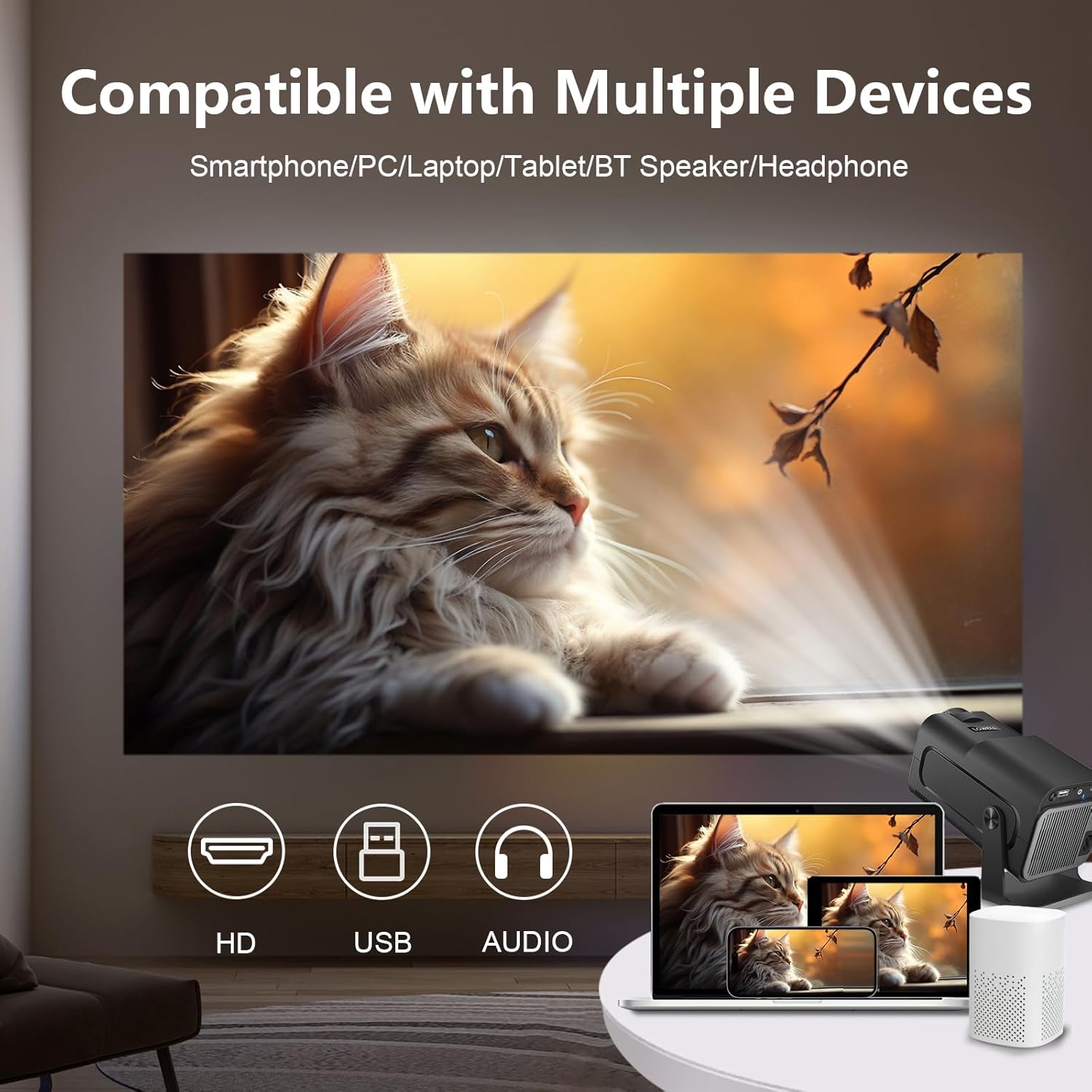
Image 3.1: Illustrates the projector's compatibility with various devices including smartphones, PCs, laptops, tablets, and Bluetooth speakers/headphones, highlighting HD, USB, and Audio ports.
3.3 Screen Mirroring
The projector supports convenient wireless screen mirroring from your smartphone, tablet, or laptop via Wi-Fi. Ensure both your device and the projector are connected to the same Wi-Fi network. Select the screen mirroring function on the projector's interface and follow the on-screen instructions for your specific device (e.g., AirPlay for iOS, Miracast for Android/Windows).

Image 3.2: Depicts the screen mirroring feature, showing how smartphones, tablets, and laptops can wirelessly connect to the projector.
3.4 Audio Output
The projector has built-in speakers. For a more immersive audio experience, connect external speakers via Bluetooth or the 3.5mm audio jack. Adjust volume using the remote control.
Video 3.1: An official product video demonstrating the LQWELL HY320-A Mini Projector's features and design, including its packaging and various angles of the device.
4. Maintenance
4.1 Cleaning the Lens
Use a soft, lint-free cloth specifically designed for optical lenses to gently wipe the projector lens. Avoid using abrasive cleaners or excessive force, which can scratch the lens.
4.2 Keeping Vents Clear
Ensure that the projector's ventilation openings are not blocked. Proper airflow is crucial for heat dissipation and maintaining optimal performance and longevity of the device. Regularly check for dust accumulation and gently clean with a soft brush or compressed air.
4.3 Storage
When not in use for extended periods, store the projector in a cool, dry place, away from direct sunlight and extreme temperatures. It is recommended to use the original packaging or a protective case to prevent dust and damage.
5. Troubleshooting
| Problem | Possible Cause | Solution |
|---|---|---|
| No image projected | Power cable disconnected, input source not selected, device not powered on. | Check power connection. Ensure the connected device (laptop, console) is on. Select the correct input source (HDMI, USB) on the projector. |
| Blurred image | Focus not adjusted, projector too close/far, keystone issue. | Adjust the focus ring on the lens. Ensure the projector is within the recommended projection distance. The automatic keystone correction should adjust the image, but ensure the projector is on a stable surface. |
| No sound | Volume too low, external audio device not connected/paired, incorrect audio output selected. | Increase projector volume. If using external speakers, ensure they are properly connected (Bluetooth or 3.5mm jack) and powered on. Check audio output settings on the projector. |
| Wi-Fi/Bluetooth connectivity issues | Incorrect password, out of range, interference. | Re-enter Wi-Fi password. Move projector closer to the router. Ensure no strong interference sources are nearby. Restart the projector and your network device. |
6. Specifications
| Feature | Detail |
|---|---|
| Brand | LQWELL |
| Model Number | HY320-A |
| Display Resolution | Native 1920 x 1080P (4K Support) |
| Brightness | 300 ANSI Lumens |
| Operating System | Android 11.0 OS |
| Connectivity Technology | Wireless (Wi-Fi 5G, Bluetooth 5.0), USB, HD (HDMI), AUDIO |
| Special Features | Automatic Keystone Correction, 220° Free Projection, Built-in Speakers, Eye Care (Diffuse Imaging), Low Noise (<25dB) |
| Recommended Uses | Indoor/Outdoor |
| Item Weight | 2.62 pounds |
| Product Dimensions | 9.99 x 5.83 x 5.35 inches |
| Visible Screen Diagonal | 150" / 381 cm |
7. Warranty and Support
For warranty information and customer support, please refer to the documentation included with your product packaging or visit the official LQWELL website. You can also contact LQWELL customer service directly for assistance with product inquiries, technical support, or warranty claims.


