
Bewinner ll_169Sxhel2214230084211
Bewinner 4K 16MP Ultra Document Camera & Webcam User Manual
Model: ll_169Sxhel2214230084211
1. Introduction
This manual provides detailed instructions for the setup, operation, and maintenance of your Bewinner 4K 16MP Ultra Document Camera & Webcam. This device is designed to capture ultra-high definition real-time images and serve as a versatile tool for live demonstrations, remote teaching, web conferencing, and document scanning.
Key features include:
- High Pixel Camera: Equipped with a 16MP camera, capable of capturing images up to 3840x3104 resolution at 30 fps, ensuring clear and real-time content display.
- Powerful Hardware Strength: Features a CMOS image sensor for excellent noise reduction and color reproduction, suitable for dim environments, and includes an automatic phase focusing system for fast and accurate focusing.
- Multi-Angle Adjustment: The support frame offers 5 adjustable angle positions for flexible use in various scenarios.
- Convenient Office Features: Supports conversion of scanned documents to Word, PDF, and other formats, along with barcode and ID card scanning.
- Live Tool Capability: Provides flexible camera angle adjustment for product demonstrations and process displays during live sessions.
2. Safety Information
Please read and understand all safety instructions before using the device to prevent injury or damage. Keep this manual for future reference.
- Do not expose the device to water or excessive humidity.
- Avoid placing the device in direct sunlight or near heat sources.
- Use only the provided power adapter and cables.
- Do not attempt to disassemble or repair the device yourself. Refer to qualified service personnel.
- Keep out of reach of children.
3. Package Contents
Verify that all items are present in the package:
- Bewinner 4K 16MP Ultra Document Camera & Webcam Unit
- USB Cable
- User Manual (this document)

Image: The Bewinner 4K 16MP Ultra Document Camera and Webcam, illustrating its adjustable design in both extended and compact forms. A blue light beam indicates document projection.
4. Setup Instructions
Follow these steps to set up your document camera:
- Place the document camera on a stable, flat surface.
- Connect the USB cable from the document camera to an available USB port on your computer (PC or Mac). If your computer has only USB-C ports, use the provided USB-A to USB-C adapter.
- Ensure the camera head is positioned correctly over the area you wish to capture. The arm is adjustable to achieve the desired height and angle.
- The device is plug-and-play. Drivers should install automatically.
- Open your preferred video conferencing software, document scanning application, or camera application (e.g., QuickTime Player or Photo Booth on Mac, or similar software on Windows/Android).
- Select the "USB Camera" or "Bewinner Document Camera" as your video input source within the application settings.
Video: Demonstrates connecting the Bewinner Document Camera to a laptop via USB and selecting it as a camera source in QuickTime Player and Photo Booth. This video shows the plug-and-play functionality and how to switch camera inputs.

Image: The document camera in an office or classroom setting, projecting a document onto a large screen, highlighting its use for video recording and projection in teaching and conference training.
5. Operating Instructions
The Bewinner Document Camera offers various functions accessible via its base controls and compatible software.
5.1 Base Controls

Image: A detailed view of the document camera's control panel on its base, showing buttons for light switch, dimming, image mirroring, zoom in/out, auto mode, and manual mode.
The control panel on the base provides quick access to the following functions:
- Light Switch: Turns the integrated LED light on/off.
- Dimming: Adjusts the brightness of the LED light.
- Image Mirroring: Flips the image horizontally.
- Zoom In: Magnifies the captured image.
- Zoom Out: Reduces the magnification of the captured image.
- Auto Mode: Activates automatic focus and exposure.
- Manual Mode: Allows for manual adjustment of focus and exposure.
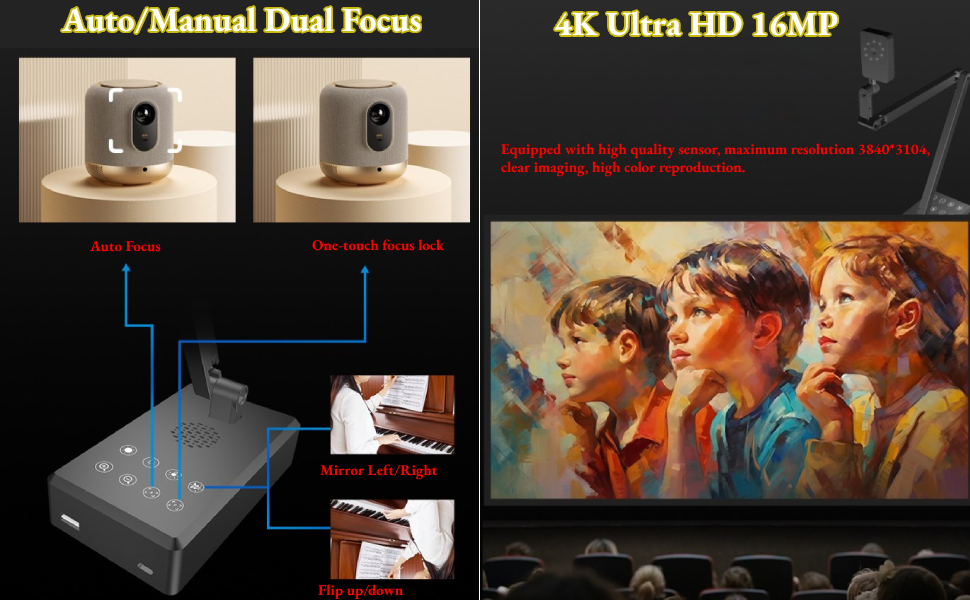
Image: Illustrates the auto and manual dual focus capabilities, including one-touch focus lock, and the 4K Ultra HD 16MP resolution for clear imaging and color reproduction.
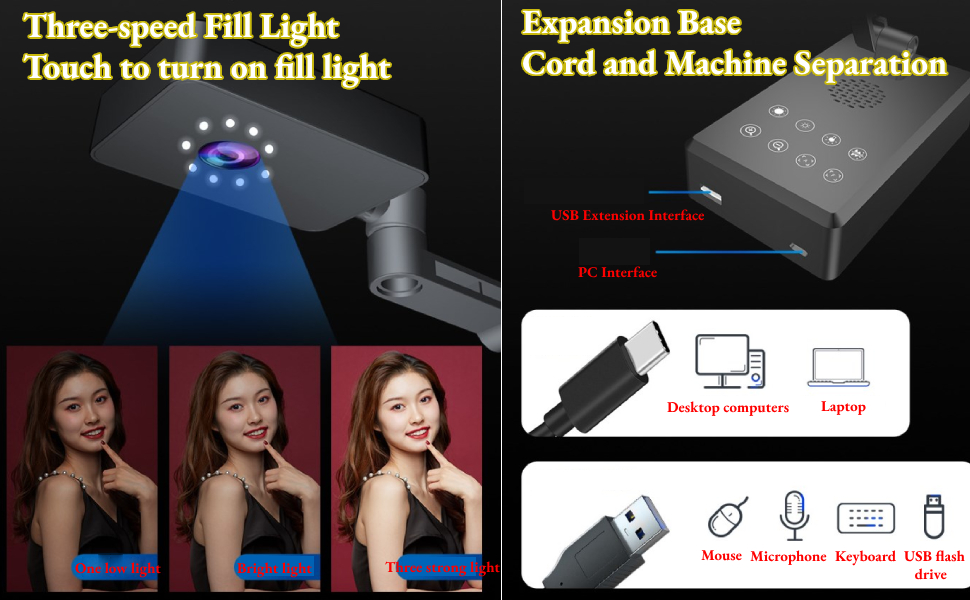
Image: Details the three-speed fill light feature, activated by touch, and the expansion base with USB extension and PC interfaces, allowing connection of peripherals like mouse, microphone, keyboard, and USB flash drive.
5.2 Software Functions
When used with compatible software, the document camera unlocks advanced functionalities:
- Document Scanning: Convert physical documents into digital formats like Word, PDF, and images.
- OCR Text Recognition: Scan and convert text from documents into editable digital text.
- Barcode/ID Card Scanning: Efficiently scan barcodes and identity documents.
- Continuous Shooting: Support for intelligent timer auto continuous shooting, ideal for creating multi-page PDFs and eBooks.
- Image Processing: Automatic cropping, deskewing, and background color removal for scanned images.

Image: Illustrates the intelligent timer auto continuous shooting feature, which supports exporting multi-page PDFs and creating eBooks efficiently.

Image: Shows the document front and back synthesis feature, allowing easy scanning and combination of both sides of ID cards and bank cards, supporting identity information recognition.

Image: Displays the software interface for easy high-definition shooting, with features like intelligent recognition, automatic cropping, and deskewing, compatible with Windows 7, 8, and 10.

Image: Highlights the OCR text recognition and A4 format scanning features, suitable for business licenses, picture albums, textbooks, magazines, and ancient documents.

Image: Illustrates the one-dimensional and two-dimensional code recognition feature, supporting single number identification and barcode scanning for future reference.

Image: Shows major application areas for the document camera, such as document archiving, accessing invoices and contracts, educational use, document photography, courier industry tasks, and physical item scanning.
6. Maintenance
To ensure the longevity and optimal performance of your Bewinner Document Camera, follow these maintenance guidelines:
- Clean the lens and body of the camera regularly with a soft, dry cloth. Avoid using abrasive cleaners or solvents.
- Keep the device free from dust and debris.
- Store the camera in a cool, dry place when not in use.
- Avoid dropping or subjecting the device to strong impacts.
7. Troubleshooting
If you encounter issues with your Bewinner Document Camera, refer to the following common problems and solutions:
| Problem | Possible Cause | Solution |
|---|---|---|
| Camera not recognized by computer. | Loose USB connection, incorrect USB port, driver issue, or incompatible software settings. | Ensure the USB cable is securely connected to both the camera and the computer. Try a different USB port. Restart your computer. Check your software's camera input settings to ensure the "USB Camera" or "Bewinner Document Camera" is selected. If issues persist, try updating or reinstalling USB drivers on your computer. |
| Image is blurry or out of focus. | Incorrect focus setting (manual mode), dirty lens, or insufficient lighting. | Switch to Auto Mode on the camera base. If in Manual Mode, adjust the focus. Clean the camera lens with a soft cloth. Ensure adequate lighting in the capture area, and use the built-in fill light if necessary. |
| No image displayed in software. | Camera not selected as input, software conflict, or camera not powered on. | Verify the camera is selected as the video input source in your application. Close other applications that might be using the camera. Ensure the camera is properly connected and receiving power. |
If the problem persists after trying these solutions, please contact Bewinner customer support for further assistance.
8. Specifications
| Feature | Detail |
|---|---|
| Model Number | ll_169Sxhel2214230084211 |
| Manufacturer | Bewinner |
| Camera Resolution | 16MP (3840x3104) |
| Video Capture Resolution | 4K |
| Frame Rate | 30 fps |
| Image Sensor | CMOS |
| Focus Type | Automatic Phase Focusing System |
| Macro Focus Range | 6cm |
| Adjustable Angles | 5 positions |
| Color | Black |
| Item Weight | 1.42 pounds |
| Package Dimensions | 12.6 x 5.12 x 3.54 inches |
9. Warranty and Support
The Bewinner 4K 16MP Ultra Document Camera & Webcam is manufactured by Bewinner. For warranty information, technical support, or service inquiries, please refer to the official Bewinner website or contact their customer service directly. Keep your purchase receipt as proof of purchase for warranty claims.
Bewinner is committed to providing quality products and a pleasant shopping experience. They strictly control each link from product production to delivery, ensuring careful inspection before shipment.
For more information, visit the Bewinner Store on Amazon.
Ask a question about this manual
Ask about setup, troubleshooting, compatibility, parts, safety, or missing instructions. Manuals+ will review the question and use this page’s manual context to help answer it.