1. Introduction
This manual provides detailed instructions for setting up, operating, maintaining, and troubleshooting your Beelink S12 Pro Mini PC. Please read this manual thoroughly before using the device to ensure optimal performance and longevity.
The Beelink S12 Pro is a compact and efficient mini PC powered by the Intel 12th Gen Alder Lake-N N100 processor, designed for various applications including office work, home entertainment, and light creative tasks. It features 16GB DDR4 RAM, a 500GB SSD, 4K dual display support, WiFi 6, and Bluetooth 5.2 connectivity.
2. What's in the Box
Verify that all items are present in the package:
- 1x Beelink MINIS 12 PRO Mini PC
- 1x HDMI Cable (100cm)
- 1x Power Adapter (12V/3A)
- 1x Wall-Mounted Bracket
- 1x User Manual

Figure 2.1: Package Contents of the Beelink S12 Pro Mini PC.
3. Product Overview
3.1 External Interfaces
The Beelink S12 Pro features a variety of ports for connectivity. Familiarize yourself with the front and rear panels:

Figure 3.1: Front and Rear Panel Interfaces.
- Front Panel: RTC Key (CLR CMOS), 2x USB 3.2 Gen2 (10Gbps), 3.5mm Earphone Jack, Power Button, Power Indicator Light.
- Rear Panel: 2x USB 3.2 Gen2 (10Gbps), 1x LAN (1000Mbps), 2x 4K 60Hz HDMI ports, DC Power Adapter Port, Locking Slot.
3.2 Internal Components
The internal structure of the Beelink S12 Pro is designed for efficient performance and cooling.

Figure 3.2: Exploded View of Internal Components.
- CPU: Intel Alder Lake-N N100 Processor.
- RAM: SO-DIMM DDR4 3200MHz.
- Storage: M.2 2280 SSD, with additional space for 2.5-inch HDD.
- Cooling: CPU silent fan and heat sink.
4. Setup Guide
4.1 Initial Connection
- Connect your monitor(s) to the HDMI ports on the rear panel using the provided HDMI cable or other compatible cables.
- Connect your keyboard and mouse to the available USB ports.
- Connect the power adapter to the DC port on the rear panel and then plug it into a power outlet.
- Press the power button on the front panel to turn on the mini PC.
4.2 Physical Placement
The compact design allows for versatile placement options:

Figure 4.1: Compact Size and Placement Options.
- Flat Placement: Place the mini PC on a flat, stable surface with adequate ventilation.
- Wall-Mounted: Use the included wall-mounted bracket to attach the mini PC to the back of your monitor or a wall, saving desk space.
5. Operating Instructions
5.1 Power On/Off
- Power On: Press the power button on the front panel. The power indicator light will illuminate.
- Power Off: Initiate a shutdown from the operating system. Alternatively, press and hold the power button for a few seconds to force a shutdown (not recommended for regular use).
5.2 Auto Power On
The Beelink S12 Pro supports an "Auto Power On" feature. To enable this, you may need to contact Beelink technical support with the barcode at the bottom of your machine for specific instructions or a tutorial file.
5.3 Performance Overview
The Intel Alder Lake-N N100 processor provides efficient performance for various daily tasks. The system is optimized for stable operation across different applications.
Figure 5.1: Application Performance and CPU Temperature.
6. Storage Expansion
The Beelink S12 Pro comes with a 500GB M.2 2280 NVMe/SATA3 SSD. For additional storage, you can expand it:
- The system supports M.2 2280 NVMe/SATA3 SSDs, configurable up to 4TB (not included).
- An additional 2.5-inch 7mm HDD can be installed for further storage expansion.

Figure 6.1: M.2 SSD and DDR4 RAM Installation Area.
Note: Refer to the exploded view in Section 3.2 for component locations. Professional installation is recommended for storage upgrades.
7. Cooling System
The mini PC is equipped with an ultra-quiet fan and heat sink to maintain optimal operating temperatures for the CPU.

Figure 7.1: CPU Cooling System.
Ensure the ventilation openings on the mini PC are not obstructed to allow for proper airflow and cooling.
8. Dual Display Setup
The Beelink S12 Pro supports dual 4K display output via its two HDMI 2.0 ports, allowing for an extended workspace.

Figure 8.1: Dual 4K Display Configuration.
Connect two monitors to the HDMI ports on the rear panel. Configure display settings within your operating system to extend or duplicate your desktop.
9. Connectivity
The mini PC offers robust wireless and wired connectivity options:
- WiFi 6 (802.11ax): Provides stable and high-speed wireless internet access.
- Bluetooth 5.2: For connecting wireless peripherals such as keyboards, mice, and headphones.
- 1000Mbps LAN: A Gigabit Ethernet port for reliable wired network connections.

Figure 9.1: Fast Connectivity Options.

Figure 9.2: Multiple Connection Scenarios.
10. Maintenance
To ensure the longevity and optimal performance of your Beelink S12 Pro Mini PC, follow these maintenance guidelines:
- Keep it Clean: Regularly clean the exterior of the mini PC with a soft, dry cloth. Ensure ventilation holes are free from dust and debris.
- Software Updates: Keep your operating system and drivers updated to the latest versions for security and performance improvements.
- Proper Shutdown: Always shut down the mini PC properly through the operating system to prevent data corruption.
- Ventilation: Ensure the mini PC is placed in a well-ventilated area to prevent overheating.
11. Troubleshooting
Here are solutions to common issues you might encounter:
- Q: What should I do if I find the small PC is defective?
A: Please contact Beelink support first for assistance. - Q: What should I do if I need to update the mini computer?
A: Please contact Beelink support, and they will provide the necessary tutorial. - Q: How to enter BIOS?
A: Press the "Delete" key immediately after booting to enter the BIOS settings. Press "F7" continuously immediately after booting to enter the boot options menu.

Figure 11.1: Frequently Asked Questions.
12. Specifications
| Processor | Intel 12th Gen Alder Lake-N N100 (4C/4T, 6M Smart Cache, up to 3.4GHz, 25W TDP) |
| Graphics | Intel UHD Graphics (max 750MHz) |
| RAM | 16GB DDR4 (max 3200MHz, single channel) |
| Storage | 500GB SATA3 SSD (Supports M.2 2280 NVMe/SATA3 SSD, configurable to 4TB; supports 2.5-inch 7mm HDD) |
| Operating System | OS (as per product listing, typically Windows 11) |
| Wireless Connectivity | WiFi 6 (802.11ax), Bluetooth 5.2 |
| Wired Connectivity | 1000Mbps LAN |
| Video Output | 2x HDMI 2.0 (supports 4K@60Hz Dual Display) |
| USB Ports | 4x USB 3.2 Gen2 (10Gbps) |
| Audio Port | 3.5mm Earphone Jack |
| Dimensions | 4.52 × 4.01 × 1.54 inches |
| Weight | 1.52 pounds |
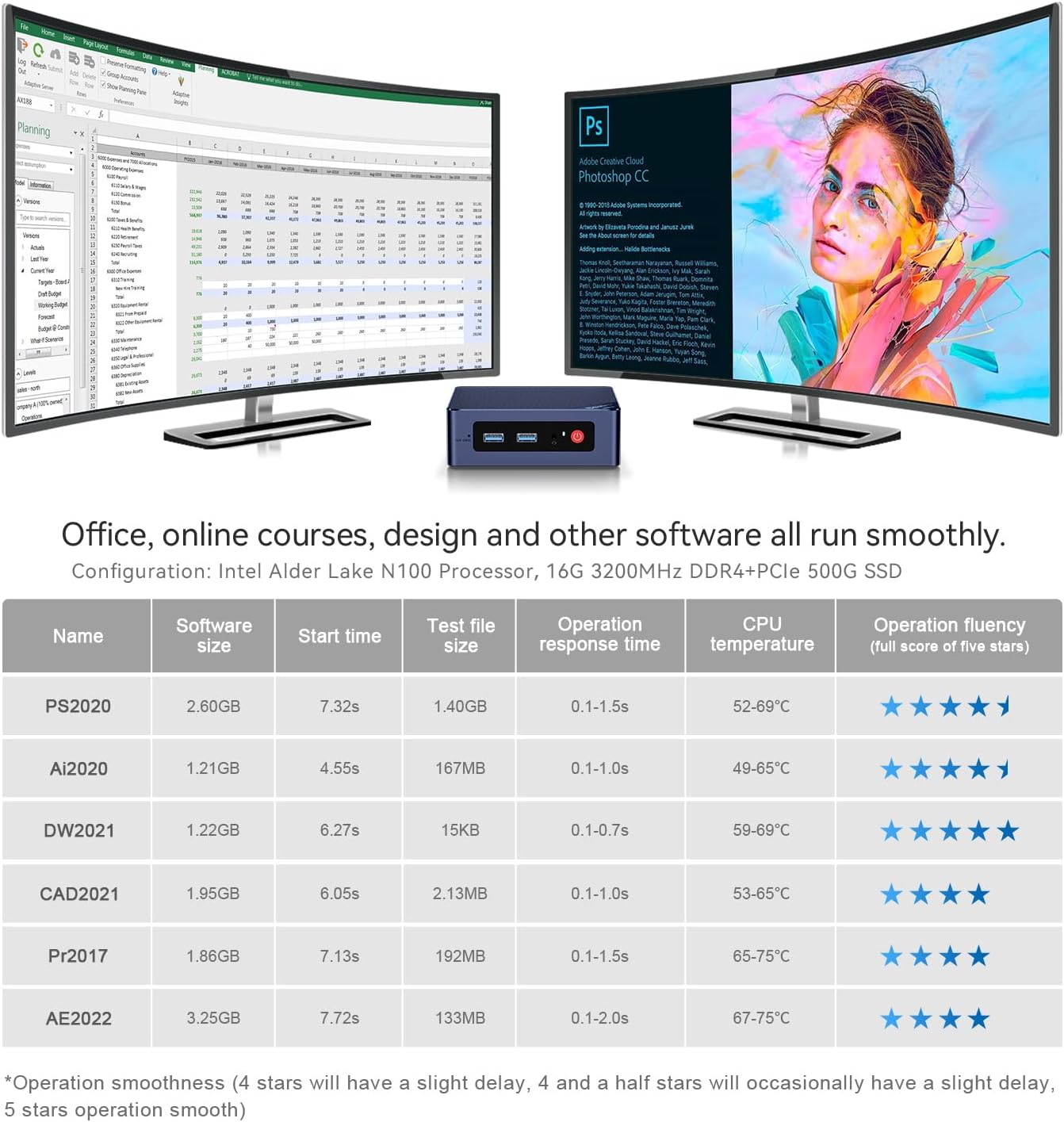
Figure 12.1: Intel Alder Lake-N N100 Processor Details.
13. Warranty and Support
Beelink provides comprehensive support for your mini PC:
- Lifetime Technical Support: Assistance is available for the lifespan of your product.
- 12 Months Warranty: The product is covered by a 12-month warranty.
- Customer Service: 7 Day / 24 hours service is available.
- Replacement Policy: Beelink provides new replacements for mini PCs during the warranty period.
For technical support or warranty claims, please contact Beelink customer service. You can typically find contact information through your purchase platform or the official Beelink website.

Figure 13.1: Beelink Customer Support Information.
14. Product Video Overview
Watch this detailed introduction to the Beelink S12 Pro Mini PC for a visual guide to its features and capabilities.
Video 14.1: Detailed Introduction of Beelink Minis 12 PRO N100. This video provides a visual overview of the mini PC's design, ports, and key features.