
Introduction
This manual provides essential information for setting up, operating, and maintaining your BINTEC 10.1-inch 2-in-1 Laptop/Tablet. Please read it thoroughly to ensure optimal performance and longevity of your device.
What's in the Box
- BINTEC 10.1-inch 2-in-1 Laptop/Tablet (Model J3455) x 1
- Power Adapter x 1
- English Instruction Manual x 1
- Warranty Card x 1
Product Overview
The BINTEC 10.1-inch 2-in-1 Laptop/Tablet is a versatile device designed for both productivity and entertainment. It features a high-resolution touchscreen and a detachable keyboard.
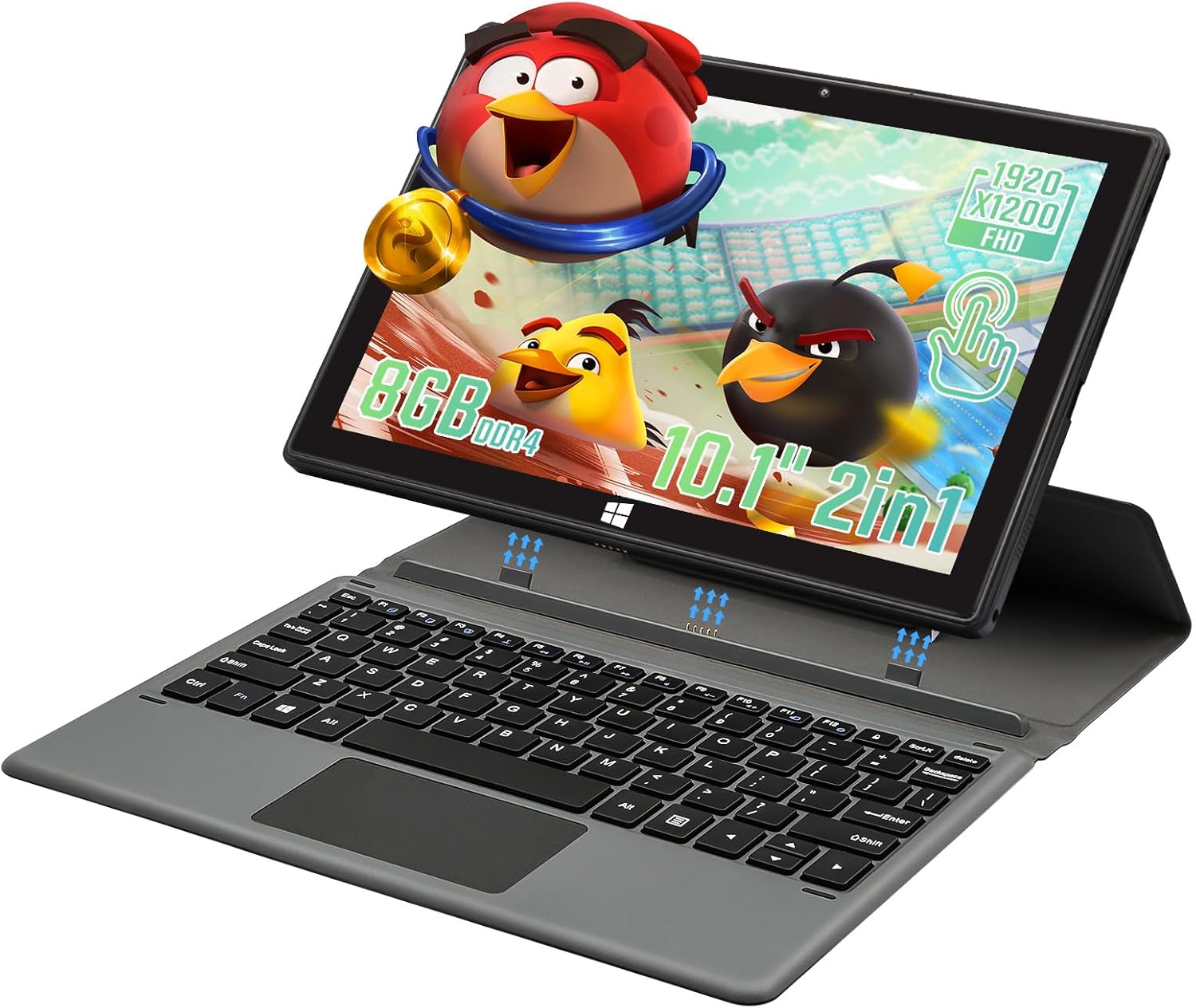
The BINTEC 10.1-inch 2-in-1 Laptop/Tablet, featuring a detachable keyboard for versatile use.
Key Features:
- Display: 10.1-inch 1920x1200 IPS Touchscreen for vivid colors and immersive viewing.
- Processor: Powered by Intel Celeron J3455 for smooth operation.
- Memory & Storage: 8GB RAM and 512GB SSD, expandable via TF card.
- Connectivity: Wireless 5G WiFi, Bluetooth 4.2, USB 3.0, Type-C, mini HDMI, headphone/microphone port, and TF card slot.
- Cameras: Dual 2-megapixel cameras (front and rear) for photos and video calls.
- Operating System: Pre-installed with Windows 11.

Demonstration of the device's flexibility, transitioning between laptop and tablet functionalities.
Ports and Controls:

Detailed view of the tablet's connectivity options and physical controls.
- Headphone Jack
- Micro HDMI Port
- Type-C Port
- TF Card Slot
- USB 3.0 Port
- Power Source Port
- Magnetic Buckle (for keyboard attachment)
- Power Switch
- Volume Controls
Product Videos:
Video demonstrating the features of the BINTEC 10.1-inch 2-in-1 tablet laptop.
Video showcasing the BINTEC 10.1-inch 2-in-1 tablet in various usage scenarios.
Setup Instructions
- Unboxing: Carefully remove all components from the packaging.
- Initial Charge: Connect the power adapter to the device and a power outlet. Allow the device to charge fully before first use.
- Attach Keyboard (Optional): Align the tablet with the magnetic connectors on the keyboard. The keyboard will snap into place.
- First Boot: Press and hold the power button until the screen turns on.
- Windows Setup: Follow the on-screen instructions to complete the initial Windows 11 setup. Important: Do not connect to WiFi until Windows is running for the first time to avoid initial setup problems.
Operating Instructions
- Power On/Off: Press and hold the power button for a few seconds to turn the device on or off. A short press will put it to sleep or wake it up.
- Using the Keyboard: When attached, the keyboard functions like a standard laptop keyboard. The touchpad can be used for navigation.
- Touchscreen Navigation: Use gestures such as tap, swipe, pinch-to-zoom, and long-press for interacting with the interface in tablet mode.
- Connecting to Wi-Fi: Once Windows is set up, navigate to Network & Internet settings to connect to your preferred Wi-Fi network. The device supports 5G Wi-Fi.
- Bluetooth Devices: Pair Bluetooth accessories (e.g., headphones, mouse) via the Bluetooth & devices settings.
- External Displays: Use the mini HDMI port to connect to an external monitor or TV.
- Storage Expansion: Insert a TF card into the designated slot to expand storage capacity.
Maintenance
- Cleaning the Screen: Use a soft, lint-free cloth specifically designed for electronics. Do not use harsh chemicals or abrasive materials.
- Cleaning the Keyboard: Use a soft brush or compressed air to remove dust and debris from between the keys.
- Battery Care: Avoid extreme temperatures. For long-term storage, charge the battery to about 50% and store in a cool, dry place.
- Software Updates: Regularly check for and install Windows updates to ensure optimal performance and security.
- Physical Protection: Use the protective case to guard against drops and scratches.
Troubleshooting
- Device not turning on: Ensure the device is charged. Connect the power adapter and try again.
- Screen not responding: Perform a soft reset by holding the power button for 10-15 seconds. If the issue persists, ensure the screen is clean and free of obstructions.
- Wi-Fi connectivity issues: Check if other devices can connect to the network. Restart your router and the tablet. Ensure airplane mode is off.
- Keyboard not working: Ensure the keyboard is securely attached to the tablet via the magnetic connectors. Restart the tablet.
- Slow performance: Close unnecessary applications. Check for available storage space. Run a system scan for malware.
- Initial Windows setup problems: As advised during setup, ensure you are not connected to Wi-Fi during the very first Windows boot process.
Specifications
| Feature | Detail |
|---|---|
| Brand | BINTEC |
| Model Number | J3455 |
| Screen Size | 10.1 Inches |
| Screen Resolution | 1920 x 1200 pixels (IPS) |
| Processor | Intel Celeron J3455 (1.5 GHz) |
| RAM | 8 GB DDR4 SDRAM |
| Hard Drive | 512 GB NVMe SSD |
| Operating System | Windows 11 |
| Wireless Type | 802.11ac (5G WiFi) |
| Bluetooth | 4.2 |
| Item Weight | 4.4 pounds |
| Product Dimensions | 9.96 x 7 x 0.71 inches |
| Color | Black |
| Special Feature | Portable, Touchscreen, 2-in-1 |
Warranty and Support
Your BINTEC 2-in-1 Laptop/Tablet comes with a 365-day limited warranty and a 24-month quality guarantee. If you encounter any issues or have questions about your device, please do not hesitate to contact BINTEC customer service. We are committed to providing support within 24 hours.
Please refer to the included warranty card for detailed terms and conditions.