1. Introduction
Thank you for choosing the KAWA D5 Dash Cam. This manual provides detailed instructions for the installation, operation, and maintenance of your new dash cam. Please read this manual thoroughly before use to ensure proper functionality and to maximize your driving safety and recording experience.

The KAWA D5 Dash Cam, shown alongside a smartphone displaying its live recording interface.
2. What's in the Box
Please verify that all items are present in your package:
- KAWA D5 Dash Cam Front (x1)
- Car Mount (x1)
- User Manual (x1)
- Quick Guide (x1)
- Charging Cable (x1)
- 3M Adhesive Tape (x1)
- Electrostatic Stickers (x1)
- Car Charger Adapter (x1)

An illustration of the KAWA D5 Dash Cam and its included accessories.
3. Product Overview
The KAWA D5 Dash Cam is designed for discreet and reliable in-car recording. Its compact form factor ensures it does not obstruct your view while driving.
3.1. Compact Design
The D5 dash cam features a sleek and compact design, allowing it to seamlessly fit into your car with minimal space, ensuring it does not obstruct your view.

The KAWA D5 Dash Cam installed discreetly behind the rearview mirror, with a diagram showing cable routing.
3.2. Super Capacitor
The KAWA D5 car dash cam is equipped with a super capacitor instead of a lithium-ion battery. This design enhances reliability and safety, especially in extreme temperatures, operating reliably from -20°C to 65°C (-4°F to 149°F). It also contributes to environmental protection by being free of harmful chemicals.

Visual representation of the super capacitor's resilience to extreme temperatures and its environmental benefits.
4. Setup & Installation
4.1. Micro SD Card Installation
The dash cam supports high-endurance Class 10 (and above) micro SD memory cards ranging from 16GB up to 256GB (not included). It is essential to choose a reputable brand's high-speed Class 10 card or higher to avoid potential issues like system crashes or video frame drops. For optimal stability, it is recommended to use the official KAWA Micro SD card.

A visual guide for inserting the Micro SD card into the dash cam.
4.2. Mounting the Dash Cam
The KAWA D5 is designed for windshield mounting. Use the provided 3M adhesive tape and electrostatic stickers for secure installation. Ensure the camera is placed in a position that does not obstruct your view of the road.
- Clean the windshield surface thoroughly where you intend to mount the dash cam.
- Apply the electrostatic sticker to the desired location on the windshield.
- Press the 3M adhesive tape firmly onto the dotted line in the center of the electrostatic sticker.
- Attach the dash cam to the adhesive mount.
- Adjust the camera angle for optimal recording. The dash cam features a multi-angle 360° rotation adjustment.

Illustration of the dash cam's 360-degree rotation capability for flexible positioning.
4.3. Power Connection
Connect the dash cam to your car's power source using the provided charging cable and car charger adapter. Ensure the cable is routed safely and does not interfere with driving controls.
5. Operating Instructions
5.1. Basic Operation
The dashcam features a single button that allows for formatting, powering on/off, recharging, and Wi-Fi control with different press sequences, making it easy to operate.

A detailed view of the dash cam's single multi-function button.
5.2. App Control & Wi-Fi
Stay connected with the KAWA AUTO App through the built-in Wi-Fi of the dashcam. The app allows you to easily access real-time footage, playback recorded videos, and download files to your phone. Seamless OTA updates automatically fix bugs and update software for uninterrupted performance.
- Download and open the KAWA AUTO app from the App Store or Google Play.
- Add the D5 dash cam within the app.
- Find the D5 Wi-Fi network on your phone, enter the initial password, and connect.
- Press the button on the dash cam once to connect it to the app.

The KAWA AUTO App interface on a smartphone, demonstrating Wi-Fi connectivity and video sharing capabilities.

Step-by-step guide for connecting the dash cam to the mobile application.
6. Advanced Features
6.1. Voice Control
Experience hands-free safety with voice control functionality. Easily take photos and lock videos with simple voice commands, ensuring a seamless and safe driving experience, and critical moments are securely saved.
- "Take photo"
- "Lock the video"
- "Turn on audio" / "Turn off audio"
- "Turn on WiFi" / "Turn off WiFi"
- "Turn on hotspot" / "Turn off hotspot"
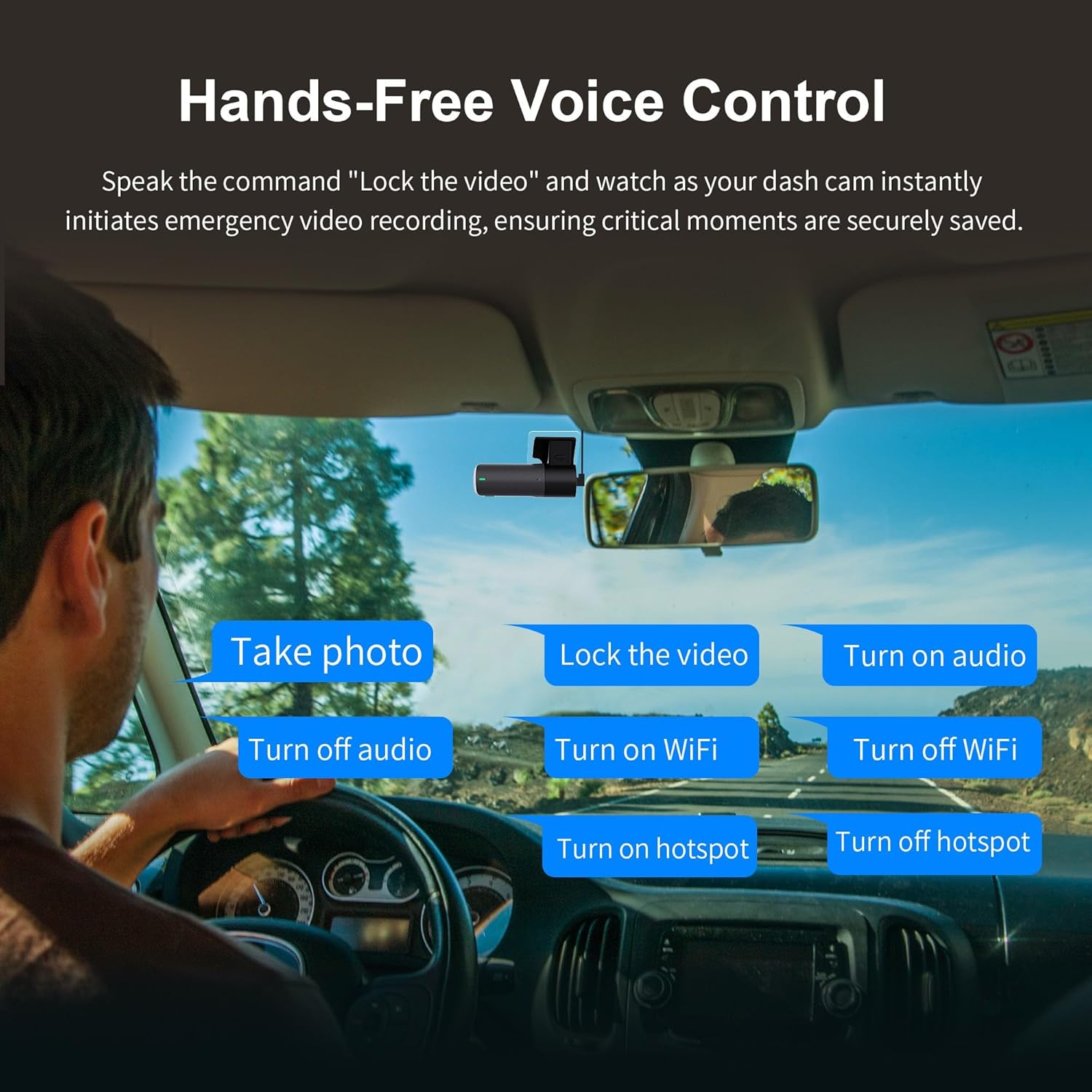
A driver interacting with the dash cam using voice commands for hands-free operation.
6.2. 24H Parking Monitoring
Keep your car safe with 24-hour parking surveillance. The built-in G-Sensor automatically starts recording and locks the video when it detects an emergency collision. Emergency videos are securely stored in a separate folder to prevent overwriting. The dash cam also supports Time-lapse mode, shrinking real-time footage from 30 minutes to 1 minute, saving 30 times the storage space.
Note: This feature requires a parking monitoring cable, which is not included. Please purchase separately (ASIN: B0BPWXD2PY).

Visual explanation of the 24/7 parking monitoring feature, including G-sensor emergency recording and time-lapse mode.
6.3. Loop Recording & Emergency Recording
Choose between 1, 2, or 3 minute loop recording intervals, ensuring continuous recording. When the Micro SD card is full, the dash cam automatically overwrites the oldest video, allowing seamless recording. With the built-in G-Sensor, this dash camera automatically starts recording and locks the video when it detects an emergency collision. Emergency videos are securely stored in a separate folder to prevent overwriting, ensuring important footage is always preserved.

An illustration demonstrating the continuous loop recording function.

Examples of emergency recording activation during collisions and parking events.
6.4. Night Vision & Wide Dynamic Range (WDR)
Capture every detail on the road with the car camera's 1296P QHD resolution. Enhanced night vision technology ensures clear images even in low-light conditions, brightening up dim scenes for optimal visibility. The WDR feature automatically supplements light in low-light conditions and suppresses overexposure in strong light and backlight, ensuring clarity in sunny, cloudy, and dimly lit nights.

A sample of the dash cam's crystal-clear nighttime footage.

Demonstration of how Wide Dynamic Range (WDR) improves video clarity in challenging lighting.
6.5. H.265 (High Efficiency Video Coding, HEVC)
The D5 dash cam utilizes H.265 encoding, offering faster transmission efficiency and higher image quality than H.264, doubling compression and saving 50% of storage space. Please ensure that your video player supports the H.265 video format for optimal playback. We recommend using Potplayer or VLC Media Player.

A comparison illustrating the storage and quality benefits of H.265 encoding over H.264.
7. Maintenance
To ensure the longevity and optimal performance of your KAWA D5 Dash Cam, follow these maintenance guidelines:
- Clean the Lens: Regularly wipe the camera lens with a soft, lint-free cloth to ensure clear recordings. Avoid abrasive materials that could scratch the lens.
- Format SD Card: Periodically format the Micro SD card (e.g., once a month) to prevent data corruption and ensure smooth loop recording. This can typically be done via the dash cam's settings or the KAWA AUTO app.
- Check Connections: Ensure all cables and connections are secure and free from damage.
- Temperature Control: While the dash cam is designed for a wide temperature range, avoid prolonged exposure to extreme heat or cold when the vehicle is parked, if possible.
- Software Updates: Keep the dash cam's firmware updated via the KAWA AUTO app to benefit from performance improvements and bug fixes.
8. Troubleshooting
If you encounter issues with your KAWA D5 Dash Cam, please refer to the following common problems and solutions:
| Problem | Possible Cause | Solution |
|---|---|---|
| Dash cam does not power on. | No power supply; faulty cable/adapter. | Check car charger connection. Ensure car's power outlet is working. Try a different USB cable or adapter. |
| Recording stops or freezes. | SD card issue (full, slow, corrupted); firmware issue. | Format the SD card. Use a high-endurance Class 10 (or higher) SD card. Update firmware via the app. |
| Wi-Fi connection unstable or fails. | Interference; incorrect password; app issue. | Ensure you are within 1.5 meters of the dash cam. Re-enter Wi-Fi password. Restart the app and dash cam. |
| Poor video quality (blurry, dark). | Dirty lens; low light conditions; incorrect settings. | Clean the lens. Ensure WDR is enabled. Check resolution settings in the app. |
| Voice control not responding. | Background noise; incorrect commands. | Speak clearly and directly to the dash cam. Reduce background noise. Refer to the list of supported commands. |
If the problem persists, please contact KAWA customer support for assistance.
9. Specifications
| Feature | Detail |
|---|---|
| Model Name | D5 |
| Brand | KAWA |
| Video Capture Resolution | 1296p QHD |
| Connectivity Technology | Wi-Fi |
| Special Features | Built-In Speaker, Voice Control, Built-in Wi-Fi, G-sensor, 24h Parking Monitoring, Time-lapse, WDR, Night Vision, Loop Recording, App Control, Built-In Supercapacitor, Built-In Microphone |
| Mounting Type | Windshield Mount |
| Product Dimensions | 13 x 6 x 11 cm; 250 g |
| Operating Temperature | -20°C to 65°C (-4°F to 149°F) |
| Storage Temperature | -30°C to 80°C (-22°F to 176°F) |
| Power Source | Super Capacitor (No Lithium-ion Battery) |
| Supported SD Card | Class 10 (or above), 16GB to 256GB Micro SD |

Detailed dimensions of the KAWA D5 Dash Cam.
10. Warranty & Support
KAWA is committed to providing excellent customer service and product support.
- Warranty: Enjoy peace of mind with a lifetime warranty for the dash cam, including free replacements within the first 12 months for quality issues or defects.
- Customer Support: We respond promptly to all emails and messages within 24 hours. For support, please contact support@kawa-in.com.

Our dedicated customer service team is ready to assist you.


