
1. Introduction
This manual provides essential instructions for setting up, operating, maintaining, and troubleshooting your MXZ Gaming PC Desktop Computer. Please read this manual thoroughly before using your new computer to ensure proper functionality and longevity.
2. Product Overview
The MXZ Gaming PC Desktop Computer is designed for high-performance gaming and demanding applications. It features an Intel Core i5-12400F processor, NVIDIA GeForce RTX 4060 graphics card, 16GB DDR4 RAM, and a 500GB NVME SSD, running on Windows 11 Pro.

Image 2.1: Front-side view of the MXZ Gaming PC with the side panel open, revealing the internal components and illuminated RGB fans.
2.1 Key Features
- Processor: 12th Gen Intel Core i5-12400F 6-Core 12-thread Processor (2.9GHz-4.4GHz)
- Graphics: NVIDIA GeForce RTX 4060 8GB
- Memory (RAM): 16GB DDR4 3200MHz
- Storage: NVME M.2 500GB Solid State Drive
- Motherboard: H610M S2 Motherboard
- Power Supply: 550W 80+ Certified Power Supply
- Operating System: Windows 11 Pro (pre-installed)
- Connectivity: PCI-E WIFI
- Cooling: 6 RGB fans for optimal airflow and customizable lighting

Image 2.2: Detailed internal view highlighting the CPU cooler and DDR4 RAM modules.

Image 2.3: Front panel of the MXZ Gaming PC showcasing the three vibrant RGB cooling fans.
3. Setup Instructions
3.1 Unboxing and Placement
- Carefully remove the computer from its packaging. Retain all packaging materials for future transport or warranty claims.
- Place the computer on a stable, flat surface with adequate ventilation. Ensure there is sufficient space around the computer for airflow.
3.2 Connecting Peripherals
Connect your monitor, keyboard, mouse, and other peripherals to the appropriate ports on the computer.

Image 3.1: Top panel connections, including USB 2.0, USB 3.0, headphone, and microphone ports.
- Monitor: Connect your monitor to the graphics card's display outputs (HDMI or DisplayPort) located on the rear of the PC.
- Keyboard and Mouse: Connect your keyboard and mouse to the USB ports. USB 3.0 ports (blue) offer faster data transfer.
- Audio: Connect speakers or headphones to the audio jacks on the rear or front panel.
- Network: For wired internet, connect an Ethernet cable to the LAN port on the rear. For wireless internet, the PCI-E WIFI adapter is pre-installed.
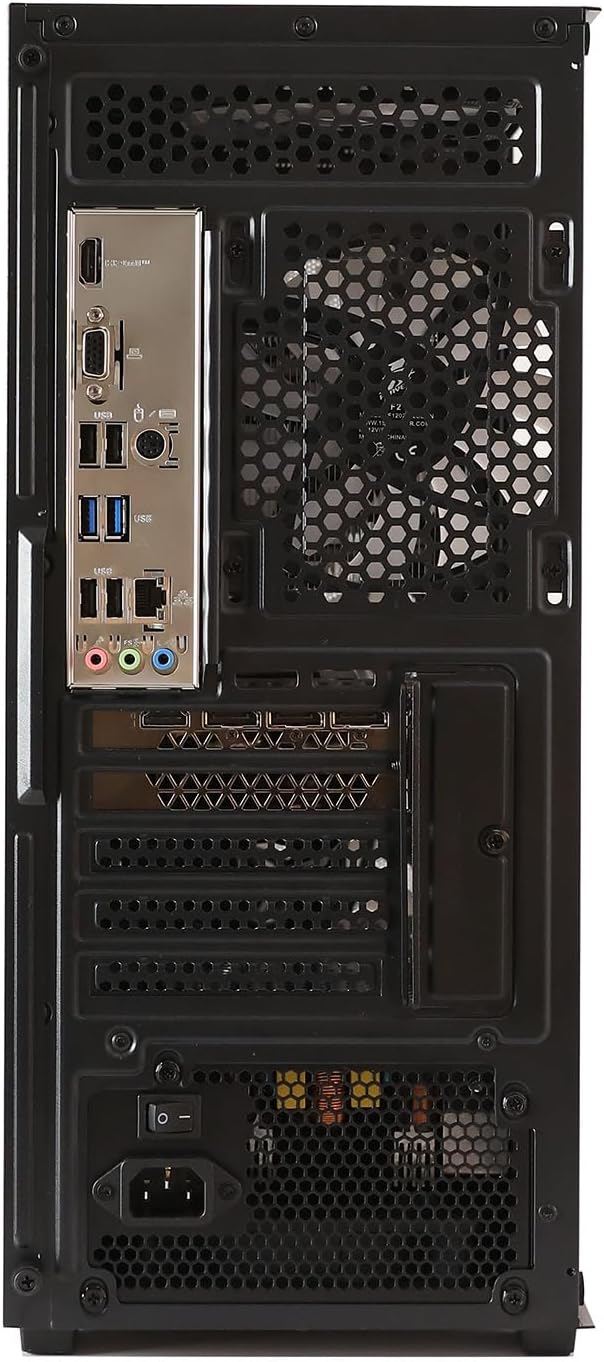
Image 3.2: Rear panel connections, including motherboard I/O, graphics card ports, and power input.
3.3 Power Connection
- Connect the power cable to the power supply unit (PSU) input on the rear of the computer.
- Plug the other end of the power cable into a grounded electrical outlet.
- Ensure the power switch on the PSU (located on the rear) is in the 'ON' position (usually 'I').
3.4 Initial Boot-Up
- Press the power button on the front of the computer.
- The computer will boot into Windows 11 Pro. Follow the on-screen instructions to complete the initial Windows setup, including region, language, and user account creation.
4. Operating Instructions
4.1 Basic Operation
- Power On/Off: Press the power button to turn on the computer. To shut down, click the Start button, then Power > Shut down.
- Restart: To restart the computer, click the Start button, then Power > Restart.
- Sleep Mode: To put the computer into sleep mode, click the Start button, then Power > Sleep.
4.2 Windows 11 Pro
Your MXZ Gaming PC comes with Windows 11 Pro pre-installed. Familiarize yourself with the Windows 11 interface for optimal use. Regular updates are recommended for security and performance.

Image 4.1: Windows 11 Pro operating system logo.
4.3 RGB Lighting Control
The computer features 6 RGB fans. The lighting effects can typically be controlled via pre-installed software or a physical button on the case, if available. Refer to the motherboard or fan controller documentation for specific instructions on customizing RGB lighting.
5. Maintenance
5.1 Cleaning
- Exterior: Use a soft, damp cloth to clean the exterior of the case. Avoid abrasive cleaners.
- Interior: Periodically clean dust from the interior components, especially fans and heatsinks, using compressed air. Ensure the computer is powered off and unplugged before opening the case.
- Air Filters: If your case has removable dust filters, clean them regularly to maintain optimal airflow.
5.2 Software Updates
- Windows Updates: Regularly check for and install Windows updates to ensure system stability and security. Go to Settings > Windows Update.
- Driver Updates: Keep your graphics card drivers (NVIDIA) and other component drivers updated for best performance and compatibility. Visit the manufacturer's websites for the latest drivers.
5.3 System Backups
Regularly back up your important data to an external drive or cloud storage to prevent data loss.
6. Troubleshooting
This section addresses common issues you might encounter.
6.1 No Display on Monitor
- Ensure the monitor is powered on and correctly connected to the graphics card's output ports, not the motherboard's integrated graphics ports.
- Check that the monitor's input source is set correctly.
- Try a different display cable or monitor if possible.
6.2 Computer Not Powering On
- Verify the power cable is securely connected to both the PC and the wall outlet.
- Check the power switch on the PSU is in the 'ON' position.
- Test the power outlet with another device.
6.3 Slow Performance
- Close unnecessary background applications.
- Ensure Windows and drivers are up to date.
- Check for malware or viruses using reputable antivirus software.
- Monitor system temperatures to ensure components are not overheating.
6.4 Inconsistent WiFi Connection
- Ensure the WiFi antenna(s) are securely attached to the rear of the PC.
- Update your WiFi adapter drivers from the manufacturer's website.
- Try repositioning your PC or WiFi router to improve signal strength.
- Consider using a wired Ethernet connection for maximum stability if possible.
7. Specifications
Detailed technical specifications for your MXZ Gaming PC Desktop Computer.
| Component | Specification |
|---|---|
| Processor | Intel Core i5-12400F (6 Cores, 12 Threads, 2.9GHz base, up to 4.4GHz boost) |
| Graphics Card | NVIDIA GeForce RTX 4060 8GB Dedicated |
| RAM | 16GB DDR4 3200MHz |
| Storage | 500GB NVME M.2 SSD |
| Motherboard | H610M S2 |
| Power Supply | 550W 80+ Certified |
| Operating System | Windows 11 Pro |
| Connectivity | PCI-E WIFI |
| Case Features | Window side panel, 6 RGB fans |
| Dimensions (Package) | 20.5 x 19.5 x 11.5 inches |
| Item Weight | 25.5 pounds |


8. Warranty and Support
8.1 Warranty Information
Your MXZ Gaming PC Desktop Computer includes a 1-year parts and labor warranty from the date of purchase. This warranty covers defects in materials and workmanship under normal use. Please retain your proof of purchase for warranty claims.
8.2 Technical Support
MXZ provides free lifetime technical support for your product. If you encounter any issues not covered in the troubleshooting section or require further assistance, please contact MXZ customer support. Refer to the product packaging or the MXZ official website for contact details.