
OPPO Reno 11 Pro - Rock Grey
OPPO Reno 11 Pro CPH2607 User Manual
Model: Reno 11 Pro - Rock Grey
Introduction
This manual provides essential information for the safe and efficient use of your OPPO Reno 11 Pro CPH2607 smartphone. Please read this manual thoroughly before using your device to ensure optimal performance and longevity. Keep this manual for future reference.
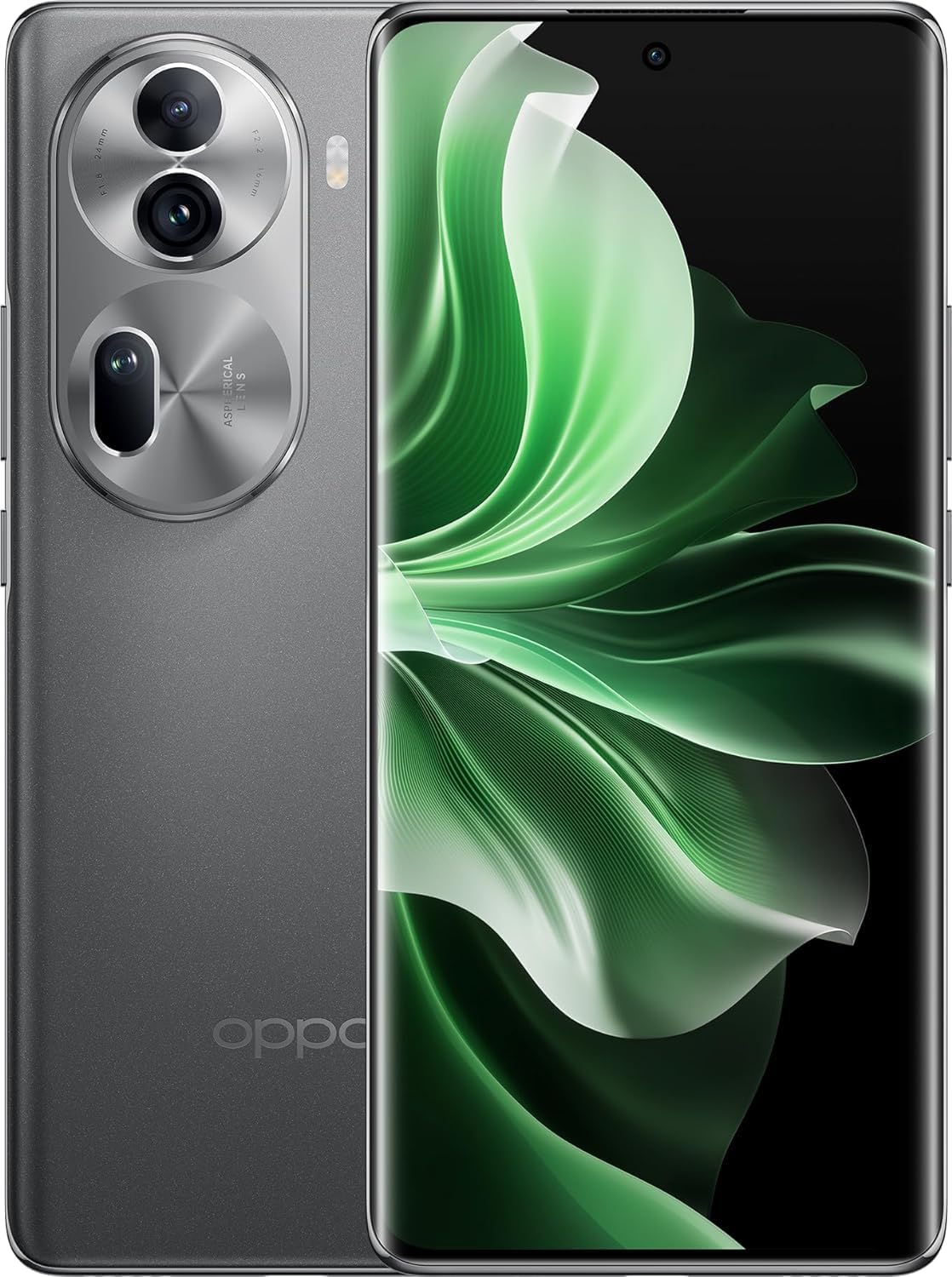
Figure 1: Front and back view of the OPPO Reno 11 Pro CPH2607 smartphone.
Safety Information
- Battery Safety: Do not attempt to replace the non-removable battery. Use only OPPO-approved chargers and cables. Avoid exposing the device to extreme temperatures.
- Water Resistance: This device is not water-resistant. Avoid contact with liquids.
- Hearing Protection: Prolonged exposure to high volume levels when using headphones may cause hearing damage.
- Driving Safety: Do not use your phone while driving. Always prioritize road safety.
- Disposal: Dispose of the device and its accessories responsibly according to local regulations. Do not dispose of with household waste.
Package Contents
Verify that all items are present in your product packaging:
- OPPO Reno 11 Pro CPH2607 Smartphone
- USB Cable
- Quick Start Guide (may be separate)
- Safety Information (may be separate)
Setup
1. Inserting SIM Cards
The OPPO Reno 11 Pro supports Dual SIM functionality. Locate the SIM card tray on the side of the device. Use the provided SIM ejector tool to open the tray.

Figure 2: Bottom view of the device, indicating the SIM card tray location.
- Insert the SIM ejector tool into the small hole on the SIM tray.
- Gently pull out the SIM tray.
- Place your Nano-SIM cards into the designated slots on the tray, ensuring the gold contacts face downwards.
- Carefully reinsert the SIM tray into the device until it clicks into place.
2. Initial Power On and Setup Wizard
To power on your device, press and hold the Power button (located on the right side) until the OPPO logo appears. Follow the on-screen instructions to complete the initial setup:
- Select your preferred language.
- Connect to a Wi-Fi network.
- Review and accept the End User License Agreement.
- Sign in with your Google account or create a new one.
- Set up screen lock (PIN, pattern, fingerprint, face unlock).
- Restore data from a previous device (optional).
Operating Your Device
Display and Navigation
The OPPO Reno 11 Pro features a 6.7-inch AMOLED display with 1B colors and a resolution of 1080 x 2412 pixels, protected by Asahi Glass AGC. Navigation is primarily touch-based, utilizing gestures and on-screen buttons.
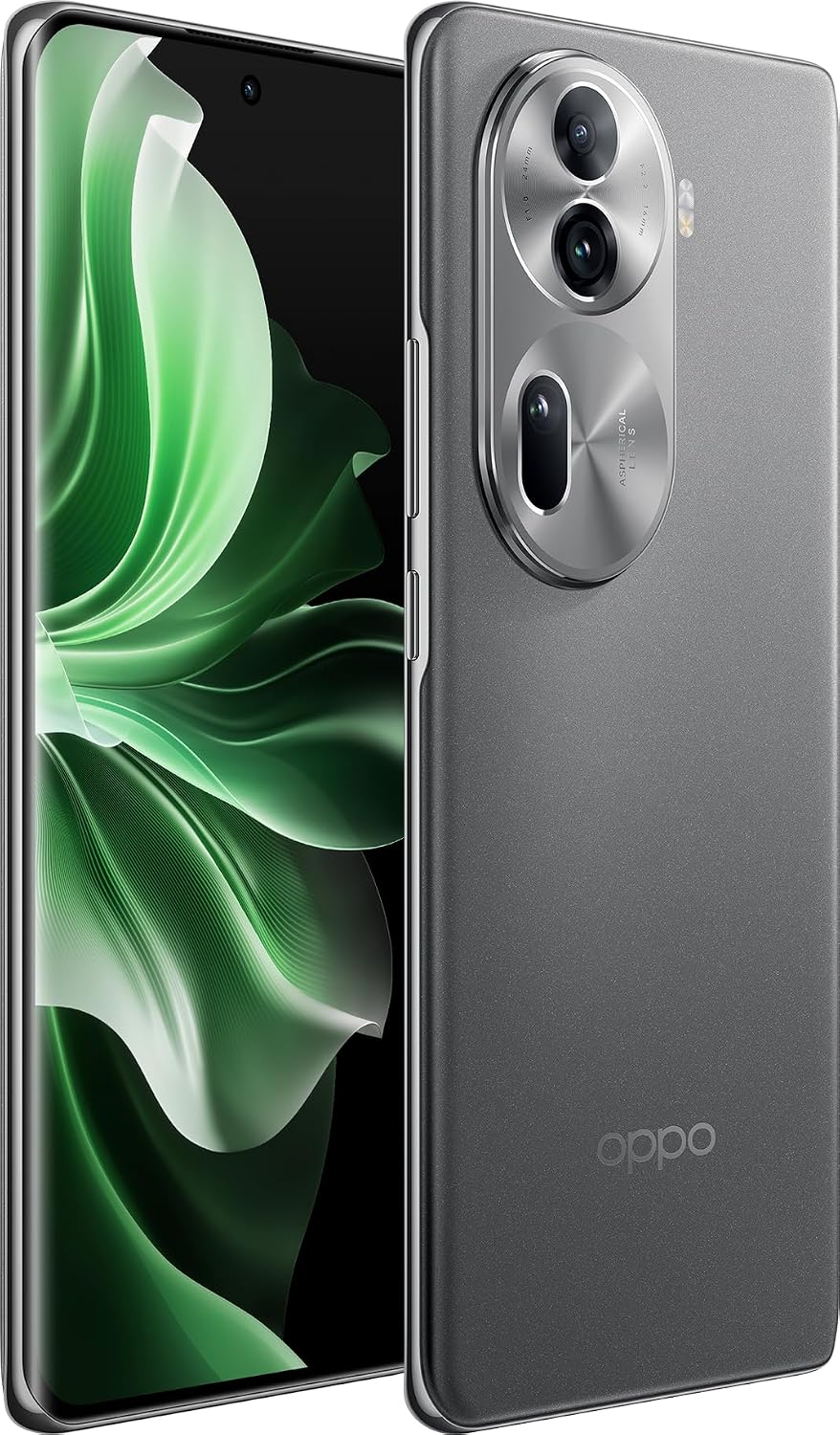

Figure 3: Front view and angled front view showcasing the display.
Camera Usage
Your device is equipped with a versatile camera system:
- Rear Cameras: 50MP (main) + 32MP (telephoto) + 8MP (ultrawide) for high-quality photos and videos.
- Front Camera: 32MP for selfies and video calls.
Open the Camera app from your home screen or app drawer. Select different modes (Photo, Video, Portrait, Night, etc.) by swiping across the bottom of the viewfinder. Tap the shutter button to capture images or start/stop video recording.


Figure 4: Rear camera module design on the OPPO Reno 11 Pro.
Connectivity
Your device supports various connectivity options:
- 5G/4G/3G/2G Networks: Compatible with a wide range of global network bands. Ensure your SIM card and plan support the desired network type.
- Wi-Fi: Connect to wireless networks for internet access.
- Bluetooth: Pair with wireless headphones, speakers, and other Bluetooth-enabled devices.
- USB Type-C: For charging and data transfer.
Maintenance
Cleaning Your Device
To keep your device clean and in good condition:
- Use a soft, lint-free cloth to wipe the screen and body.
- Avoid using harsh chemicals, abrasive cleaners, or compressed air.
- Do not allow moisture to enter openings.
Software Updates
Regularly check for and install software updates to improve device performance, security, and add new features. Go to Settings > About device > Up to date to check for updates.
Battery Care
The device is powered by a 4600mAh non-removable battery. To maximize battery life:
- Avoid fully discharging the battery frequently.
- Do not leave the device charging for extended periods after it reaches 100%.
- Keep the device within optimal temperature ranges (0°C to 35°C).
Troubleshooting
This section addresses common issues you might encounter.
Device Not Turning On
- Ensure the battery is charged. Connect the device to a charger for at least 10 minutes before attempting to power on.
- Press and hold the Power button for 10-15 seconds to force a restart.
Poor Network Connectivity
- Check if Airplane Mode is off.
- Ensure SIM cards are correctly inserted.
- Restart the device.
- Verify network settings (APN, preferred network type) with your carrier.
Battery Draining Quickly
- Reduce screen brightness.
- Close unused apps running in the background.
- Disable Wi-Fi, Bluetooth, and GPS when not in use.
- Check battery usage in Settings > Battery to identify power-hungry apps.
Device Freezing or Unresponsive
- Press and hold the Power button for about 10 seconds to force a restart.
- If the issue persists, consider performing a factory reset (Note: This will erase all data on your device. Back up important data first). Go to Settings > System settings > Back up and reset > Reset phone > Erase all data.
Specifications
Detailed technical specifications for the OPPO Reno 11 Pro CPH2607:
| Feature | Specification |
|---|---|
| Model Name | Oppo Reno 11 Pro |
| Operating System | Android 14, ColorOS 14 |
| Processor | Mediatek Dimensity 8200 (4 nm), Octa-core (1x3.1 GHz Cortex-A78 & 3x3.0 GHz Cortex-A78 & 4x2.0 GHz Cortex-A55) |
| GPU | Mali-G610 MC6 |
| RAM | 12GB |
| Internal Storage | 512GB ROM (non-expandable) |
| Display | 6.7 inches, AMOLED, 1B colors, 1080 x 2412 pixels, Asahi Glass AGC |
| Rear Camera | 50MP (wide) + 32MP (telephoto) + 8MP (ultrawide) |
| Front Camera | 32MP |
| Battery | 4600mAh, non-removable Lithium Polymer |
| SIM Type | Dual Nano-SIM |
| Connectivity | 5G, 4G LTE, Wi-Fi, Bluetooth, USB Type-C |
| Color | Rock Grey |
| Dimensions | Approx. 7.32 x 3.78 x 2.36 inches (Package) |
| Weight | Approx. 1.17 pounds (Item) |
Warranty and Support
Your OPPO Reno 11 Pro CPH2607 is covered by a limited warranty. Please refer to the warranty card included in your package or visit the official OPPO website for detailed warranty terms and conditions specific to your region.
For technical support, troubleshooting assistance, or service inquiries, please contact OPPO customer service through their official channels. Support contact information can typically be found on the OPPO website or in the device's 'Settings > About device' section.
Related documentsReno 11 Pro - Rock Grey


Ask a question about this manual
Ask about setup, troubleshooting, compatibility, parts, safety, or missing instructions. Manuals+ will review the question and use this page’s manual context to help answer it.