
Introduction
This manual provides instructions for the Novzix NS1-BK Smart Tracker Tag, an Android-compatible device designed to help you locate your belongings using the Google Find My Device network. Please read this manual thoroughly before using the product to ensure proper setup and operation.
Key Features
- Designed for Android 9 and above, ensuring broad compatibility with modern Android smartphones.
- Seamlessly integrates with the Google Find My Device network, leveraging a vast network of Android devices for crowdsourced tracking.
- Compact and lightweight design, allowing easy attachment to keys, wallets, bags, and other personal items.
- Requires a straightforward setup process via the Google Find My Device app, with clear, guided instructions.
- Provides location updates every 3-30 minutes, helping you keep track of your belongings in near real-time.
- Constructed with high-quality, water and dust resistant materials, suitable for various environments.
- Incorporates the latest tracking technology for stable performance and a reliable user experience.
Package Contents
Your Novzix NS1-BK Smart Tracker Tag package includes:
- Novzix NS1-BK Smart Tracker Tag(s)
- CR2 batteries (pre-installed or included separately)
- Quick Start Guide (refer to this manual for detailed instructions)
Setup Guide
1. Initial Activation
Ensure your Android device is running Android 9 or above and has the Google Find My Device app installed and updated. The tracker tag comes with a pre-installed battery. If not, insert the CR2 battery as shown in the maintenance section.
2. Pairing with Google Find My Device
Open the Google Find My Device app on your Android phone. Follow the on-screen instructions to add a new device. The app will guide you through the pairing process for your Novzix Smart Tracker Tag. You may need to press a button on the tracker to initiate pairing. Refer to the app for specific prompts.

Image: The Google Find My Device app displaying the location of a Novzix Smart Tracker Tag on a map, indicating successful pairing and tracking.
Operating Instructions
Locating Your Items
Once paired, you can view the last known location of your Novzix Smart Tracker Tag within the Google Find My Device app. Location updates occur every 3-30 minutes, providing current information on your item's whereabouts.

Image: A Novzix Smart Tracker Tag attached to keys, with a smartphone showing the Google Find My Device app's global tracking interface, highlighting its ability to locate items worldwide.
Using the "Play Sound" Feature
If your item is nearby, use the "Play Sound" feature in the Google Find My Device app to make the tracker emit an audible alert, helping you pinpoint its exact location quickly.

Image: A hand holding a smartphone showing the Google Find My Device app's "Find Near By" interface, with the "Play Sound" button highlighted. A Novzix Smart Tracker Tag is partially visible on a couch in the background, illustrating how the sound feature helps locate items.
Loss Prevention Alerts
The Novzix Smart Tracker Tag can alert you if you leave an item behind or if it moves away from your designated safe zones. Configure these alerts within the Google Find My Device app settings for enhanced security.
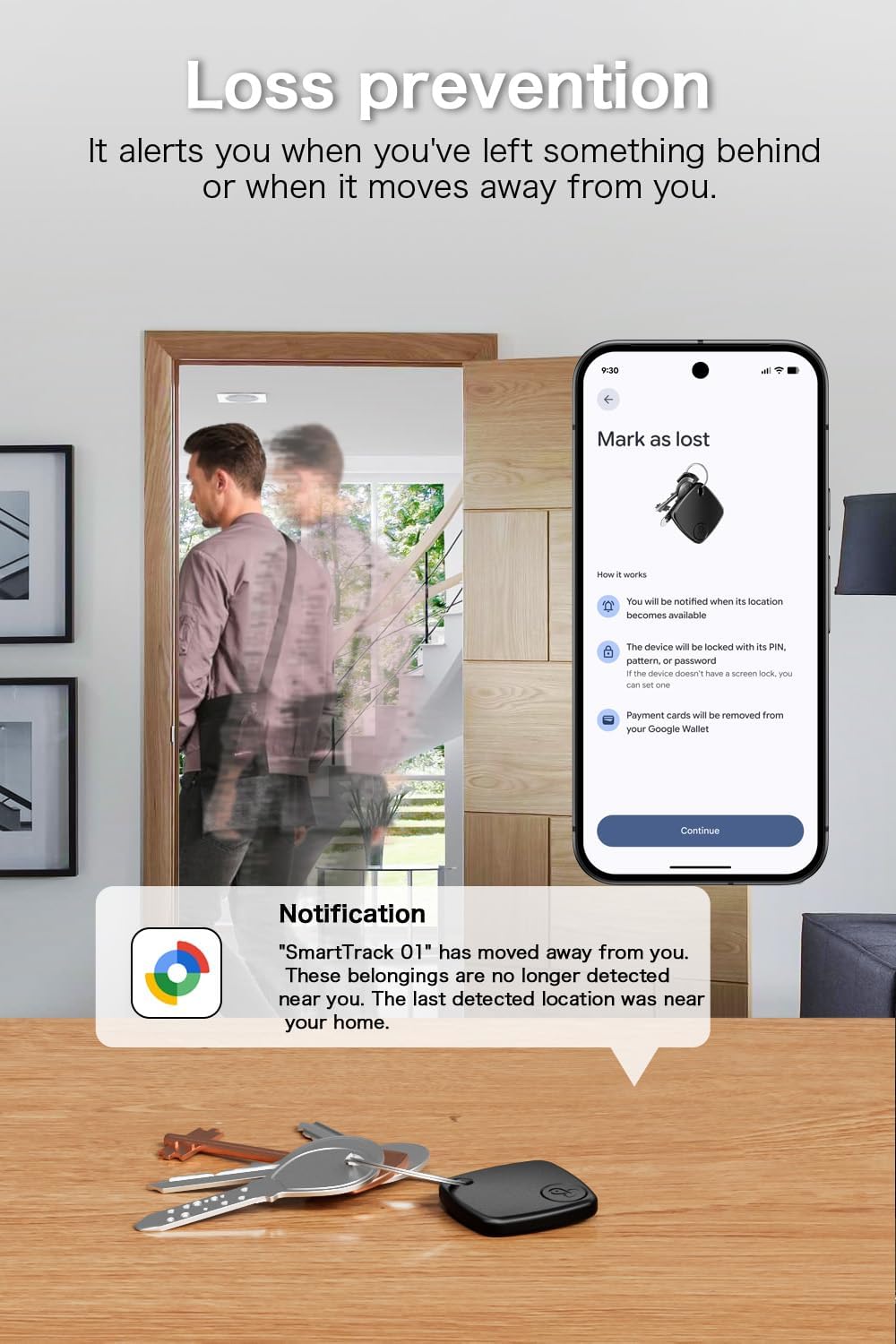
Image: A smartphone screen showing a notification from the Google Find My Device app, stating that a "SmartTrack 01" has moved away, demonstrating the loss prevention feature.
Tracking Various Items
The compact design allows the tracker to be attached to keys, wallets, bags, and other personal items, making it versatile for various tracking needs.
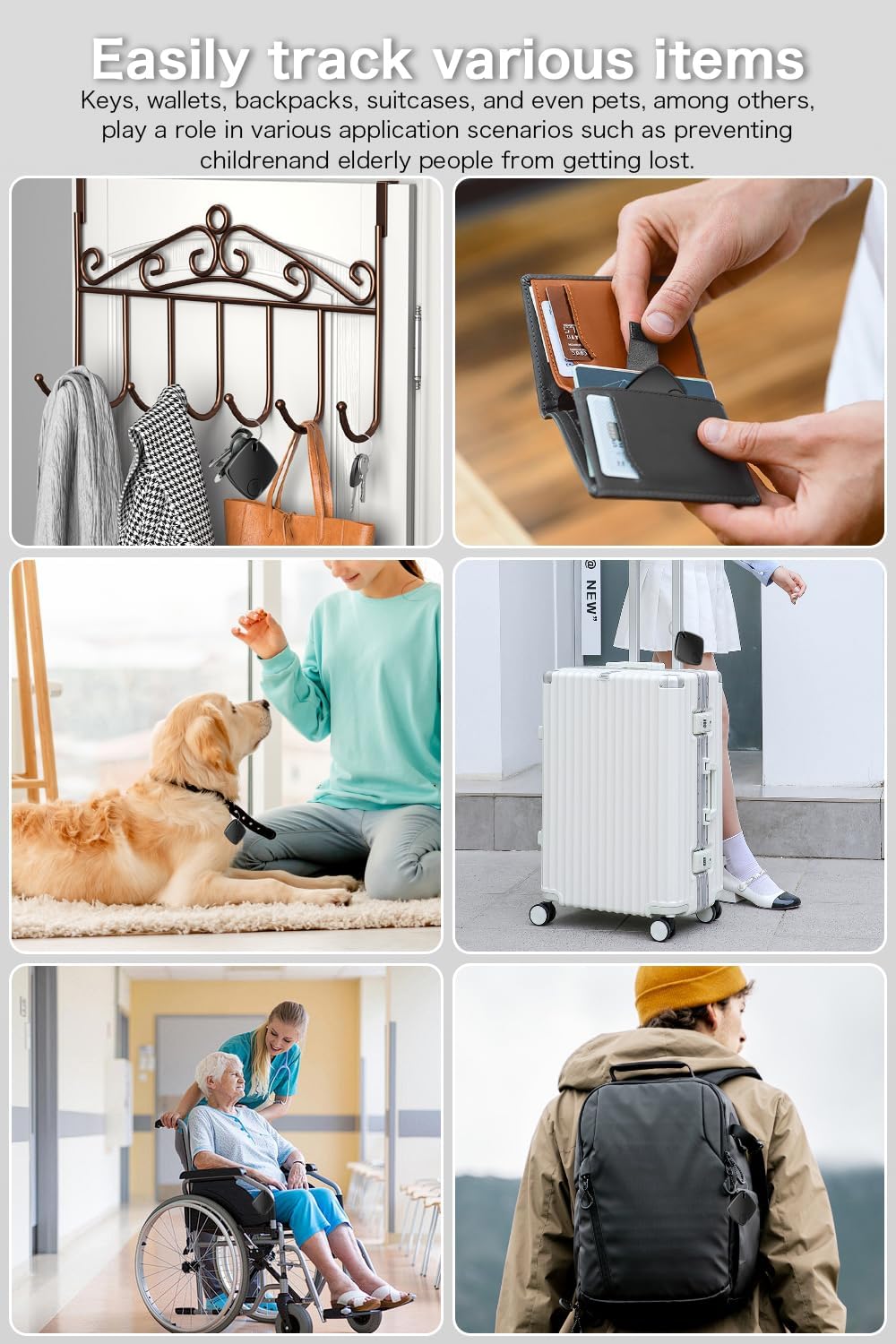
Image: A collage illustrating the versatility of the Novzix Smart Tracker Tag, showing it attached to keys, wallets, backpacks, and even a pet collar, highlighting its use in diverse tracking scenarios.
Maintenance
Battery Replacement
The Novzix Smart Tracker Tag uses a CR2 battery, designed for approximately 365 days of use. When the battery is low, the app will notify you.
- Gently open the tracker casing.
- Remove the old CR2 battery.
- Insert a new CR2 battery, ensuring correct polarity.
- Close the casing securely.

Image: An exploded diagram of the Novzix Smart Tracker Tag, detailing its components: plastic face cover, PCB board, CR2 battery, plastic back cover, and plastic button, illustrating how to access the battery for replacement.
Cleaning
Wipe the tracker with a soft, dry cloth. Avoid using harsh chemicals or abrasive materials that could damage the device.
Troubleshooting
Tracker Not Connecting
- Ensure your Android device has Bluetooth enabled.
- Check if the tracker's battery is charged or needs replacement.
- Make sure the Google Find My Device app is updated to the latest version.
- Try restarting your Android device and the tracker (if applicable).
Inaccurate Location
- Location accuracy depends on the density of Android devices in the Google Find My Device network. In areas with fewer devices, updates may be less frequent or precise.
- Ensure your phone's location services are enabled for the Google Find My Device app.
Sound Not Playing
- Verify the tracker is within Bluetooth range of your phone or another Android device in the network.
- Check the tracker's battery level.
Specifications
| Feature | Detail |
|---|---|
| Brand | Novzix |
| Model Number | NS1-BK |
| Compatible Devices | Google Pixel, Samsung Phone (Android 9 and above) |
| Connectivity Technology | NFC |
| Control Method | App (Google Find My Device) |
| Battery Type | CR2 |
| Battery Average Life | 365 days |
| Material | Plastic |
| Water/Dust Resistance | Yes (High-quality materials) |
Warranty and Support
Warranty Information
The Novzix NS1-BK Smart Tracker Tag comes with a 6-month manufacturer's warranty. This warranty covers defects in materials and workmanship under normal use. Please retain your proof of purchase for warranty claims.
Customer Support
For further assistance, technical support, or warranty inquiries, please contact Novzix customer service through the retailer's platform or the official Novzix website.
