
1. Introduction
This manual provides essential information for the safe and efficient use of your LG 34GP63A-B Ultragear Curved Gaming Monitor. Please read it thoroughly before operating the device and retain it for future reference.
The LG 34GP63A-B is a 34-inch curved gaming monitor designed to provide an immersive visual experience with its QHD (3440 x 1440) resolution, 160Hz refresh rate, and VA panel technology. It supports HDR10 and AMD FreeSync Premium for enhanced gaming performance.
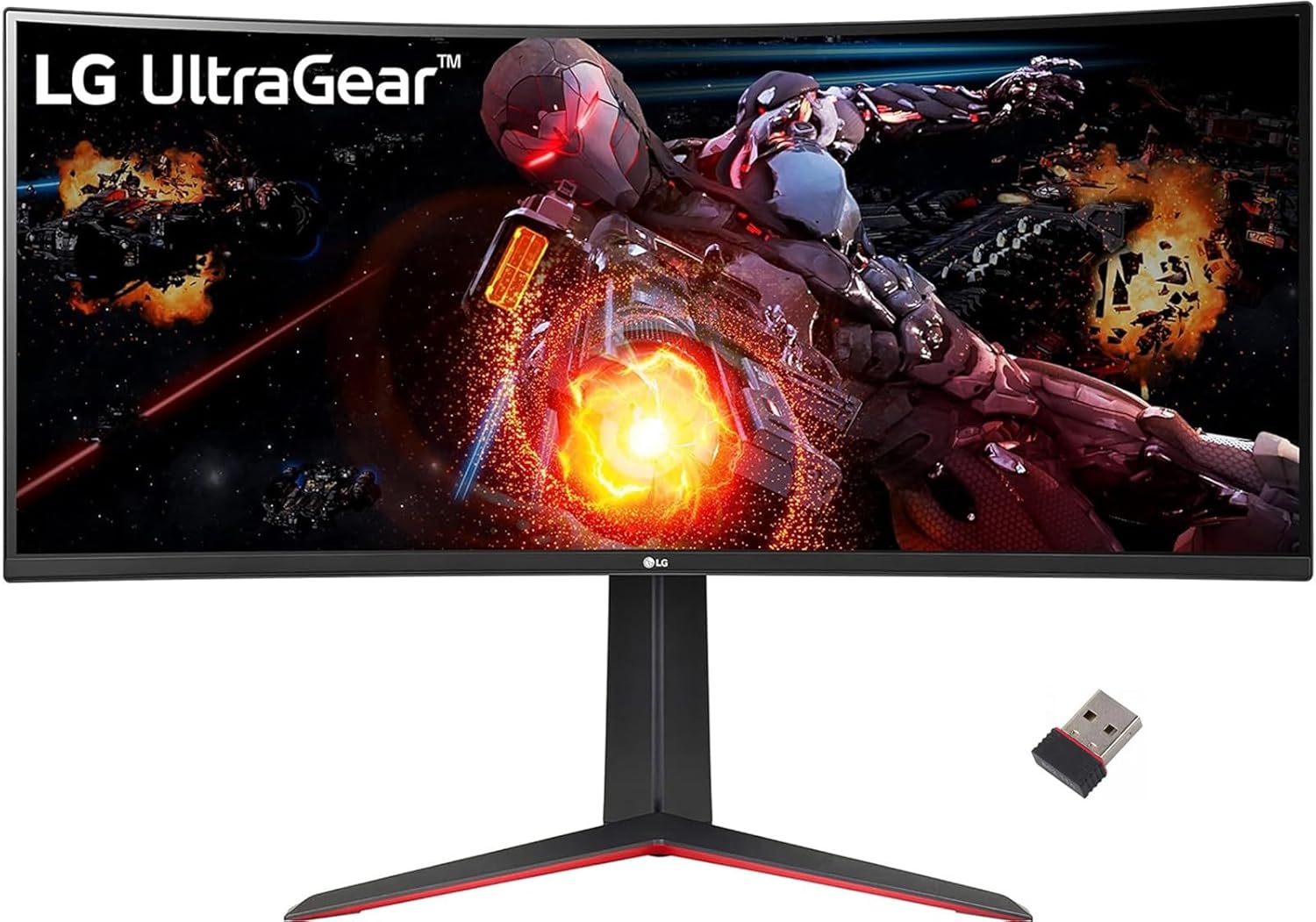
Front view of the LG 34GP63A-B Ultragear Curved Gaming Monitor, showcasing its curved display and sleek design while displaying a dynamic game scene.
2. Safety Information
- Always place the monitor on a stable, level surface to prevent it from falling.
- Do not block ventilation openings. Ensure adequate space around the monitor for proper airflow.
- Use only the power adapter supplied with the monitor.
- Avoid exposing the monitor to water or excessive moisture.
- Do not attempt to disassemble or repair the monitor yourself. Refer all servicing to qualified personnel.
- Unplug the monitor from the power outlet during lightning storms or when unused for long periods.
3. Package Contents
Verify that all components are present in the package:
- LG 34GP63A-B Monitor Display
- Monitor Stand (Base and Neck)
- Power Cord
- HDMI Cable
- DisplayPort Cable
- User Manual (this document)
4. Setup
4.1. Assembling the Stand
- Carefully place the monitor display face down on a soft, clean cloth to prevent scratches.
- Attach the stand neck to the back of the monitor display, aligning the mounting holes. Secure with screws if provided.
- Connect the stand base to the stand neck. Tighten the thumb screw or screws at the bottom of the base.
- Carefully lift the assembled monitor and place it on your desired stable surface.

Rear view of the LG 34GP63A-B monitor, showing the attached stand and the general layout of the back panel.
4.2. Connecting to a Computer
Connect the monitor to your computer using either an HDMI or DisplayPort cable. For optimal performance, especially for gaming, DisplayPort is recommended to utilize the full 160Hz refresh rate and AMD FreeSync Premium features.
- HDMI Connection: Connect one end of the HDMI cable to the HDMI port on your monitor and the other end to the HDMI port on your computer.
- DisplayPort Connection: Connect one end of the DisplayPort cable to the DisplayPort on your monitor and the other end to the DisplayPort on your computer.
- Power Connection: Connect the power cord to the monitor's power input and then plug it into a wall outlet.

Close-up of the monitor's rear input panel, highlighting the HDMI and DisplayPort connections.
4.3. Adjusting Monitor Ergonomics
The monitor stand allows for tilt and height adjustments to achieve a comfortable viewing position.
- Height Adjustment: Gently push or pull the monitor up or down to adjust its height.
- Tilt Adjustment: Hold both sides of the monitor and gently tilt it forwards or backwards to adjust the viewing angle.

Side view illustrating the monitor's adjustable height feature.

Side view illustrating the monitor's adjustable tilt feature.
5. Operating the Monitor
5.1. Power On/Off
Press the joystick button located at the bottom center of the monitor to power it on or off.
5.2. On-Screen Display (OSD) Menu Navigation
The OSD menu is controlled using the joystick button. Press the joystick to access the main menu, then move it up/down/left/right to navigate through options and adjust settings such as brightness, contrast, color modes, and input source.
5.3. Gaming Features
- Dynamic Action Sync: Reduces input lag, allowing for quicker responses in fast-paced games.
- Black Stabilizer: Automatically brightens dark scenes to help identify enemies or objects hidden in shadows.
- Crosshair: Places a fixed crosshair in the center of the display for enhanced aiming accuracy in first-person shooter games.
- AMD FreeSync Premium: Synchronizes the monitor's refresh rate with your AMD graphics card's frame rate to eliminate screen tearing and stuttering. Ensure your graphics card supports FreeSync and it is enabled in your graphics driver settings.
5.4. Display Modes and HDR
The monitor supports HDR10 for a wider dynamic range and more vivid colors. It also covers 99% of the sRGB color gamut for accurate color reproduction. These settings can be adjusted via the OSD menu.
Official LG video showcasing the features and immersive experience of the LG Ultragear Curved Gaming Monitor, including its QHD resolution, curved display, HDR support, and AMD FreeSync Premium.
6. Maintenance
To ensure the longevity and optimal performance of your monitor, follow these maintenance guidelines:
- Cleaning the Screen: Gently wipe the screen with a soft, lint-free cloth. For stubborn marks, lightly dampen the cloth with water or a specialized screen cleaner. Do not spray cleaner directly onto the screen.
- Cleaning the Casing: Use a soft, dry cloth to wipe the monitor casing. Avoid abrasive cleaners or solvents.
- Ventilation: Keep the ventilation openings clear of dust and debris to prevent overheating.
- Storage: If storing the monitor for an extended period, unplug it and cover it to protect it from dust.
7. Troubleshooting
If you encounter issues with your monitor, refer to the following common problems and solutions:
| Problem | Possible Cause / Solution |
|---|---|
| No image on screen | Ensure power cable is securely connected. Check if the monitor is powered on. Verify video cable (HDMI/DisplayPort) is connected to both monitor and computer. Select correct input source via OSD. |
| Screen tearing or stuttering | Ensure AMD FreeSync Premium is enabled on both the monitor (OSD) and your graphics card settings. Update graphics drivers. |
| Image is too dark/bright | Adjust brightness and contrast settings in the OSD menu. Check if Black Stabilizer is enabled/disabled as desired. |
| Colors appear incorrect | Reset color settings in the OSD menu to default. Check color profile settings on your computer. |
| Monitor wobbles | Ensure the stand is correctly assembled and all screws are tightened. Place the monitor on a sturdy, flat surface. |
8. Specifications
| Feature | Specification |
|---|---|
| Screen Size | 34 Inches |
| Screen Resolution | 3440x1440 (QHD Ultra Wide 1440p) |
| Max Screen Resolution | 3440 x 1440 |
| Display Type | VA |
| Refresh Rate | 160Hz |
| Aspect Ratio | 21:9 |
| Curvature | 1800R |
| Color Gamut | sRGB 99% with HDR10 |
| Response Time | 5.0 milliseconds |
| Input/Output | 2 x HDMI, 1 x DisplayPort, Headphone Out (3-pole) |
| AMD FreeSync | Yes (AMD FreeSync Premium) |
| Item Weight | 17.4 pounds |
| Product Dimensions (LxWxH) | 12.3 x 31.2 x 18.2 inches |
| Color | Black |

Dimensional diagram of the LG 34GP63A-B monitor, indicating its width, height, and depth.
9. Warranty and Support
For warranty information, technical support, or service inquiries, please refer to the warranty card included with your product or visit the official LG website. You can also contact LG customer service directly for assistance.
LG Customer Support: www.lg.com/us/support