
DEPSTECH WF010-3.5M-Black
DEPSTECH Wireless Endoscope User Manual
Model: WF010-3.5M-Black
Introduction
Thank you for choosing the DEPSTECH Wireless Endoscope. This manual provides essential information for the proper setup, operation, and maintenance of your device. This wireless WiFi endoscope camera is designed for inspection work, compatible with both Android (above Android 4.2) and iOS (above iOS 6.0) smartphones and tablets. Its IP67 waterproof rating and 11.5-foot semi-rigid cable make it suitable for various environments, including dark, damp, or wet areas.

Figure 1: DEPSTECH Wireless Endoscope and WiFi Module
Setup Guide
Package Contents
- DEPSTECH Wireless Endoscope
- WiFi Transmitter Box
- Hook Attachment
- Magnet Attachment
- Mirror Attachment
- Charging Cable
App Installation
To use the endoscope, you must download and install the compatible application. Search for "DEPSTECH" in your device's app store (Google Play Store for Android or Apple App Store for iOS) and install the official application.
Connecting to Your Device
- Ensure the endoscope's WiFi module is charged and powered on.
- On your smartphone or tablet, go to your WiFi settings.
- Locate and connect to the WiFi network broadcast by the endoscope (e.g., "Jetson_******"). The password will be provided on the device or in the quick start guide.
- Once connected, open the "DEPSTECH" application. The camera feed should appear on your screen.
- Tip: If you experience connectivity issues, try temporarily turning off your cellular data on your smartphone. This can prevent your device from switching back to mobile data and disconnecting from the endoscope's WiFi network.

Figure 2: Wireless connection setup for the endoscope.
Operating Instructions
Powering On/Off
Locate the Power ON/OFF switch on the side of the WiFi transmitter box to turn the device on or off.
Adjusting LED Brightness
The endoscope features 6 adjustable blue LED lights. Use the "LED+" and "LED-" controls on the WiFi transmitter box to increase or decrease the brightness, optimizing visibility in various lighting conditions.

Figure 3: Controls and attachments of the DEPSTECH Endoscope.
Capturing Images and Videos
The 1200P HD camera allows you to record clear close-range HD videos in MP4 format and capture snapshot images in JPG format. The application supports four adjustable resolutions: 320x240, 640x480, 1280x720, and 1600x1200. Select the desired resolution within the app settings.
Using Attachments
The endoscope comes with three useful attachments: a hook, a magnet, and a mirror. To attach them, gently remove the protective trim ring at the front of the camera tip, then thread on the desired accessory. The hook and magnet are useful for retrieving small objects, while the mirror provides a side view for inspecting hard-to-reach angles.
Optimal Observation Distance
For the clearest image, the best observation distance for the camera is between 1.18 inches and 3.94 inches (3cm-8cm).

Figure 4: Demonstrating IP67 waterproofing and optimal observation distance.
Advanced Camera Technology
The endoscope incorporates a second-generation camera chip, providing a smooth video experience at 30 frames per second (fps). This is a significant improvement over older models, reducing image freeze and enhancing clarity.

Figure 5: Second Generation Chip for enhanced video performance.
The unique blue LED technology helps to greatly improve image brightness and clarity, even in dark or low-light conditions, by reducing image over-exposure and exhibiting remarkable color effects.
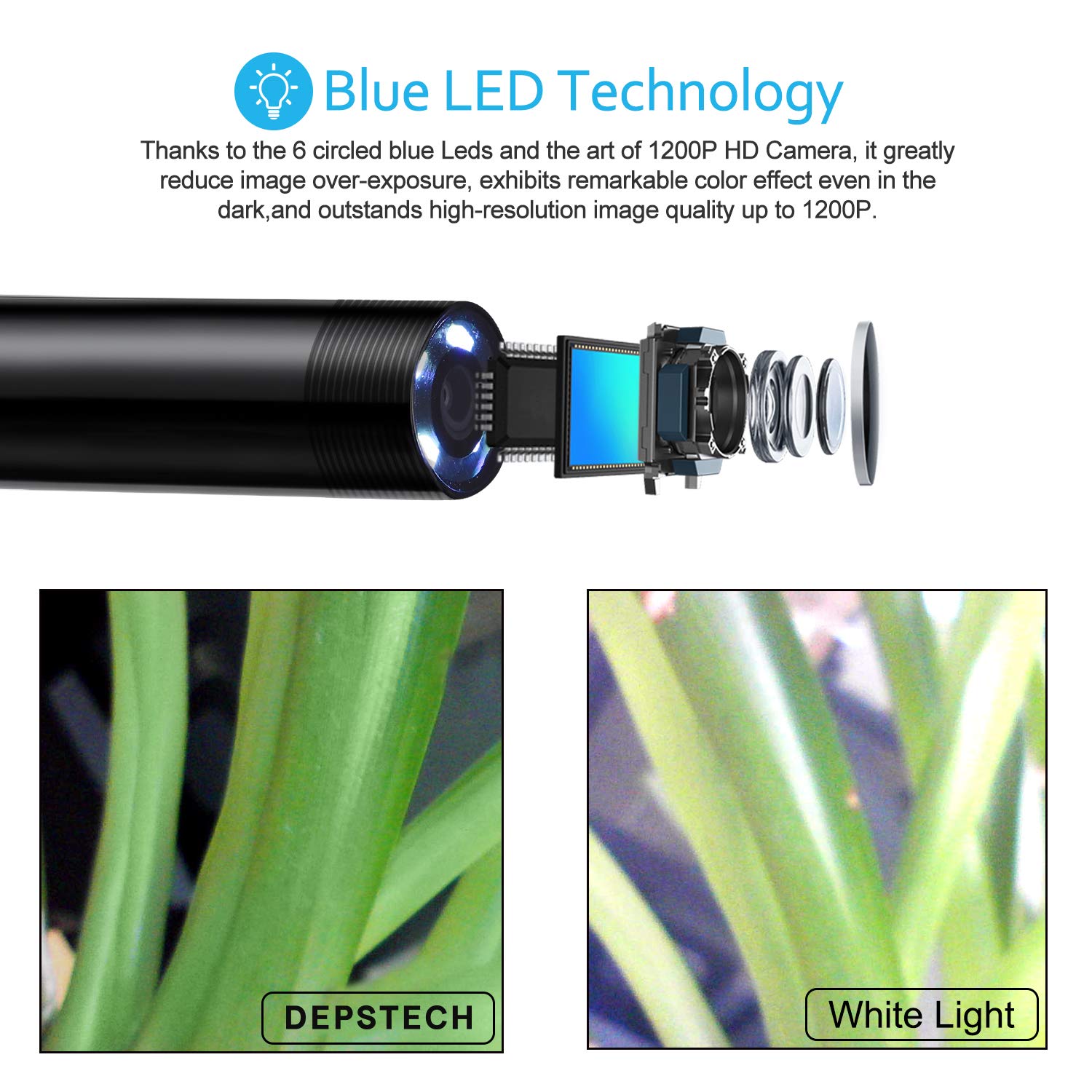
Figure 6: Blue LED Technology for superior image clarity.
Cable Flexibility and Applications
The endoscope is equipped with a bendable semi-rigid cable that can hold its shape, allowing access to a wide variety of confined spaces. Its IP67 waterproof rating ensures functionality in damp or wet environments.

Figure 7: Applicable scenarios for the DEPSTECH Endoscope.
Maintenance
- Cleaning: After each use, especially in dirty or wet environments, gently wipe the camera lens and cable with a soft, damp cloth. Ensure no debris remains on the lens for optimal image clarity.
- Storage: Store the endoscope and its accessories in a cool, dry place, away from direct sunlight and extreme temperatures. Coil the cable loosely to prevent kinks or damage.
- Waterproofing: While the camera tip is IP67 waterproof, the WiFi transmitter box is not. Avoid submerging the transmitter box in water or exposing it to excessive moisture.
Troubleshooting
- Cannot connect to WiFi: Ensure the endoscope's WiFi module is powered on and fully charged. Verify that you have selected the correct WiFi network (e.g., "Jetson_******") and entered the correct password. Try turning off your device's cellular data temporarily, as this can sometimes interfere with the connection.
- Poor image quality or blurry view: Check the distance between the camera lens and the object; the optimal observation range is 1.18-3.94 inches (3cm-8cm). Adjust the LED brightness using the controls on the WiFi box. Ensure the camera lens is clean and free of debris.
- Attachments not threading onto the camera: Ensure you have removed the small protective trim ring from the camera tip before attempting to attach the hook, magnet, or mirror. The attachments are designed to thread directly onto the camera body once this ring is removed.
- App crashes or freezes: Ensure your device's operating system is up to date. Try restarting the app or reinstalling it. Close other background applications that might be consuming resources.
Specifications
| Item Model Number | WF010-3.5M-Black |
| Product Dimensions | 5.12 x 4.92 x 1.77 inches; 9.03 ounces |
| Batteries | 1 Lithium Polymer batteries required (included) |
| Manufacturer | Depstech |
| Macro Focus Range | 3cm-8cm (1.18-3.15 inches) |
| Shooting Modes | Automatic |
| Exposure Control Type | Manual, Automatic |
| Color | Black |
| Video Capture Resolution | 1080p |
Warranty and Support
For detailed warranty information and technical support, please refer to the official DEPSTECH website or the user manual PDF provided with your product. A digital version of the user manual can often be found on the product's listing page or the manufacturer's support section.
You can access the User Manual (PDF) here.
For further assistance, please contact DEPSTECH customer service through their official channels.
Related documentsWF010-3.5M-Black


Ask a question about this manual
Ask about setup, troubleshooting, compatibility, parts, safety, or missing instructions. Manuals+ will review the question and use this page’s manual context to help answer it.