1. Introduction
The KINGBOLEN K7 is a powerful and versatile OBD2 diagnostic scan tool designed for comprehensive vehicle maintenance and repair. It offers a wide range of functions including full system diagnostics, bidirectional control (active tests), over 31 reset functions, and advanced ECU capabilities. Featuring a user-friendly interface, Bluetooth connectivity, and lifetime software updates, the K7 is suitable for both experienced DIYers and professional mechanics.

Figure 1: KINGBOLEN K7 OBD2 Scanner with icons highlighting key features like Bidirectional, ECU, FCA AutoAuth, OEM All Systems, 31+ Services, CAN-FD, and Lifetime Update.
2. Package Contents
Verify that all items are present in your KINGBOLEN K7 package:
- K7 OBD2 Scanner Tablet
- Bluetooth VCI (Vehicle Communication Interface)
- Password Letter/User Guide
- Charging Adapters/Cable
- Carrying Case

Figure 2: The KINGBOLEN K7 package contents, including the scanner tablet, Bluetooth VCI, charging accessories, and carrying case.
3. Setup
3.1 Initial Charging and Power-On
- Connect the provided charging adapter and cable to the K7 scanner.
- Charge the device fully before first use. The upgraded 3,150mAh rechargeable battery ensures extended operation.
- Press and hold the power button to turn on the device.
3.2 VCI (Bluetooth) Connection
- Locate your vehicle's OBD2 port (usually under the dashboard).
- Plug the Bluetooth VCI into the OBD2 port. Ensure the vehicle's ignition is in the ON position (engine off).
- On the K7 scanner, navigate to the 'Scan' or 'Settings' menu to initiate a Bluetooth connection with the VCI. The K7 supports wireless diagnosis via Bluetooth with a 33ft working range.
3.3 Software Updates
The KINGBOLEN K7 offers lifetime software updates without annual fees. It is crucial to keep your device updated to ensure compatibility with the latest vehicle models and diagnostic functions.
- Connect the K7 to a stable 5GHz WiFi network.
- Tap the 'Update' icon on the main screen.
- Select 'Start All' or choose specific vehicle software updates to download and install.
4. Operating Instructions
4.1 Main Interface Navigation
The K7 operates on Android 10.0 OS with a 7-inch touch screen. The main screen provides access to various functions:
- Store: Access additional applications or services.
- OBD: Standard OBD2/EOBD functions.
- Scan: Initiate vehicle diagnostics.
- Reset: Access 31+ maintenance reset functions.
- Repair Info: Access fault code library, coverage list, learning resources, and user manual.
- Update: Manage software updates.
- Module: Connect and manage extended modules (e.g., TPMS tool, Videoscope).
- File: View saved diagnostic reports and data streams.
- Settings: Configure device preferences, including language.

Figure 3: The main diagnostic screen of the KINGBOLEN K7, illustrating options like Read/Clear Code, Auto VIN, Freeze Frame, Live Data, and Report Share.
4.2 AutoVIN and Full System Diagnostics
The K7 features AUTO VIN technology for quick vehicle identification and OE-level full system scanning.
- From the main screen, tap 'Scan'.
- Select 'AutoSearch' or 'VIN Scan' to automatically identify the vehicle.
- The scanner will then scan all available ECUs (e.g., PCM, ECM, EPS, BCM, TPMS, SAS) to read/clear diagnostic trouble codes (DTCs), view live data, and freeze frame data.
- Live data can be displayed in 4-in-1 data stream graphics for intuitive analysis.
4.3 Health Report
Generate a comprehensive health report of all vehicle systems.
- After a full system scan, select 'Health Report'.
- The device will compile a detailed report of all detected issues and system statuses.
- Reports can be shared via Bluetooth or email.
4.4 Bidirectional Control (Active Test)
Perform active tests to command vehicle components directly.
- From the diagnostic menu, select 'Active Test' or 'Bidirectional Test'.
- Choose the specific component you wish to test (e.g., windows, mirrors, sunroof, door locks, solenoids, wipers, headlamps).
- The K7 sends commands to activate these components, helping to quickly identify faulty parts.
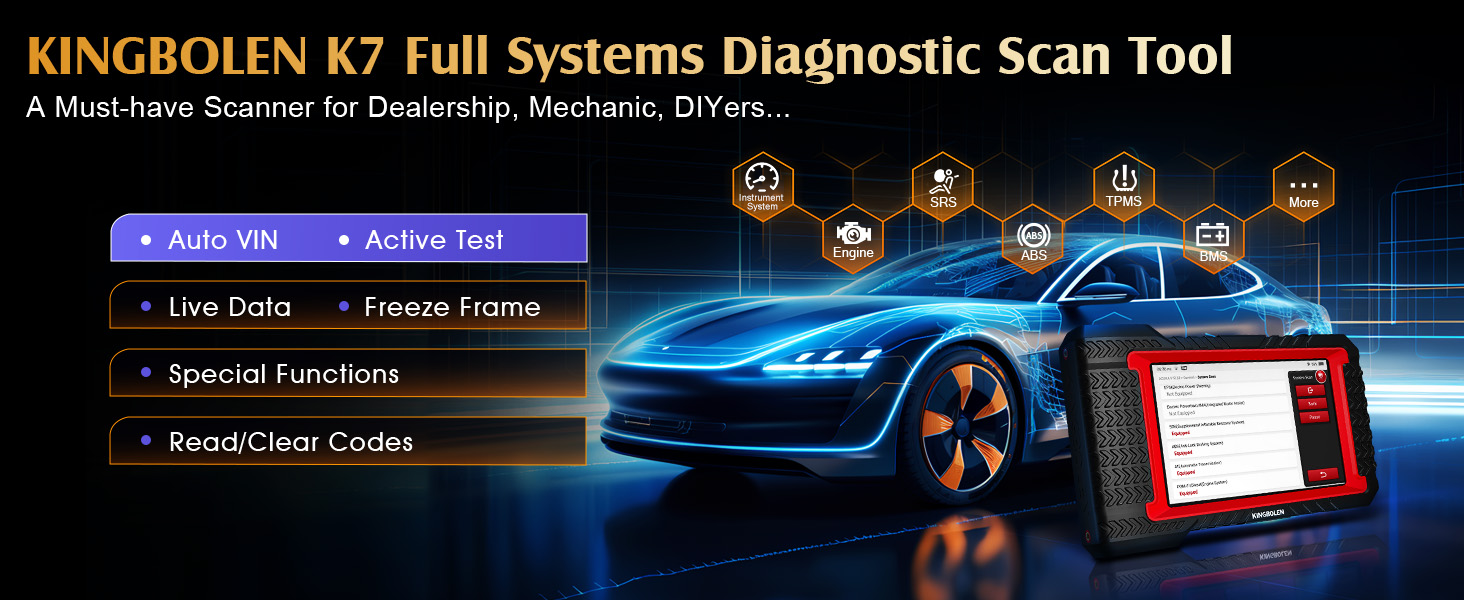
Figure 4: Illustration of the bidirectional test, showing the scanner sending commands to a vehicle and receiving feedback to locate faults.
4.5 31+ Reset Functions
The K7 supports over 31 common maintenance services.
- Tap the 'Reset' icon on the main screen.
- Select the desired reset function (e.g., Oil Reset, SAS Reset, EPB Reset, TPMS Reset, Battery Matching, ABS Bleeding, Injector Coding).
- Follow the on-screen instructions to complete the procedure. Note that functions may vary by vehicle model/make/year.
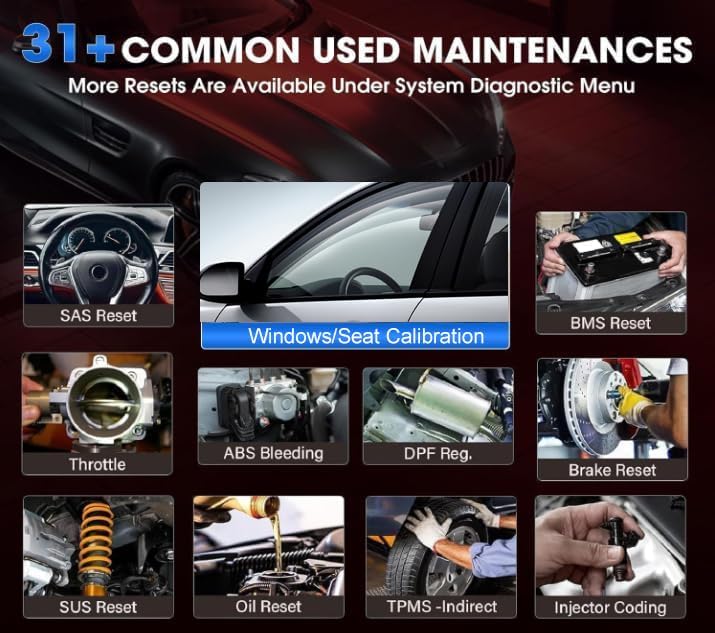
Figure 5: A visual representation of various reset functions available on the KINGBOLEN K7, including SAS Reset, BMS Reset, Throttle, ABS Bleeding, DPF Regeneration, Brake Reset, SUS Reset, Oil Reset, TPMS - Indirect, and Injector Coding.
4.6 Advanced ECU Functions
The K7 offers advanced ECU functions for vehicle performance improvement.
- Access 'Advanced ECU Functions' through the diagnostic menu.
- These functions include variant adaptation for certain vehicles (e.g., Benz) and component matching.
- Always verify compatibility for your specific vehicle before attempting these functions.
4.7 FCA AutoAuth Access
For FCA vehicles (Dodge/Jeep/Chrysler) manufactured after 2018, the K7 supports AutoAuth access to bypass the SGW module.
- Register with Auto-Auth.
- On the K7, navigate to 'Add Tool' -> 'Pick The Type of Tool' -> 'Thinkcar' -> 'Thinktool Others'.
- This enables diagnostics and bidirectional control without a 12+8 adapter bypass cable.
4.8 Language Settings
The K7 supports over 17 working languages.
- Tap the 'Settings' icon on the main screen.
- Select 'Language' and choose your preferred language.
5. Maintenance
5.1 Software Updates
Regular software updates are essential for optimal performance and expanded vehicle coverage. Connect to Wi-Fi and check for updates frequently via the 'Update' icon.
5.2 Cleaning and Storage
- Clean the device with a soft, damp cloth. Avoid harsh chemicals.
- Store the K7 in its carrying case in a cool, dry place when not in use.
5.3 Battery Care
To prolong battery life, avoid fully discharging the device frequently and store it with a partial charge if not used for extended periods.
6. Troubleshooting
If you encounter issues, refer to the 'Repair Info' section on the device for a fault code library and learning resources. For persistent problems, KINGBOLEN offers remote technical support.
- Connection Issues: Ensure the VCI is securely plugged into the OBD2 port and the vehicle ignition is on. Verify Bluetooth is enabled on the K7.
- Software Errors: Ensure the device software is up-to-date. Restart the device if an application encounters an error.
- Functionality Limitations: Some advanced functions may not be compatible with all vehicle models or years. Consult the coverage list or contact support for specific compatibility.
For remote technical support, use the built-in TeamViewer function. Please inform the receiver of your TeamViewer ID before using this function.
7. Specifications
| Feature | Specification |
|---|---|
| Operating System | Android 10.0 |
| CPU | Quad-Core 1.8GHz |
| RAM | 2GB |
| ROM | 32GB |
| Screen Size | 7-inch |
| Resolution | 1280*720 |
| Battery | 3,150mAh rechargeable |
| WiFi | 2.4GHz & 5GHz |
| Camera | 13MP |
| Connectivity | Bluetooth VCI |
| Vehicle Coverage | 100+ US, European, Asian brands (2008MY+ EU, 2000MY+ GM/Ford/Chrysler, 1996MY+ Asia) |
| Languages | 17+ languages (English, Spanish, Traditional Chinese, German, Japanese, Portuguese, Arabic, French, etc.) |
| Dimensions | 11"L x 4.6"W x 11"H |
| Item Weight | 3.49 pounds |
8. Extended Modules (Optional)
The KINGBOLEN K7 can be expanded with additional modules for more specialized diagnostic capabilities. These modules are sold separately.
- TPMS Relearn Tool: For tire pressure monitoring system services.
- Battery Voltage Tester: For comprehensive battery analysis.
- WIFI Printer: For printing diagnostic reports directly.
- Videoscope: For visual inspection of hard-to-reach areas.
Contact the seller to check current stock and compatibility for extended modules.
9. Warranty and Support
9.1 Lifetime Software Updates
The KINGBOLEN K7 includes lifetime software updates without any annual subscription fees. Ensure your device is connected to Wi-Fi to receive the latest updates.
9.2 Remote Technical Support
For technical assistance, KINGBOLEN provides remote technical support. Utilize the built-in TeamViewer function on the device to connect with support personnel. Please provide your TeamViewer ID to the support team when requesting assistance.