
cudinham MP-01
Print Pods Mini Printer Instruction Manual
Model: MP-01 (X6) | Brand: cudinham
Introduction
The Print Pods Mini Printer is a compact and portable thermal inkless printer designed for on-the-go printing. It connects wirelessly to your smartphone or tablet via Bluetooth, allowing you to print photos, notes, labels, and more directly from the dedicated app. This manual provides essential information on setting up, operating, and maintaining your printer to ensure optimal performance.
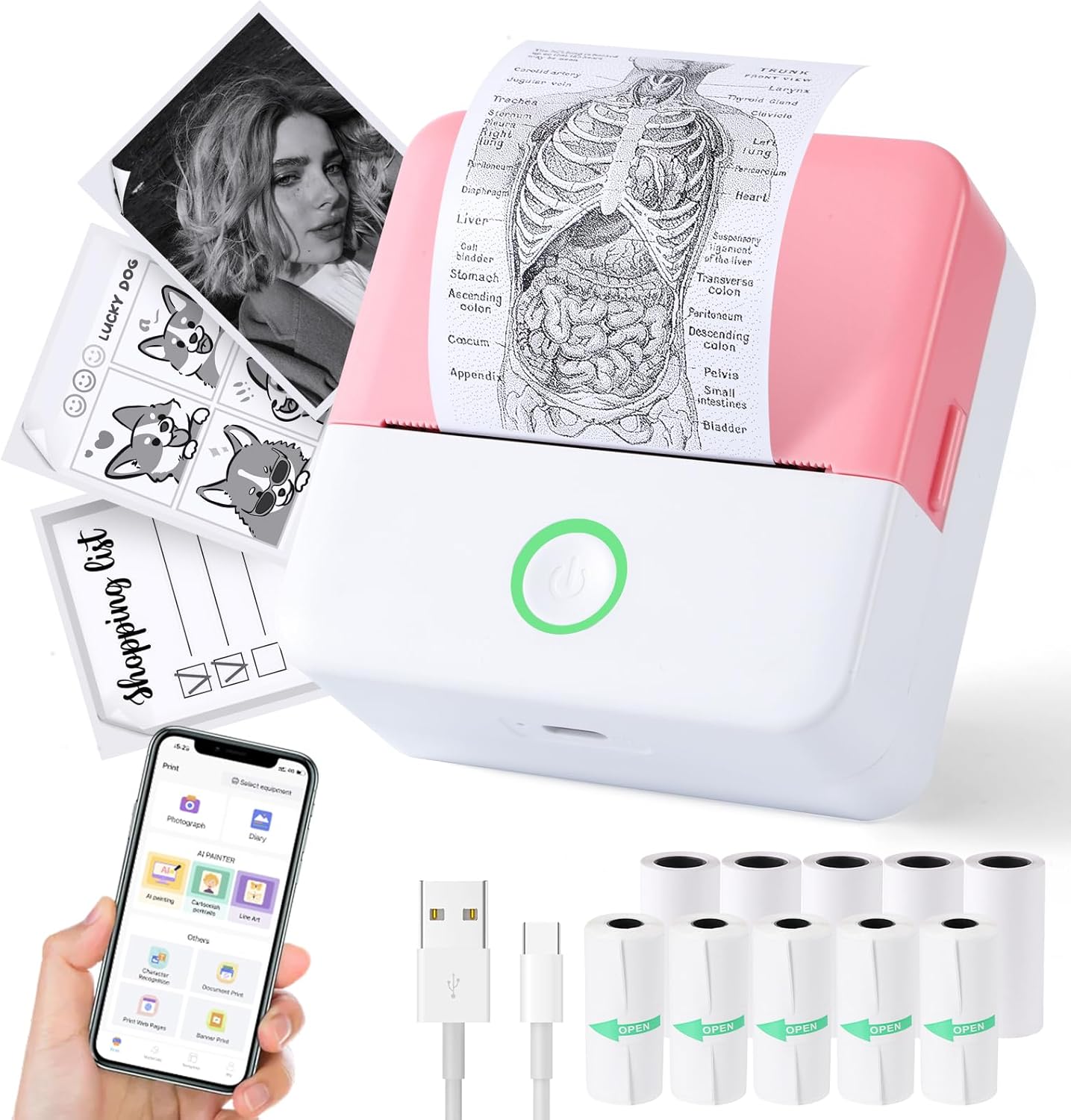
Figure 1: Print Pods Mini Printer and its versatile applications.
What's in the Box
Please check the package contents to ensure all items are present:
- Mini Printer (x1)
- Power Cable (Type-C) (x1)
- User Manual (x1)
- Thermal Printing Paper (x5 rolls)
- Adhesive Printing Paper (x5 rolls)

Figure 2: All components included in the Print Pods Mini Printer package.
Setup Guide
1. Charging the Printer
Before first use, fully charge the printer using the provided Type-C power cable. The printer has a built-in 1200mAh lithium-ion battery. The indicator light will show charging status.
Video 1: Initial charging and overview of the Cudinham X6 Mini Thermal Printer.
2. App Download and Bluetooth Connection
Download the "Tiny Print" app from your device's app store (compatible with Android 4.0 and iOS 9.0 or higher). Turn on the mini printer by pressing the power button. Open the "Tiny Print" app and follow the on-screen instructions to connect via Bluetooth. Ensure Bluetooth is enabled on your smartphone.
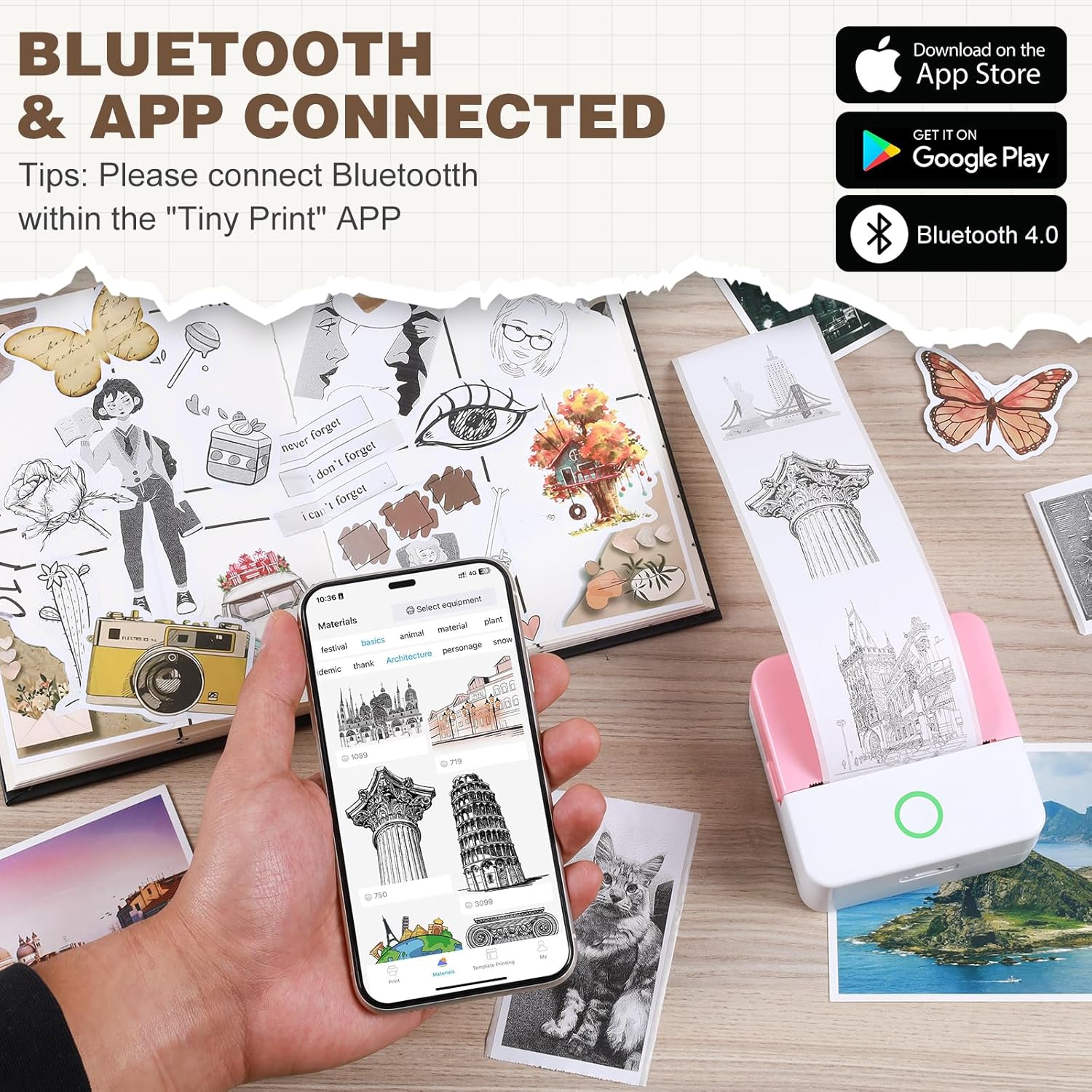
Figure 3: Connecting the printer to your smartphone via the "Tiny Print" app.
Video 2: Demonstrating app connection and basic printing with the Cudinham Thermal Mini Printer.
Operating Instructions
1. Loading Thermal Paper
Open the printer's paper loading compartment. Insert the thermal paper roll with the arc part facing down, ensuring the print side is facing up. Pull out a small portion of the paper (approx. 1cm) and close the lid. The printer is now ready for printing.

Figure 4: Visual guide for loading paper into the mini printer.

Figure 5: Correct paper orientation for optimal printing.
Video 3: Step-by-step guide on replacing thermal paper.
2. Printing Functions
The "Tiny Print" app offers various functions to meet your printing needs:
- Photo Printing: Print black and white photos directly from your phone's gallery.
- Graphic Editing: Utilize in-app tools to edit images before printing.
- Materials & Templates: Access a variety of pre-designed templates for notes, lists, and creative projects.
- Text Extraction (OCR): Convert text from images into editable and printable text.
- Label Printing: Create custom labels for organization.

Figure 6: Overview of the multi-functional "Tiny Print" app interface.

Figure 7: Diverse applications of the Print Pods Mini Printer.
3. Adjusting Print Settings
The app allows you to adjust print depth for optimal results. For images, it is recommended to use the high definition printing mode and adjust the print depth between 4 and 7. For text, you can choose between image printing mode (emphasizes overall effect) or text printing mode (emphasizes text clarity), adjusting depth as needed.

Figure 8: Image printing settings within the app.

Figure 9: Text printing settings within the app.
Maintenance
Cleaning the Print Head
If printing becomes unclear after repeated use, the print head may need cleaning. The laser bar (print head) is located in the paper loading compartment. Gently wipe it with a cotton swab lightly dampened with alcohol. Ensure the printer is turned off before cleaning.
Troubleshooting
- Printer not connecting via Bluetooth:
Ensure the printer is turned on and fully charged. Check that Bluetooth is enabled on your smartphone and that you are connecting through the "Tiny Print" app, not directly through your phone's Bluetooth settings. Restart both the printer and your phone if issues persist. - Unclear or faded prints:
Check the paper roll to ensure it is loaded correctly with the print side facing up. Adjust the print depth setting in the "Tiny Print" app (recommended depth 4-7 for high definition). If the problem continues, clean the print head as described in the Maintenance section. - Paper not feeding:
Verify that the paper roll is inserted correctly and that a small portion extends out of the printer before closing the lid. Ensure there are no obstructions in the paper path. - Printer not turning on:
Connect the printer to the power cable and ensure it is charging. If the battery is completely drained, it may take a few minutes for the indicator light to appear.
Specifications
| Feature | Detail |
|---|---|
| Brand | cudinham |
| Model Number | MP-01 |
| Model Name | X6 |
| Printing Technology | Thermal |
| Printer Output | Monochrome |
| Maximum Black and White Print Resolution | 200 Dots Per Inch (200 x 200 DPI) |
| Connectivity Technology | Bluetooth |
| Compatible Devices | Smartphones, Tablets (iOS, Android) |
| Max Media Size | 2 inches (2.25 Inches Sheet Size) |
| Battery | 1200mAh Lithium Ion (included) |
| Product Dimensions | 1.77 x 3.35 x 3.35 inches |
| Item Weight | 14.9 ounces |
| Date First Available | January 2, 2024 |
Warranty & Support
This product comes with a Limited Warranty. For specific details regarding warranty coverage and duration, please refer to the warranty information provided with your purchase documentation or contact the manufacturer directly.
For technical support or further assistance, please visit the official cudinham store on Amazon or refer to the contact information provided in your product packaging.
Ask a question about this manual
Ask about setup, troubleshooting, compatibility, parts, safety, or missing instructions. Manuals+ will review the question and use this page’s manual context to help answer it.