
1. Introduction
This manual provides essential information for setting up, operating, and maintaining your Calonny UDX710 5G WiFi Router. The UDX710 is designed to deliver high-speed 5G internet connectivity, supporting both 4G and 5G networks with a convenient SIM card slot. It features dual-band Wi-Fi (2.4GHz and 5GHz) and advanced technologies like Mesh and 5G Slicing for an optimized network experience.
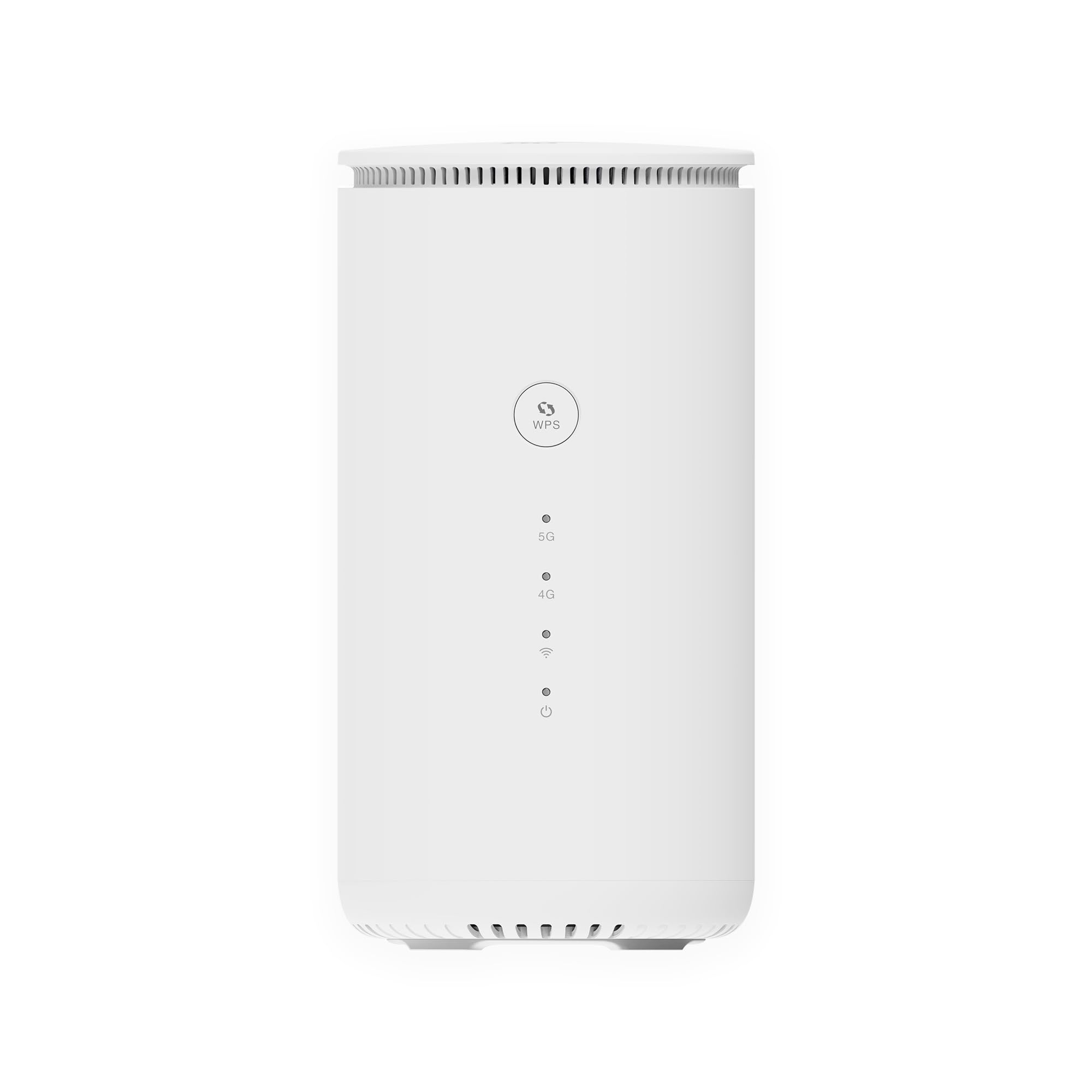
Figure 1: Calonny UDX710 5G WiFi Router overview.
2. Product Features
- High-Speed 5G Connectivity: Supports 5G technology with download speeds up to 2.0 Gbps and upload speeds up to 0.5 Gbps, providing a fast and reliable internet connection.
- Ultra-Low Latency: Experience responsive network performance with latency as low as 1 millisecond, ideal for online gaming and real-time applications.
- Dual-Band Wi-Fi: Operates on both 2.4GHz and 5GHz frequencies (802.11 a/b/g/n/ac/ax standards), automatically selecting the faster band for optimal performance.
- Mesh Technology: Ensures strong and consistent Wi-Fi signals throughout your coverage area, eliminating dead zones.
- Flexible Network Access: Supports 4G, 5G, and fixed-line internet access options.
- Plug and Play SIM Slot: Simply insert your 5G SIM card to get instant internet access without complex configurations.
- 5G Slicing Technology: Intelligently diagnoses network environments to optimize for gaming or video streaming, providing a smoother multimedia experience.
- Gigabit Wired Connections: Includes one 2 Gbps LAN port for high-speed wired device connections.

Figure 2: The UDX710 router is built with a UDX710 chipset for high-speed 5G internet.

Figure 3: The router features a built-in 5G full-band antenna, providing 360-degree signal reception with a radiation radius of over 50 meters.
3. Setup Guide
3.1. SIM Card Installation
- Ensure the router is powered off.
- Locate the SIM card slot on the router.
- Insert your active 5G SIM card into the slot until it clicks into place. Ensure the SIM card is correctly oriented as indicated by the diagram near the slot.
3.2. Power Connection
- Connect the provided power adapter to the router's power input port.
- Plug the power adapter into a standard electrical outlet.
- The router will automatically power on and begin its startup sequence. Wait for the indicator lights to stabilize, typically indicating a successful network connection.
3.3. Initial Configuration
- Once the router is powered on and the indicator lights are stable, it will broadcast a Wi-Fi network.
- On your computer or mobile device, search for available Wi-Fi networks and connect to the router's default SSID (network name). The default SSID and password are usually printed on a label on the bottom or back of the router.
- Open a web browser and enter the router's default IP address (e.g., 192.168.1.1) into the address bar.
- Log in using the default username and password (also found on the router label).
- Follow the on-screen wizard to change your Wi-Fi name (SSID) and password, and configure any other necessary settings.
4. Operating Instructions
4.1. Connecting Devices
- Wi-Fi Connection: On your wireless devices (smartphones, tablets, laptops), select your Wi-Fi network name (SSID) and enter the password you configured during setup.
- Ethernet Connection: For wired devices, connect an Ethernet cable from the device's LAN port to the LAN port on the Calonny UDX710 router.
4.2. Web Interface Overview
The router's web interface provides comprehensive control over your network. Here you can:
- View network status and connected devices.
- Change Wi-Fi settings (SSID, password, security type).
- Configure advanced network settings (DHCP, NAT, Port Forwarding).
- Manage SIM card settings and APN profiles.
- Update firmware.
4.3. Dual-Band Wi-Fi Operation
The router supports both 2.4GHz and 5GHz Wi-Fi bands. The 2.4GHz band offers wider coverage and better penetration through walls, while the 5GHz band provides faster speeds and lower interference for devices closer to the router. You can configure separate SSIDs for each band or use a single SSID with band steering enabled for automatic optimization.

Figure 4: Illustration of 2.4GHz and 5GHz Wi-Fi dual-band coverage.
5. Maintenance
5.1. Firmware Updates
Regularly checking for and installing firmware updates is crucial for maintaining the router's performance, security, and compatibility. Visit the Calonny official website for the latest firmware versions and instructions on how to update your device.
5.2. Factory Reset
If you encounter persistent issues or wish to clear all custom configurations, you can perform a factory reset. Locate the reset button (usually a small pinhole) on the router. With the router powered on, use a paperclip or a similar pointed object to press and hold the reset button for approximately 10 seconds. The router will restart with its factory default settings.
6. Troubleshooting
- No Internet Connection:
- Ensure the SIM card is correctly inserted and active.
- Check the 5G/4G signal strength indicators on the router.
- Verify that the Access Point Name (APN) settings in the router's web interface are correct for your mobile operator.
- Contact your mobile service provider to confirm network availability in your area.
- Slow Internet Speed:
- Relocate the router to an open area, away from obstructions and potential interference sources.
- Ensure your devices are connected to the 5GHz Wi-Fi band for optimal speed, especially when close to the router.
- Check for excessive network traffic or too many connected devices.
- Cannot Connect to Wi-Fi:
- Verify that you are entering the correct Wi-Fi password.
- Ensure your device is within the router's Wi-Fi coverage area.
- Restart both the router and your device.
7. Specifications
| Brand | calonny |
| Model Number | jc16 |
| Special Features | 5G Connection, Mesh, 5G Slicing |
| Frequency Band Class | Dual Band (2.4GHz & 5GHz) |
| Wireless Communication Standard | 802.11ac (supports 802.11 a/b/g/n/ac/ax) |
| Compatible Devices | Computers, mobile devices, gaming consoles, streaming devices, printers, security cameras, smart thermostats, smart TVs |
| Connectivity Technology | Ethernet, Ethernet WIFI |
| Color | White |
| Operating System | RouterOS |
| Security Protocol | WPA2-PSK |
| Number of LAN Ports | 1 |
| Max Download Data Transfer Rate | 2000 Megabits per second (2 Gbps) |
| Max Upload Data Transfer Rate | 500 Megabits per second (0.5 Gbps) |
| Installed RAM | 4 GB |
| UPC / GTIN | 772060196077 |
8. Safety Information
- Use only the power adapter provided with the device.
- Do not expose the router to water, fire, high temperatures, or humid environments.
- Avoid placing the router near heat sources or in direct sunlight.
- Ensure proper ventilation around the device to prevent overheating.
- Do not attempt to disassemble or repair the device yourself. Contact qualified service personnel for assistance.
9. Warranty and Support
For detailed warranty information, technical support, and customer service, please refer to the official Calonny website or contact your retailer. Keep your purchase receipt for warranty claims.


