
1. Product Overview
The EDJO Ergonomic Wireless Keyboard and Mouse Combo (Model MK960) is designed for comfort and efficiency, featuring a split ergonomic layout with a soft foam palm rest. It offers versatile connectivity through both Bluetooth and 2.4G USB, allowing connection to up to three devices simultaneously. Both the keyboard and mouse are rechargeable via a Type-C cable, providing extended usage. The keyboard incorporates quiet scissor switches and multimedia hotkeys, while the mouse offers 4-level DPI adjustment. This combo is widely compatible with Windows, Mac, and Android operating systems.
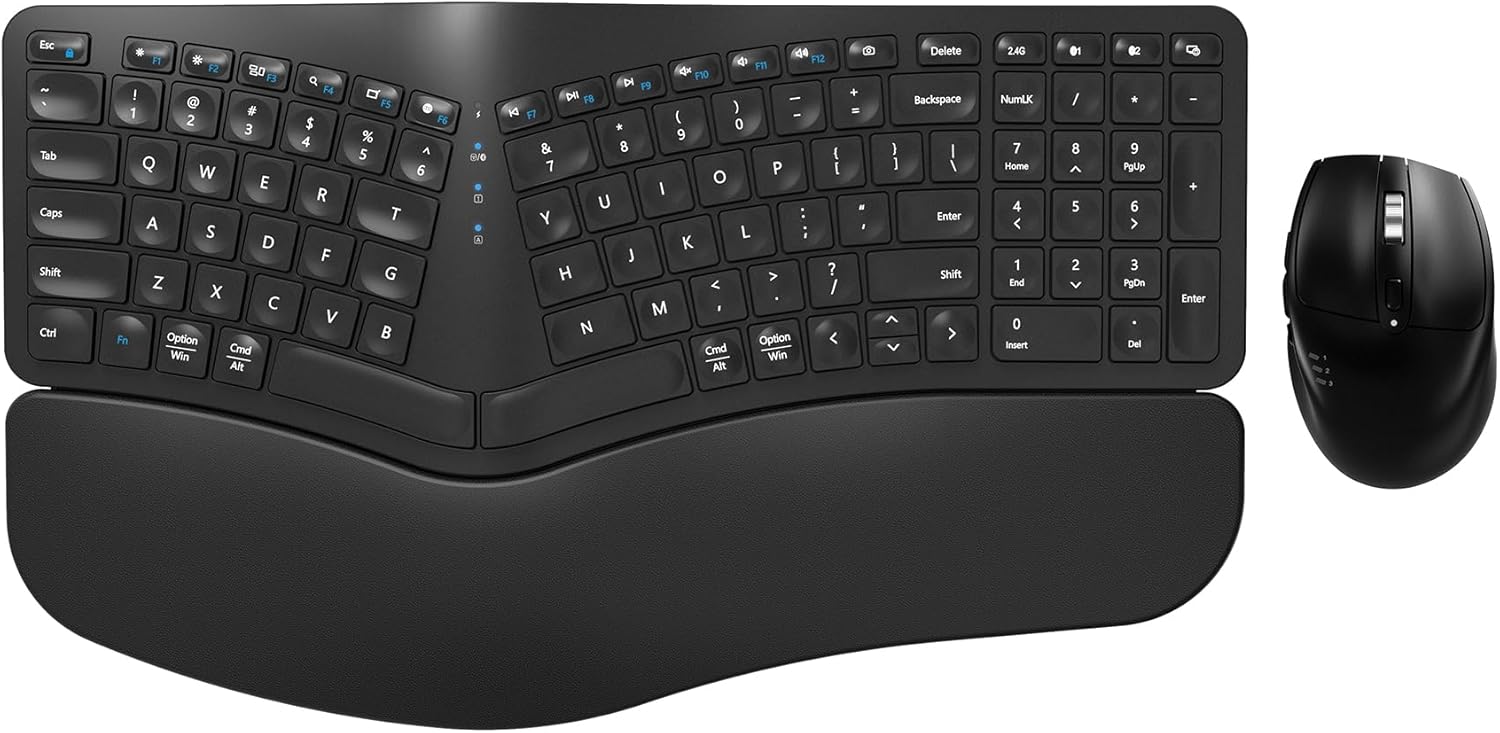
Image 1.1: The EDJO Ergonomic Wireless Keyboard and Mouse Combo, showcasing its split design and accompanying mouse.
2. Package Contents
- EDJO Ergonomic Wireless Keyboard
- EDJO Wireless Mouse
- USB Receiver (stored in the mouse)
- Type-C Charging Cable
- User Manual
3. Setup Guide
3.1 Initial Charging
Before first use, fully charge both the keyboard and mouse using the provided Type-C charging cable. Connect the cable to the Type-C port on the keyboard and mouse, and the other end to a USB power source (e.g., computer USB port, wall adapter). A full charge typically takes 2-3 hours and can last for 2-3 months with regular daily use.

Image 3.1: The keyboard and mouse showing the Type-C charging port and charge indicators.
3.2 Connecting via 2.4G USB Receiver
- Locate the USB receiver stored in the bottom compartment of the mouse.
- Plug the USB receiver into an available USB port on your computer.
- Turn on the keyboard and mouse using their respective power switches.
- The devices should automatically connect to your computer via the 2.4G connection.
3.3 Connecting via Bluetooth
The keyboard and mouse support two Bluetooth channels (BT1 and BT2) for connecting to multiple devices.
Keyboard Bluetooth Connection:
- Turn on the keyboard using the power switch.
- Press the 'BT1' or 'BT2' button on the keyboard to select a Bluetooth channel. The indicator light for the selected channel will flash.
- Press and hold the 'BT1' or 'BT2' button for 3-5 seconds until the indicator light flashes rapidly, indicating pairing mode.
- On your device (computer, tablet, smartphone), go to Bluetooth settings and search for 'EDJO Keyboard'.
- Select 'EDJO Keyboard' to pair. The indicator light will stop flashing once connected.
Mouse Bluetooth Connection:
- Turn on the mouse using the power switch.
- Press the 'Mode Switch Button' on the top of the mouse to cycle through 2.4G, BT1, and BT2 modes. Select either BT1 or BT2.
- Press and hold the 'Mode Switch Button' for 3-5 seconds until the indicator light flashes rapidly, indicating pairing mode.
- On your device, go to Bluetooth settings and search for 'EDJO Mouse'.
- Select 'EDJO Mouse' to pair. The indicator light will stop flashing once connected.

Image 3.2: Illustration of connecting the keyboard and mouse via Bluetooth and 2.4G to multiple devices.
4. Operating Instructions
4.1 Keyboard Operation
Ergonomic Design and Adjustable Stands:
The keyboard features a split design and a soft foam palm rest to promote a natural typing posture and reduce wrist strain. It also includes four foldable stands on the bottom, allowing you to adjust the typing angle for optimal comfort (e.g., 3-degree or 5-degree tilt).

Image 4.1: The ergonomic split design of the keyboard with its soft foam palm rest for comfortable typing.

Image 4.2: The keyboard demonstrating its four adjustable stands for varying tilt angles (e.g., 3 and 5 degrees) to suit sitting or standing positions.
Multimedia Hotkeys:
The keyboard includes 12 multimedia hotkeys (F1-F12) for quick access to functions like volume control, media playback, and more. By default, these keys function as standard F-keys. To activate multimedia functions, press Fn + the desired F-key (F1-F12). To lock the Fn key function and directly activate multimedia functions by pressing F1-F12, press Fn + Esc.
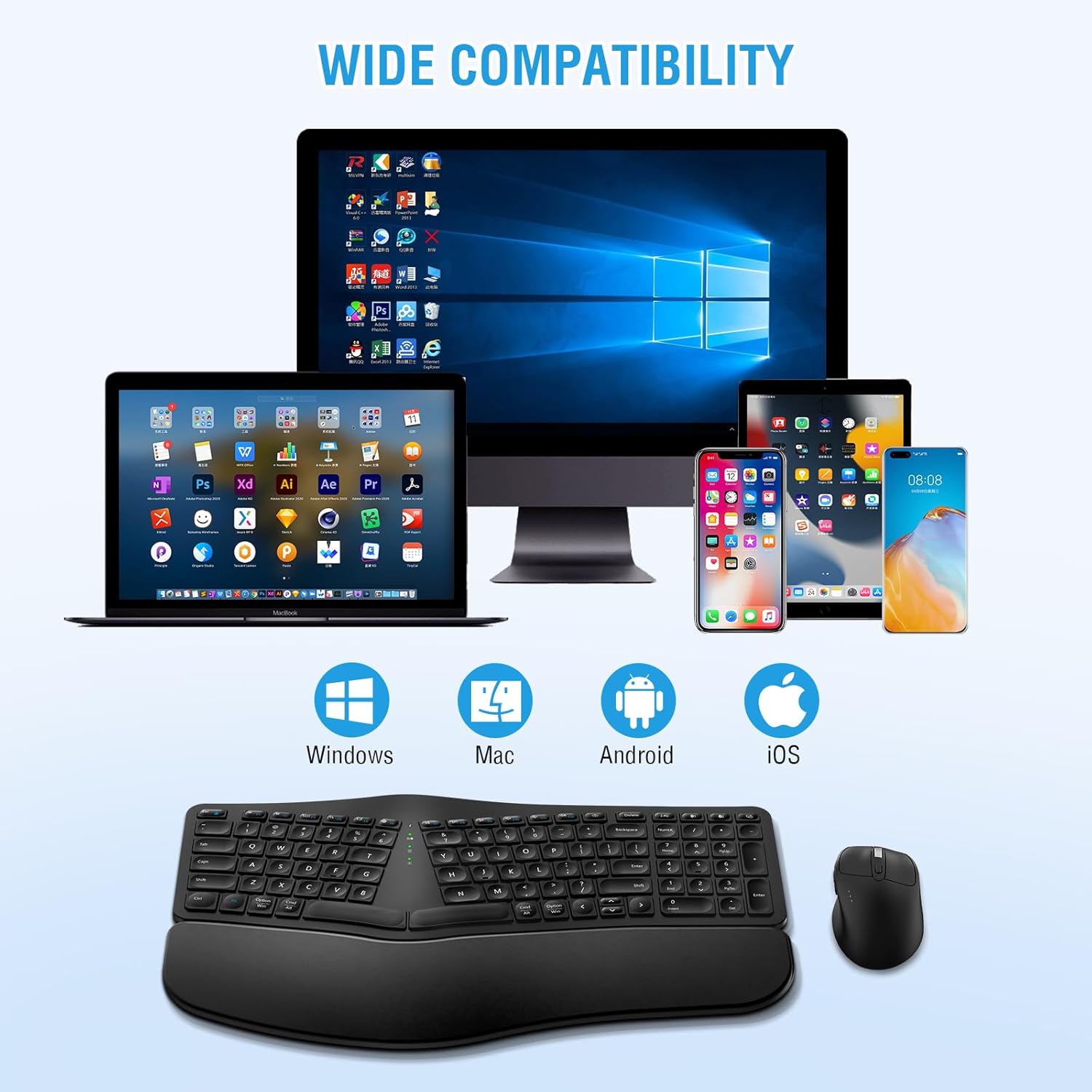
Image 4.3: Detail of the keyboard's quiet scissor switches and multimedia function keys.
4.2 Mouse Operation
DPI Adjustment:
The mouse offers 4 adjustable DPI levels (800/1200/1600/2000) to customize cursor sensitivity. Press the DPI button located on top of the mouse, behind the scroll wheel, to cycle through the different DPI settings. Each press will change the sensitivity, allowing you to find your preferred speed.
Buttons and Functions:
The mouse features standard left and right-click buttons, a scroll wheel, a DPI adjustment button, and dedicated 'Page Back' and 'Page Forward' buttons on the side for convenient web browsing or document navigation.

Image 4.4: Detailed view of the rechargeable optical mouse, highlighting its buttons and the USB receiver storage.
5. Maintenance
5.1 Battery Management
Both the keyboard and mouse feature an intelligent power-saving function that automatically puts them into sleep mode after 30 minutes of inactivity to conserve battery life. To wake them up, simply press any key on the keyboard or move/click the mouse. For extended periods of non-use, utilize the convenient on/off switches located on both devices to completely power them down and maximize battery longevity.
5.2 Cleaning
To clean your keyboard and mouse, gently wipe the surfaces with a soft, damp cloth. Avoid using harsh chemicals or abrasive materials, as these can damage the finish. For the keyboard, you may use compressed air to remove debris from between the keys. Ensure devices are powered off before cleaning.
6. Troubleshooting
6.1 Common Issues and Solutions
- Device not connecting:
- Ensure both the keyboard and mouse are powered on.
- Check if the USB receiver is securely plugged into a working USB port for 2.4G connection.
- For Bluetooth connection, ensure the correct Bluetooth channel (BT1/BT2) is selected and the device is in pairing mode (rapidly flashing indicator light).
- Verify Bluetooth is enabled on your computer/device.
- Try restarting your computer/device.
- Lag or delayed response:
- Ensure the devices are fully charged. Low battery can affect performance.
- Move the keyboard/mouse closer to the USB receiver or Bluetooth device to reduce interference.
- Avoid using the devices on metallic surfaces, which can interfere with wireless signals.
- If using 2.4G, try plugging the USB receiver into a different USB port.
- Keyboard keys not responding:
- Check battery level and recharge if necessary.
- Ensure the keyboard is connected (indicator light solid).
- Clean any debris that might be under the non-responsive keys.
- Mouse cursor erratic or not moving:
- Check battery level and recharge if necessary.
- Ensure the optical sensor on the bottom of the mouse is clean and unobstructed.
- Use the mouse on a suitable surface (not highly reflective or transparent).
7. Specifications
| Feature | Description |
|---|---|
| Model Number | MK960 |
| Product Dimensions | 16.46 x 9.65 x 1.1 inches |
| Item Weight | 2.43 pounds |
| Connectivity Technology | Bluetooth, 2.4G USB |
| Battery Type | Lithium Polymer (included) |
| Special Features | Ergonomic, Wrist Rest, Rechargeable |
| Compatible Devices | Laptop, Television, Personal Computer, Tablet, Smartphone |
| Manufacturer | EDJO |
| Country of Origin | China |
8. Warranty and Support
EDJO products come with a 12-month warranty from the date of purchase. This warranty covers manufacturing defects and ensures satisfactory performance under normal use. If you encounter any issues with your EDJO Ergonomic Wireless Keyboard and Mouse Combo, please contact our customer support team.
For assistance, please reach out to us via the after-sales email provided with your product or through the contact information available on the official EDJO store page. We are committed to providing a satisfactory solution even beyond the standard return period.

Image 8.1: Information regarding EDJO's 12-month after-sales service, offering replacement or refund for product issues.