
Roinvou 6+128G CarPlay
Roinvou Android Radio for Chevrolet Chevy Cruze 2009-2014 User Manual
Model: 6+128G CarPlay
Brand: Roinvou
1. Introduction
This manual provides comprehensive instructions for the installation, operation, and maintenance of your Roinvou Android Radio, specifically designed for Chevrolet Chevy Cruze models from 2009 to 2014. Please read this manual thoroughly before installation and use to ensure proper functionality and safety.
2. Safety Information
- Professional Installation Recommended: Due to the complexity of vehicle electronics, professional installation is highly recommended. Incorrect wiring can damage the unit or the vehicle's electrical system.
- Vehicle Compatibility: Ensure this unit is compatible with your specific Chevrolet Cruze model (2009-2014). Refer to the product specifications.
- Power Cable Verification: Before installation, verify that the power cable port matches your original car's wiring.
- Rearview Input Cable: Always connect the rearview input cable, even if a rearview camera is not immediately used, to prevent potential WiFi and Bluetooth signal interference.
- Driving Safety: Do not operate the unit in a manner that distracts you from driving. Always prioritize road safety.
- Wiring Diagrams: Refer to the provided wiring diagrams carefully. If discrepancies are noted (e.g., wire color), consult customer support.
3. Package Contents
Verify that all items listed below are included in your package:
- Roinvou Car Stereo for Chevrolet Chevy Cruze
- Power Cable
- CANBUS Decoder
- Original USB Cable
- Radio Antenna
- RCA Cable
- GPS Antenna
- AHD Backup Camera
- External Microphone
- Rear Camera Input Cable
- Dual USB Cable
- Installation Tool

Image: Roinvou Android Radio unit and various included accessories like cables, camera, and microphone.

Image: Diagram illustrating the various components included in the package, such as the main unit, power cable, CANBUS, USB cables, antennas, microphone, and backup camera.
4. Setup and Installation
4.1. Pre-Installation Checks
- Vehicle Compatibility: Confirm your Chevrolet Cruze is a 2009-2014 model.
- Power Cable: Compare the provided power cable port with your vehicle's original wiring. Contact support if there's a mismatch.
- Dashboard Language: If your vehicle's dashboard is in Chinese, contact Roinvou customer support for the necessary protocol upgrade package.
4.2. Installation Steps (General Guidance)
The installation process involves removing the original car stereo and installing the new Roinvou unit. Due to variations in vehicle models and trim levels, these are general steps. Professional installation is recommended.
- Disconnect Battery: Before starting, disconnect the negative terminal of your car battery to prevent electrical shorts.
- Remove Original Stereo: Carefully remove the trim panels and screws securing the original car stereo. You may need specialized tools.
- Transfer Air Vents: If applicable, transfer the air vents from your original bezel to the new Roinvou frame panel.
- Connect Wiring Harness: Connect the provided wiring harness to the car's original harness. Most connectors are uniquely shaped to prevent incorrect connections.
- Connect CANBUS Decoder: Ensure the CANBUS decoder is correctly connected as per the diagram. This is crucial for steering wheel controls and vehicle information display.
- Connect Antennas: Connect the GPS antenna and radio antenna to the designated ports on the back of the unit. Position the GPS antenna in a location with a clear view of the sky.
- Connect USB Cables: Connect the dual USB cables. These can be routed to the glove compartment or center console for easy access.
- Connect External Microphone: Plug in the external microphone and route it to a suitable location (e.g., near the rearview mirror or sun visor) for optimal voice pickup.
- Connect Rearview Camera (Optional but Recommended):
- Connect the AHD backup camera to the "Rear Camera Input Cable".
- Connect the red wire of the camera power cable to the vehicle's reversing lamp (positive).
- Connect the black wire of the camera power cable to ground (GND).
- Connect the rearview input cable to the designated port on the head unit. Important: This cable must be connected even if you are not using a camera to avoid WiFi/Bluetooth signal issues.
- Test Connections: Before fully reassembling the dashboard, reconnect the car battery and briefly test the unit's basic functions (power on, radio, touch screen).
- Secure Unit and Reassemble: Once tested, secure the Roinvou unit in the dashboard and reassemble all trim panels. Ensure no wires are pinched and minimize rattling.
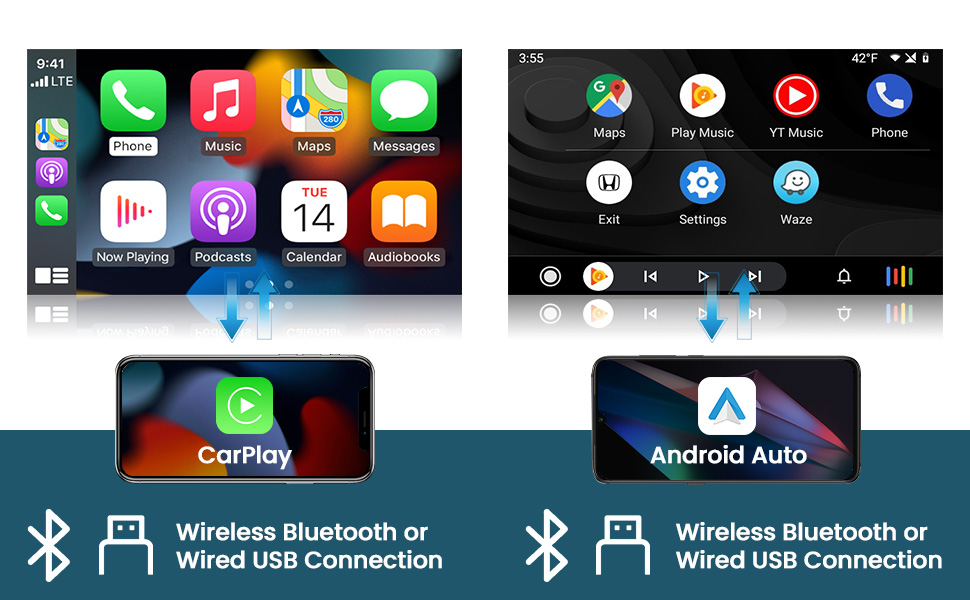
Image: Comparison showing the car dashboard before and after the installation of the Roinvou Android Radio, highlighting the integrated look.

Image: Detailed view of the rear ports on the Roinvou Android Radio unit and the corresponding wiring harness connections, labeled for clarity.

Image: Wiring diagram specifically for the reversing camera, showing connections to the head unit, power, and ground.
5. Operating Instructions
5.1. Basic Operation
- Power On/Off: The unit typically powers on with the vehicle's ignition. To manually power off or restart, refer to the on-screen controls or physical buttons if available.
- Touch Screen: The 9-inch HD capacitive touch screen supports multi-touch gestures. Navigate through menus and applications by tapping, swiping, and pinching.
- Home Screen: The home screen provides access to frequently used applications and widgets. You can customize wallpapers and themes (refer to section 5.9).
5.2. Wireless/Wired CarPlay & Android Auto
Connect your smartphone for seamless integration of navigation, music, calls, and messaging.
- Wireless Connection:
- Ensure Bluetooth is enabled on your smartphone and the Roinvou unit.
- Pair your phone with the unit via Bluetooth.
- Once paired, select the CarPlay or Android Auto icon on the unit's screen to initiate the wireless connection.
- Wired Connection:
- Connect your smartphone to the unit using an original USB data cable.
- The unit should automatically detect the connection and prompt you to launch CarPlay or Android Auto.
- Voice Control: Utilize Siri (for CarPlay) or Google Assistant (for Android Auto) for hands-free operation.

Image: Screenshots of the Roinvou Android Radio displaying the user interfaces for both Apple CarPlay and Android Auto, showing various app icons.
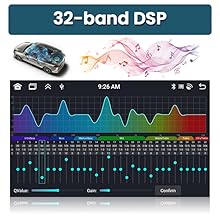
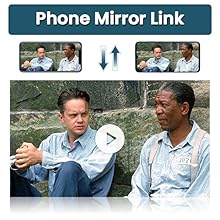
Image: Visual representation of connecting smartphones to the car stereo via wireless Bluetooth or wired USB for CarPlay and Android Auto functionality.
5.3. GPS Navigation
The unit features built-in GPS navigation. You can use pre-installed maps or download offline navigation apps from the Play Store. Online maps are also supported when connected to WiFi.
- GPS Antenna: Ensure the GPS antenna is properly installed and positioned for optimal signal reception.
- Map Updates: Periodically check the Play Store for updates to your preferred navigation applications.

Image: The Roinvou Android Radio screen showing a detailed GPS navigation map with route information and points of interest.
5.4. Bluetooth 5.0
Bluetooth 5.0 provides a stable connection for hands-free calls and audio streaming.
- Pairing: Go to the Bluetooth settings on the unit, enable Bluetooth, and search for available devices. Select your phone from the list and confirm pairing.
- Hands-Free Calling: Once paired, you can make and receive calls directly from the unit's screen. Phone book synchronization is supported.
- Audio Streaming: Stream music from your phone to the car stereo via Bluetooth.

Image: The Roinvou Android Radio screen displaying the Bluetooth interface, showing options for dialing, contacts, and music streaming.
5.5. FM/RDS Radio
Access local radio stations with FM/RDS functionality.
- Scanning: Use the on-screen controls to scan for available radio stations.
- Presets: Save your favorite stations as presets for quick access.
- RDS: Radio Data System (RDS) displays station information, song titles, and traffic updates where available.

Image: The Roinvou Android Radio screen showing the FM/RDS radio interface with frequency display and station presets.
5.6. Mirror Link
Mirror Link allows you to display your smartphone screen directly on the unit, enabling you to view videos and other content on a larger display.
- Connection: Connect your Android or iOS smartphone via USB or Wi-Fi hotspot.
- Activation: Select the Mirror Link application on the unit and follow the on-screen instructions to establish the connection.

Image: A visual demonstrating the Phone Mirror Link feature, showing a smartphone screen duplicated onto the larger car stereo display.
5.7. Steering Wheel Control (SWC)
The unit supports steering wheel controls, allowing you to manage audio and other functions without taking your hands off the wheel.
- Configuration: Access the Steering Wheel Control settings in the unit's menu.
- Learning Function: Follow the on-screen prompts to "learn" each button on your steering wheel. Press a function on the screen (e.g., "Volume+") then press the corresponding button on your steering wheel. Repeat for all desired functions.
- Troubleshooting: If buttons are programmed incorrectly (e.g., previous/next reversed), clear the settings and re-program them carefully.

Image: The Roinvou Android Radio screen showing the interface for programming steering wheel controls, with options to assign functions to physical buttons.
5.8. Backup Camera
The unit automatically switches to the rearview image when the vehicle is in reverse gear, providing enhanced safety.
- AHD Camera: The included AHD backup camera offers clear night vision, waterproof design, and a wide-angle view.
- Guidelines: The display includes dynamic guidelines to assist with parking.
- Troubleshooting: If the backup camera is not working or displaying correctly, refer to the "Troubleshooting" section.

Image: The Roinvou Android Radio screen showing a clear reversing camera view with parking guidelines overlaid, demonstrating night vision and wide-angle capabilities.
5.9. WiFi & App Downloads
Connect to WiFi to download various applications from the Play Store, stream online music, and watch videos.
- WiFi Connection: Go to Settings > Network & Internet > Wi-Fi. Select your desired network and enter the password.
- App Downloads: Once connected, open the Play Store app to download and install applications like YouTube, Spotify, Waze, etc.
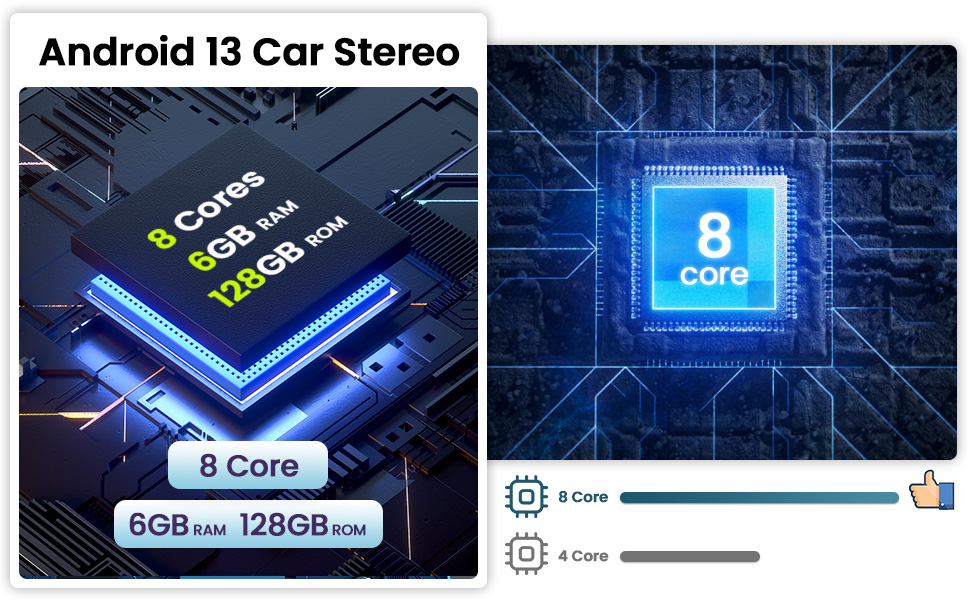
Image: The Roinvou Android Radio screen demonstrating WiFi connectivity and the ability to download various applications from the Play Store, such as YouTube and social media apps.
5.10. Customization (Wallpapers, Themes, EQ)
Personalize your unit's appearance and audio output.
- Wallpapers & Themes: The unit comes with 19 wallpaper options and 59 UI desktop themes. Access these settings in the display or personalization menu to choose your preferred look.
- 32-Band EQ: Utilize the pre-installed car tuning software with 32-band EQ technology. Adjust frequencies, sound types, and gain to optimize audio quality for your vehicle's speakers.

Image: The Roinvou Android Radio screen showcasing various wallpaper and desktop theme options for personalization.

Image: Screenshot of the 32-band Digital Sound Processor (DSP) equalizer interface on the Roinvou Android Radio, allowing detailed audio customization.
6. Maintenance
- Screen Cleaning: Use a soft, lint-free cloth to clean the touch screen. Avoid abrasive cleaners or solvents that could damage the display.
- Software Updates: Periodically check for system software updates through the unit's settings or Roinvou's official support channels to ensure optimal performance and access to new features.
- General Care: Keep the unit free from dust and extreme temperatures. Avoid spilling liquids on the unit.
7. Troubleshooting
| Problem | Possible Cause | Solution |
|---|---|---|
| Unit does not power on. | Incorrect wiring; blown fuse; loose connection. | Check power cable connections. Verify vehicle fuses. Ensure battery is connected. Consult a professional installer. |
| Backup camera not working or displaying. | Incorrect wiring of camera or rearview input cable; camera malfunction; incorrect settings. |
|
| WiFi or Bluetooth signal interference. | Rearview input cable not connected. | Ensure the rearview input cable is connected to the head unit, even if no camera is used. |
| Steering wheel controls not working or incorrect. | CANBUS decoder not connected; incorrect programming; faulty wiring. |
|
| Dashboard language changed to Chinese. | Software glitch; incorrect protocol package. | Contact Roinvou customer support for the correct protocol upgrade package and instructions to revert the language. |
| Unit stays on after ignition off/door open. | Incorrect ACC (accessory) wiring; CANBUS issue. | Verify ACC wire connection. Ensure CANBUS is correctly installed and functioning. Contact customer support if the issue persists. |
| No GPS signal or inaccurate navigation. | GPS antenna not properly installed or obstructed. | Ensure the GPS antenna is placed in a location with a clear view of the sky, away from metal obstructions. Check antenna connection. |
8. Specifications
| Feature | Detail |
|---|---|
| Model | 6+128G CarPlay |
| Operating System | Android 13 |
| CPU | 8 Cores |
| RAM | 6GB |
| ROM | 128GB |
| Screen Size | 9 Inches |
| Resolution | 1280 x 720 |
| Connectivity | Bluetooth 5.0, Wi-Fi (5GHz), USB |
| Special Features | Wireless/Wired Apple CarPlay, Wireless/Wired Android Auto, Mirror Link, Voice Control, GPS Navigation, FM/RDS Radio, HD Touchscreen, Steering Wheel Control (SWC), 32-band EQ, DSP, 19 Backgrounds, 59 UI Themes |
| Vehicle Service Type | Car (Chevrolet Chevy Cruze 2009-2014) |
| Item Weight | 5.5 pounds |
| Package Dimensions | 15.16 x 11.81 x 4.33 inches |

Image: Visuals highlighting key specifications such as the 8-core processor, 6GB RAM, 128GB ROM, 32-band DSP, and Mirror Link functionality.
9. Warranty Information
The Roinvou Android Radio comes with a 1-Year Warranty from the date of purchase. This warranty covers manufacturing defects and malfunctions under normal use. Please retain your proof of purchase for warranty claims.
For detailed warranty terms and conditions, please contact Roinvou customer support.
10. Customer Support
If you encounter any issues, have questions, or require technical assistance, please contact Roinvou customer support:
- Email: roinvouservices@163.com
- Online Support: Visit the Roinvou Store on Amazon and click "Ask a question" for direct assistance.
Please provide your product model and purchase details when contacting support for faster service.
Image: Visual representation of Roinvou customer support contact methods, including email and how to ask a question via the Amazon store.
Related documents6+128G CarPlay


Ask a question about this manual
Ask about setup, troubleshooting, compatibility, parts, safety, or missing instructions. Manuals+ will review the question and use this page’s manual context to help answer it.