
1. Introduction
Thank you for choosing the AODK 55 Inch Electric Standing Desk. This manual provides detailed instructions for assembly, operation, maintenance, and troubleshooting to ensure optimal performance and longevity of your desk. Please read this manual thoroughly before use and retain it for future reference.
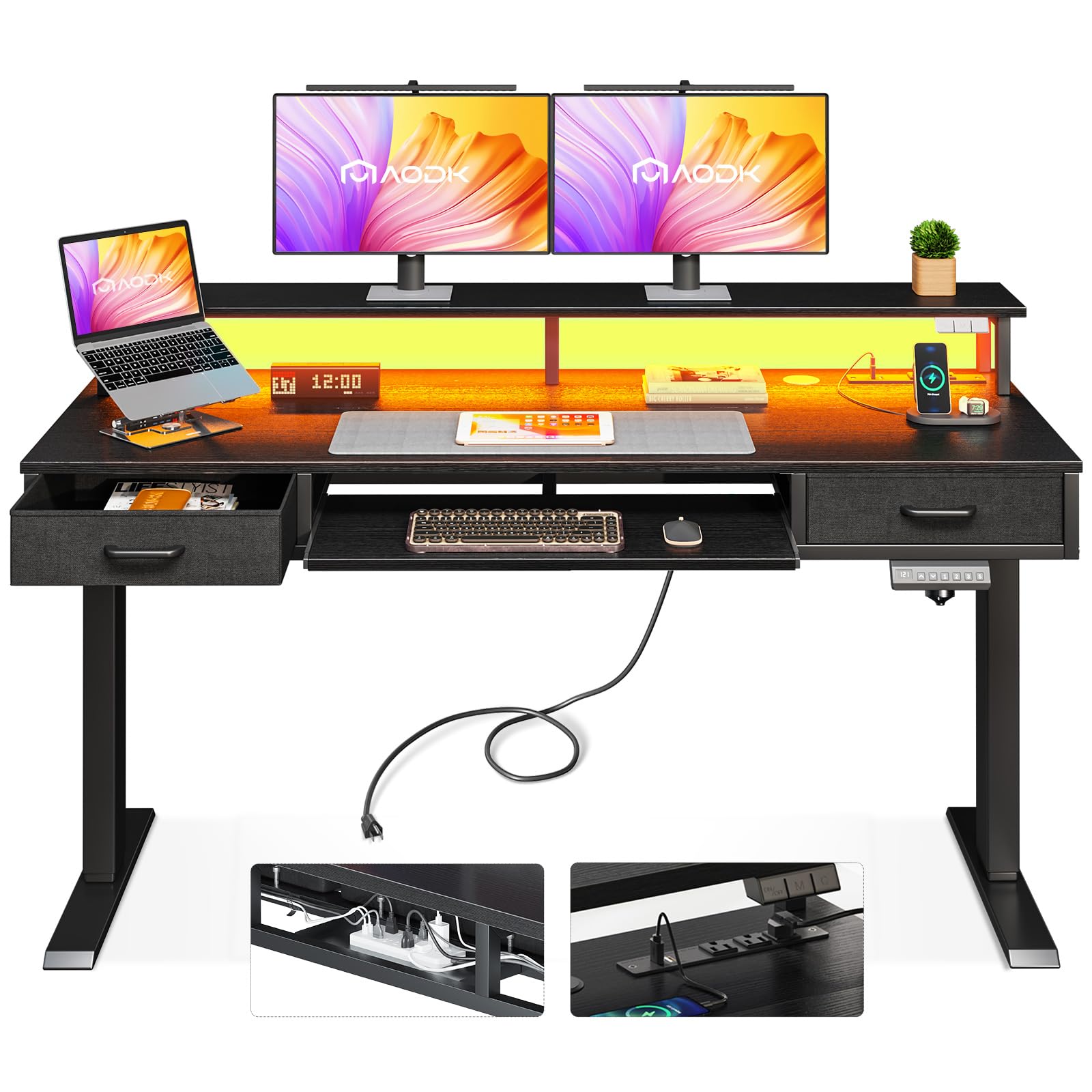
Image 1.1: The AODK 55 Inch Electric Standing Desk, showcasing its design and functionality in a workspace.
2. Safety Information
- Ensure all parts are securely fastened before use.
- Do not overload the desk. The maximum weight recommendation is 70 kg (154 lbs).
- Keep children and pets away from the desk during height adjustments.
- Avoid placing liquids directly on the desk surface, especially near electrical components.
- Do not attempt to disassemble or repair the motor or electrical components yourself. Contact customer support if issues arise.
- Ensure the power cord is not pinched or damaged.
3. Package Contents
Your AODK Electric Standing Desk package includes all necessary parts, hardware, and tools for assembly. Each component is clearly labeled to facilitate the assembly process.
- Desk components (tabletop, legs, monitor stand, drawers, keyboard tray)
- Electric motor and control panel
- Power adapter and cables
- Assembly hardware (screws, bolts, etc.)
- Assembly tools (Allen Key, Screwdriver)
- Instruction manual
4. Assembly Instructions
Assembly of the AODK Electric Standing Desk is designed to be straightforward. Follow the included detailed instructions step-by-step. All parts are clearly labeled to assist you.
- Unpack and Verify: Carefully unpack all components and verify against the parts list in the manual.
- Prepare Workspace: Clear a spacious area for assembly. It is recommended to have two people for certain steps due to the desk's weight.
- Assemble Frame: Begin by assembling the desk frame and legs according to the diagrams.
- Attach Motor: Securely attach the electric motor and ensure all connections are firm.
- Install Desktop: Mount the desktop onto the assembled frame.
- Install Drawers and Keyboard Tray: Follow instructions for installing the fabric drawers and keyboard tray.
- Connect Electrical Components: Connect the control panel, power strip, and LED lights.
- Final Checks: Double-check all screws and connections for tightness.
For a visual guide on specific assembly steps, please refer to the official video below:
Video 4.1: Official assembly guide for the AODK Electric Standing Desk with Keyboard Tray & 2 Drawers. This video demonstrates the step-by-step process of putting the desk together, highlighting key features and connections.

Image 4.2: Detailed product dimensions, including the keyboard tray and fabric drawers, to assist with space planning and assembly.
5. Operating Instructions
5.1 Height Adjustment
The AODK Electric Standing Desk features an adjustable height range from 29.9 inches to 46.1 inches. Use the control panel located on the front edge of the desk to adjust the height.
- Up/Down Buttons: Press the up (▲) or down (▼) arrows to manually adjust the desk height.
- Memory Presets: The desk has 3 height-memorizing features. To save a height setting, adjust the desk to your desired height, then press the 'M' button followed by a number button (1, 2, or 3). To recall a saved height, simply press the corresponding number button.

Image 5.1: Demonstrates the adjustable height range of the desk, from sitting to standing positions.
Video 5.2: This video demonstrates the height adjustment mechanism and the use of memory presets on the AODK Electric Standing Desk.
5.2 LED Lights
The desk includes integrated LED lights with 10 static lighting modes and 20 dynamic modes to enhance your workspace ambiance.
- Control Panel: Use the dedicated LED lights controller to cycle through modes, adjust brightness, and power the lights on/off.
- Static Color Button (C): Press to select from 10 static color options.
- Dynamic Mode Button (M): Press to activate and cycle through 20 dynamic lighting effects.
- ON/OFF & Speed/Brightness: Use the corresponding buttons to turn the lights on/off and adjust the speed of dynamic modes or brightness of static modes.

Image 5.3: The LED lights controller, illustrating the range of lighting and dynamic modes.
5.3 Power Outlets & USB Ports
A built-in power outlet with 3 AC outlets and 2 USB ports is provided for convenient charging of your devices.
- AC Outlets: 3 outlets (120V/12A) for standard electronic devices.
- USB Ports: 2 USB ports (5V/2A) for charging smartphones, tablets, and other USB-powered devices.
- Ensure devices are compatible with the provided voltage and current.
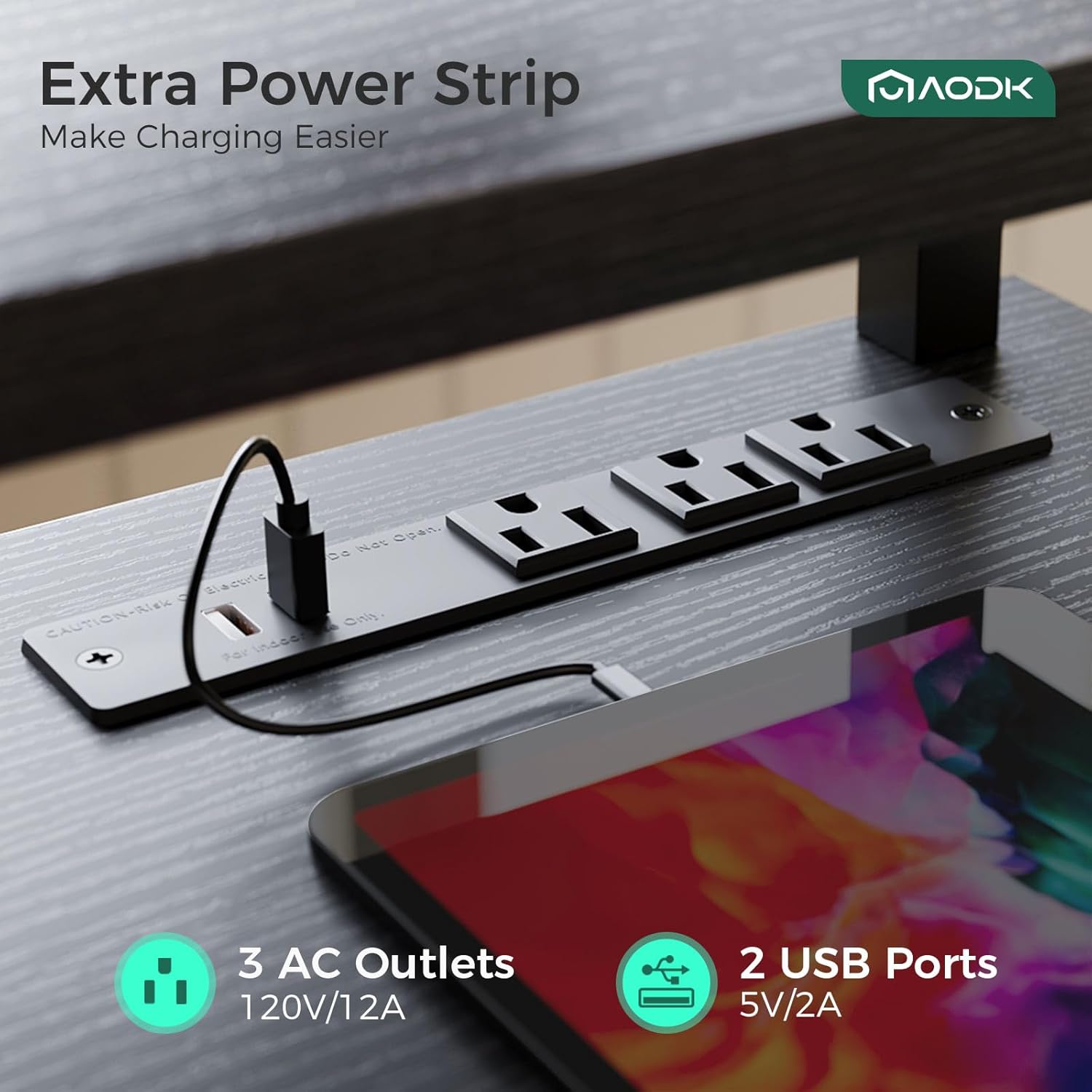
Image 5.4: The integrated power strip, making device charging accessible.
6. Features
6.1 Storage: Drawers & Keyboard Tray
The desk is equipped with two fabric drawers and a keyboard tray to help organize your workspace.
- Fabric Drawers: Two cloth drawers with iron structures provide ample storage for office accessories, reducing clutter.
- Keyboard Tray: A dedicated pull-out tray for your keyboard and mouse, promoting an ergonomic setup.

Image 6.1: The storage features of the desk, including drawers and keyboard tray, for an organized workspace.
6.2 Full-sized Monitor Stand
An elevated monitor stand provides an ergonomic viewing angle for your screens, helping to reduce neck and eye strain.

Image 6.2: The full-sized monitor stand, designed for an ergonomic setup with multiple displays.
6.3 Hidden Cable Management
An under-desk tray is integrated to help manage and conceal cables, keeping your desktop tidy and clean.
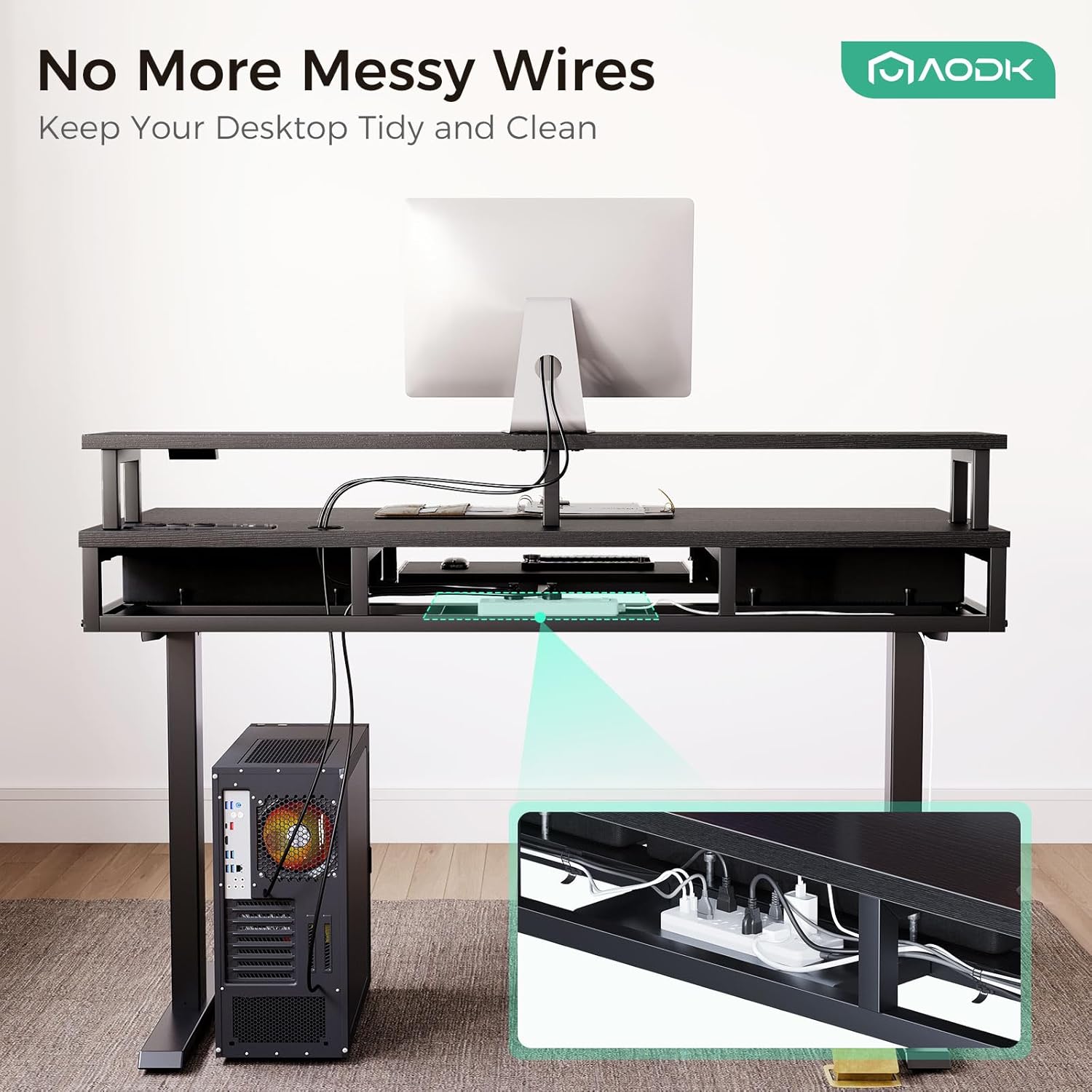
Image 6.3: The hidden cable management system, ensuring a clutter-free desk surface.
6.4 High-Quality Motor
The desk is equipped with a new generation motor featuring automatic rebound, low noise operation (45 to 55 dB), and a work-life of over 10,000 runs, ensuring smooth and reliable height adjustments.
7. Maintenance
- Cleaning: Wipe the desk surfaces with a damp cloth. Avoid harsh chemicals or abrasive cleaners.
- Cable Management: Periodically check and reorganize cables in the management tray to prevent tangles and damage.
- Fasteners: Occasionally check all screws and bolts to ensure they remain tight.
8. Troubleshooting
If you encounter any issues with your AODK Electric Standing Desk, please refer to the following common troubleshooting steps:
| Problem | Possible Cause | Solution |
|---|---|---|
| Desk does not move up or down. | Power cord disconnected; motor error; overload. | Check power connection. Unplug and replug the desk. Reduce weight on the desk. If issue persists, contact support. |
| Desk moves unevenly or makes unusual noise. | Loose connections; obstruction; motor issue. | Check all assembly connections. Ensure no obstructions are in the path of the legs. Contact support if noise persists. |
| LED lights not working. | Loose connection; controller issue. | Check the connection of the LED strip to the power source and controller. Ensure the controller is powered on. |
| Power outlets/USB ports not working. | Power strip not connected; circuit breaker tripped. | Ensure the power strip is properly connected to the main power. Check your home's circuit breaker. |
For further assistance, please contact AODK customer support.
9. Specifications
- Brand: AODK
- Model Name: Electric Standing Desk
- Product Dimensions: 21.25"D x 55"W x 30.9"H
- Adjustable Height Range: 29.9" to 46.1" (75.9 cm to 117.1 cm)
- Maximum Height: 120.9 cm (47.6 inches)
- Minimum Height: 29.9 inches (75.9 cm)
- Color: Black
- Desk Design: Standing Desk
- Top Material Type: Engineered Wood
- Base Material: Carbon Steel
- Item Weight: 65 pounds (29.5 kg)
- Maximum Weight Recommendation: 70 kg (154 lbs)
- Number of Drawers: 2 (fabric)
- Special Features: Power Outlets & USB & LED Lights, Cable Management Tray, Keyboard Tray
- Motor Noise Level: 45 to 55 dB
- Assembly Required: Yes (Tools Recommended: Allen Key, Screw Driver)
- UPC: 850059283394
- ASIN: B0CR1DHBDH
10. Warranty and Support
The AODK Electric Standing Desk comes with a Limited Warranty. For specific warranty terms and conditions, please refer to the documentation included with your purchase or contact AODK customer support.
For any questions, technical support, or warranty claims, please contact AODK-US customer service. You can typically find contact information on the AODK official website or through your purchase platform.
We are committed to providing excellent customer service and support for your AODK product.