
Phomemo M833
Phomemo M833 Portable Printer Instruction Manual
Model: M833 | Brand: Phomemo
1. Introduction
The Phomemo M833 Portable Bluetooth Thermal Printer is a versatile, inkless printing solution designed for convenience and efficiency. It supports various document types and paper sizes, making it ideal for business, home, office, and travel use. This manual provides detailed instructions for setting up, operating, maintaining, and troubleshooting your M833 printer.

Image: The Phomemo M833 portable printer shown with various documents, including contracts, academic research, and checklists, illustrating its versatility in printing different content types. A smartphone displaying the Phomemo app is also visible, indicating wireless connectivity.
2. What's in the Box
Upon unboxing your Phomemo M833 printer, please verify that all the following components are included:
- 1 x M833 Portable Printer
- 1 x US-letter thermal paper roll (pre-installed in printer)
- 1 x Velvet Storage Bag
- 1 x USB-C Charging Cable
- 1 x Instruction manual
Video: An unboxing and quick setup demonstration of the Phomemo M833 printer, showing the contents of the box, how to open the printer, insert paper, and initiate a print. This video highlights the compact size and ease of use.
3. Setup
3.1 Initial Charging and Power On
Before first use, fully charge the printer using the provided USB-C cable. Connect the cable to the printer's USB-C port and a compatible USB power adapter (not included, typically a phone charger). The indicator light will show charging status. Once charged, press and hold the power button to turn the printer on.
3.2 Loading Thermal Paper
The M833 printer uses thermal paper only. Standard copy paper is not compatible. To load paper:
- Open the printer cover by gently pressing the release buttons on the sides.
- Insert the thermal paper roll or fan-fold paper into the paper compartment, ensuring the printable side (smoother side) faces the thermal print head.
- Adjust the movable clips to secure the paper width.
- Close the printer cover until it clicks into place.
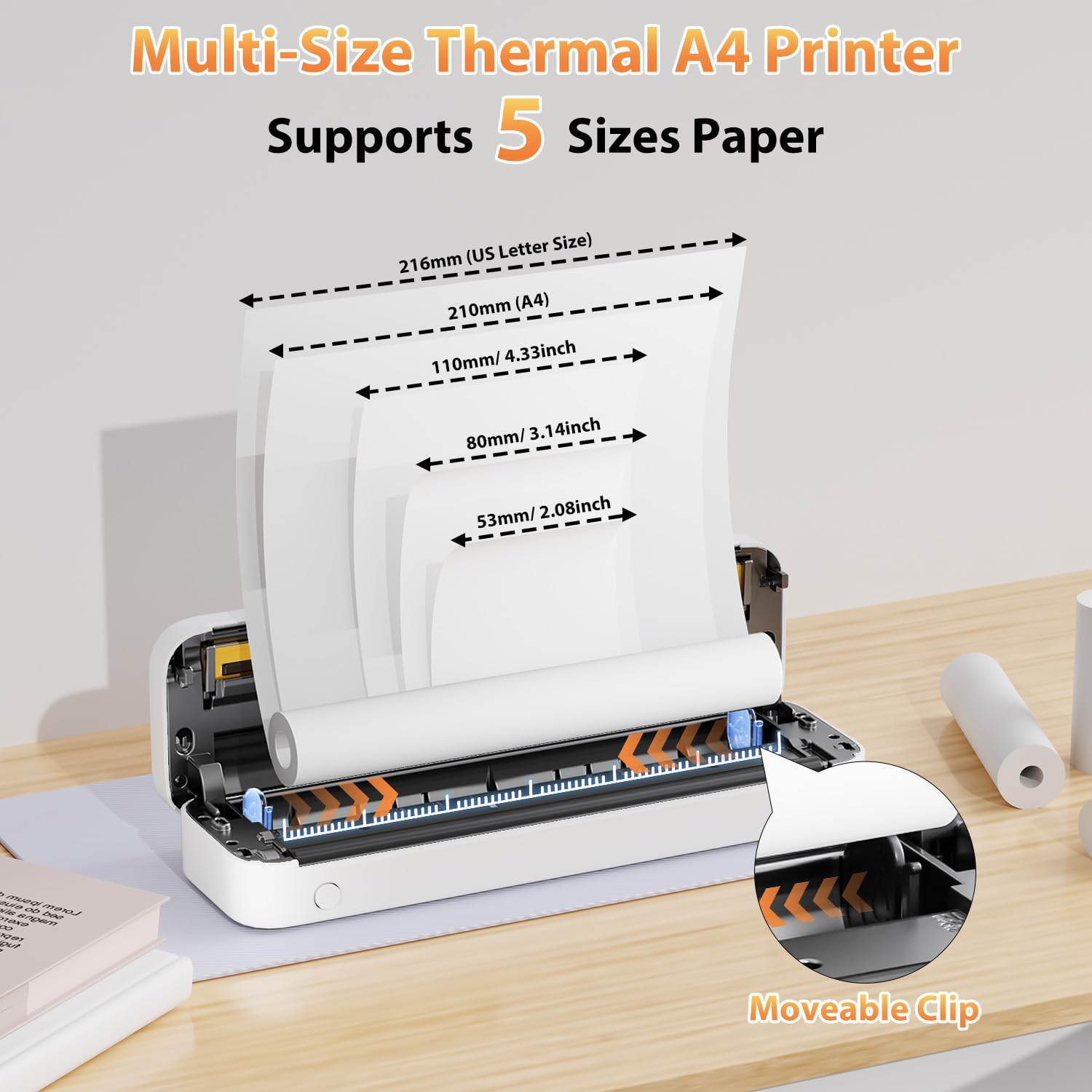
Image: The Phomemo M833 printer with its cover open, illustrating how to load different sizes of thermal paper, including US Letter, A4, and smaller widths (110mm, 80mm, 53mm). The movable clip mechanism for adjusting paper width is highlighted.
3.3 Software Installation and Connectivity
The M833 printer supports both mobile and computer connectivity.
- For Smartphones (Bluetooth):
Download the "Phomemo" APP from your device's app store (App Store for iOS, Google Play for Android). Do not connect via Bluetooth directly from your phone's settings. Open the Phomemo app and connect to the M833 printer from within the app.

Image: A visual guide demonstrating the three steps for connecting the Phomemo M833 printer to a smartphone: 1) Download the "Phomemo" app, 2) Enable Bluetooth on the device, and 3) Connect the M833 printer within the app for printing.
- For Computers (USB-C):
Visit m833.phomemo.com to download the appropriate driver for your operating system (Windows, Mac OS, Chrome, Linux). Connect the printer to your PC using the provided USB-C cable.

Image: A step-by-step illustration for connecting the Phomemo M833 printer to a PC: 1) Connect the printer via USB cable, 2) Download the driver from m833.phomemo.com, and 3) Select the M833 printer for printing.

Image: The Phomemo M833 printer demonstrating both Bluetooth wireless and USB-C wired connectivity options, compatible with various operating systems including Windows, Mac OS, Chrome, Linux, iOS, Android, and iPad.
4. Operating Instructions
4.1 Printing from Mobile Devices
Once connected via the Phomemo app:
- Open the Phomemo app.
- Select the type of content you wish to print (e.g., Document Print, Print Web, Print Images, Scan).
- Navigate to and select your desired file (PDFs, Word files, images, web content are supported).
- Adjust print settings such as copies, page range, and orientation within the app.
- Tap the print button to begin printing.

Image: A smartphone screen displaying the Phomemo app, showing various file types (Picture, Excel, TXT, PDF, Word) that can be printed wirelessly via Bluetooth to the M833 printer, illustrating its broad compatibility for different printing needs.
4.2 Printing from Computers
After installing the driver and connecting via USB-C:
- Open the document or image you wish to print on your computer.
- Select "Print" from the application's menu (e.g., File > Print).
- Choose "Phomemo M833" as your printer.
- Adjust print preferences as needed (e.g., paper size, orientation).
- Click "Print" to send the job to the printer.
4.3 Supported Paper Types and Sizes
The M833 printer is designed for thermal paper. It supports various sizes, including:
- US Letter (8.5'' x 11'')
- A4 (210mm x 297mm)
- Roll paper: 2.08'' (53mm), 3.14'' (80mm), 4.33'' (110mm)
- Fan-fold paper
- Tattoo transfer paper

Image: The Phomemo M833 printer displayed with three different paper feeding methods: single sheet paper, fan-fold paper, and roll paper, highlighting its compatibility with various thermal paper formats including 2", 3", 4", A4, and Letter sizes.
4.4 Print Quality
The M833 printer delivers sharp, smudge-free prints with a resolution of 300DPI. For optimal print quality, ensure you are using high-quality thermal paper and that the print head is clean.

Image: A side-by-side comparison illustrating the superior 300DPI precision of the Phomemo M833 printer ("Our") compared to another printer ("Other"), showcasing clearer text and graphics in a business research document.
5. Maintenance
5.1 Cleaning the Print Head
To maintain print quality and prolong the life of your printer, regularly clean the thermal print head. Use a lint-free cloth lightly dampened with isopropyl alcohol. Gently wipe the print head from center to edge. Ensure the printer is off and cool before cleaning.
5.2 Paper Handling and Storage
Thermal paper is sensitive to heat and light. Store thermal paper in a cool, dry place away from direct sunlight and excessive heat to prevent premature blackening or fading. Avoid touching the thermal coating excessively.
5.3 Battery Care
The M833 printer is equipped with a 2600mAh battery. For optimal battery life, avoid fully discharging the battery frequently. If storing the printer for an extended period, charge it to about 50-70% and recharge every few months.

Image: A close-up of the Phomemo M833 printer's internal battery compartment, highlighting its 2600mAh capacity and fast charging capability via Type-C, indicating a powerful and long-lasting portable power source.
6. Troubleshooting
| Problem | Possible Cause | Solution |
|---|---|---|
| Printer not turning on | Low battery; Power button not pressed correctly. | Charge the printer fully. Press and hold the power button for a few seconds. |
| Cannot connect via Bluetooth | Not connecting through the Phomemo app; Bluetooth off on device. | Ensure Bluetooth is enabled. Connect through the Phomemo app, not directly from device settings. Restart both printer and device. |
| Poor print quality / Faded prints | Low battery; Dirty print head; Low quality thermal paper; Paper loaded incorrectly. | Charge the printer. Clean the print head. Use high-quality thermal paper. Ensure paper is loaded correctly with the printable side facing the print head. |
| Paper jam | Paper loaded incorrectly; Foreign object in paper path. | Turn off the printer. Carefully open the cover and remove any jammed paper or obstructions. Reload paper correctly. |
| Printer not recognized by PC | Driver not installed; Loose USB connection. | Install the correct driver from m833.phomemo.com. Ensure the USB-C cable is securely connected. Try a different USB port or cable. |
7. Specifications
| Feature | Detail |
|---|---|
| Model | M833 |
| Printing Technology | Thermal |
| Print Resolution | 300 DPI (304 Dots Per Inch) |
| Connectivity | Bluetooth, USB Type-C |
| Compatible Devices | Laptops, PC, Smartphones, Tablets (Android, iOS) |
| Max Media Size | 8.5 x 11 inch (US Letter), A4 |
| Supported Paper Types | Thermal paper (US Letter, A4, 2", 3", 4" rolls, fan-fold, tattoo transfer paper) |
| Battery Capacity | 2600mAh |
| Item Weight | 1.65 pounds (approx. 750 grams) |
| Product Dimensions | 12.2 x 4.49 x 3.62 inches (approx. 31 x 11.4 x 9.2 cm) |
| Max Print Speed (Monochrome) | 6 ppm |
8. Warranty and Support
For warranty information, technical support, or service inquiries, please refer to the contact details provided on the official Phomemo website or the product packaging. Keep your purchase receipt as proof of purchase for warranty claims.
Official Phomemo Website: www.phomemo.com
Ask a question about this manual
Ask about setup, troubleshooting, compatibility, parts, safety, or missing instructions. Manuals+ will review the question and use this page’s manual context to help answer it.