1. Introduction
This manual provides detailed instructions for the NOVOO 11-in-1 USB C Hub Docking Station, Model NH11D-111Z-CAM. This device expands the connectivity of your USB-C enabled laptop, tablet, or smartphone, offering a wide range of ports for various peripherals and display options. Please read this manual thoroughly before use to ensure proper operation and to maximize the product's capabilities.
2. Product Overview
The NOVOO 11-in-1 USB C Hub integrates multiple essential ports into a single compact unit. Below is an illustration of the device and its various connection points.
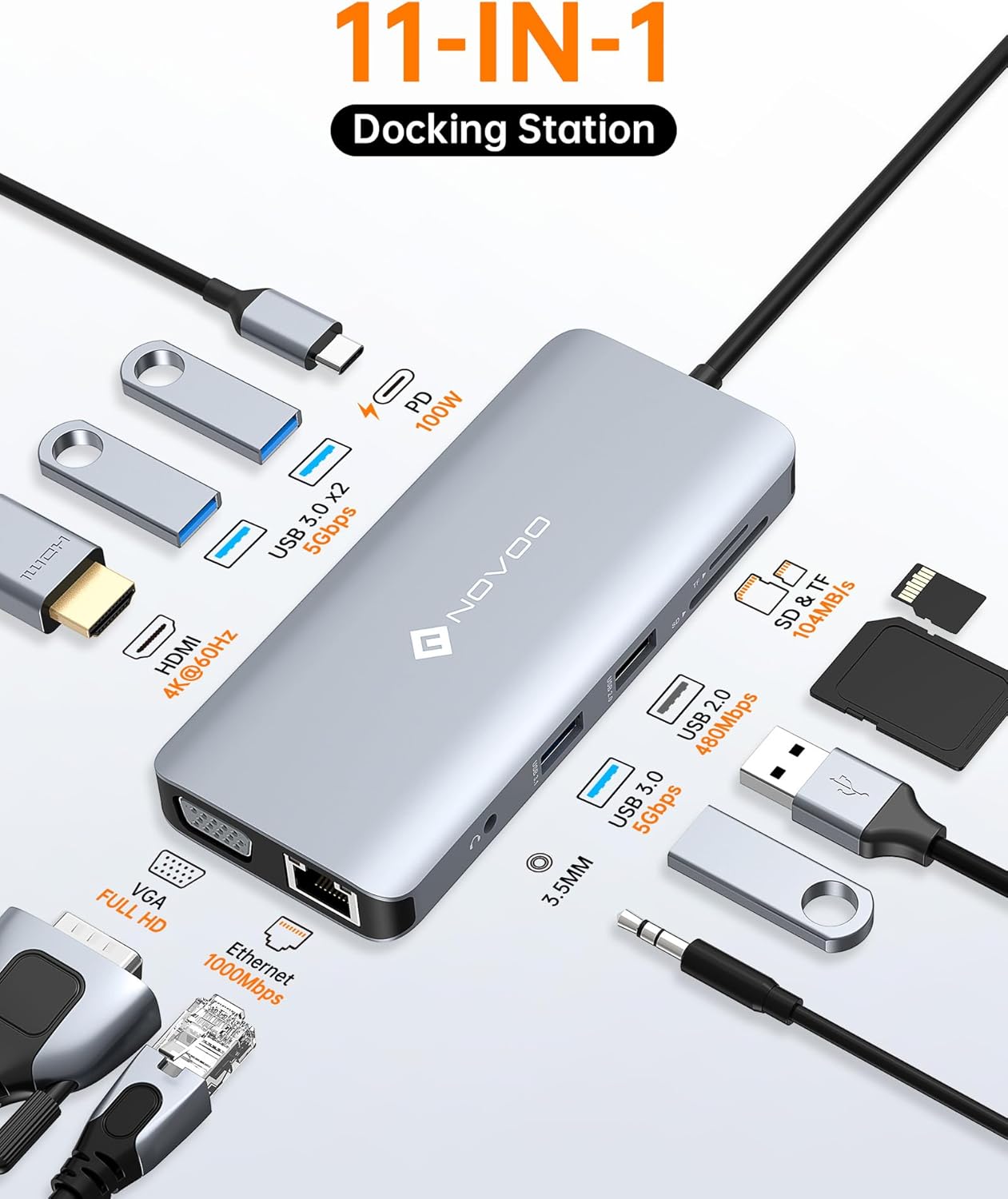
Port Functions:
- USB-C Host Connector: Connects to your laptop or device's USB-C port.
- USB-C Power Delivery (PD) Port: Supports up to 100W power input for charging your host device.
- HDMI Port: Supports video output up to 4K@60Hz.
- VGA Port: Supports video output up to Full HD 1080p.
- RJ45 Gigabit Ethernet Port: Provides a stable wired network connection up to 1000Mbps.
- 3 x USB-A 3.0 Ports: For data transfer up to 5Gbps, compatible with USB peripherals.
- 1 x USB-A 2.0 Port: For connecting peripherals like keyboards, mice, or other low-bandwidth devices.
- SD Card Slot: For reading and writing SD, SDHC, SDXC cards.
- MicroSD (TF) Card Slot: For reading and writing MicroSD, MicroSDHC, MicroSDXC cards.
- 3.5mm Audio Jack: For connecting headphones or speakers.
3. Setup Instructions
Follow these steps to set up your NOVOO 11-in-1 USB C Hub:
- Connect the Hub to Your Device: Plug the integrated USB-C host connector cable from the hub into an available USB-C port on your laptop, tablet, or smartphone. Ensure your device's USB-C port supports data transfer, power delivery, and DisplayPort Alternate Mode (Alt Mode) for full functionality.
- Connect Power (Optional but Recommended): If your host device requires charging or if you are connecting power-intensive peripherals, connect your original USB-C power adapter to the USB-C Power Delivery (PD) port on the hub. This will charge your host device and provide stable power to all connected peripherals.
- Connect Peripherals: Plug your desired peripherals (monitors, USB drives, Ethernet cable, SD/TF cards, audio devices) into the corresponding ports on the hub. The hub is designed for plug-and-play operation, meaning most devices will be recognized automatically by your operating system.

4. Operating Instructions
4.1. Display Output (HDMI & VGA)
The hub supports both HDMI and VGA outputs for connecting external displays. You can use a single display or dual displays simultaneously.
- Single Display:
- HDMI: Connect an HDMI cable from the hub to your monitor. Supports resolutions up to 4K@60Hz.
- VGA: Connect a VGA cable from the hub to your monitor. Supports resolutions up to 1080p@60Hz.
- Dual Display (HDMI + VGA): Connect both an HDMI and a VGA monitor to the hub. When using both ports simultaneously, the maximum resolution for both displays will be 1080p@60Hz.


Note: Display settings (mirror/extend) are configured within your operating system's display settings.
4.2. Data Transfer (USB & Card Reader)
The hub provides multiple ports for connecting USB devices and reading memory cards.
- USB-A 3.0 Ports: Connect USB flash drives, external hard drives, or other high-speed peripherals for data transfer speeds up to 5Gbps.
- USB-A 2.0 Port: Ideal for connecting keyboards, mice, or other low-bandwidth devices.
- SD/TF Card Slots: Insert your SD or MicroSD card to access photos, videos, and other files. Supports data transfer speeds up to 104MB/s.


4.3. Power Delivery (PD)
The USB-C PD port allows you to charge your host device while using the hub. Connect your laptop's original USB-C power adapter to this port. The hub supports up to 100W power input, with approximately 15W reserved for the hub's operation, providing up to 85W pass-through charging to your host device.

4.4. Gigabit Ethernet
For a stable and high-speed internet connection, connect an Ethernet cable to the RJ45 port on the hub. This provides a reliable wired connection up to 1000Mbps, ideal for streaming, gaming, or large file downloads.

4.5. 3.5mm Audio Jack
Connect your headphones, earphones, or speakers to the 3.5mm audio jack for audio output. This port supports both audio playback and microphone input.

5. Compatibility
The NOVOO 11-in-1 USB C Hub is designed for broad compatibility with various USB-C enabled devices and operating systems that support DisplayPort Alt Mode and Power Delivery.
Compatible Devices (Examples):
- MacBook Pro (2016 and later)
- MacBook Air (2018 and later)
- Dell XPS 13/15
- HP Spectre x360
- Lenovo ThinkPad X1 Carbon
- Surface Pro 7/8
- ASUS ZenBook
- Razer Blade
- iPad Pro
- Other laptops, tablets, and smartphones with a full-featured USB-C port.
Compatible Operating Systems:
- Windows
- macOS
- Linux
- iPadOS

6. Troubleshooting
If you encounter issues with your NOVOO 11-in-1 USB C Hub, please refer to the following common solutions:
- No Display Output:
- Ensure your host device's USB-C port supports DisplayPort Alt Mode.
- Check that the HDMI/VGA cable is securely connected to both the hub and the monitor.
- Verify the monitor input source is correctly selected.
- Try restarting your host device.
- Peripherals Not Recognized:
- Ensure the hub is securely connected to your host device.
- Try connecting the peripheral directly to your host device to confirm it functions independently.
- If using a high-power peripheral, ensure the hub is connected to a power source via its PD port.
- Slow Data Transfer:
- Ensure you are using USB 3.0 compatible devices and cables for the USB 3.0 ports.
- Some wireless devices (e.g., 2.4GHz wireless mice/keyboards) may experience interference when placed too close to USB 3.0 ports. Try moving them further away or using a USB 2.0 port.
- Charging Issues:
- Ensure your USB-C power adapter is connected to the hub's PD port and is functioning correctly.
- Verify your host device supports USB-C Power Delivery.
- Ethernet Connection Problems:
- Check the Ethernet cable connection to both the hub and your router/modem.
- Ensure your network settings on your host device are configured correctly.
7. Specifications
| Feature | Detail |
|---|---|
| Model Number | NH11D-111Z-CAM |
| Product Dimensions | 5.12 x 2.2 x 0.63 inches |
| Item Weight | 3.84 ounces |
| HDMI Output | Up to 4K@60Hz |
| VGA Output | Up to 1080p@60Hz |
| Dual Display (HDMI+VGA) | Up to 1080p@60Hz |
| USB-A 3.0 Ports | 3 ports, 5Gbps data transfer |
| USB-A 2.0 Port | 1 port, 480Mbps data transfer |
| USB-C Power Delivery | Up to 100W input (approx. 85W pass-through) |
| Ethernet Port | RJ45 Gigabit Ethernet (10/100/1000Mbps) |
| Card Reader | SD and MicroSD (TF) slots, up to 104MB/s |
| Audio Jack | 3.5mm (audio output + microphone input) |
| Material | Aluminum Shell |
| Special Features | Fast Charging, Fast Data Transfer, Plug and Play, Portable |
8. Maintenance
To ensure the longevity and optimal performance of your NOVOO 11-in-1 USB C Hub, follow these maintenance guidelines:
- Cleaning: Use a soft, dry cloth to wipe the surface of the hub. Avoid using liquid cleaners or abrasive materials, as they may damage the finish or internal components.
- Storage: When not in use, store the hub in a cool, dry place away from direct sunlight and extreme temperatures.
- Handling: Avoid dropping the device or subjecting it to strong impacts. Do not attempt to disassemble or modify the hub, as this will void the warranty and may cause damage.
- Cable Care: Handle the integrated USB-C cable gently. Avoid sharp bends or excessive pulling, which can damage the cable or its connection to the hub.
9. Warranty and Support
NOVOO products are designed for reliability and performance. For warranty information, technical support, or any inquiries regarding your NOVOO 11-in-1 USB C Hub, please contact NOVOO customer service through the retailer where you purchased the product or visit the official NOVOO website for support resources.
Please retain your proof of purchase for warranty claims.


