1. Introduction
This manual provides detailed instructions for the operation and maintenance of your Wicue Notepad Calculator. This innovative device combines the functionality of a standard calculator with a convenient LCD writing tablet, allowing for simultaneous calculation and note-taking.
The Wicue Notepad Calculator is designed for efficiency and ease of use in various environments, including office, school, and home settings. Its dual power supply (solar and battery) ensures reliable performance.
2. Product Features
- Multifunctional Design: Integrates a 12-digit calculator with a 6-inch LCD writing tablet, eliminating the need for paper notes during calculations.
- 6-Inch LCD Screen: Features an upgraded LCD screen with green highlighting for clear visibility. Supports pressure-sensitive handwriting for varying line thickness.
- Dual Power Supply: Operates on both solar energy and an included AA battery. The replaceable battery ensures long-term use, complemented by solar power for continuous operation.
- Portable & Convenient: Compact design with a magnetic stylus that can be stored securely in a dedicated slot or attached to the side. Ideal for on-the-go use.
- Ergonomic Design: Features a 30° tilted display and comfortable, responsive keys to reduce neck strain and improve efficiency during prolonged use.
- One-Click Clear & Lock: The writing tablet includes a one-key erase function and a lock switch to prevent accidental deletion of notes.
3. Package Contents
Please verify that all items are present upon opening the package:
- Wicue Notepad Calculator (Model W0502)
- Magnetic Stylus
- 1 x AA Battery
- Instruction Manual
4. Setup
4.1 Battery Installation
The calculator is powered by both solar energy and an AA battery. For initial use or when solar power is insufficient, install the included AA battery.
- Locate the battery compartment on the back of the calculator.
- Slide open the battery compartment cover.
- Insert one AA battery, ensuring correct polarity (+/-).
- Close the battery compartment cover securely.
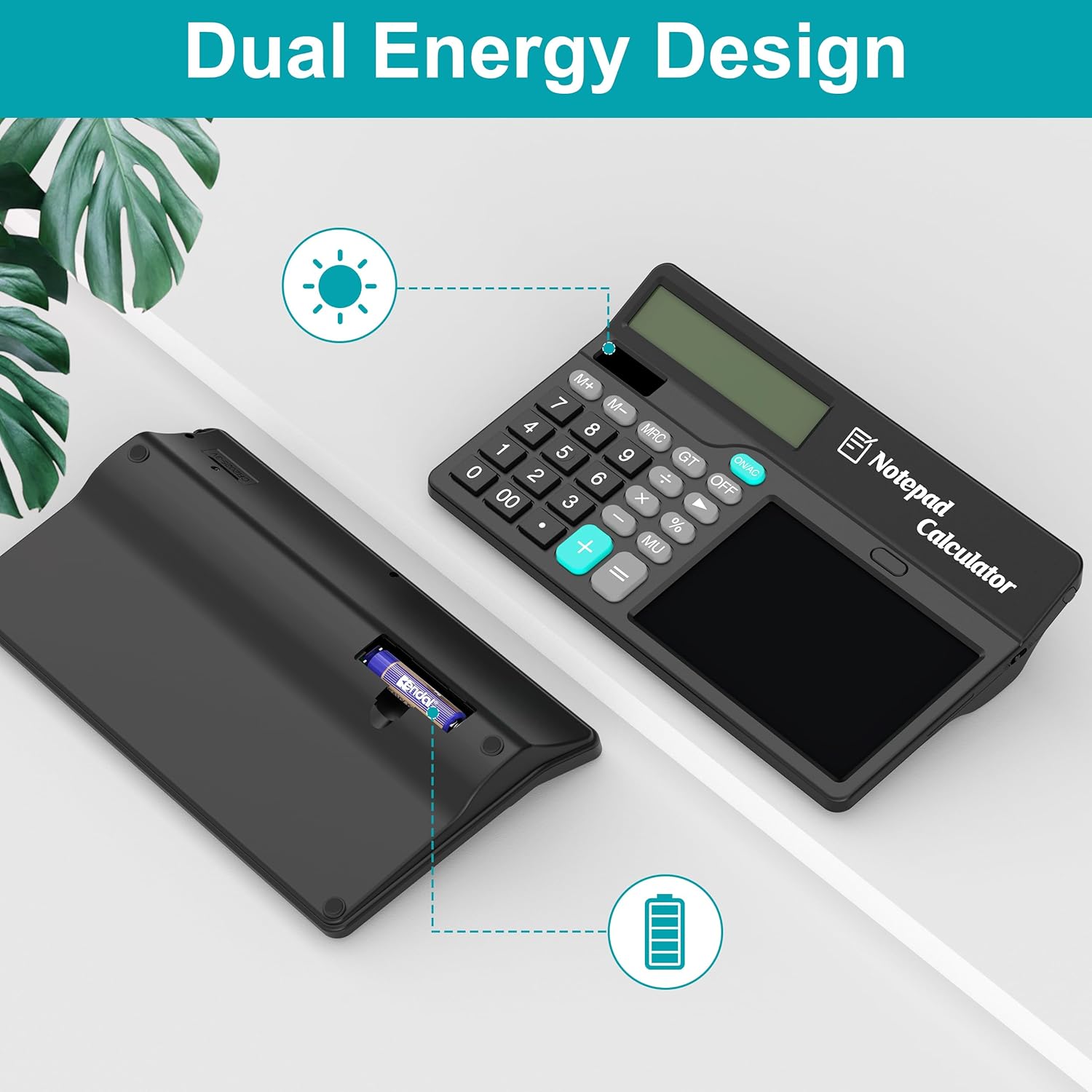
Figure 1: Rear view of the calculator with the battery compartment open, showing the AA battery slot. The image also highlights the non-slip mats.
Note: Product specifications also mention a CR2 battery. Please refer to the actual product for the correct battery type.
4.2 Stylus Storage
The magnetic stylus can be stored in a dedicated slot on the side of the calculator or attached magnetically.

Figure 2: The stylus can be inserted into a slot on the top edge or magnetically attached to the side for secure storage.
5. Operating Instructions
5.1 Calculator Functions
The calculator features a 12-digit display and standard arithmetic operations, along with memory functions and percentage calculations.
| Button | Function |
|---|---|
| ON/AC | Power On / All Clear |
| OFF | Power Off |
| M+, M- | Memory Plus, Memory Minus |
| MRC | Memory Recall / Clear |
| GT | Grand Total (sums all results from previous calculations) |
| MU | Mark-up / Mark-down calculation |
| ← | Backspace |

Figure 3: Overview of calculator buttons and their functions.
5.2 Notepad Functions
The 6-inch LCD writing tablet allows you to write notes, diagrams, or temporary calculations using the magnetic stylus.
- Writing: Use the magnetic stylus to write directly on the LCD screen. The screen is pressure-sensitive, allowing for varying line thickness.
- One-Click Clear: Press the dedicated clear button (often located above the writing area) to erase all content from the screen instantly.
- Lock Function: To prevent accidental erasure of your notes, locate the lock switch on the side of the calculator and slide it to the locked position. This will disable the clear button. Slide it back to unlock.
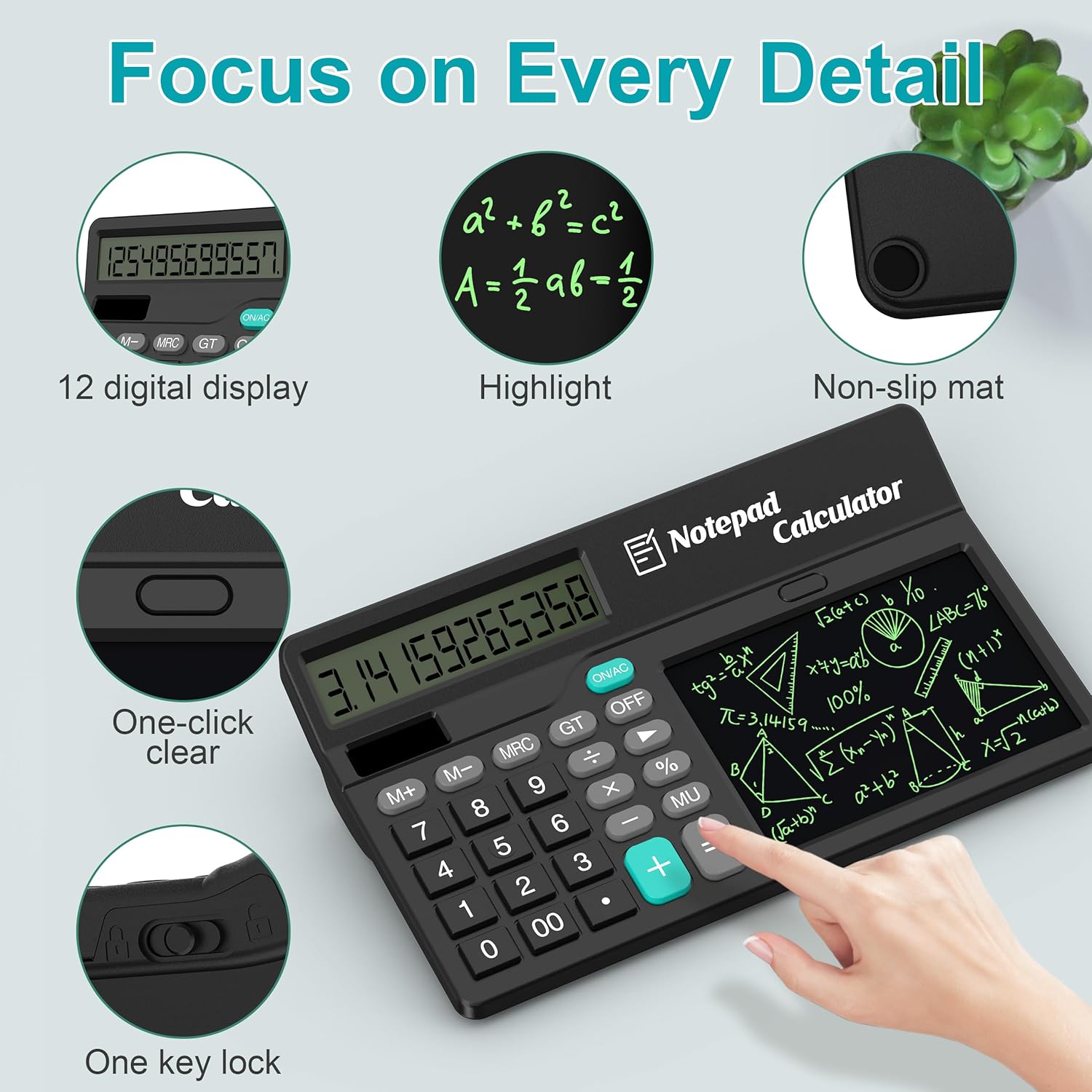
Figure 4: The notepad in use, demonstrating the clear and lock functions.
Video 1: Demonstration of the Wicue Notepad Calculator with Magnetic Stylus, showing writing and clearing functions.
Video 2: Detailed demonstration of the calculator and LCD writing tablet features.
6. Maintenance
- Cleaning: Use a soft, dry cloth to clean the calculator and LCD screen. Do not use liquid cleaners or abrasive materials.
- Storage: Store the calculator in a cool, dry place away from direct sunlight and extreme temperatures.
- Battery Replacement: If the calculator's display becomes dim or unresponsive, replace the AA battery.
- Stylus Care: Keep the stylus clean and store it securely in its designated slot to prevent loss or damage.
7. Troubleshooting
| Problem | Possible Cause / Solution |
|---|---|
| Calculator not turning on / Display is blank. | Ensure sufficient light for solar power. Check battery installation and replace if necessary. Press ON/AC button. |
| Notepad not clearing. | Check if the lock switch on the side of the calculator is engaged. Slide it to the unlocked position. |
| Stylus not writing or writing faintly. | Ensure the stylus tip is clean. The screen is pressure-sensitive; apply appropriate pressure. |
| Calculator wobbles on desk. | Check the non-slip mats on the bottom of the calculator. Ensure they are intact and clean. |
8. Specifications
| Feature | Detail |
|---|---|
| Model Number | W0502 |
| Product Dimensions | 9.9 x 5.75 x 0.04 inches |
| Item Weight | 13.4 ounces |
| Screen Size | 6 Inches (LCD Writing Tablet) |
| Calculator Type | Standard Function, 12-Digit Display |
| Power Source | Battery Powered (AA) & Solar |
| Color | Black |
| Manufacturer | Wicue |
| Country of Origin | China |
9. Safety Information
- Do not expose the device to extreme temperatures or humidity.
- Avoid dropping or subjecting the device to strong impacts.
- Keep out of reach of small children due to small parts (stylus, battery).
- Do not attempt to disassemble or modify the device.
- Dispose of batteries according to local regulations.
10. Warranty and Support
For warranty information or technical support, please contact Wicue customer service through the retailer where the product was purchased or visit the official Wicue website.
For more information, visit the Wicue Store on Amazon.


