
Introduction
This manual provides detailed instructions for the setup, operation, and maintenance of your summina MIDI Mixing Console. This versatile MIDI controller is designed to integrate seamlessly into your digital audio workstation (DAW) setup, offering extensive control and flexibility for music production.
Key features include:
- Versatile Connectivity: Connect via Bluetooth (BT) or USB for seamless integration.
- Customizable Controls: Eight sets of 360-degree rotating encoders for precise parameter adjustment.
- Enhanced Control & Flexibility: 43 assignable keys, eight buttons, and eight knobs compatible with most electronic instruments.
- Extensive Compatibility: Supports various digital audio workstations for effortless fine-tuning.
- Portable & Durable: Made from high-quality plastic, powered by a 780mAh battery or Type-C supply.
What's in the Box
Please check the contents of your package to ensure all items are present:
- MIDI Mixing Console
- Instructions Manual
- USB-C Charging Cable

Image: Contents of the summina MIDI Mixing Console package, showing the device, user manual, and USB-C cable.
Setup
Powering the Device
The summina MIDI Mixing Console can be powered via its internal 780mAh battery or through a Type-C USB connection. To power on/off, use the dedicated power switch located on the side of the device.

Image: Close-up of the summina MIDI Mixing Console showing the USB-C port and a connected cable for power or data transfer.
Connectivity
The device supports both USB and Bluetooth (BT) connections for integration with various operating systems and DAWs.

Image: The summina MIDI Mixing Console demonstrating compatibility with Windows, Mac, iOS, and Android systems.
USB Connection
Connect the provided USB-C cable from the console to your computer (Windows/Mac). The device should be automatically recognized by your operating system and DAW.
Bluetooth (BT) Connection
To activate the wireless function, press and hold the BT button on the device. The light will flash, indicating it's searching for a connection. Once successfully connected, the light will remain steady.
Video: An overview of the summina MIDI Mixing Console, demonstrating its features and connectivity options, including wireless pairing and USB connection.
Operating Instructions
The summina MIDI Mixing Console features a comprehensive set of controls for precise manipulation of your audio software.
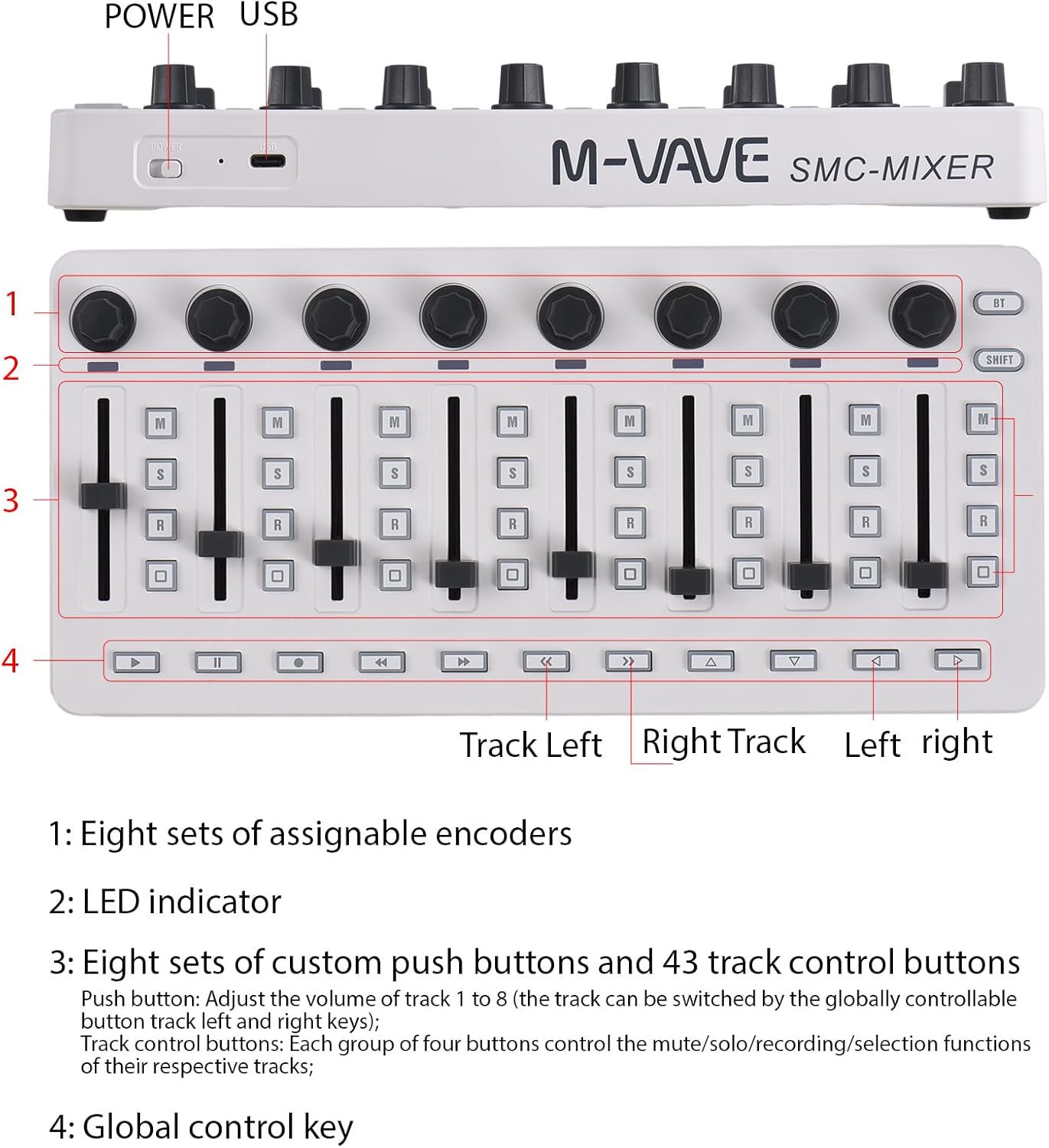
Image: Labeled diagram of the summina MIDI Mixing Console highlighting its controls.
Controls Overview
- Knobs (1): Eight sets of assignable 360-degree rotating encoders. These are typically used to manipulate pan settings for tracks 1 through 8. Use the Channel Left and Channel Right buttons to switch between tracks.
- LED Indicator (2): The LED will flash if the physical position of the faders does not align with the track volume in your software.
- Faders (3): Eight faders for manipulating the volume levels individually for tracks 1 through 8. Each group of four buttons below the faders controls the mute, solo, record, and selection functions for their respective tracks.
- Global Control Keys (4): These buttons control playback functions such as play, stop, record, rewind, and fast forward. They also allow switching between previous and next 8-track groups and provide directional navigation (up, down, left, right).
Mode Selection
To switch between DAW mode and User mode, hold down the Shift button and toggle between the Left and Right buttons. This allows for flexible configuration based on your workflow.
Maintenance
To ensure the longevity and optimal performance of your summina MIDI Mixing Console, follow these maintenance guidelines:
- Cleaning: Use a soft, dry cloth to clean the surface of the device. Avoid abrasive cleaners or solvents.
- Storage: Store the device in a cool, dry place away from direct sunlight and extreme temperatures.
- Battery Care: The device features a charging indicator. When the battery is in normal use, the indicator will be off. During charging, the indicator will be red and turn green once fully charged.
Troubleshooting
If you encounter issues with your summina MIDI Mixing Console, please refer to the following common troubleshooting steps:
- Device Not Recognized (USB): Ensure the USB-C cable is securely connected to both the console and your computer. Try a different USB port or cable. Verify that your DAW's MIDI settings are correctly configured to detect the device.
- Bluetooth Connectivity Issues: If the Bluetooth connection is unstable or frequently disconnects, ensure the device is within range of your computer/device and there are no significant obstructions. Some users have reported improved stability with a wired connection or by using the manufacturer's dedicated app (e.g., Cube Suite for M-VAVE branded devices, if applicable) for initial pairing.
- Fader/Knob Inaccuracy: If faders or knobs are jumping in value or not responding accurately, ensure the device's firmware is up to date. For some DAWs, recalibrating MIDI controllers within the software settings can resolve this.
- Buttons Not Responding: Check if the device is in the correct mode (DAW vs. User mode). Ensure the buttons are correctly mapped within your DAW's MIDI learn function.
Specifications
| Item Weight | 1.28 pounds |
| Product Dimensions | 4.7 x 10.1 x 0.9 inches |
| Hardware Platform | PC/Mac |
| Material Type | Plastic |
| Number of Keyboard Keys | 43 (assignable) |
| Mixer Channel Quantity | 1 |
| Compatible Devices | Computers with compatible OSs, devices with USB port, most electronic instruments |
| Connector Type | USB |
| Hardware Interface | USB |
| Supported Software | Ableton Live (and other DAWs) |

Image: Physical dimensions of the summina MIDI Mixing Console.
Warranty and Support
For warranty information or technical support, please refer to the documentation included in your product packaging or contact the seller directly. Keep your purchase receipt for any warranty claims.