
HEXEH TC55V
HEXEH TC55V USB Motion Controller User Manual
Model: TC55V | Brand: HEXEH
1. Product Introduction
The HEXEH TC55V is an advanced USB motion controller designed for precise control of servo and stepper motors in various applications, particularly for router systems. It is an upgraded version of the TC55, featuring enhanced capabilities and user-friendly design.

Figure 1.1: Front view of the HEXEH TC55V USB Motion Controller.
Key Features:
- Equipped with a 3.5-inch color screen for clear display.
- Supports Chinese/English language switching.
- USB connection for program and parameter download/upload.
- Highly reliable, accurate, and designed for low noise operation.
- Boot picture can be customized with pictures or company name.
- Robust housing for extended durability.
A Style vs. B Style Comparison:
The TC55V controller is available in two styles, A and B, which differ primarily in language support and program storage capacity.

Figure 1.2: Visual comparison and key differences between A style and B style controllers.
- A Style: Primarily the Chinese version. It is generally more cost-effective and can store up to 16 workpiece programs (16 files).
- B Style: The English version. This style is typically priced higher and can store up to 20 workpiece programs (20 files).
Aside from language and file storage capacity, both A and B styles share the same core functionalities and features.
Internal Components and Durability:
The TC55V controller is built with high-quality components and advanced manufacturing processes to ensure durability and reliable performance.

Figure 1.3: Exploded view illustrating the 3.5-inch color display, circuit protection, SMT placement, and high-quality components.
- 3.5 inch Color Display: Provides a clear and perfect visual interface.
- Circuit Protection: Designed to prevent damage to the controller.
- "SMT" Placement: Surface Mount Technology ensures a perfect product process.
- High Quality Components: Guarantees product durability and long life.
USB Connectivity and Button Lifespan:
The controller features a USB port for convenient data transfer and durable metal protection buttons.

Figure 1.4: Detail showing the USB analog serial port for program/parameter download/upload and the metal protection buttons with a 50,000 click lifespan.
The USB analog serial port allows for easy download and upload of programs and parameters, streamlining your workflow. The control buttons are designed with metal protection, ensuring a lifespan of up to 50,000 clicks for reliable long-term use.
2. Technical Specifications

Figure 2.1: Overview of the TC55V's technical specifications.
- Model: TC55V
- Minimum Data Unit: 0.001 mm
- Maximum Data Size: ± 99999.999 mm
- Maximum Speed: 9000 mm/min (pulse is 0.001mm)
- Maximum Pulse Output Frequency: 200 KHz
- Controlled Axes: Axis 1-4 (X, Y, Z, C)
- Interpolation: X, Y, Z, C axes can conduct linear interpolation; X, Y can perform circular interpolation.
- Electric Gear: Numerator: 1-99999, Denominator: 1-99999
- System Main Functions: Automatic, Manual, Program Editing, System Parameters, Self-check, Settings, etc.
- Maximum Commands per Program: 480 commands
- Connectivity: USB Connection for upgrade and data transfer.
- Spindle Control: Stop and Start of Spindle motor.
- Extensions: PLC Extension, I/O Extension.
- Input/Output:
- 16 channel 24V (photoelectric isolating) Input
- 8 channel 24V (Single channel 500mA) Output
- I/O Port: Self-defining I/O port.
- Panel Display: Chinese/English panel display.
- Item Weight: 3.31 pounds
- Package Dimensions: 1.18 x 0.79 x 0.39 inches
3. Setup and Connections
Proper connection of the TC55V controller is crucial for its functionality. Ensure all connections are secure and follow the diagrams below.
Overall Connection Diagram:
This diagram illustrates the various input, output, pulse, and power connections available on the controller.
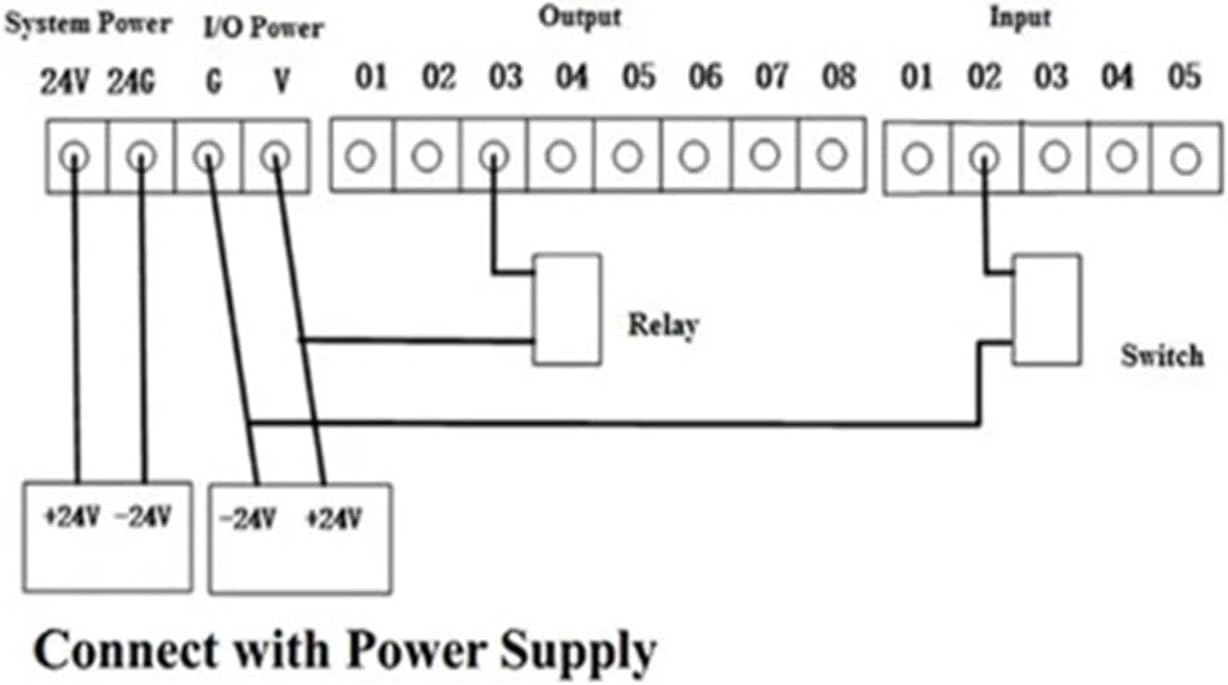
Figure 3.1: Comprehensive connection layout showing Pulse, Output, Input, I/O Extension, USB, System Power, I/O Power, and 485 terminals.
- Pulse/Encoder: Yd+, Yd-, Zp+, Zp-, Zd-, Cp+, Cp-, Cd+, Cd-.
- Output: 01-08.
- Input: 01-05 (top row), 16-06 (bottom row).
- USB: For program and parameter transfer.
- System Power: 24V, 0V.
- I/O Power: G, V.
- 485: R+, R-.
Connecting with Servo or Stepper Driver:
Connect the controller to your servo or stepper drivers using the designated pulse and direction terminals.

Figure 3.2: Wiring diagram for connecting the controller's pulse (PUL+, PUL-) and direction (DIR+, DIR-) outputs to a Stepper/Servo Driver.
Ensure correct polarity when connecting PUL+, PUL-, DIR+, DIR- from the controller to your driver.
Connecting with Power Supply:
The controller requires a stable power supply. Please note that the power supply to the controller should be above 24V 2.1A for optimal performance.
Figure 3.3: Wiring diagram for connecting the system power (24V, 24G) and I/O power (G, V) to the controller, including relay and switch connections.
Connect the +24V and -24V power sources to the designated System Power and I/O Power terminals as shown. Ensure proper grounding.
4. Programming Function Introduction
The TC55V controller supports various programming commands to define motion and control sequences. Below is an introduction to common programming codes and their interpretations.

Figure 4.1: Table outlining the programming codes and their functions.
| Programming Code | Interpretation |
|---|---|
| Incremental | Incremental Programming |
| Absolute | Absolute Programming |
| Pause | Pause unless certain condition is met, then skip to command called |
| Output | Define on and off of output port, ex. Stop and start of spindle motor |
| Repeat | Go back to command called and repeat |
| Clockwise | Clockwise circular interpolation (Incremental programming) |
| Counter-clockwise | Counter Clockwise interpolation (Incremental programming) |
| Delay | Define the time of delay |
| Judge | Judge if certain condition is met and skip to command called |
| More functions | Please read the manual |
For a complete list of programming functions and detailed usage instructions, refer to the full electronic manual.
5. Operation
The TC55V controller offers multiple modes of operation to suit various control needs. The system's main functions include:
- Automatic Mode: For executing pre-programmed sequences.
- Manual Mode: For direct control and jogging of axes.
- Program Editing: For creating, modifying, and managing control programs directly on the device.
- System Parameters: Access and adjust various system settings and configurations.
- Self-check: Built-in diagnostics to verify system integrity.
- Settings: General device settings, including language (Chinese/English) and boot screen customization.
Detailed instructions for navigating menus, creating programs, and operating in different modes are available in the comprehensive electronic manual.
6. Maintenance
To ensure the longevity and optimal performance of your HEXEH TC55V controller, follow these general maintenance guidelines:
- Cleanliness: Regularly clean the exterior of the controller with a soft, dry cloth. Avoid using harsh chemicals or abrasive materials.
- Power Supply: Always ensure the controller is powered by a stable supply above 24V 2.1A. Incorrect power can lead to damage.
- Environment: Operate the controller in a clean, dry environment, free from excessive dust, moisture, and extreme temperatures.
- Connections: Periodically check all cable connections to ensure they are secure and free from damage. Loose connections can cause erratic behavior.
- Firmware Updates: Check the manufacturer's website for any available firmware updates to ensure your controller has the latest features and bug fixes.
7. Troubleshooting
This section provides basic troubleshooting tips for common issues. For more complex problems, refer to the full electronic manual or contact customer support.
- Controller Not Powering On:
- Verify the power supply is connected correctly and providing the required voltage (above 24V 2.1A).
- Check the power cable for any damage.
- Axes Not Moving:
- Ensure all motor and driver connections are secure and correctly wired according to the diagrams in Section 3.
- Check if the controller is in the correct operating mode (e.g., Manual or Automatic with a loaded program).
- Verify that emergency stop buttons are not engaged.
- USB Connection Issues:
- Ensure the USB cable is properly connected to both the controller and the computer.
- Try a different USB port or cable.
- Unexpected Behavior:
- Perform a system self-check (if available in the menu).
- Review your programming code for errors.
- Consider resetting the controller to factory settings (consult the full manual for this procedure).
8. Warranty and Support
HEXEH is committed to providing high-quality products and customer satisfaction. While specific warranty details are not provided in this document, we offer dedicated support for our products.
If you encounter any questions or issues regarding your HEXEH TC55V USB Motion Controller, please do not hesitate to contact our customer service. We are here to assist you as soon as possible.
For the most up-to-date warranty information and detailed support options, please refer to the official HEXEH website or the purchase documentation.
Ask a question about this manual
Ask about setup, troubleshooting, compatibility, parts, safety, or missing instructions. Manuals+ will review the question and use this page’s manual context to help answer it.