
johgee
johgee Wi-Fi Irrigation Computer User Manual
Model: 622
1. Introduction
Thank you for choosing the johgee Wi-Fi Irrigation Computer. This intelligent watering system, equipped with a Wi-Fi hub, allows for convenient and automated garden irrigation control via a smartphone application, Alexa, or Google Assistant. This manual provides detailed instructions for installation, operation, and maintenance to ensure optimal performance and longevity of your device.
2. Package Contents
- johgee Wi-Fi Irrigation Computer (Water Timer)
- Wi-Fi Hub
- User Manual (this document)
- Necessary connectors/adapters

Image 2.1: Components of the johgee Wi-Fi Irrigation Computer system, including the water timer, Wi-Fi hub, and various connectors.
3. Safety Information
- Ensure the Wi-Fi hub is connected to a 2.4 GHz Wi-Fi network.
- The water timer is IPX5 waterproof, designed to resist splashes and light rain. Do not submerge the device in water.
- Operate within specified temperature and pressure ranges.
- Keep out of reach of children.
- Do not attempt to disassemble or repair the device yourself. Contact customer support for assistance.
4. Setup
4.1 Physical Installation
- Install Batteries: Open the battery compartment of the water timer and insert the required batteries (typically AA).
- Connect to Faucet: Securely attach the water timer to your outdoor faucet. Ensure a tight seal to prevent leaks.
- Connect Irrigation Hose: Attach your garden hose or irrigation system to the outlet of the water timer.
- Plug in Wi-Fi Hub: Plug the Wi-Fi hub into a standard power outlet indoors, within range of your Wi-Fi router and the water timer.

Image 4.1: Diagram showing the connection of the water timer to a faucet and the Wi-Fi hub plugged into an indoor outlet, illustrating the Bluetooth connection between them.
4.2 App Installation and Device Pairing
- Download App: Download the "Smart Life" or compatible smart home application from your device's app store (iOS/Android).
- Register/Log In: Create an account or log in to your existing account.
- Add Wi-Fi Hub: In the app, add the Wi-Fi hub as a new device. Follow the on-screen instructions to connect it to your 2.4 GHz Wi-Fi network.
- Add Water Timer: Once the hub is connected, add the water timer through the app. The app will guide you through the Bluetooth pairing process between the timer and the hub.
- Name Devices: Assign descriptive names to your hub and water timer for easy identification.

Image 4.2: Screenshot of the mobile application interface, demonstrating the scheduling options for irrigation.
5. Operating Instructions
5.1 Automatic Watering Modes
The system supports two primary automatic watering modes: Single Watering and Circular Watering. You can configure these through the mobile application.
- Single Watering Mode: Set a specific start time, water duration (from 1 second to 59 minutes and 59 seconds), and frequency (e.g., specific days of the week).
- Circular Watering Mode: Ideal for repetitive cycles. Define the start time, duration, and the interval between watering cycles.
5.2 Rain Delay Function
The smart irrigation system can automatically detect weather conditions and delay watering during rainy periods. You can also manually set a rain delay for 24, 48, or 72 hours via the app to prevent overwatering.

Image 5.1: App interface showing options for setting a rain delay, with visual indicators for days.
5.3 Manual Watering
For immediate or temporary watering needs, activate the manual watering function through the app. This allows you to start and stop watering on demand, overriding any scheduled programs.
5.4 Flexible Watering Modes (Irrigation vs. Spray)
The system offers flexible watering options to suit different plant needs. You can choose between "irrigation" (standard watering) or "spray" (mist mode) depending on your requirements. Up to 5 irrigation plans and 1 spray plan can be configured.

Image 5.2: Visual representation of the two watering modes: irrigation mode (left) and mist mode (right), as controlled via the app.
5.5 Voice Control Integration
The johgee Wi-Fi Irrigation Computer is compatible with Alexa and Google Assistant. After linking your device in the respective voice assistant app, you can use simple voice commands to control your watering system, such as "Alexa, open the Wi-Fi water timer" or "Hey Google, start watering the garden."
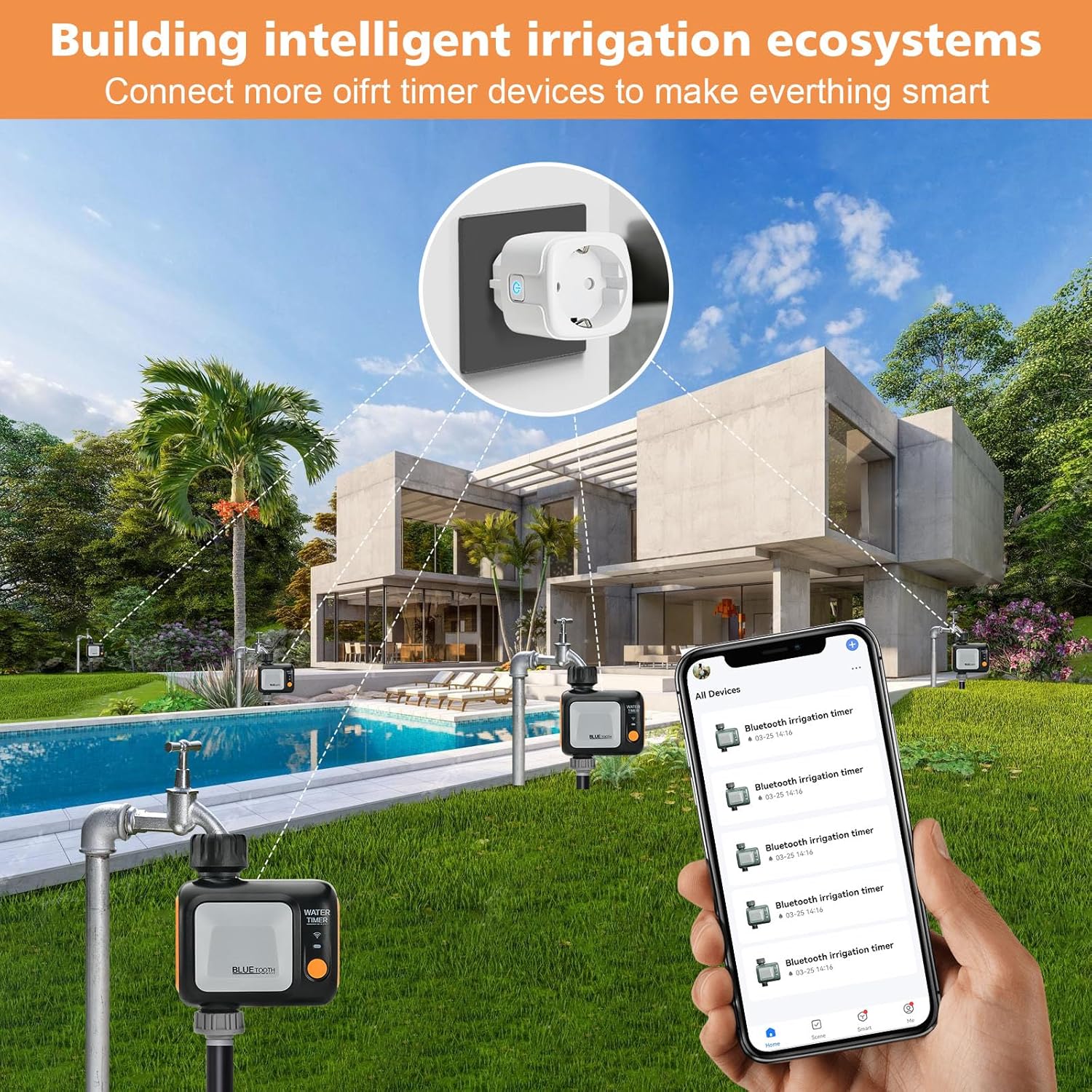
Image 5.3: Illustration of the water timer being controlled via voice commands through smart speakers, demonstrating compatibility with Alexa and Google Assistant.
6. Maintenance
- Battery Replacement: Replace batteries in the water timer when the low battery indicator appears in the app or on the device.
- Cleaning: Periodically clean the exterior of the water timer with a damp cloth. Do not use harsh chemicals.
- Winterization: In freezing temperatures, disconnect the water timer from the faucet and store it indoors to prevent damage from ice expansion.
- Check for Leaks: Regularly inspect connections for any leaks and tighten if necessary.
7. Troubleshooting
| Problem | Possible Cause | Solution |
|---|---|---|
| Device not connecting to app. | Incorrect Wi-Fi frequency (not 2.4 GHz), Wi-Fi hub out of range, Bluetooth pairing issue. | Ensure 2.4 GHz Wi-Fi. Move hub closer to router/timer. Re-pair devices in the app. |
| Water timer not watering. | Low batteries, faucet off, schedule not set, rain delay active. | Check/replace batteries. Ensure faucet is open. Verify schedule in app. Check for active rain delay. |
| Leaks at connections. | Loose connection, worn washer. | Tighten connections. Replace rubber washers if damaged. |
8. Specifications
- Brand: johgee
- Model Number: 622
- Color: Blue
- Material: Plastic
- Dimensions (L x W x H): 10.5 x 5 x 12.6 cm
- Weight: 450 grams
- Waterproof Rating: IPX5
- Connectivity: Wi-Fi (2.4 GHz via hub), Bluetooth (timer to hub)
- Control: Mobile App, Alexa, Google Assistant
9. Warranty and Support
For warranty information and technical support, please refer to the contact details provided with your purchase or visit the official johgee website. Keep your purchase receipt as proof of purchase for warranty claims.
Ask a question about this manual
Ask about setup, troubleshooting, compatibility, parts, safety, or missing instructions. Manuals+ will review the question and use this page’s manual context to help answer it.