
WAVLINK WL-NU516U1
WAVLINK Wireless Print Server User Manual
Model: WL-NU516U1
Brand: WAVLINK
1. Product Overview
The WAVLINK Wireless Print Server transforms a standard USB printer into a network-accessible printer, allowing multiple users to share printing capabilities across a network. It supports various connection modes and broad compatibility with different operating systems and printer types.

Image: Two views of the WAVLINK Wireless Print Server, highlighting its compact design.
This device is designed to simplify printer sharing in home, small office, or educational environments. It supports connecting up to four printers or storage devices via a USB hub, enhancing its utility beyond just printing.
2. Package Contents
Verify that all items are present in the package:
- 1 x WAVLINK Wireless USB Print Server (Model: WL-NU516U1)
- 1 x 5V/1A Power Adapter
- 1 x Ethernet Cable
- 1 x Micro USB Cable
3. Product Layout and Components
Familiarize yourself with the various ports, buttons, and indicators on the print server.

Image: Detailed product overview with labeled components.
- LED Indicators: Visually display the working status of the device. Includes SYS (System), BRIDGE, LAN, and WLAN indicators.
- WPS Button: Press for 6 seconds to pair with the router when in Wireless Repeater Mode.
- USB 2.0 Port: Connects to your USB printer or a USB hub for multiple devices.
- Micro USB Port (DC 5V IN): Power input for the device.
- Reset Button: Press for 6 seconds to reset the device to factory settings.
- BRIDGE Port (OUT): 10/100Mbps Ethernet port for bridging network connections.
- LAN Port (IN): 10/100Mbps Ethernet port for connecting to your local area network.
4. Installation Steps
Follow these steps to set up your WAVLINK Wireless Print Server:
- Connect the Power Adapter: Plug the 5V/1A power adapter into the Micro USB port (DC 5V IN) on the print server and then into a power outlet.
- Connect the Printer: Connect your USB printer to the USB 2.0 port on the print server using a USB cable. If connecting multiple printers or storage devices, use a USB hub connected to this port.
- Connect to Network:
- Wired Mode: Connect the LAN port of the print server to your router using the provided Ethernet cable.
- Wireless Mode: The print server will receive WiFi signals from your router. Ensure your computer is on the same network.
- Standalone Mode: The print server broadcasts its own signal. No connection to a superior router is necessary in this mode.
- Configure Printer and Network Settings: Access the web interface (www.usblogin.link) from a computer connected to the same network to configure the print server and add your printer. You will need to download and install your printer's driver from its official website on each computer that will use the shared printer.

Image: Visual representation of the installation process.
5. Operating Modes
The WAVLINK Wireless Print Server supports three distinct operating modes:
5.1 Wired Mode
In Wired Mode, the print server connects directly to your router via an Ethernet cable. This provides a stable and reliable connection for sharing your USB printer across the network.

Image: Setup for Wired Mode, showing Ethernet connection to the router.
5.2 Wireless Mode
In Wireless Mode, the print server connects to your existing 2.4G WiFi network. This allows computers on the same WiFi network to print wirelessly through the server, offering flexibility in placement.
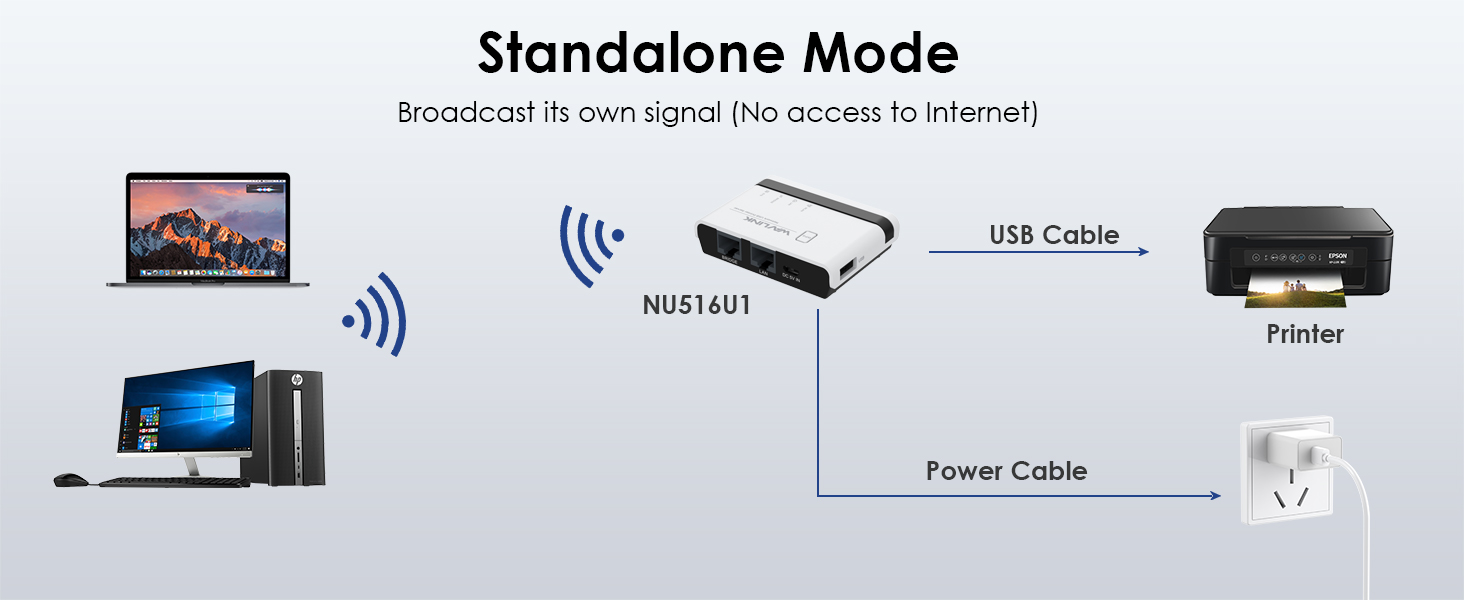
Image: Setup for Wireless Mode, showing WiFi connection to the router.
5.3 Standalone Mode
Standalone Mode enables the print server to function as a built-in repeater, broadcasting its own WiFi signal. This allows devices to connect directly to the print server's WiFi for printing, without needing an external router connection.

Image: Setup for Standalone Mode, showing direct WiFi connection to the print server.
6. Extended Connections
The WAVLINK Print Server offers enhanced versatility by supporting connections to multiple devices. With the use of a USB hub, you can connect up to four printers or storage devices simultaneously.

Image: Illustration of connecting multiple devices via a USB hub to the print server.
This feature is ideal for environments where multiple peripherals need to be shared among various users, such as small offices or educational settings. The high-speed USB 2.0 port (480Mbps) ensures efficient data transfer for printing and storage access.
7. Web Management
The WAVLINK Wireless Print Server features a centralized web management interface, accessible via www.usblogin.link. This interface allows for easy configuration of printer and network settings without the need for complex driver installations on the server itself.

Image: The web management interface for configuring the print server.
Through the web interface, users can manage connected printers, monitor status, and adjust network parameters. This simplifies the setup process and ongoing maintenance for shared printing resources.
8. Broad Compatibility
The WAVLINK Wireless Print Server is designed for wide compatibility with various printer types and operating systems, ensuring seamless integration into most existing setups.

Image: Compatibility chart for printers and operating systems.
8.1 Compatible Printers
- Ink-jet printers
- Laser printers
- Receipt printers
- Stylus printers
- Barcode printers
- Other RAW-protocol-supported printers
Note: This print server does not support the scan function of multi-function printers.
8.2 Compatible Operating Systems
- Windows 7/8/10/11/XP
- Mac OS
9. Troubleshooting
If you encounter issues with your WAVLINK Wireless Print Server, consider the following common solutions:
- Printer Not Detected:
- Ensure the printer is powered on and properly connected to the print server's USB port.
- Verify that the correct printer drivers are installed on your computer.
- Check the USB cable for damage and try a different cable if necessary.
- Cannot Access Web Interface:
- Confirm your computer is connected to the same network as the print server (either via the router in Wired/Wireless mode, or directly to the print server's WiFi in Standalone mode).
- Ensure you are using the correct address: www.usblogin.link.
- Temporarily disable any firewall or antivirus software that might be blocking access.
- Try resetting the print server by pressing the Reset button for 6 seconds.
- Printing Issues (Slow/Failed Prints):
- Check network connectivity between your computer, the print server, and the router.
- Ensure the print server has adequate power.
- If using a USB hub, ensure it is powered and functioning correctly.
- Restart the print server and the printer.
- Intermittent Connectivity:
- In Wireless Mode, ensure the print server is within good range of your WiFi router.
- Minimize interference from other electronic devices.
For further assistance, please refer to the official WAVLINK support resources or contact customer service.
10. Specifications
| Feature | Detail |
|---|---|
| Model | WL-NU516U1 |
| Brand | WAVLINK |
| Switch Type | Unmanaged, Fixed, Non-PoE |
| Product Dimensions | 2.95"L x 2.13"W x 0.71"H |
| Item Weight | 200 Grams (7.1 ounces) |
| Platform | Not Machine Specific |
| Voltage | 5 Volts |
| Case Material | Plastic |
| Interface Type | RJ45 (LAN, Bridge), USB 2.0 |
| Data Transfer Rate | 480 Mbps (USB 2.0), 100 Mbps (LAN/Bridge) |
| Number of Ports | 4 (USB hub support) |
| Color | White |
| Compatible Devices | Laptop, Desktop, various USB printers |
11. Warranty and Support
WAVLINK products are designed for reliability and performance. For information regarding product warranty, please refer to the warranty card included with your purchase or visit the official WAVLINK website.
For technical support, troubleshooting assistance, or any inquiries about your WAVLINK Wireless Print Server, please contact WAVLINK customer support through their official channels. Support contact information can typically be found on the product packaging, the official website, or within the product documentation.
It is recommended to keep your purchase receipt as proof of purchase for warranty claims.
Related documentsWL-NU516U1


Ask a question about this manual
Ask about setup, troubleshooting, compatibility, parts, safety, or missing instructions. Manuals+ will review the question and use this page’s manual context to help answer it.