
1. Introduction
Thank you for purchasing the X88 Tanix TX1 Android 10.0 TV Box. This device is designed to transform your television into a smart entertainment hub, offering access to a wide range of streaming content, applications, and media playback capabilities. Featuring Android 10.0 OS, a powerful Allwinner H313 Quad-core processor, 4K HDR support, and 2.4G WiFi, this TV box provides a stable and smooth user experience for movies, games, and more.

Image: The X88 Tanix TX1 Android TV Box and its accompanying infrared remote control.
2. Package Contents
Please check the box for the following items:
- 1 x TX1 TV Box
- 1 x US Power Supply (5V/2A)
- 1 x HD Cable
- 1 x IR Remote Control
- 1 x User Manual (this document)

Image: All components included in the product package: the TV box, remote control, power adapter, HDMI cable, and user manual.
3. Product Features
- Operating System: Android 10.0 ATV
- Processor: Allwinner H313 64-bit Quad-core ARM Cortex-A53 CPU
- Graphics: ARM G31 MP2 GPU
- Memory: 2GB RAM, 16GB eMMC ROM
- Connectivity: 2.4GHz WiFi (802.11 a/b/g), RJ45 LAN
- Video Output: HDTV 2.1 Dynamic HDR 4Kx2K@60 max resolution output
- Video Decoding: Supports AV1, VP9, H.265 HEVC, AVS2 up to 4Kx2K@60fps
- HDR Support: HDR10+, HDR10, HLG HDR processing
- Ports: 1x HDMI 2.1, 1x USB 2.0, 1x TF CARD slot (up to 32GB), 1x 3.5mm Phone out (CVBS&L/R output), 1x Optical, 1x RJ45 LAN, 1x DC 12V/1A
- Special Features: Netflix and Google Dual Certified, Google Assistant button on remote, Miracast, DLNA, Airplay support.

Image: The X88 Tanix TX1 TV Box and its remote, highlighting key specifications like Allwinner H616 CPU, Cortex A53, Mali G31 GPU, HEVC H.265, 4K 60fps, and 2.4G/5G WiFi.
4. Setup Guide
4.1 Connecting the TV Box
- Connect to TV: Use the provided HD Cable to connect the HDMI port on the TV Box to an HDMI input port on your television. For older TVs, use an AV cable (not included) to connect the 3.5mm AV output on the TV Box to the AV input on your TV.
- Connect Power: Plug the US Power Supply into the DC 12V/1A port on the TV Box, then plug the adapter into a wall outlet.
- Connect to Network (Optional): For a wired connection, connect an Ethernet cable from your router to the RJ45 LAN port on the TV Box. For wireless, you will configure Wi-Fi after initial boot-up.
- Connect USB Devices (Optional): You can connect a mouse, keyboard, or USB storage device to the USB 2.0 port.
- Insert TF Card (Optional): If using external storage, insert a TF (Micro SD) card into the TF CARD slot.

Image: The TV box can be connected to various TVs using either an HDMI cable for modern displays or an AV cable for older televisions.

Image: A detailed diagram illustrating the input/output ports of the TV box, including Power, HDMI, Ethernet, AV, USB 2.0, and Micro SD Card slots.
4.2 Initial Power On
After connecting all necessary cables, turn on your television and select the correct HDMI or AV input source. The TV Box will automatically power on (the LED indicator will change from red to white) and boot into the Android 10.0 interface. Follow any on-screen prompts for initial setup, such as language selection and network configuration.
5. Operating Instructions
5.1 Basic Navigation
Use the provided IR remote control to navigate the Android TV interface. The directional pad (up, down, left, right) and OK button are used for selection. The Home button returns to the main screen, and the Back button goes to the previous screen.
5.2 Wi-Fi Connection
- From the home screen, navigate to Settings.
- Select Network & Internet.
- Turn on Wi-Fi and select your desired network from the list.
- Enter the Wi-Fi password using the on-screen keyboard and select Connect.
5.3 Using Applications
The TV Box comes pre-installed with popular applications like Netflix, YouTube, and Google Play Store. You can access these directly from the home screen or the Apps section. The Google Assistant button on the remote allows for voice commands to open apps, search for content, or inquire about information.

Image: A family enjoying content displayed on a television screen, showcasing the Android 10 operating system interface of the TV box.
5.4 4K and 3D Functionality
The TX1 TV Box supports 4K Ultra HD video playback and 3D functionality. Ensure your television supports 4K resolution and that you are playing 4K content for the best visual experience. For 3D content, compatible 3D glasses and a 3D-enabled TV are required.

Image: The TV box connected to a large screen displaying high-definition content, emphasizing its HD 2.0 and 4K*2K display capabilities for Super HD video playback.
5.5 Screen Mirroring (Miracast, DLNA, Airplay)
The device supports various screen mirroring protocols, allowing you to cast content from your smartphone or tablet to your TV. Refer to your mobile device's casting settings for specific instructions on connecting via Miracast, DLNA, or Airplay.
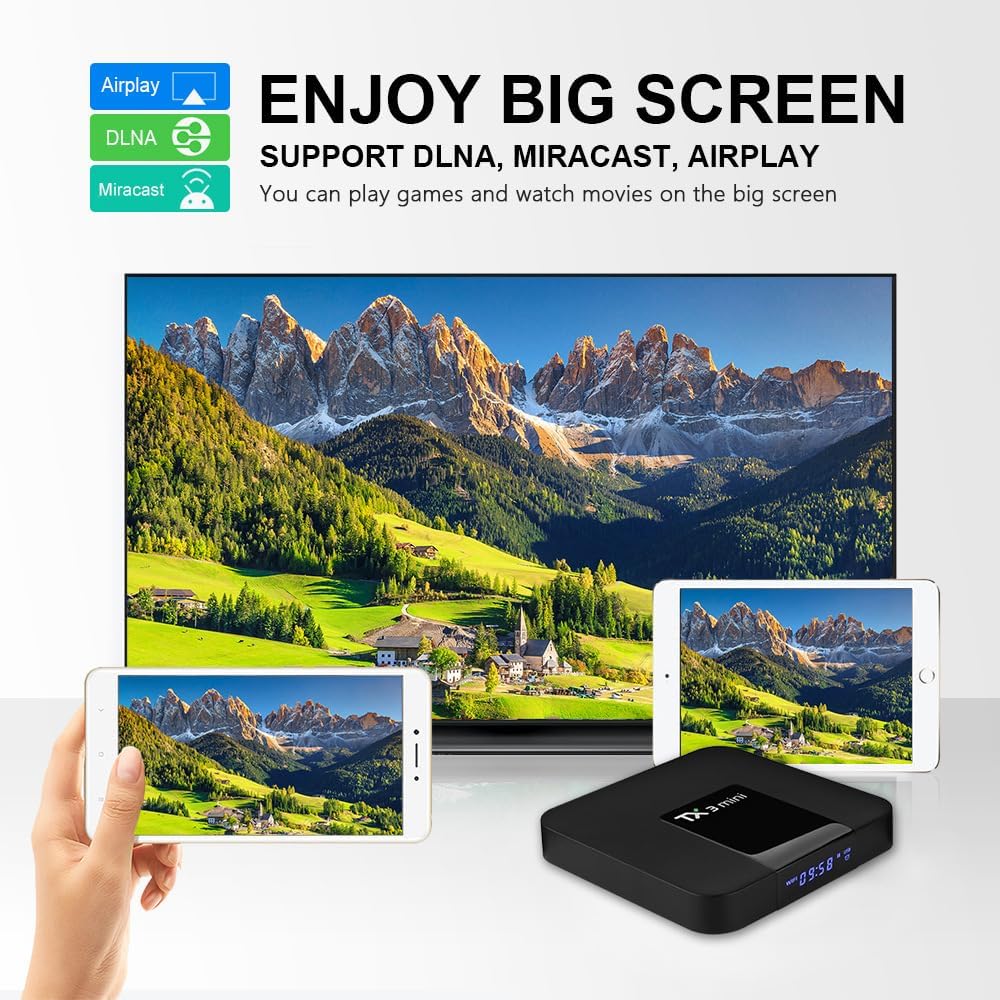
Image: Multiple mobile devices mirroring their screens to a large television, illustrating the support for DLNA, Miracast, and Airplay for a big screen experience.
6. Maintenance
- Cleaning: Use a soft, dry cloth to clean the surface of the TV Box. Do not use liquid cleaners or aerosols.
- Ventilation: Ensure the TV Box is placed in a well-ventilated area to prevent overheating. Do not block ventilation openings.
- Power Off: When not in use for extended periods, it is recommended to unplug the power adapter.
- Software Updates: Periodically check for system updates in the Settings menu to ensure optimal performance and access to the latest features.
7. Troubleshooting
- No Power: Ensure the power adapter is securely connected to the TV Box and a working power outlet. Check the LED indicator on the front of the box (red for standby, white for working).
- No Picture/Signal: Verify that the HDMI or AV cable is correctly connected to both the TV Box and the television. Ensure your TV is set to the correct input source (e.g., HDMI 1, AV).
- No Sound: Check the volume settings on both the TV Box and your television. Ensure audio cables (if using AV) are properly connected.
- Wi-Fi Connection Issues: Restart your router and the TV Box. Re-enter the Wi-Fi password in the network settings. Ensure the TV Box is within range of your Wi-Fi router.
- Remote Control Not Working: Check the batteries in the remote control and replace them if necessary. Ensure there are no obstructions between the remote and the TV Box's IR receiver.
- Apps Crashing/Slow Performance: Close background applications. Clear the cache of problematic apps in Settings > Apps. If issues persist, consider a factory reset (backup important data first).
8. Specifications
| Operating System | Android 10 ATV |
| CPU | Allwinner H313 64-bit Quad-core ARM Cortex-A53 |
| GPU | ARM G31 MP2 |
| RAM | 2GB |
| ROM | 16GB eMMC |
| WiFi | 2.4GHz 1T1R 802.11 a/b/g |
| LED Indicator | Red (standby), White (working) |
| DRM Support | Microsoft PlayReady, Google Widevine L1 |
| HDCP Support | HDCP2.2 |
| HDR Processing | HDR10+, HDR10, HLG |
| Video Decoder | AV1 MP-10@L5.1, VP9 Profile-2, H.265 HEVC MP-10@L5.1, AVS2-P2 (all up to 4Kx2K@60fps) |
| Ports | 1x HDTV 2.1, 1x USB 2.0, 1x TF CARD, 1x 3.5 Phone out CVBS&L/R, 1x Optical, 1x RJ45 LAN, 1x DC 12V/1A |
| Dimensions | 10.49 x 10.49 x 1.5 cm |
| Weight | 155 g |
9. Warranty and Support
This product is covered by a standard manufacturer's warranty. Please refer to the retailer's return policy or contact the seller for specific warranty terms and conditions. For technical support or further assistance, please reach out to the customer service provided by your point of purchase.