
1. Introduction
The BENEXMART ZML3 Matter Over WiFi RGBCW LED Strip Light Controller is designed to provide smart control over your LED strip lights. This device supports Matter over WiFi, allowing integration with various smart home ecosystems such as Amazon Alexa, Google Home, Apple Home, and SmartThings. It enables color, brightness, and color temperature adjustments for a personalized lighting experience.
2. Product Features
- Matter Over WiFi Control: Seamless integration with multiple smart home platforms (Alexa, Google Home, SmartThings, Apple Home) by scanning a QR code. A Matter-enabled hub is required and must be on the same local area network (LAN) as the configured WiFi network.
- App Control: Control the LED strip light controller individually or group devices within your Matter smart home app for dimmable LED light management.
- Voice Control: Compatible with Siri, Alexa, SmartThings, and Google Home for convenient voice-activated control of your lighting.
- Rainbow of Colors: Offers over 16 million dimmable colors with a color temperature range from 2700K to 6500K, allowing for mood-setting customization.
3. Package Contents
The package includes:
- 1 x BENEXMART ZML3 Matter LED Strip Light Controller
4. Specifications
| Feature | Detail |
|---|---|
| Model | ZML3 |
| Input Voltage | 12V/24V DC |
| Output Max | 5A*5CH (Max 25A) |
| Wireless Protocol | Matter over WiFi |
| Color Temperature | 2700K - 6500K |
| Light Color | Multicolor (RGBCW) |
| Indoor/Outdoor Usage | Indoor |
| Item Weight | 2.08 ounces |
| Package Dimensions | 3.43 x 1.97 x 1.14 inches |
5. Safety Information
- Always disconnect power before installing, cleaning, or performing maintenance on the device.
- This device is intended for indoor use only. Do not expose it to moisture, water, or extreme temperatures.
- Ensure that the power supply used is compatible with the controller's input voltage (12V/24V DC) and that the total wattage of the connected LED strip lights does not exceed the controller's maximum output (Max 25A).
- Do not attempt to disassemble or modify the device. This may void the warranty and pose safety risks.
- Keep out of reach of children.
6. Setup
Before installation, ensure you have the following:
- A Matter-enabled hub (e.g., Apple HomePod, Amazon Echo, Google Nest Hub) connected to your home network.
- A stable 2.4GHz WiFi network. The Matter-enabled hub and the controller must be on the same local area network (LAN).
- Compatible 12V/24V RGBCW LED strip lights and a suitable power supply.
7. Installation
- Disconnect Power: Always switch off the main power supply before making any electrical connections to prevent electric shock.
- Connect LED Strip: Connect the RGBCW wires from your LED strip to the corresponding output terminals (V+, W, C, B, G, R) on the Matter LED Strip Light Driver. Ensure correct polarity (V+ to V+, W to W, etc.).
- Connect Power Supply: Connect your 12V/24V DC power supply to the input terminals (V+, V-) on the controller.
- Secure Connections: Use a screwdriver to tighten all screw terminals, ensuring secure electrical connections for both the LED strip and the power supply.
For a visual guide on the installation process, please refer to the video below:
Video: Demonstrates the wiring process for the Matter LED Strip Light Driver, connecting the LED strip and power supply.
8. Pairing with a Matter-Enabled Hub
- Power On: After all connections are secure, plug in the power supply to turn on the controller.
- Reset (if needed): If the device does not automatically enter pairing mode, press and hold the 'RESET' button on the controller for 5-10 seconds until the indicator light flashes, indicating it is ready for pairing.
- Scan QR Code: Open your preferred Matter-enabled smart home app (e.g., Alexa, Google Home, SmartThings, Apple Home). Follow the app's instructions to add a new device and scan the Matter QR code located on the controller or in the included manual.
- Complete Setup: Follow the on-screen prompts in your app to complete the pairing process and assign the device to a room or group.
The image below illustrates the controller and the QR code for pairing:
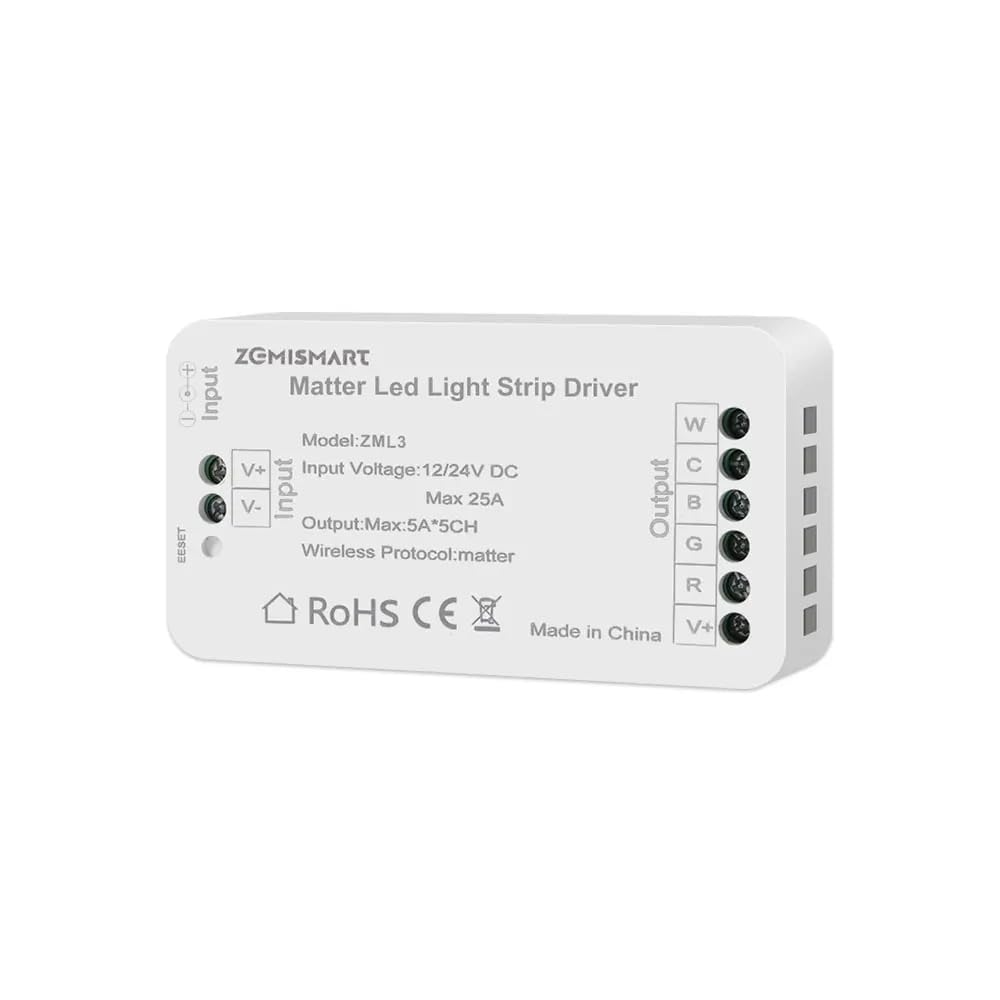
Image: BENEXMART ZML3 Matter LED Strip Light Controller showing the device and a smartphone scanning its Matter QR code for initial setup.
Watch this video for a demonstration of the pairing process:
Video: Shows the Matter LED Strip Light Controller being paired with a smart home app, including the reset process and successful connection.
9. Operation
Once paired, the BENEXMART ZML3 controller allows you to manage your LED strip lights through various methods, including mobile app control and voice commands.
10. App Control
Through your Matter-enabled smart home app, you can:
- Adjust Brightness: Control the light intensity from 1% to 100%.
- Change Colors: Select from over 16 million colors for RGB lighting.
- Adjust Color Temperature: Modify white light from warm (2700K) to cool (6500K).
- Create Scenes and Automations: Set custom lighting scenes or schedule lights to turn on/off at specific times.
The following images demonstrate app control functionalities:

Image: A smartphone displaying various smart home apps (Alexa, Google Home, SmartThings) used to control the LED strip light controller, showing options for device color and light color selection.

Image: A hand interacting with a smartphone app, demonstrating RGB color control for an LED strip light, with a color wheel and brightness slider visible.

Image: Two side-by-side images showing a room with LED strip lighting at 40% brightness and 100% brightness, illustrating the dimming capability.
11. Voice Control
The controller is compatible with various voice assistants. Examples of commands include:
- 'Alexa, turn on the LED strip.'
- 'Hey Google, set the LED strip to blue.'
- 'Hey Siri, dim the LED strip to 50%.'
- 'Hey SmartThings, change the LED strip to warm white.'
See the image below for an example of voice control in action:

Image: A person using voice commands with various smart speakers (Alexa, Google Home, Siri) to control an LED strip light, demonstrating hands-free operation.
12. Maintenance
- Keep the device clean and dry. Use a soft, dry cloth to wipe the surface. Avoid using harsh chemicals or abrasive cleaners.
- Regularly check all electrical connections for any signs of wear, corrosion, or loose wiring. Tighten connections if necessary.
- Ensure proper ventilation around the controller to prevent overheating.
13. Troubleshooting
- Device not pairing:
- Ensure your Matter-enabled hub and WiFi network are active and on the same local area network (LAN).
- Confirm the controller is powered on and its indicator light is flashing (pairing mode). If not, perform a reset by pressing the 'RESET' button for 5-10 seconds.
- Check if your smart home app is updated to the latest version.
- Some users have reported success by connecting to power and scanning the QR code without pressing the reset button initially.
- Lights not responding or disconnecting:
- Verify a stable 2.4GHz WiFi connection. Network blips can cause temporary disconnections.
- Check all power supply and LED strip connections.
- If using Apple HomeKit, ensure IPv6 is enabled on your local network.
- If the device frequently drops off the network, try repositioning the controller or hub to improve signal strength.
- Incorrect color or brightness:
- Ensure the LED strip is correctly wired to the controller's output terminals (RGBCW).
- Adjust settings through your smart home app.
- Lights turn on unexpectedly after power loss:
- This device may default to 'on' after a power cycle or network interruption. Check your smart home app for 'power-on behavior' settings, though some users report this setting may not always be respected by the device.
14. Warranty and Support
For detailed warranty information, technical support, or service inquiries, please refer to the manufacturer's official website or contact BENEXMART customer service directly. Please retain your purchase receipt as proof of purchase for any warranty claims.

