
Dosilkc DS-V12WP
Contents
Dosilkc 2K Dual Lens Outdoor Security Camera DS-V12WP User Manual
Model: DS-V12WP
1. Introduction
This manual provides detailed instructions for the installation, operation, and maintenance of your Dosilkc 2K Dual Lens Outdoor Security Camera, Model DS-V12WP. Please read this manual thoroughly before using the product to ensure proper functionality and safety.
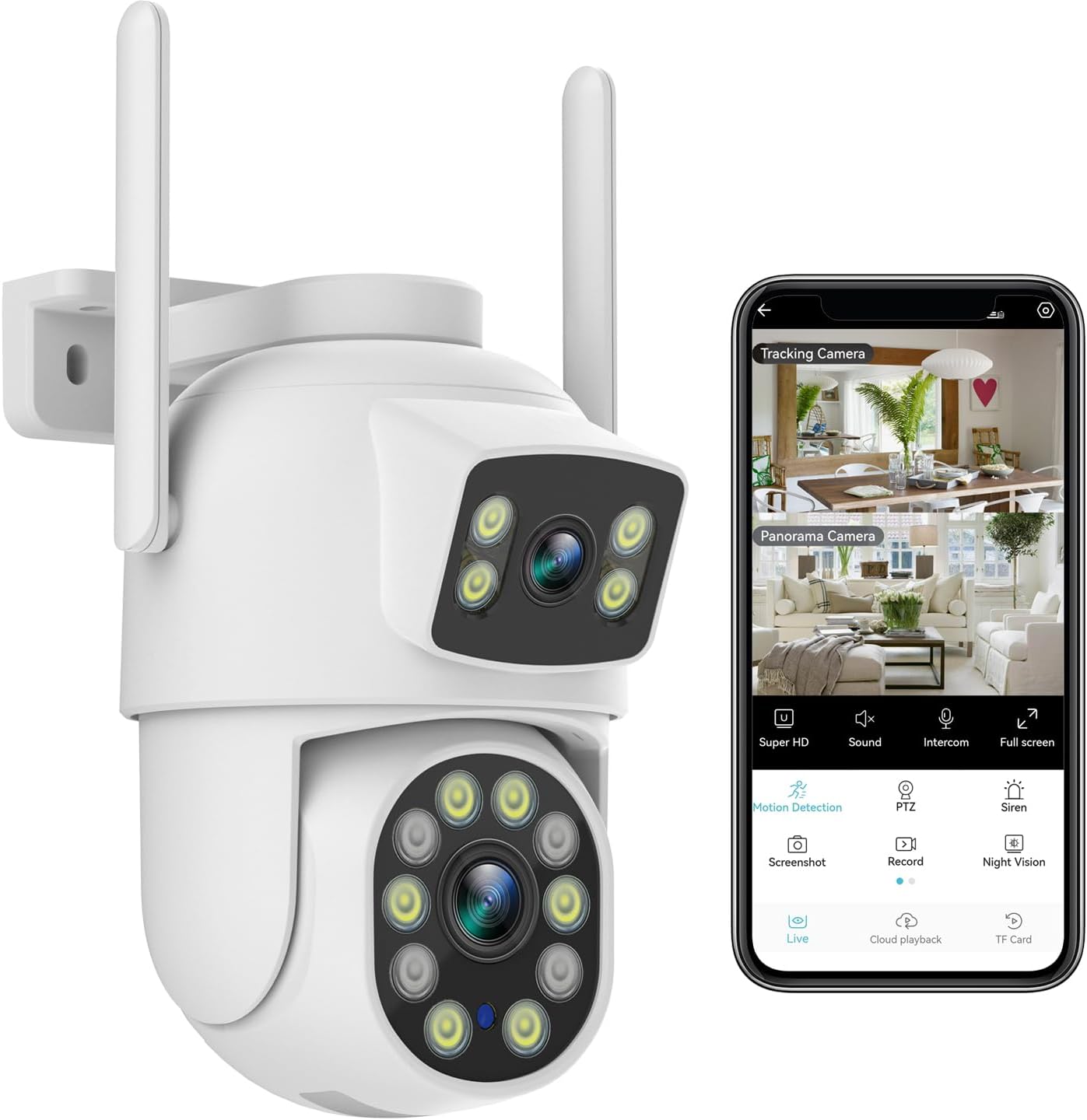
Image 1.1: Dosilkc 2K Dual Lens Outdoor Security Camera and its mobile application interface.
2. Package Contents
Verify that all items are present in the package:
- Dual lens camera
- 2.5 meter 12V Power Adapter
- User Manual (this document)
- LAN cable Waterproof Cover
- Screw Bag (for mounting)
3. Product Overview
Familiarize yourself with the main components of your security camera.

Image 3.1: Labeled diagram of the camera's external components.
- Antenna: For wireless network connectivity.
- White Light: Provides illumination for color night vision and deterrence.
- HP Lens (Upper): Fixed wide-angle lens (2.8mm).
- Infrared Lamp: For black-and-white night vision.
- HP Lens (Lower): Pan/Tilt lens (3.6mm) for tracking.
- Speaker: For two-way audio communication.
- Reset Button: Used to reset the camera to factory settings.
- SD Card Slot: For local video storage (supports up to 256GB, not included).
4. Setup and Installation
4.1 Mounting the Camera
The camera is designed for wall or ceiling mounting. Use the provided screw bag for secure installation.
- Choose a suitable location that provides the desired viewing angle and is within range of your Wi-Fi network or Ethernet connection.
- Drill pilot holes, insert wall anchors if necessary, and secure the mounting bracket.
- Attach the camera to the mounting bracket.
4.2 Network Connection
The camera supports both 2.4G Wi-Fi and wired LAN cable connections.

Image 4.1: Network connection options for the camera.
- Wireless Pairing (Wi-Fi):
- Download the recommended mobile application (refer to the packaging or quick start guide for app name).
- Power on the camera.
- Open the app and follow the on-screen instructions to add a new device.
- Select the wireless pairing option and connect to your 2.4G Wi-Fi network.
- LAN Cable Connection:
- Connect an Ethernet cable from your router to the camera's LAN port.
- Use the provided LAN cable waterproof cover to protect the connection if installed outdoors.
- Follow the app instructions to add the camera, which should be detected automatically via the wired connection.
5. Operating Instructions
5.1 Dual Lens and Dual Screen View
The camera features two lenses: a fixed wide-angle lens and a pan/tilt lens. This allows for a comprehensive 360° view with minimal blind spots.

Image 5.1: Dual screen view in the mobile application, showing both fixed and pan/tilt camera feeds.
In the mobile application, you can view both camera feeds simultaneously. Clicking on the fixed (bullet) screen will automatically position and rotate the pan/tilt (dome) screen to quickly locate and focus on the target area.
5.2 Pan, Tilt, and Digital Zoom
The lower lens offers flexible movement and zoom capabilities:
- Pan: 355° horizontal rotation.
- Tilt: 90° vertical rotation.
- Digital Zoom: 4X digital zoom to magnify details.

Image 5.2: Pan and tilt capabilities of the camera.
You can control these movements manually through the app or enable automatic tracking.
5.3 AI Human Detection and Tracking
The camera utilizes an AI algorithm for intelligent human detection and tracking.

Image 5.3: AI humanoid tracking in action.
- Detection Area: Customize the detection zone in the app to focus on specific areas and reduce false alarms.
- Sensitivity: Adjust detection sensitivity to suit your environment.
- Automatic Tracking: When a person is detected, the camera will automatically track their movement and send real-time video/snapshots to your mobile phone.
- Pre-positions and Cruise: Set up to 5 pre-defined positions for quick viewing of important monitoring areas. The camera can be configured to cruise through these pre-positions. If a guard position is set, the camera will return to it after completing a cruise.
5.4 Night Vision
The camera offers both color and infrared night vision modes.

Image 5.4: Full color night vision capability.
- Equipped with white lamps and infrared lamps.
- The camera automatically switches between day and night modes via an IR-cut filter.
- In low light, it can provide black-and-white infrared vision up to 98ft (30 meters).
- When motion is detected, the white lights can activate to provide full-color night vision and act as a deterrent.
5.5 Two-Way Audio
The built-in microphone and speaker enable two-way communication.

Image 5.5: Two-way audio feature for communication.
You can speak through the camera and hear audio from the camera's location directly through the mobile application.
5.6 Local Storage and Compatibility
- SD Card Slot: Supports a Micro SD card up to 256GB for local video recording (SD card not included).
- Compression: Uses H.265/H.264 compression for efficient storage and compatibility.
- ONVIF Protocol: Supports ONVIF protocol, allowing connection to compatible NVRs (e.g., Hikvision, Dahua) and third-party software (e.g., iSpy, Blue Iris, LMS, ivms).
- Alexa Integration: Can be paired with Amazon Alexa for voice control and smart home integration.
6. Maintenance
6.1 Weather Resistance
The camera has an IP66 international protection rating, indicating it is waterproof and suitable for outdoor use.

Image 6.1: Camera demonstrating its waterproof capabilities.
6.2 Cleaning
To ensure optimal performance, periodically clean the camera lenses and housing with a soft, damp cloth. Avoid using harsh chemicals or abrasive materials that could damage the surface or lenses.
7. Troubleshooting
- Camera not connecting to Wi-Fi:
- Ensure your Wi-Fi network is 2.4Ghz. The camera does not support 5Ghz Wi-Fi.
- Verify the Wi-Fi signal strength at the camera's location.
- Confirm the Wi-Fi password is entered correctly in the app.
- Try resetting the camera using the reset button and re-pairing.
- If possible, try a wired LAN connection to rule out Wi-Fi issues.
- Poor image quality or blurry night vision:
- Clean the camera lenses to remove any dirt or smudges.
- Ensure there are no obstructions directly in front of the camera, especially at night, which could reflect infrared light.
- Check the camera's resolution settings in the app.
- Motion detection not working or too many false alarms:
- Adjust the detection sensitivity in the app.
- Define or refine the detection area to exclude irrelevant zones (e.g., busy public roads, swaying trees).
- Ensure AI human detection is enabled if you only want to detect people.
- Two-way audio issues:
- Check the volume settings on your phone and in the camera app.
- Ensure there is no excessive background noise interfering with the microphone.
- Verify the camera's speaker and microphone are not obstructed.
- SD card not recording:
- Ensure the SD card is correctly inserted.
- Check if the SD card is formatted correctly (usually FAT32) and recognized by the camera in the app.
- Verify that recording settings (e.g., continuous, motion-triggered) are configured in the app.
- The camera supports up to 256GB. Ensure your card is within this limit.
8. Specifications
| Feature | Specification |
|---|---|
| Model Number | DS-V12WP |
| Video Capture Resolution | 3 MP (per lens, total 6MP effective) |
| Connectivity Technology | Ethernet, Wireless (2.4G Wi-Fi) |
| Pan/Tilt Range | 355° Horizontal, 90° Vertical |
| Night Vision Range | Up to 30 Meters (98ft) |
| Digital Zoom | 4X |
| Audio | Two-Way Audio (Built-in Microphone & Speaker) |
| Local Storage | Micro SD Card (up to 256GB, not included) |
| Power Source | Corded Electric (12V) |
| Water Resistance Level | IP66 (Waterproof) |
| Compatible Devices | Digital Video Recorder, Phone APP, Amazon Alexa |
| Mounting Type | Wall Mount |
| Dimensions (L x W x H) | 6 x 4 x 4 inches |
| Item Weight | 1.3 pounds |
| Material | Plastic |
| Frame Rate | 15fps |
| Control Method | App |
| Photo Sensor Technology | CMOS |
9. Warranty and Support
9.1 Product Warranty
Please refer to the product packaging or the seller's website for specific warranty information regarding your Dosilkc security camera. Standard warranty terms typically cover manufacturing defects for a specified period from the date of purchase.
9.2 Extended Protection Plans
Extended protection plans may be available for purchase separately to provide additional coverage beyond the standard warranty period. These plans often cover accidental damage and extended mechanical failures.
- 2-Year Protection Plan
- 3-Year Protection Plan
- Complete Protect (monthly subscription covering multiple eligible purchases)
9.3 Customer Support
For technical assistance, troubleshooting, or warranty claims, please contact Dosilkc customer support through the contact information provided on the official Dosilkc website or your purchase platform. When contacting support, please have your product model number (DS-V12WP) and proof of purchase readily available.
Documents and downloads
Ask a question about this manual
Ask about setup, troubleshooting, compatibility, parts, safety, or missing instructions. Manuals+ will review the question and use this page’s manual context to help answer it.