
1. Introduction
This manual provides instructions for the installation, operation, and maintenance of your EsaSam Double Din Car Stereo Multimedia Radio. Please read this manual thoroughly before use to ensure proper functionality and to prevent damage.
2. Product Overview
The EsaSam Double Din Car Stereo is an advanced multimedia system designed for Audi A6, S6, and RS6 models from 1997 to 2006. It features a 9-inch touchscreen display, GPS navigation, and supports various multimedia functions.
Key Features:
- Android 11 Operating System
- 9-inch Capacitive Multi-Touch Screen (1024*600 resolution)
- Built-in GPS Navigation (supports online and offline maps)
- Wireless Carplay and Android Auto support
- Bluetooth 4.0 for hands-free calls and audio streaming
- FM/AM/RDS Radio
- Built-in Wi-Fi and 4G LTE support (SIM card slot for 4G)
- Steering Wheel Control compatibility
- Support for AHD Rear View Camera (included)
- DSP (Digital Sound Processor)
- Multi-language support

Figure 2.1: Comparison of the car dashboard before and after installation of the EsaSam Double Din Car Stereo. The top image shows the new stereo installed, while the bottom left shows the original setup and the bottom right shows the new stereo installed.
3. Setup and Installation
Professional installation is recommended. Ensure the vehicle's power is disconnected before beginning installation.
3.1 Pre-Installation Check:
Verify the shape and style of your vehicle's OEM unit matches the product's design for proper fitment in Audi A6 S6 RS6 1997~2006 models.
3.2 Wiring Diagram:
Refer to the included wiring diagram for correct connections.

Figure 3.1: Detailed view of the various cables and connectors included with the car stereo, such as RCA cables, GPS antenna, 4G antenna, and power harnesses. This image also shows the connection points on the back of the head unit.
3.3 Mounting:
Securely mount the head unit into the double din slot of your vehicle's dashboard.
3.4 Initial Power-Up:
After installation, reconnect the vehicle's power and turn on the unit.

Figure 3.2: This image illustrates initial setup steps, including connecting the wiring harness, accessing device sound settings, and confirming the cooling fan operation. It also highlights support for 5GHz WiFi and 4G LTE connectivity with a SIM card slot.
4. Operating Instructions
4.1 Touchscreen Interface:
The unit features a responsive capacitive multi-touch screen. Navigate by tapping, swiping, and pinching.
4.2 System Settings:
Access system settings to configure Wi-Fi, Bluetooth, display, sound, and other preferences.
4.3 Navigation:
The built-in GPS supports online and offline maps. Connect to Wi-Fi to download offline maps.
Figure 4.1: Screenshot of the GPS navigation interface showing a map with route information. The image also indicates support for GPS, BDS, and GLONASS satellite systems.
4.4 Radio (FM/AM/RDS):
Use the radio application to scan for stations, save favorites, and access RDS information.
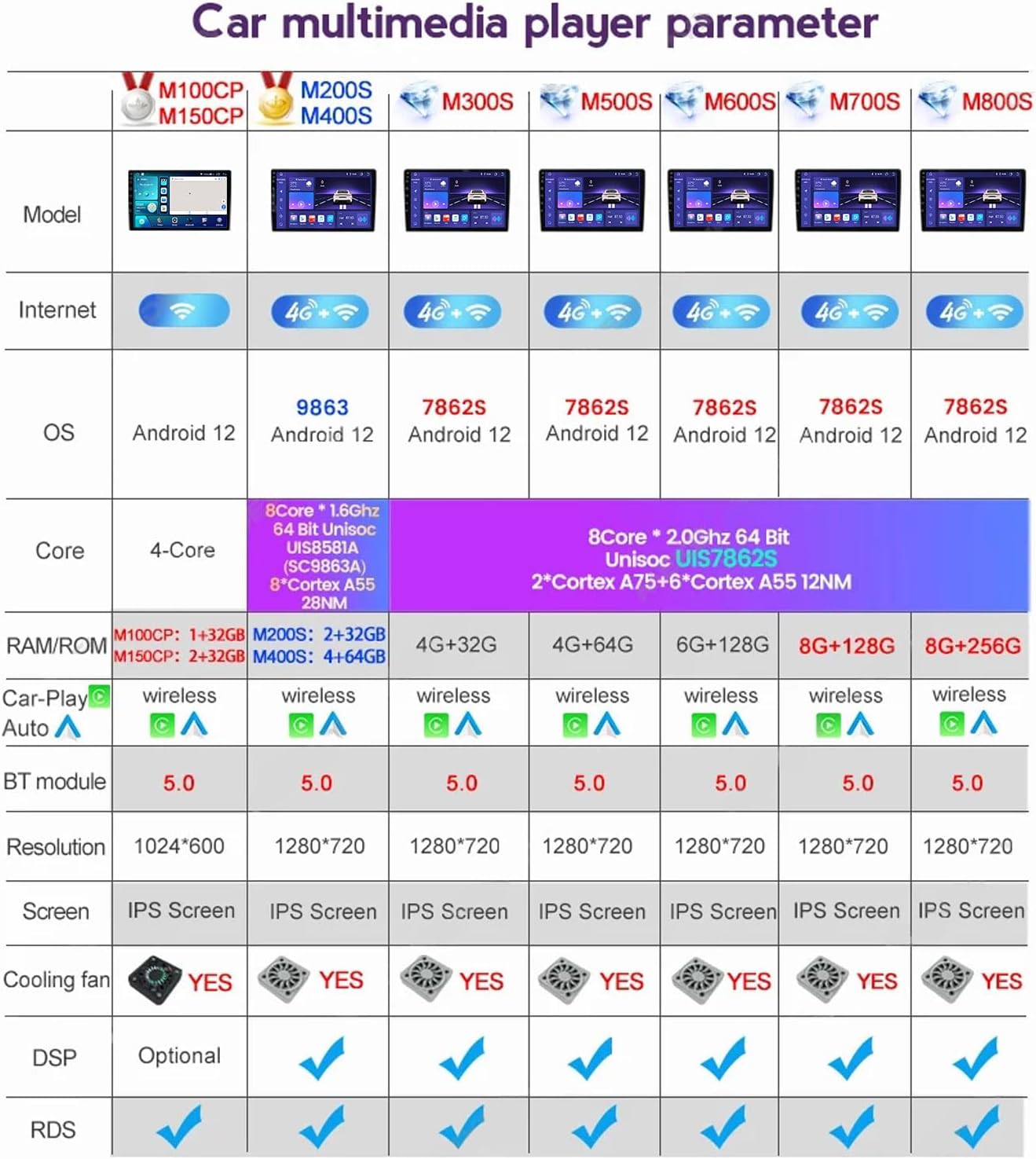
Figure 4.2: Screenshot of the FM/AM radio interface, displaying current frequency and saved stations. It also mentions support for DAB+ (optional, requires additional purchase).
4.5 Bluetooth Connectivity:
Pair your mobile phone via Bluetooth 4.0 for hands-free calling and audio streaming.
Figure 4.3: Illustrates the Bluetooth function, showing how to make hands-free calls, sync contacts, and stream music. It emphasizes safety by avoiding phone handling while driving.
4.6 Carplay / Android Auto:
Connect your smartphone for seamless integration of Carplay or Android Auto features.
Figure 4.4: Screenshots demonstrating the Carplay and Android Auto interfaces, showing app icons and connection steps for both wireless and wired connections.
4.7 Steering Wheel Control:
Configure the unit to work with your vehicle's original steering wheel controls. Access system settings and follow the on-screen instructions to learn or configure the CANBUS protocol.
Figure 4.5: Image showing a hand interacting with steering wheel controls, with a display showing music playback. It highlights the safety aspect of controlling media without taking hands off the wheel.
4.8 Rear View Camera:
The included AHD rear view camera provides a clear image when reversing.
Figure 4.6: Visual representation of the AHD reversing camera view on the screen, showing a clear image of the area behind the vehicle. It also includes a diagram of camera placement.
4.9 Split Screen Function:
The unit supports split-screen functionality, allowing two applications to be displayed simultaneously.
Figure 4.7: Screenshot of the split-screen feature, showing a navigation map on one side and a music player on the other, demonstrating simultaneous application usage.
4.10 Day/Night UI Switching:
The user interface automatically switches between day and night modes for optimal visibility.
Figure 4.8: Comparison of the user interface in day mode (brighter) and night mode (darker) for improved visibility under different lighting conditions.
5. Specifications
| Feature | Description |
|---|---|
| Operating System | Android 11 |
| Screen Size | 9 Inch |
| Screen Resolution | 1024*600 (or higher), 1280*720 (for some models) |
| Processor | 4-core (m150s) |
| RAM | 2GB (m150s) |
| ROM | 32GB (m150s) |
| Bluetooth | Version 4.0 |
| Wi-Fi | Built-in, supports 5GHz (802.11 b/g/n) |
| 4G LTE | Supported (requires SIM card) |
| GPS | Built-in, supports online/offline maps (GPS, BDS, GLONASS) |
| Radio | FM/AM/RDS |
| Audio Output | Subwoofer audio output, various sound effects |
| Video Format | Support HD 1080P |
| Connectivity | Bluetooth, USB, Wi-Fi |
| Human Interface Input | Microphone, Touchscreen |
| Compatible Flash Memory Type | SD |
| Vehicle Service Type | Car (Audi A6 S6 RS6 1997~2006) |
Figure 5.1: A detailed table comparing various models (M100CP, M150CP, M200S, M300S, M500S, M600S, M700S, M800S) of the car multimedia player, outlining their internet connectivity, OS, core processor, RAM/ROM, Carplay/Android Auto support, BT module version, resolution, screen type, cooling fan presence, DSP, and RDS features.
6. Troubleshooting
6.1 Common Issues and Solutions:
No Power:
Check all power connections and fuses. Ensure the vehicle's battery is charged.
No Sound:
Verify speaker connections. Check volume levels and audio settings. Ensure mute is not activated.
GPS Signal Loss:
Ensure the GPS antenna is properly connected and has a clear view of the sky.
Bluetooth Pairing Issues:
Ensure Bluetooth is enabled on both the stereo and your mobile device. Delete previous pairings and try again.
Steering Wheel Controls Not Working:
Access system settings and re-configure the steering wheel control learning function.
Unit Freezes or Responds Slowly:
Perform a soft reset (refer to the device's reset button location, if available). If issues persist, consider a factory reset (note: this will erase all user data).
Factory Passwords:
- For models M100S~M150S: 8888
- For models M200S~M800S: 3368
6.2 Optional Accessories (Troubleshooting):
ADAS DVR (Not Included):
If using an optional ADAS DVR, ensure it is correctly installed and configured according to its separate manual.

Figure 6.1: Illustrates the functionality of an optional ADAS DVR, showing features like anti-collision warning, lane deviation warning, and front distance warning. Note that this accessory is not included with the main unit.
OBD II (Not Included):
For optional OBD II functionality, ensure the OBD II adapter is connected and the corresponding app is installed and configured.
Figure 6.2: Shows an OBD II scanner connected to a vehicle's diagnostic port and its interface on the car stereo screen, displaying vehicle data. The image clarifies that the OBD II device is not included.
TPMS (Not Included):
If using an optional TPMS, ensure sensors are correctly installed and paired with the unit.
Figure 6.3: Depicts the Tire Pressure Monitoring System (TPMS) interface on the car stereo, showing tire pressure and temperature data. It also illustrates external and built-in TPMS sensor types, noting that TPMS is not included.
7. Maintenance
7.1 Cleaning:
Use a soft, dry cloth to clean the screen and exterior. Avoid abrasive cleaners or solvents.
7.2 Software Updates:
Periodically check for software updates to ensure optimal performance and access to new features. Updates can typically be found on the manufacturer's website or through the unit's system settings (if available).
7.3 Environmental Conditions:
Avoid exposing the unit to extreme temperatures, direct sunlight for prolonged periods, or excessive moisture.
8. Warranty and Support
This product comes with a standard manufacturer's warranty. For specific warranty details, please refer to the documentation included with your purchase or contact EsaSam customer support.
For technical assistance or support, please visit the EsaSam official website or contact their customer service department.
Please have your product model number (4 core m150s 2g+32g) and purchase information ready when contacting support.